
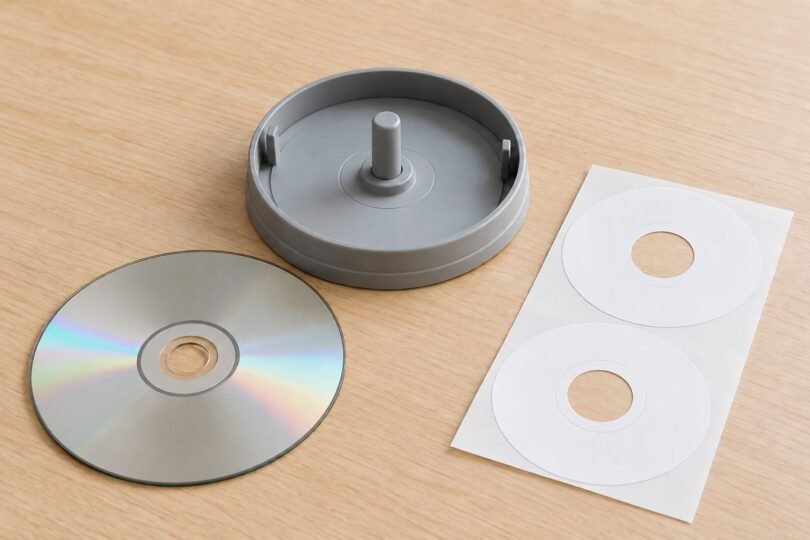

A CD label applicator centers a preprinted adhesive label on a disc. It does not print artwork, burn files or turn an ordinary disc into inkjet-printable media. The right purchase depends on three separate things: whether your disc and drive allow adhesive labels, whether the label fits the applicator, and whether the sheet matches your printer and design template.
For a new setup, choose a documented label-and-applicator system only after those compatibility checks. If you already own an Avery applicator, verify the exact replacement sheets before ordering: Avery says its applicator is discontinued and warns that future labels may not remain compatible. A used tool with the right brand name is not enough to establish a working combination.
First check whether you should put a label on the disc
Read both the media instructions and the manual for every drive or player that will receive the disc. Some equipment expressly excludes labeled discs. For example, the Verbatim External Slimline optical-drive guide warns against attaching stickers or labels to CD, DVD and Blu-ray media because of possible read/write errors and disc damage. The label supplier’s compatibility claims cannot override your drive’s restrictions.
Disc type matters, too. Avery’s CD Stomper guidance says to use that product on CDs only and recommends DVD-specific labels for DVDs. Do not treat every round paper label as interchangeable across CDs, DVDs and Blu-ray discs. If compatibility is unclear, label the storage case instead, or investigate direct-print media that your equipment supports.
For material you want to preserve, the Canadian Conservation Institute advises against adhesive CD labels, citing imbalance and possible separation of the disc’s thin layers. Accurate centering does not eliminate every risk. Do not try to improve an old labeled CD by peeling the label off; removing it can damage those layers.
Applicator, label kit or disc printer?
| Item | What it does | What else you need |
|---|---|---|
| Manual applicator | Positions and presses an adhesive label onto a disc | Matching labels, a suitable sheet printer and permitted disc/drive combination |
| Label-and-applicator kit | Combines a centering tool with a specified supply of labels | Supported templates and a printer compatible with the sheets |
| Printable label sheets | Provide the adhesive paper or film you print | A compatible application method; the pack may contain no applicator |
| Direct-disc printer | Prints onto a specially prepared disc surface | Supported printable discs, the correct tray and printer software |
| Blank recordable discs | Store the files, music or video | A compatible recording drive; a blank disc is not necessarily printable |
For occasional organization, a case insert may solve the problem without any disc-labeling hardware. For repeated artwork production, compare the total workflow: sheets, ink, setup time, replacement supplies and rejected prints. A low-cost applicator is poor value if the only sheets you can obtain do not fit it.
Documented options and systems to consider
Lorenz Bell LB6082-4: a matched kit to investigate
The Lorenz Bell CD&DVD Labels Plus Opaque kit specifies one FLASHSTICK PLUS applicator and 100 white labels on 50 A4 sheets. Its labels have a 117 mm outside diameter and 17 mm inside diameter, permanent adhesive and an opaque backing. The manufacturer lists inkjet, laser and copier use and provides an LB6082-4 template link.
This is a useful starting point when you want the tool and labels specified together rather than assembled from unrelated listings. Check supplier availability in your region, A4 printer support and the disc/drive restrictions first. An official catalog entry documents the system; it does not establish local stock or approval for your particular DVD player.
Avery 5699: most relevant to an existing setup
Avery still publishes 5699 application instructions, but its discontinuation notice makes this an existing-equipment or carefully checked secondhand option. Ask a seller for the model, included parts and photos of the actual unit. Do not assume a pack of Avery labels includes the plastic tool.
Two currently documented supplies illustrate why the product number matters: Avery 8692 is a matte-white inkjet pack containing 40 CD labels and 80 spine labels; Avery 8960 is a matte-white full-face pack with the same counts and laser/inkjet compatibility. Neither description alone settles backward compatibility with a particular old applicator.
Hama 00050165: check every adapter on a used kit
The Hama 00050165 manual describes separate setups for 22 mm and 41 mm label openings. The larger opening requires removal of the center section and installation of the supplied adapter ring. Its instructions cover 12 cm and 8 cm discs. This is a documented legacy example, not a claim of current retail availability. A missing ring or holder can make an apparently complete secondhand purchase unsuitable for your labels.
Match the dimensions before buying
There are several measurements to check, and they describe different things:
- Disc diameter: confirm whether the applicator supports your standard or smaller disc.
- Label outside diameter: it must stay within the allowed labeling area. Avery’s cited CD products use a 4-5/8-inch diameter; the Lorenz Bell kit specifies 117 mm.
- Label opening: this is the cutout in the sticker, not the hole in the disc itself. A small-opening full-face label may require a different centering arrangement.
- Sheet dimensions and layout: A4 and US Letter are different. Two labels per sheet does not establish identical spacing or margins.
- Printer compatibility: use inkjet-only material only in its supported printer type; check the exact package rather than transferring specifications from another finish.
Use the template for the exact product number. Avery provides separate pages for template 8692 and template 8960. Where a manufacturer confirms shared templates, follow that documented compatibility list. Otherwise, do not infer a match from a similarly sized circle.
Print and apply with fewer alignment mistakes
- Make a plain-paper proof. Check the print against the label sheet before using adhesive stock. Neato’s template instructions recommend checking alignment against the light and turning borderless printing off. Use the correct paper size and avoid unintended scaling.
- Confirm the layout family. Neato lists Standard, Standard Complete, Full Coverage, Full Coverage Complete and 3 Up layouts. Choose the one that matches the actual sheets, not just the brand.
- Prepare the correct tool setup. Fit every required adapter and follow that applicator’s instructions. Do not trim an incompatible label or improvise a spacer.
- Use the specified orientation. For Avery’s 5699, the printed label goes adhesive-side up around the raised spindle; the disc goes data-side up before pressing. Other designs can use a different sequence.
- Inspect the result before playback. Stop if the label is off-center, wrinkled, lifting or overhanging. Do not put an obviously defective assembly into a drive.
Avery also documents a jewel-case alignment method for suitable sheets with corner guides. The placement differs for standard and slimline cases. That method is worth checking before buying a discontinued applicator, but it applies to the documented guide-equipped labels rather than every generic sheet.
When direct printing is the better route
Direct printing removes the separate adhesive-label step, but it needs compatible equipment and media. Epson’s Stylus Photo R280 instructions, for example, specify inkjet-printable discs and exclude thermal-printable and ordinary discs. They also require an appropriate printable-area setting and drying time. Those are model-specific instructions, not settings to copy to every printer.
If you already own a disc-capable printer, check its manual and tray before ordering media. If you do not, a printer purchase is a much larger commitment than a centering tool. For a handful of discs, clear case labeling may be the simplest option. For an adhesive-label project, buy only after the exact labels, applicator parts, template, printer and playback equipment have all been checked.


