
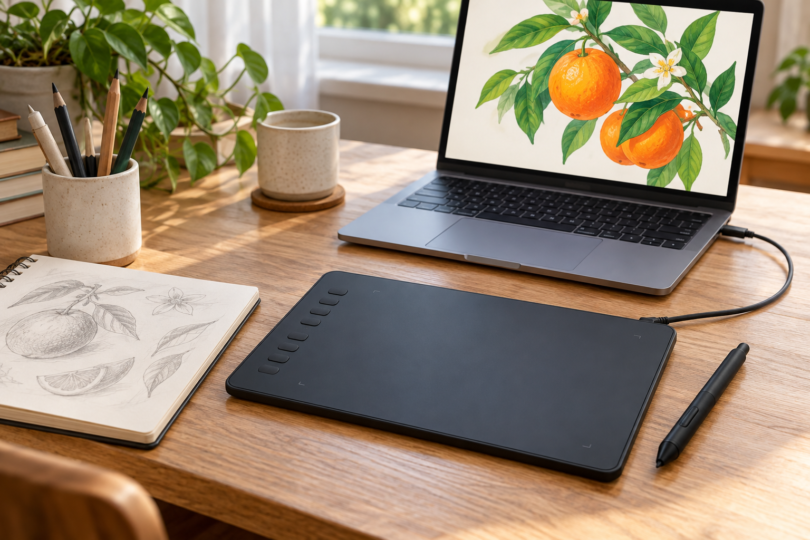

For an inexpensive drawing tablet, start by choosing the feature that matters most: a larger drawing area or more flexible controls. The XPPen Deco 01 V3 is our pick for drawing space, while the Huion Inspiroy 2 M stands out for its scroller and shortcut groups. Both are screenless pen tablets that connect to another device. You view your work on that device’s screen.
These two budget candidates were selected from manufacturer documentation and exact product listings. This is a feature comparison, not a hands-on test or a claim that either is the cheapest tablet available. Prices, bundles and delivery options change, so compare the complete cost for your setup before ordering.
Two inexpensive drawing tablets compared
| Exact option | Active area | Controls | Best fit | Main limitation |
|---|---|---|---|---|
| XPPen Deco 01 V3, black, DECO01V3-BLACK | 10 × 6.25 inches | Eight programmable shortcut keys | More room for broad strokes | Wired USB; no built-in screen or scroller |
| Huion Inspiroy 2 M, black | 8.7 × 5.4 inches | Eight keys, three group keys and a scroller | Frequent zoom, brush-size and shortcut changes | Smaller active area; no Bluetooth |
XPPen Deco 01 V3: best for drawing space
The black Deco 01 V3 is a good starting point if you want room to draw without adding a separate pen display. Its 10 × 6.25-inch active area is larger than the Inspiroy 2 M’s, and the tablet has eight programmable keys. The included battery-free stylus supports 16,384 pressure levels and up to 60-degree tilt. Look for the V3 model specifically; the older Deco 01 V2 shares a similar name.

XPPen Deco 01 V3 Pen Tablet, Black, DECO01V3-BLACK
As an Amazon Associate we earn from qualifying purchases.
Pros: Its main value is the combination of drawing space, a supplied pen and shortcut keys. The active area suits people who want to make broader movements, and the tablet is 8 mm thick. It connects through USB, so there is no wireless pairing step. The pen does not need charging.
Cons: You need space for the larger pad and must look at your host screen while drawing. There is no wheel like the Huion’s scroller. The higher pressure-level number is a specification, not evidence that it draws twice as well as an 8,192-level tablet; brush settings, driver behavior and your technique still matter.
The documentation lists a stylus, stand, USB cable, adapter, protective film, glove and replacement nibs. The manufacturer and retailer disagree on the nib count, and the retailer’s connection wording is inconsistent about the supplied cable. Check the exact box contents and your host’s ports before buying an adapter. Do not base the choice on an assumed bonus-software license or accessory count.
Huion Inspiroy 2 M: best for shortcut controls
Choose the medium Inspiroy 2 if you would trade some drawing space for a scroller and more shortcut assignments. Its 8.7 × 5.4-inch active area sits in a 306 × 180 mm body. It includes the battery-free PW110 pen, with 8,192 pressure levels and up to 60-degree tilt. This comparison uses the black M version; the S and L sizes have different layouts or dimensions.

Pros: Three group keys switch the eight shortcut keys between groups, providing up to 24 assignments. The scroller can be set in Huion’s driver to functions such as zoom, brush size and scrolling. If you change those settings often, these controls may be more useful to you than the Deco’s extra drawing space.
Cons: It is a wired tablet with no Bluetooth, and its active area is smaller than the Deco’s. Shortcut customization depends on the driver and host system. It also takes some practice to draw on a blank pad while watching a separate screen, so a low hardware cost is only useful if that workflow suits you.
Huion lists a tablet, pen, holder, nibs and USB cable in its manual; the current FAQ also lists an OTG adapter. Verify that the supplied cable and adapter match the computer or phone you intend to use. The tablet’s USB-C socket does not guarantee that every cable with a USB-C plug will work as intended.
Compatibility checks that matter on a budget
XPPen’s Deco 01 V3 product page lists Windows 7 or later, macOS 10.13 or later, Android 10 or later, ChromeOS 88 or later and specified Linux systems. The same page recommends Windows 11 or macOS 12 for its software guidance, so an old minimum is not a promise about a current app. Match your OS to the model’s driver download and check your drawing application’s requirements separately. The product page warns that foldable smartphones are not compatible and some foldable or detachable Chromebooks may have mapping problems.
Huion’s Inspiroy 2 FAQ lists Windows 7 or later, macOS 10.12 or later, ChromeOS 88 or later and Android 6.0 or later, with OTG required for Android connections. Its current FAQ names Ubuntu 24.04 LTS, while its product page still names Ubuntu 20.04 LTS. Confirm the current driver for your exact Linux distribution rather than treating “Linux” as a blanket promise. Use Huion’s download center to check the correct model and OS.
On a computer, install the model’s driver and check pressure in both the driver and your drawing app. Huion documents Windows Ink support for programs including Photoshop CC. Adobe nevertheless says it does not test or officially support non-Wacom third-party tablets, so Photoshop users should verify their specific setup with the tablet maker. Neither a pressure-level count nor a broad software list guarantees every brush, shortcut or feature.
Phone and Chromebook support can differ from a Windows or Mac workflow. For Deco 01 V3 on Android, XPPen recommends its Tools app for mapping the drawing area to the phone’s aspect ratio. For Inspiroy 2, make sure the Android device supports OTG. If your intended host is an iPad, do not assume Mac compatibility covers iPadOS; confirm an explicitly supported device-and-app combination before choosing either tablet.
How to get good value
Choose the Deco 01 V3 for its larger active area, or the Inspiroy 2 M if the scroller and shortcut groups are likely to earn their place on your desk. Measure the space beside your keyboard and think about whether you draw mainly with short wrist movements or broader arm movements. The most useful size is the one you can position comfortably and control consistently.
Set a total budget that includes the tablet, any necessary cable or adapter, your drawing software and a compatible host device. Check the current seller’s price and return policy. A pen display adds a screen but may still require a computer; a standalone drawing tablet includes the computer and operating system. Neither of the two products here is standalone.
Frequently asked questions
Can I draw without a computer?
You need a supported host device. Both models offer Android connections under the conditions above, but neither runs drawing software by itself. Check the phone, adapter, app and mapping support before buying specifically for mobile use.
Will I see the picture on the tablet?
No. These are screenless input tablets. Your strokes appear on the connected device’s display. Choose a pen display or standalone drawing tablet if drawing directly on the visible picture is essential to you.
Is 16,384 pressure levels twice as good as 8,192?
The numbers describe supported pressure levels, not a measured improvement in drawing quality. Both models support pressure-sensitive input and tilt; the application, brush settings and driver must use those capabilities. Prefer useful drawing space and controls over buying on the pressure number alone.
Do I need to buy a pen separately?
No, the compared packages include a battery-free pen. Replacement pens are model-specific, so check the manufacturer’s compatibility information rather than buying a generic touchscreen stylus. Also check nib and cable contents in the exact listing you select.
Which should a beginner choose?
Start with Deco 01 V3 if a larger drawing surface is the priority. Choose Inspiroy 2 M if a smaller footprint and physical scroller better match your setup. In either case, confirm the host and app first, then compare the current complete purchase cost.


