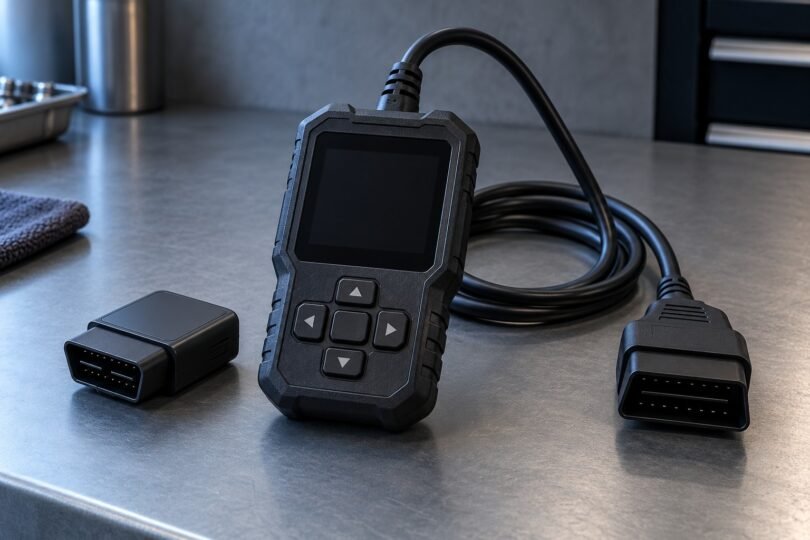

A useful OBD-II scanner with live data should show the parameters your vehicle actually supports, make changes over time easy to follow, and let you save information before clearing anything. Choose the required data first. Then decide whether a self-contained handheld or a phone-connected adapter suits the way you work.
For basic engine and emissions data without a phone, the FOXWELL NT301 is a straightforward option to investigate. BlueDriver Pro combines a dedicated mobile app with vehicle-dependent enhanced code coverage. OBDLink MX+ is worth considering for configurable dashboards, logging and supported manufacturer-specific data. None should be bought on an assumption of universal access to every vehicle system.
Quick shortlist by use case
- Handheld engine-data reader: FOXWELL NT301, for supported generic OBD-II information on its own screen.
- Phone-based reader with guided reports: BlueDriver Pro LSB2, after checking the vehicle’s supported live parameters and enhanced codes.
- Flexible mobile logging and selected enhanced data: OBDLink MX+, with its included app and a separate check of OEM live-parameter coverage.
What “live data” does and does not mean
Generic OBD-II live data consists of supported parameter IDs, usually called PIDs. Depending on the vehicle, examples include engine speed, coolant temperature, throttle position, fuel trims, intake-air readings and oxygen-sensor information. The scanner requests what the vehicle makes available; it does not add missing sensors or guarantee every PID in a menu will return a value.
BlueDriver’s live-data guide explicitly describes standard OBD-II data and warns that support varies by vehicle year and model. That is a useful distinction when comparing marketing claims. An enhanced ABS-code feature does not automatically mean the app can graph individual wheel speeds. Likewise, access to transmission codes does not establish access to transmission-fluid temperature.
Keep three functions separate: live data is the current reported information; freeze-frame data is a saved snapshot associated with a fault; readiness status records whether applicable emissions monitors have completed their checks. Each answers a different question, and none by itself proves that the vehicle is mechanically sound.
Three scanner options and their boundaries
FOXWELL NT301: a self-contained OBD-II reader
The NT301 provides a wired connection and its own display, so ordinary use does not depend on a phone’s battery, Bluetooth pairing or mobile operating system. FOXWELL’s product information documents live-data graphing, freeze-frame information and readiness checks. Its linked manual also describes selecting, recording and playing back supported PID data.
Choose it when the task is understanding check-engine information and comparing supported engine readings. Treat it as an OBD-II/EOBD code reader; do not infer complete ABS, airbag, body-module or manufacturer-enhanced live-data access from “professional” or “enhanced” wording in a listing.
Check the current computer requirements if you intend to update the tool or transfer saved information. Standalone scanning and desktop software support are different compatibility questions. FOXWELL advertises free lifetime updates for this model, but verify the seller’s exact NT301 version rather than assuming another similarly named scanner has identical coverage.

FOXWELL NT301 wired OBD-II code reader
As an Amazon Associate we earn from qualifying purchases.
BlueDriver Pro LSB2: a dedicated phone-and-adapter system
BlueDriver Pro pairs its sensor with the BlueDriver app for iPhone or Android. The manufacturer advertises no subscription or in-app add-on charges for this product. Its Pro compatibility checker separates vehicle support and live parameters, making that a better starting point than a broad list of supported brands.
Use the standard live-data list to understand the readings, then check your exact vehicle. Enhanced code reading remains a separate capability. Do not buy it for an unconfirmed wheel-speed, battery-cell or transmission-temperature stream just because the relevant module appears in the code-coverage list.
BlueDriver’s device-support page currently lists iOS 13 or newer and Android 8.0 or newer. Confirm that the current app installs on your device before purchasing; Bluetooth hardware is required, and some Android vehicle head units may not pair. The card here identifies the Pro LSB2 listing, not the separate Next-Gen product.

OBDLink MX+: configurable logging with coverage to verify
OBDLink MX+ supports iOS, Android and Windows, all legislated OBD-II protocols, and the additional Ford MS-CAN and GM SW-CAN networks. Hardware network support is useful, but the chosen application still determines which functions and parameters are available.
The included OBDLink mobile app offers configurable gauges, live graphs and CSV logs. Supported enhanced OEM add-ons are included with MX+. Other OBDLink adapters can have different add-on costs and network limitations, so compare the exact adapter rather than the brand name.
Before buying for a particular reading, inspect the current coverage chart linked from OBDLink’s enhanced-diagnostics instructions. OEM trouble-code coverage and OEM live-parameter coverage are separate checks. The company notes that these add-ons primarily cover North American vehicles. Third-party apps have their own compatibility, licenses and paid features; an included OBDLink add-on does not grant every feature in another app.
Check vehicle protocols and phone compatibility
The familiar diagnostic socket is only one part of compatibility. Confirm the vehicle’s market, model year, engine and OBD-II or EOBD compliance. Do not apply a U.S.-market coverage statement automatically to an imported vehicle, a heavy-duty truck or a battery-electric vehicle.
Common legislated protocol families include ISO 15765-4 CAN, ISO 9141-2, ISO 14230-4 and SAE J1850 PWM/VPW. OBDLink’s adapter comparison shows why checking the exact hardware matters: different models do not support all the same networks. A newer-looking adapter is not automatically better for an older vehicle.
For a wireless choice, verify the entire combination: vehicle, adapter, app and operating system. “Bluetooth” alone does not promise iPhone compatibility. Also distinguish a Windows program from the mobile app, and check whether the export or graphing feature you want exists on your platform. For a wired handheld, check any computer-dependent update or print functions separately.
Features that make live data easier to use
- A custom PID list: focus on the few relevant readings rather than an overwhelming screen of unrelated values.
- Readable graphs: check whether units, scale and timestamps are clear, and whether multiple readings can be compared.
- Recording and export: decide whether you need replay on the tool, a saved report or a CSV file for later analysis.
- Clear unsupported-data handling: an unavailable value should not be mistaken for a genuine zero or a failed component.
- Documented software costs: check required subscriptions, renewal terms, manufacturer packs and whether useful features remain available without paying again.
Do not rank tools solely by advertised refresh speed. The vehicle, protocol, selected data and software can all affect the resulting display. A useful comparison asks whether you can capture and interpret the particular change you care about, rather than assuming a headline speed applies to every car.
A sensible first live-data session
Read the scanner and vehicle instructions before connecting. Secure the vehicle, keep cables clear of pedals and moving parts, and never operate the scanner while driving. If the engine must run, work outdoors away from enclosed spaces and keep clear of hot components. Follow the specified ignition and engine state for the function.
Save the existing codes and freeze-frame information first. Then select a small set of supported readings relevant to the symptom. Record the units and conditions, such as a cold start or warmed-up idle, so later comparisons have context. Do not deliberately reproduce a dangerous fault to collect a better graph.
A surprising number is a clue to investigate. Check the correct sensor, bank, units and operating conditions against vehicle service information before concluding that a part has failed. A code description or suggested repair report can help organize that investigation, but it is not a confirmed diagnosis.
Clearing codes does not fix a fault or prove readiness
Clearing engine codes can remove useful diagnostic history and reset emissions self-tests, as BlueDriver explains. An extinguished check-engine light immediately afterward does not demonstrate that the fault is repaired or that the vehicle is ready for an inspection.
Keep the original report, address the cause and follow the vehicle’s repair-verification procedure. Check readiness again afterward and consult the inspection program that applies locally. Permanent diagnostic codes, where supported, are not erased by a normal scan-tool clear command; the vehicle must satisfy its own verification conditions.
Bottom line
Buy for the data you can verify. Choose the NT301 for a phone-free generic OBD-II workflow, BlueDriver Pro for its dedicated app and confirmed vehicle coverage, or MX+ when its documented logging and supported enhanced data match your needs. An explicit answer about one required PID is more valuable than an impressive but vague “all systems” claim.