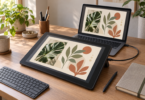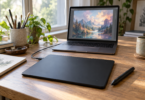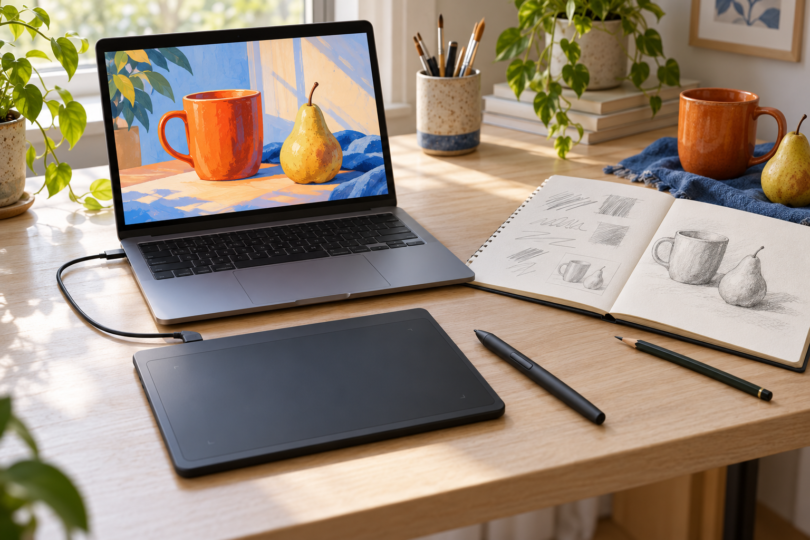

The best digital art tablet for beginners depends first on where your drawing software will run. If you already have a suitable computer, a screenless pen tablet lets you draw while watching its monitor. A pen display puts the image under your pen but still needs that computer. A standalone tablet runs its own apps.
These three picks cover those different starting points. Choose by workspace, software and the complete setup you need, rather than treating a larger pressure-level number as a guarantee of better artwork.
Compare the three beginner setups
| Pick | Best fit | What else you need | Main compromise |
|---|---|---|---|
| One by Wacom Small, CTL472K1A | A simple screenless start with an existing computer | Compatible host, drawing app and Wacom driver on Windows or Mac; USB-C adapter if needed | No screen, finger touch, tilt or Bluetooth |
| Wacom One 13 touch, DTH134 | Drawing on a screen with desktop software | Compatible host, driver, app, exact pen and suitable video/data/power connections | More equipment to configure; eStore base omits pen and cables |
| Samsung Galaxy Tab S10 FE, 128GB Wi-Fi | Drawing without a separate computer | Android drawing app and suitable charger; S Pen is included | Mobile app licensing and features can differ from desktop versions |
1. One by Wacom Small: a straightforward screenless starting point
Choose the CTL472K1A if you already own a compatible computer and want to learn pen input without adding another display. You move the pen on the pad and see the result on your monitor. That hand-and-eye separation takes practice, but it also keeps your hand from covering the picture.
The Small model has a 6.0 by 3.7-inch active drawing area; the often-advertised 8.3 by 5.7 inches describes the whole tablet. Wacom supplies the battery-free LP-190K pen, with 2,048 pressure levels, plus a Micro-USB-to-USB-A cable and replacement nibs. There are no tablet shortcut keys or finger-touch gestures. The pen does not support tilt, so choose brushes that use pressure rather than expecting angle-controlled shading. See Wacom’s model specifications and its detailed pen specifications.
This is a wired peripheral, not a standalone Android tablet or an iPad accessory. Use the supplied USB cable, allow for a suitable adapter on a USB-C-only computer, and check the current Wacom driver requirements before buying. The product also supports compatible Chromebooks without installing a Wacom driver, but your chosen Chromebook app must support the drawing features you need.
- Why choose it: the pen and USB cable are included, and the small pad leaves room for a keyboard and sketchbook.
- Think twice if: you want to draw directly on an image, make broad arm movements or use tilt-sensitive brushes.
- Software cost: the official Krita download offers a free desktop painting option, subject to its system requirements. Optional paid store editions help fund development. Bundled promotional app trials are not permanent licenses.
Check One by Wacom Small details with Wacom. The exact Amazon listing checked did not expose a complete selected new-offer purchase form, so this pick uses a manufacturer information link.
2. Wacom One 13 touch: for learning with desktop art software
The DTH134 is a 13.3-inch, 1920 by 1080 pen display. It shows the work from a connected computer, letting you place the pen directly over the image. It also has genuine ten-finger touch. This makes it a different product from the screenless One by Wacom above and from other similarly named Wacom One models.
Its matching Wacom One Standard Pen, CP92303B2Z, supports 4,096 pressure levels and 60-degree tilt. Wacom documents palm rejection when the pen is detected; available gestures and brush behavior still depend on the host, software and settings. The pen is battery-free. Check the DTH134 specifications and package choices rather than assuming any Wacom pen will work.
For a Windows or Mac drawing setup, budget for the compatible computer, current driver and app as well as the display. A suitable USB-C connection must carry video, data and enough power. With other ports, Wacom’s connection guide describes a three-in-one cable using HDMI, USB-A and power. A charging-only USB-C cable is insufficient. Verify your computer’s ports against the model-specific connection instructions.
- Why choose it: on-screen drawing, tilt support and finger gestures while using compatible desktop applications.
- Think twice if: you want a self-contained tablet for the sofa or travel; this display needs a host and cables.
- Check the package: Wacom’s configurable eStore base does not include the pen, cables or power adapter. Select each required component or verify an explicitly complete bundle. A pen pictured beside the screen does not establish box contents.
Review Wacom One 13 touch configurations. An exact Amazon offer was not established for this model, so the manufacturer route is used here.
3. Samsung Galaxy Tab S10 FE: for a standalone start
The US Gray 128GB Wi-Fi model, SM-X520NZANXAR, combines the screen, computer and pen in one setup. Its 10.9-inch LCD has a 2304 by 1440 resolution and up to a 90Hz refresh rate; this configuration has 8GB of RAM. The included S Pen removes a separate pen purchase from your initial checklist.

Samsung Galaxy Tab S10 FE 10.9-inch, 128GB Wi-Fi, Gray, S Pen included
As an Amazon Associate we earn from qualifying purchases.
The included FE S Pen belongs to the EJ-PX510 family, with pressure and tilt support. It does not need charging and does not provide Bluetooth Air actions. Buy a replacement specifically listed for the S10 FE rather than assuming every Samsung pen is equivalent. Samsung’s S10 FE feature guide and FE S Pen documentation explain these distinctions.
You can draw directly on the touchscreen without an external host, but app choice matters. Palm handling and finger gestures depend on the app and its settings; don’t assume every app will ignore every accidental touch. Use a pen-aware drawing mode and check touch settings before settling into a project. Samsung’s manual also cautions that very sharp pen angles and magnetic accessories can affect pen recognition.
- Why choose it: a self-contained Android drawing device with the matching pen in the box.
- Think twice if: your course requires a particular Windows or Mac application. Android editions can have different features and licenses.
- Extra costs and limits: a wall charger is separate. Paid apps or subscriptions may add to the total. The S10 FE does not support HDMI output or wireless DeX, so don’t plan your purchase around either feature.
How to choose your first digital art tablet
Start with the application or class. Check its supported operating systems and input requirements. For example, Clip Studio Paint offers paid mobile plans, while its perpetual desktop license applies to Windows and macOS. Buying a desktop license does not automatically give you an Android license. Confirm the app’s current system requirements before choosing hardware.
Compare the complete setup. Add the computer if you need one, the exact compatible pen, required adapters or cables, charger, software and any recurring plan. An attractive tablet-only price can leave out an essential component. This shortlist makes no claim that one configuration is currently the cheapest.
Use pressure before chasing specifications. A pressure-sensitive brush can vary line width or opacity as you press. Tilt is a separate feature and needs a compatible pen and brush. A plain capacitive stylus does not turn an ordinary touchscreen into the supported pen systems described here. On a pad without finger touch, there are no finger gestures to reject; that differs from palm-rejection handling on a touchscreen.
Make the first session small. Install the required driver, open one compatible app, select a pressure-sensitive brush and draw light-to-heavy strokes. If every stroke looks identical, check brush settings and the app’s tablet input configuration before assuming the pen is faulty. Wacom’s pressure troubleshooting guide is a useful starting point for the CTL472.
Which beginner tablet should you choose?
Start with the One by Wacom Small when you already have a suitable computer and are comfortable learning on a screenless pad. Pick the Wacom One 13 touch when drawing directly on a screen with desktop software is your priority and you can accommodate its complete wired setup. Choose the Galaxy Tab S10 FE when you want the computer and included pen in a standalone Android device. These recommendations follow the documented equipment and workflow differences, not a claim of hands-on comparative testing.
Frequently asked questions
Does a beginner drawing tablet need a screen?
No. A screenless tablet such as the One by Wacom Small sends pen input to a connected computer, and you watch the computer’s display. A pen display puts the image under your pen, while a standalone tablet also runs its own apps.
Can the Wacom One 13 touch work without a computer?
It cannot run drawing apps on its own. The DTH134 needs a compatible host, suitable video/data/power connections and the correct pen. For a Windows or Mac setup, also check the current Wacom driver and drawing application’s requirements.
Which pens are included with these beginner picks?
The One by Wacom Small includes its LP-190K pen, and the Galaxy Tab S10 FE includes its FE S Pen. Wacom’s configurable DTH134 eStore base omits the pen, cables and power adapter; verify those components before ordering a complete setup.
Do I need to pay for drawing software?
Not always. Krita offers a free official desktop download for supported systems. Other apps charge for a license or subscription, and a promotional trial can expire. Check the exact operating system, device allowance and renewal terms before buying software.
Is more pen pressure sensitivity always better for beginners?
No. A pressure-level count does not establish overall drawing quality or comfort. Check that your chosen app and brush respond correctly, then consider the drawing area, pen feel, screen or monitor arrangement and setup requirements. Tilt is a separate capability.