
The best tablet for business owners depends on the software that earns your living. Our starting pick for mobile-first work is the 11-inch iPad Air with M4, 256GB Wi-Fi: it suits client presentations, document annotation and cloud-based administration. Choose the Intel Surface Pro for Business if this will be your main computer and you need Windows desktop applications. For simpler email, forms and scheduling, the iPad A16 is the more economical model to compare; the Galaxy Tab S11 is our Android choice for owners who want an included pen and DeX multitasking.
Reviewed October 4, 2026. This is a research-based buying guide, not a hands-on test. Recommendations reflect documented capabilities and practical workflow fit; they are not benchmark rankings.
Affiliate disclosure: As an Amazon Associate, we earn from qualifying purchases. Affiliate links may earn a commission at no additional cost to you. Check the exact configuration, seller, condition, warranty and current total before ordering; prices and availability can change.
Business tablet comparison: four useful choices
| Tablet and recommended variant | Best fit | Why consider it | Main limitation |
|---|---|---|---|
| Apple iPad Air 11-inch, M4, 256GB Wi-Fi, Space Gray | Mobile-first owner or companion to an office computer | Laminated display, Apple Pencil Pro support and faster USB transfers than the A16 iPad | iPadOS app capabilities; keyboard and pen cost extra |
| Apple iPad 11-inch, A16, 128GB Wi-Fi, Silver | Basic administration, check-in forms and a second work device | 11-inch-class screen, Touch ID and a lower-tier configuration without paying for creative-work hardware | USB 2.0 transfer speed; accessory compatibility differs from Air |
| Samsung Galaxy Tab S11, 11-inch, 12GB RAM / 128GB Wi-Fi, Silver, SM-X730NZSAXAR | Android workflows and handwritten notes | S Pen included, AMOLED display and expandable storage | DeX still uses Android apps; keyboard is separate |
| Microsoft Surface Pro for Business, 13-inch, 12th Edition, Intel Core Ultra 5 335, 16GB RAM / 256GB SSD, LCD, Wi-Fi | Windows desktop work in a detachable format | Windows 11 Pro and two Thunderbolt 4 / USB4 ports | More substantial whole-system cost; keyboard and pen are separate |
These are specific configurations to compare, not claims that every retailer has them in stock. Manufacturer pages may open on a different selection. Match the generation, processor, storage, connectivity and accessories before paying.
1. iPad Air 11-inch M4: our mobile-first business pick
Recommended version: 256GB, Wi-Fi, Space Gray. Start here if your main jobs are reviewing proposals, presenting to clients, attending calls, marking up PDFs and using browser-based business tools, with a desktop available for occasional specialist tasks.
Apple specifies a fully laminated 11-inch-class display, 12GB of unified memory, Touch ID, support for Apple Pencil Pro and USB-C data transfer up to 10Gb/s. The display and pen support are more relevant to daily document work than an abstract processor score. See Apple’s iPad Air specifications.
We suggest 256GB for owners who keep offline presentations, downloaded files and site photographs. That is a planning recommendation, not a minimum requirement: 128GB may be enough for predominantly cloud-based work, while video-heavy projects can justify more. Budget for a compatible keyboard/trackpad if you routinely write long replies, and add a pen only if handwriting or markup is part of the job.
Reasons to choose it: a compact size for meetings, a screen suited to annotation and a useful middle ground between basic administration and creative work. Reasons to skip it: your essential app is Windows-only, you need a particular desktop plug-in, or you spend most of the day typing. An M4 processor does not make iPadOS run macOS applications.
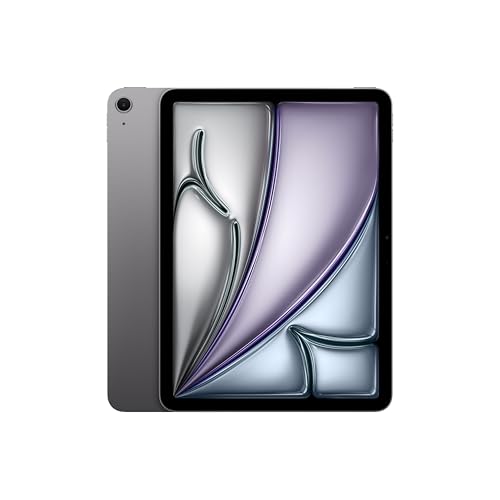
Apple iPad Air 11-inch (M4): Liquid Retina Display, 256GB, 12MP Front/Back Camera, Wi-Fi 7 with Apple N1, Touch ID, All-Day Battery Life — Space Gray
As an Amazon Associate we earn from qualifying purchases.
2. iPad A16: compare first for straightforward work
Recommended version: 128GB, Wi-Fi, Silver. The standard iPad deserves a place on the shortlist when you already have a main computer and want a separate screen for appointments, inventory forms, email or customer-facing tasks.
Apple lists an A16 chip, Touch ID, a landscape 12MP Center Stage camera and USB-C. Its USB connection is limited to USB 2.0 speeds, up to 480Mb/s, which matters more when copying large files than when opening an appointment calendar. It supports Apple Pencil (USB-C) and first-generation Apple Pencil with the required adapter; it is not a Pencil Pro model. Check the A16 iPad specifications and Apple’s compatible accessory information.
Reasons to choose it: the work is simple, the software is confirmed compatible and the total with a case or stand is meaningfully below the Air. Reasons to skip it: you regularly move large media files or want the Air’s laminated display for extensive pen work. Compare full basket totals: a costly keyboard can erase much of the saving over a laptop.
For a reception desk or checkout station, confirm the exact app, card reader, stand, scanner and receipt printer first. “Works with iPad” on a generic accessory listing does not establish compatibility with your full point-of-sale system.

3. Galaxy Tab S11: an Android option with the pen included
Recommended version: 11-inch, 12GB RAM, 128GB Wi-Fi, Silver, model SM-X730NZSAXAR. Choose it when your established business apps and phone workflow are Android-based and handwritten notes are a regular part of your day.
The standard Tab S11 has an 11-inch Dynamic AMOLED 2X display and includes its S Pen. Samsung lists microSD expansion up to 2TB, with the card sold separately. Storage expansion is useful for local files, but it is not a substitute for a backup. The official Tab S11 overview distinguishes this smaller model from the 14.6-inch Ultra.
Samsung DeX provides a windowed work environment on the tablet and supports compatible external-display setups. It can make switching between documents and messages more convenient, but the applications remain Android versions. Test resizing, keyboard shortcuts, export formats and your required browser features. See Samsung’s DeX support guide.
Reasons to choose it: included handwriting hardware and a workflow that already fits Android. Reasons to skip it: your business requires desktop Windows software or a vendor-certified iPad-only accessory. For routine typing, add a compatible keyboard and decide whether you also need a separate mouse or trackpad.
View the exact 128GB Silver Wi-Fi model at Samsung Business.
4. Surface Pro for Business Intel: for desktop applications
Recommended starting configuration: 13-inch, 12th Edition, Intel Core Ultra 5 335, 16GB RAM, 256GB SSD, LCD and Wi-Fi. This is the shortlist’s Windows-first choice when a tablet must also do the job of a work laptop.
The Intel business model comes with Windows 11 Pro and two USB-C ports with USB4/Thunderbolt 4. Pair it with a compatible 13-inch Surface keyboard for regular office work. A Slim Pen is optional; check the charger and accessory contents of the particular offer. See Microsoft’s exact Intel 12th Edition product page.
Reasons to choose it: you need Windows desktop software, established PC peripherals or a managed Windows environment. Reasons to skip it: a conventional laptop would be more comfortable for prolonged lap use, or the keyboard-equipped total exceeds what the detachable design is worth to your business. Consider additional memory or storage if your actual software requirements call for it.
Check the word Intel carefully. Surface also sells Snapdragon models, which use Windows on Arm. Microsoft explains that peripherals and driver-dependent software need compatible drivers; a similar-looking Surface is not automatically an equivalent replacement. Review the Windows on Arm compatibility guidance before substituting a model.
Will your business apps actually work?
Run a short acceptance test before moving the business onto any tablet. An app icon or a successful sign-in is only the start.
- List the exact products and versions. Distinguish a service’s mobile app, browser interface and desktop application. For example, QuickBooks Desktop 2024 has specific Windows requirements; its requirements do not become satisfied by installing a similarly named mobile app.
- Complete a real workflow. Use a sample file to create a quote, attach a photo, export the PDF, print it and reopen the result. For spreadsheets, test your actual formulas, macros, add-ins, data connections and formatting rather than assuming feature parity.
- Check licensing. Microsoft’s mobile editing features depend on the subscription and sometimes the screen size. Verify your business plan against Microsoft’s mobile-app licensing guide. A preinstalled app is not proof that the required license is included.
- Test your peripherals and sign-in controls. Include the actual printer, card reader, scanner, security key, VPN and company authentication flow. USB-C describes a connector, not universal accessory support.
- Check offline behavior. Put a sample workflow through a lost connection, restore the connection and confirm that changes sync correctly. Do this before relying on the device at a customer site.
If one essential step repeatedly sends you back to another computer, treat the tablet as a companion device. Remote access can help with occasional desktop work, but it adds connectivity, security and host-availability dependencies.
Budget for the complete work setup
- Typing: keyboard, trackpad or mouse, stand and a case that works with all of them. Try the arrangement on the surface where you actually work.
- Connections: charger, display adapter or dock, compatible cables and any required wired-network adapter. Confirm charging while your other accessories are connected.
- Mobile use: buy a cellular configuration only when its convenience justifies the data plan. Wi-Fi-only variants cannot gain built-in cellular hardware through a software upgrade.
- Operations: software subscriptions, management tools, backup storage, accidental-damage coverage and a spare-device plan where downtime would interrupt trading.
We have not published fixed prices because promotions, configuration choices and bundles change. Compare the complete setup against a laptop as well as against other tablets. Manufacturer battery claims use different test conditions; they should not be read as a head-to-head measurement of your working day.
Security, support and ownership policy
For a single owner, start with a strong device passcode, multifactor authentication, prompt updates, backups and a tested recovery process. For staff devices, decide who owns the account, who can reset it, which apps may hold customer information, and what happens when someone leaves. Keep business data out of unmanaged personal sharing accounts.
Apple documents Automated Device Enrollment for organization-owned devices. Ask your IT provider whether your chosen purchasing route and management service support the intended deployment. Do the equivalent compatibility check for an Android or Windows fleet before ordering several devices.
Support promises have different scopes. Samsung advertises up to seven generations of Android upgrades and seven years of security updates for Tab S11 from its global launch, not from your purchase date. Microsoft’s Surface lifecycle table currently lists May 19, 2032 as the Intel 12th Edition’s driver-and-firmware servicing end date; Windows support is a separate lifecycle. For every candidate, verify the current OS support, warranty terms, repair options and replacement turnaround that apply to your country and seller.
Frequently asked questions
Can a tablet replace a small-business laptop?
Yes, if all essential workflows pass your acceptance test. An Intel Windows detachable is the strongest starting point here for desktop-dependent work. An iPad or Android tablet can be sufficient for browser-based administration, meetings and forms, but app-specific omissions can still make a laptop necessary.
Is 128GB enough for a business tablet?
It can be enough for cloud-first work with modest offline files. Allow space for the operating system, apps, updates and downloaded documents. Choose more storage when you keep substantial photo or video libraries, large project files or long periods of offline work. Keep a separate backup whichever capacity you choose.
Should I choose an 11-inch or 13-inch model?
An 11-inch device is easier to carry between appointments. A larger screen gives documents and side-by-side work more room. If you mostly type at a desk, compare the larger tablet with a laptop and external-monitor setup before paying extra.
Do I need a stylus and keyboard?
A keyboard is useful for substantial typing. A stylus earns its place when you annotate, sketch or take handwritten notes; it is optional for ordinary email and browsing. Buy accessories for the exact tablet generation and size, since similar model names do not guarantee fit.
Does DeX turn a Samsung tablet into a Windows computer?
No. DeX changes how compatible Android apps are arranged and controlled. It does not install Windows or make Windows desktop applications run locally.
How we chose these tablets
We reviewed manufacturer specifications, accessory documentation, software requirements and support policies on October 4, 2026. We chose four distinct use cases instead of ranking dozens of near-identical configurations: mobile-first work, simpler administration, Android pen workflows and Windows desktop compatibility. The recommendations are editorial judgments based on those sources. We did not physically test these devices, measure battery life, audit app security or verify every business application. The two Amazon identifiers were checked against matching Amazon US product titles; manufacturer links are used for the other configurations. No numeric performance scores or invented testing hours are used.
Image note: The featured image is an AI-generated editorial illustration, not a photograph of a reviewed product or evidence of hands-on testing.