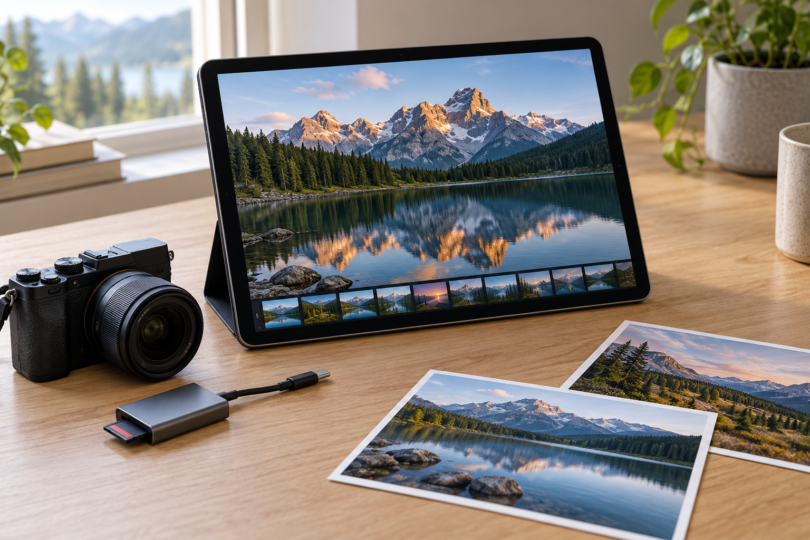

The best tablet for photos depends on whether you mainly browse an album, edit camera RAW files or show a finished portfolio. The 11-inch iPad Air (M4) is our most balanced starting point for a portable photo workflow. Choose the 13-inch iPad Pro (M5) for its larger OLED display and faster external-drive connection, or the Galaxy Tab S12+ if you want Android, an included pen and expandable storage.
These are recommendations based on manufacturer specifications and documented app requirements. They are not results of hands-on image-quality, export-speed or battery testing. The configurations below keep screen size, storage and connectivity explicit so that a similarly named older tablet or different bundle is easier to spot.
Best tablets for photos at a glance
| Tablet and selected configuration | Why choose it? | Main tradeoff |
|---|---|---|
| Apple iPad Air 11-inch (M4), 256GB, Wi-Fi, Space Gray | Portable everyday choice: 2360 × 1640 IPS display, P3 color, 500-nit brightness and 12GB memory | Smaller working area than the other two; no built-in memory-card slot |
| Apple iPad Pro 13-inch (M5), 256GB, Wi-Fi, Space Black, standard glass | Display-focused choice: 2752 × 2064 tandem OLED, adaptive 10–120Hz refresh and Thunderbolt/USB 4 | Premium purchase; 256GB version has 12GB memory, not the 16GB of the 1TB/2TB models |
| Samsung Galaxy Tab S12+, 256GB, Wi-Fi, Gray, SM-X840NZAAXAR | Android choice: 12.6-inch 2800 × 1752 AMOLED, 120Hz, 12GB memory, included S Pen and microSD expansion up to 2TB | Different mobile-app workflow from iPadOS; charger and microSD card are separate purchases |
All three selections are Wi-Fi models. Cellular service is not included. Card readers, cases and keyboards are not part of these recommendations unless explicitly stated.
1. iPad Air 11-inch (M4): best balanced choice for portable editing
The Air is the sensible first comparison if you want to sort a shoot, make local edits and carry the tablet comfortably. Its 464g Wi-Fi body is the lightest of these three configurations. The fully laminated P3 display and USB-C port with USB 3 speeds up to 10Gb/s provide useful photo-workflow features without requiring the Pro’s display or connection hardware.
We recommend 256GB as a practical starting configuration, rather than assuming the smallest storage option suits a camera library. That is an editorial allowance for originals, app data and exports, not a promised number of photos. A long trip or a large RAW library may justify 512GB or an external backup plan.
- Good fit: travel editing, family albums, photo selection and a manageable Lightroom library.
- Advantages: compact size, 12GB memory and compatibility with Apple Pencil Pro or Apple Pencil (USB-C), both sold separately.
- Limits: the 11-inch screen gives less room for tools and image details than a larger tablet. It is an IPS screen rather than the Pro’s tandem OLED. Its internal storage cannot be expanded with a card.
The current M4 model and exact display, memory and port specifications are documented in Apple’s iPad Air specifications. Check the M4 generation on the listing, not just “iPad Air 11-inch.”
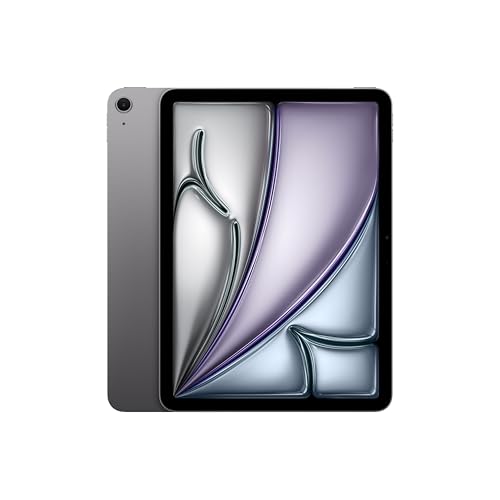
Apple iPad Air 11-inch (M4), 256GB Wi-Fi, Space Gray
As an Amazon Associate we earn from qualifying purchases.
2. iPad Pro 13-inch (M5): best for a larger OLED workspace
The 13-inch Pro is the strongest choice here when the screen itself is the priority. Apple specifies 1000 nits maximum SDR brightness and up to 1600 nits peak for HDR content. Its larger canvas makes portfolio viewing and detailed masking less cramped than the 11-inch Air, while the adaptive refresh rate can make scrolling and pen interaction look smoother. Those benefits do not establish that it exports every photo faster or produces more accurate prints.
Its Thunderbolt 3/USB 4 connection supports up to 40Gb/s with compatible equipment. That is a port ceiling, not a measured card-import rate: your reader, card, drive and cable can be the bottleneck. The selected 256GB model uses the M5’s 9-core CPU and 12GB memory; moving to 1TB or 2TB changes that configuration as well as storage. Nano-texture glass is available only on those larger capacities.
- Good fit: photographers who value a larger display, HDR viewing or a capable external-drive connection.
- Advantages: tandem OLED, more working area and a 579g Wi-Fi body.
- Limits: larger to carry, premium positioning and no microSD slot. A fast chip still runs mobile iPad apps, so confirm your required desktop features first.
Use Apple’s specifications to compare capacities and display options. The recommendation is the 13-inch M5 with standard glass, not an older M4 or an 11-inch model.

3. Galaxy Tab S12+: best Android choice with expandable storage
The Galaxy Tab S12+ combines a substantial AMOLED screen with a 553g Wi-Fi body. Its included S Pen gives you a way to make precise selections in compatible apps without buying a separate stylus. The selected US configuration has 12GB memory and 256GB storage; Samsung also documents microSD expansion up to 2TB. That is useful for keeping files nearby, but removable storage does not become extra RAM or guarantee that every editing app can work directly from it.
Choose it if your phone and file workflow already revolve around Android and you prefer its app choices. Lightroom is available on Android, with direct camera/card import documented through compatible USB OTG equipment. Do not assume an iPad-only app, desktop plug-in or purchased desktop license transfers to Android.
- Good fit: Android photographers who want a large screen, an included pen and room to expand file storage.
- Advantages: 120Hz AMOLED display, MediaTek Dimensity 9500 processor and Wi-Fi 6E on the S12+.
- Limits: microSD card and wall charger are sold separately. The S12+ is distinct from the S12 Ultra, which has a different screen size and Wi-Fi specification. A large tablet is still less convenient for taking pictures than a phone or camera.
Samsung’s US announcement supplies the model comparison. The exact configuration below is Gray, 256GB, Wi-Fi, model SM-X840NZAAXAR.
View the selected Galaxy Tab S12+ configuration at Samsung
How to choose a tablet for your photo workflow
Start with the editing app and your camera’s files. Adobe documents Lightroom on both iPadOS/iOS and Android. Many basic editing and organization features are free, but RAW editing, masking and other premium tools require an eligible paid subscription. Check the current Lightroom mobile FAQ and supported-camera list for your exact camera, RAW format and minimum app version. “Supports RAW” is not a guarantee for every camera or compressed RAW variant.
Budget for storage and imports. A USB-C connector alone does not tell you the data speed or reader compatibility. Adobe’s direct-import instructions cover compatible readers and cameras; a connected camera may need PTP mode. Importing copies originals onto the device, so leave free working space even when you own external storage. Keep a second verified copy before erasing camera cards.
For iPad, Apple’s external-storage guide requires a compatible format and a single data partition. Supported formats include exFAT and APFS; some drives need external power or a powered hub. Check your exact drive, cable and app instead of assuming every USB disk will work.
Buy screen quality for the job. A larger display helps you inspect a composition, while a smaller body is easier to carry. Peak HDR brightness is not a target brightness for ordinary editing. For consistent judgments, use stable lighting and check your display’s automatic color and brightness settings. A vivid screen alone does not establish print accuracy; color management and the final output process still matter.
Keep the budget proportional to use. If you mainly browse shared albums and make simple crops, these editing-oriented models may offer more than you need. If you work with a camera library, compare the complete cost of tablet, required app subscription, reader, backup storage and any pen. Check the app’s current requirements before buying; an OS label by itself does not promise every advanced feature.
Which one should you buy?
Start with the iPad Air 11-inch M4, 256GB for a portable, balanced photo tablet. Choose the iPad Pro 13-inch M5 when the larger OLED workspace or compatible high-speed external storage is worth the extra spend. Choose the Galaxy Tab S12+ when Android, the included S Pen and expandable file storage better suit your workflow. Try your essential import, edit and export steps during the seller’s return period, under its actual terms.
Frequently asked questions
Can these tablets edit camera RAW photos?
Yes, with a compatible app and supported camera format. Lightroom supports RAW workflows on iPad and Android, but RAW editing requires an eligible paid subscription. Check your exact camera and the minimum supported app version before buying.
Is 256GB enough storage for photo editing?
It can suit a working library, but there is no universal photo count. RAW size, app caches, exports and other files all use space. Choose more storage or a backup workflow for large shoots, and keep free internal space for imports and editing.
Can I import photos directly from an SD card?
Yes, using a compatible reader and app. Adobe documents direct import on iPad and Android; Android requires compatible USB OTG equipment. Some camera connections require PTP mode. Check the reader, card type and tablet connection before a trip.
Do I need a stylus to edit photos?
No. Touch controls handle many photo tasks. A compatible pen can help with precise selections and local edits. The Galaxy Tab S12+ includes an S Pen; compatible Apple Pencils for the two iPads are sold separately.
Should I choose an iPad or an Android tablet for photos?
Choose the platform that supports your required apps, files and export workflow. The iPad Air is the portable starting point here, the 13-inch iPad Pro offers the larger OLED workspace, and the Galaxy Tab S12+ adds an included pen and microSD storage expansion.