
The best tablet for PaintTool SAI depends on where you want to draw: choose the Wacom Intuos Small wired for a compact screenless setup, the XPPen Deco 01 V3 for a larger drawing area, or the Huion Kamvas 13 if you want to put the pen directly on a display. These are computer peripherals. Plan to run SAI on a compatible Windows PC; an Android or iPad drawing tablet is not a standalone SAI solution.
This shortlist is for an Intel or AMD Windows computer with the appropriate tablet driver. SYSTEMAX’s requirements specify Windows and a pressure-sensitive WinTab digitizer for SAI 1. SAI 2 also documents the TabletPC input API. Check your exact SAI build, Windows version and driver together before buying; a hardware listing’s Mac, Android or Chromebook support does not mean SAI runs on those operating systems.
Best tablets for PaintTool SAI at a glance
| Tablet and exact selection | Best fit | Drawing surface and controls | Main tradeoff |
|---|---|---|---|
| Wacom Intuos Small wired, CTL4100, black | Small desks and a straightforward pen-and-monitor workflow | 6.0 × 3.7-inch active area; four ExpressKeys; battery-free pen | No screen or Bluetooth in this wired version |
| XPPen Deco 01 V3, DECO01V3-BLACK | Larger arm movements on a screenless tablet | 10 × 6.25-inch active area; eight shortcut keys; battery-free pen | Needs more working space; you still look at the computer monitor |
| Huion Kamvas 13, GS1331 | Drawing directly on a screen | 1920 × 1080 pen display; eight keys; PW517 battery-free pen | Requires a computer plus the correct video/data/power connection |
1. Wacom Intuos Small wired: best for a compact desk
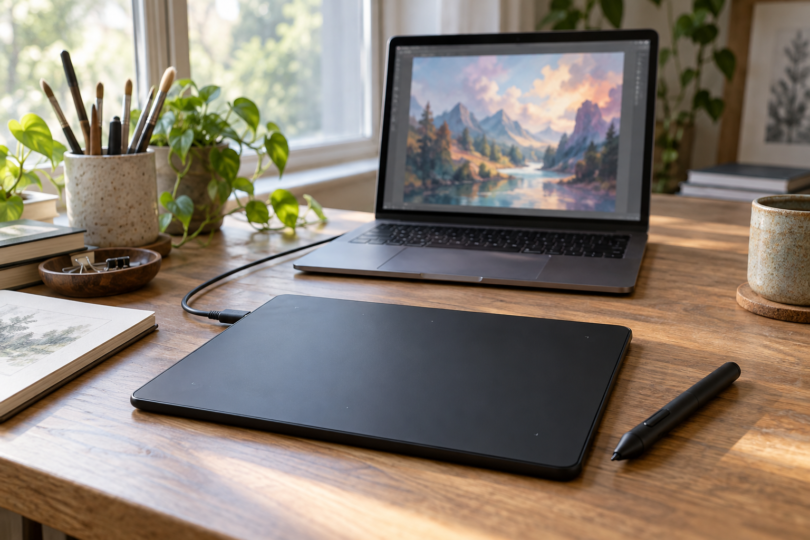
The black CTL4100 is the compact choice here. Its small active area takes less arm travel than the Deco’s larger surface, and four programmable ExpressKeys give you room for a few frequent commands. Wacom specifies 4,096 pressure levels and a battery-free pen. Choose it when you prefer watching a separate monitor and want to keep the tablet footprint modest.
Pros: compact active area, four shortcut buttons and no pen charging. Cons: the drawing area may feel restrictive for broad strokes, and the selected wired model has no Bluetooth. Wacom’s product family also contains wireless versions, so match the CTL4100 model rather than assuming every Intuos Small has the same connection.
For SAI, pressure behavior matters more than the tablet appearing as a mouse. SYSTEMAX notes a WinTab driver issue in some Wacom environments and suggests enabling Windows Ink together with SAI 2’s Windows API option for that particular problem. Treat that as version-specific troubleshooting, not a setting to apply blindly to SAI 1.

Wacom Intuos Small wired drawing tablet, CTL4100, black
As an Amazon Associate we earn from qualifying purchases.
2. XPPen Deco 01 V3: best for a larger screenless area
The Deco 01 V3 has a 10 × 6.25-inch active area and eight customizable keys. XPPen names SAI among its supported drawing programs. This is the stronger fit if you want more room for sweeping strokes while keeping your existing monitor as the canvas. The selected black V3 is distinct from older V2 listings.
Pros: the largest screenless area in this comparison, eight shortcuts and a pen that does not need charging. Cons: it takes more working room than the Intuos Small and provides no built-in display. Its advertised 16,384 pressure levels and tilt support describe the hardware; they do not establish a better SAI drawing experience or guarantee that every brush uses tilt.
Use a driver supported by your current Windows setup. XPPen’s page lists older operating systems but also advises updating Windows to version 11, so do not treat the broad compatibility list as a promise about every legacy configuration. Check the cable and adapter supplied with the seller’s exact bundle before connecting it.

3. Huion Kamvas 13: best for drawing on a display
The Kamvas 13 GS1331 is the display option in this shortlist. It combines a full-HD screen, eight programmable keys and the PW517 pen. That changes the workflow: your pen is over the image rather than on a separate screenless pad. The model here is the original Kamvas 13, not a Kamvas Pro or Gen 3.
Pros: direct-on-screen drawing, a laminated display and eight shortcuts. Cons: it is still a peripheral, not a self-contained Windows computer, and its cabling takes more planning. Huion lists the ST300 stand as optional. Check the exact bundle instead of assuming the stand or optional USB-C-to-USB-C cable is included.
Check your computer’s ports before buying. The three-in-one cable uses HDMI for the picture, black USB-A for data and red USB-A for power. The optional USB-C-to-USB-C route needs a computer port supporting USB 3.1 Gen 1 and DisplayPort 1.2; connector shape alone is insufficient. Huion also publishes SAI pressure troubleshooting, including a WinTab repair procedure for a named driver version. Match the instructions to your installed driver.
How to choose a SAI drawing tablet
Start with the workflow, then the drawing area. A screenless tablet leaves the monitor in its usual viewing position; a pen display lets you draw over the picture but adds a screen and its connection requirements to the desk. Mark out the listed active-area sizes on paper to judge how much movement you prefer. Shortcut count is useful only if you will actually assign and use the keys.
Install the manufacturer’s supported driver, check pressure in the driver’s test area and then check it in SAI. If the cursor moves but the brush does not respond to pressure, inspect the application’s input API and driver settings. Follow the relevant official troubleshooting guidance rather than repeatedly buying a different tablet for a configuration problem.
Frequently asked questions
Can an iPad or Android tablet run PaintTool SAI by itself?
The official requirements used for this guide are for Windows. Do not buy an iPad or Android tablet expecting native standalone SAI support. Hardware support for Android drawing apps is a separate capability from running SAI.
Does a pen display work without a computer?
The Kamvas 13 GS1331 in this guide needs a host device; for this SAI workflow that means the compatible Windows PC running the program. Its screen does not make it a standalone computer.
Which is better: SAI 1 or SAI 2 for tablet input?
They have different input requirements. SAI 1 documents WinTab, while SAI 2 lists both WinTab and TabletPC APIs. SAI 1 also has a high-DPI limitation. Choose based on the application version and workflow you need, then verify pressure on that exact setup.
Do more pressure levels automatically make a tablet better?
No single specification establishes that. Compare the active area, screen preference, controls and driver fit first. The pressure-level figures tell you what the manufacturer specifies for the hardware, not how much improvement you will notice in a particular SAI brush.
Does this shortlist guarantee Windows on Arm compatibility?
No. This guide is deliberately limited to an Intel or AMD Windows setup. Confirm your exact computer architecture, SAI build and tablet driver with the relevant makers before buying for a Windows on Arm device.