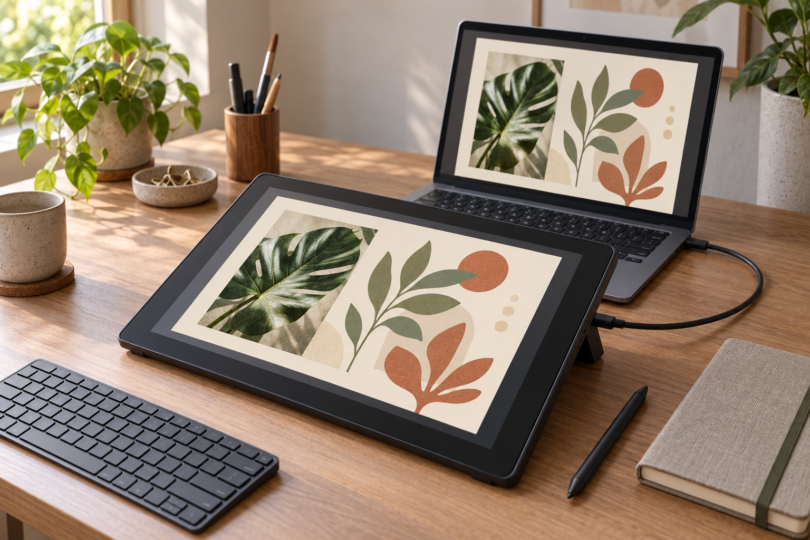

For Photoshop and Illustrator on a desktop computer, start by comparing the Wacom Intuos Small for a compact pen-input setup, the Intuos Pro Medium for more working space and controls, and the Huion Kamvas 13 (Gen 3) if you want to draw on a screen. All three require a compatible host; none runs the desktop Adobe apps independently.
Our picks are based on documented hardware features and Adobe’s setup guidance. We have not run hands-on drawing or latency tests. A tablet’s pen specifications alone cannot guarantee that your application, driver and operating system will work together.
Compare the three desktop drawing tablets
| Tablet | Why compare it | Main limitation |
|---|---|---|
| Wacom Intuos Small, CTL-4100 | Screenless; 152 × 95mm active area; four keys | Wired model without Bluetooth; artwork stays on your monitor |
| Wacom Intuos Pro Medium, PTK670 | Screenless; 263 × 148mm active area; two dials and ten keys | Larger footprint; no finger-touch input |
| Huion Kamvas 13 (Gen 3), GS1333 | 13.3-inch Full HD pen display with two dials | Host and suitable video connection required; manufacturer-led Photoshop support |
1. Wacom Intuos Small: for a compact first setup
The wired CTL-4100 gives you a 152 × 95mm drawing area, four programmable ExpressKeys and a battery-free Wacom Pen 4K. It is the first model we would compare for a small desk or occasional pen-based photo work. You draw on the tablet while watching the computer monitor.
This specific Small model has no Bluetooth; CTL-4100WL is the separate wireless version. The standard package includes the pen, three spare nibs and a USB cable. The supplied cable connects USB-A to Micro-B, so check whether your computer needs an adapter.
Choose it when compactness matters more than wide arm movements or many shortcut buttons. If the active area feels restrictive, compare the larger Intuos Pro below. Install the current driver and check your Adobe app’s own system requirements. See Wacom Intuos model details.
2. Wacom Intuos Pro Medium: for more space and shortcuts
The PTK670 has a 263 × 148mm active area, ten customizable keys and two dials. Its included Pro Pen 3 supports pressure and tilt, and the tablet supports wired USB or Bluetooth. These are useful reasons to upgrade if you want more physical working room and shortcut controls.
It still has no artwork display or finger-touch input. The 291 × 206mm body needs more desk space than the Intuos Small. Choose it for the larger work surface and controls, rather than assuming its higher advertised pressure count will automatically improve your results.
The standard package includes the Pro Pen 3, pen stand with ten replacement nibs and a USB-C-to-A cable. Wacom lists Windows 10 or later and macOS 13 or later, but your Adobe version may require more. Confirm PTK670 when shopping; older Intuos Pro Medium listings with Pro Pen 2 describe different hardware. Compare the current Intuos Pro Medium.
3. Huion Kamvas 13 (Gen 3): for drawing on the artwork
The GS1333 is our connected-screen alternative. Its 13.3-inch, 1920 × 1080 display, two dials and five programmable keys suit buyers who prefer the pen tip over the image. Your computer still supplies Photoshop or Illustrator; the display does not contain those apps.
Huion’s standard package includes the PW600L pen, ten nibs and a 3-in-1 cable for HDMI and USB-A connection. The ST300 stand is optional. A full-featured USB-C cable is separate, and that route requires compatible video output, data and adequate power. A USB-C socket alone does not establish compatibility.
The support tradeoff matters: Adobe says it does not test or officially support non-Wacom third-party tablets and refers those users to the manufacturer. Check Huion’s current driver for your exact host and the seller’s return terms before buying for Adobe work. See the Kamvas 13 (Gen 3).
Check the computer, driver and application together
A tablet maker’s minimum operating-system version is not the same as Adobe compatibility. For example, Wacom’s Intuos page still lists Windows 7, while Adobe’s current Photoshop and Illustrator desktop pages specify newer Windows builds. Check Photoshop requirements and Illustrator requirements for the version you plan to use.
Huion’s own page has a Windows-version inconsistency: its overview says Windows 10 or later, while a specification line says Windows 7. The GS1333 manual also says Windows 10 or later. Use the stricter Windows 10 hardware minimum, then apply Adobe’s requirements as well.
After installation, check the tools you actually use. Adobe’s Photoshop guidance says to enable Shape Dynamics and set Control to Pen Pressure for a pressure-sensitive brush. Illustrator has its own settings; for example, its Eraser tool can vary size with stylus pressure. A fixed-size tool setting is not a useful test of pressure response.
If pressure does not behave as expected, check the application settings and current tablet driver before assuming the pen is faulty. Adobe identifies outdated or problematic Wacom drivers as a possible cause of pressure issues. Use the manufacturer’s support instructions for the model you buy.
Which type should you buy?
Choose Intuos Small if you want a compact input surface beside your keyboard. Move to Intuos Pro Medium when you want a larger drawing area and more controls. Choose the Kamvas if drawing directly on the image is the priority and your computer can support its connection. These are workflow choices, not measured quality rankings.
Compare the full setup rather than the tablet name alone: included pen, replacement nibs, connection cables or adapters, stand, host computer and software access. Confirm the exact generation and package in the selected offer. Do not assume a software promotion includes Photoshop or Illustrator.
Frequently asked questions
Can these tablets run Photoshop without a computer?
No. These are input peripherals or pen displays used with a compatible host computer. The host must satisfy Adobe’s requirements and have the necessary tablet driver.
Do I need a pen display for Illustrator?
A built-in display is optional. A screenless tablet lets you work on your existing monitor, while a pen display lets you put the pen over the displayed artwork. Choose the arrangement you find easier to position and control.
Is an iPad the same as using the desktop apps?
Treat an iPad as a separate software choice. Adobe specifically documents Illustrator features that are unavailable on iPad, so check the exact tools and file workflows you need before replacing a desktop setup. This shortlist is for desktop-computer workflows.