
The 13-inch iPad Air with M4 and 256GB of storage is the first tablet we would consider for photographers who want a large editing workspace and a mobile Lightroom workflow. Choose the 13-inch iPad Pro with M5 for its more capable display and Thunderbolt connection, or the Galaxy Tab S11 for a smaller Android tablet with an included S Pen and expandable storage.
The deciding question is what happens to your photographs after the shoot. All three can fit a mobile editing workflow, but none runs Lightroom Classic. If your work depends on a Classic catalog, desktop plug-ins or a particular tethering application, confirm those requirements before replacing your computer.
Three tablets worth considering
- Best starting point for a large mobile workspace: Apple iPad Air 13-inch, M4, Wi-Fi, 256GB, Space Gray. A P3 IPS display and USB-C data connection without choosing the Pro’s display features.
- Best display-focused upgrade: Apple iPad Pro 13-inch, M5, Wi-Fi, 512GB, Space Black, standard glass. Tandem OLED, adaptive refresh up to 120Hz and Thunderbolt / USB 4.
- Compact Android pick: Samsung Galaxy Tab S11, 11-inch, Wi-Fi, 256GB, Gray, model SM-X730NZAEXAR. Dynamic AMOLED 2X, 12GB RAM, an included S Pen and a microSD slot.
These are specific configurations to compare. Storage, cellular connectivity, display size and accessories can change the product you receive, so check the full model description before ordering.
1. iPad Air 13-inch M4: the practical starting point
On Apple’s iPad Air configurator, choose the 13-inch M4, Wi-Fi, 256GB, Space Gray version, part number MH5U4LL/A. Its 13-inch screen gives more room for a photograph and editing controls than a compact slate, making it a sensible desk or travel companion when you already know that your apps work on iPad.
Apple’s model-specific specifications list a fully laminated IPS display with 2732 × 2048 resolution, P3 wide color and 600-nit brightness. The M4 configuration has 12GB of unified memory. Its USB-C port supports USB 3 data at up to 10Gb/s, which gives it a useful connection for compatible card readers and storage.
Choose it for selecting images, applying adjustments and making exports in a mobile app. The 256GB capacity is a starting configuration for active projects, not a substitute for an archive. Photographers bringing home large RAW shoots should work out their storage needs before choosing a capacity.
The trade-off: the Air has an IPS display rather than the Pro’s tandem OLED panel. It also lacks the Pro’s Thunderbolt connection. Both Apple Pencil Pro and Apple Pencil (USB-C) are supported, but a Pencil is a separate purchase. Check the app’s brush and gesture controls before deciding whether you need one.
2. iPad Pro 13-inch M5: the display and connection upgrade
On Apple’s iPad Pro configurator, the version compared here is 13-inch M5, Wi-Fi, 512GB, Space Black, standard glass, part number MDYL4LL/A. Its main attraction for photographers is the screen and connection hardware, rather than a promise that every edit will run faster.
The 13-inch Pro’s specifications list a 2752 × 2064 tandem OLED display, P3 color and a 10–120Hz adaptive refresh range. Apple quotes up to 1000 nits for SDR and up to 1600 nits peak for HDR content. Those are manufacturer display limits, not measured outdoor brightness or proof that an exported image will look identical elsewhere.
The selected 512GB version has 12GB of unified memory and a 9-core CPU. The 16GB memory and 10-core CPU specifications belong to the 1TB and 2TB versions. Nano-texture glass is also limited to those higher capacities, so it is not part of this recommendation.
The trade-off: the Pro remains an iPad running mobile apps. Its Thunderbolt / USB 4 port supports up to 40Gb/s, but a card, reader, cable or drive can be the slower part of the chain. Buy the Pro when its display or connection capabilities solve a real need; do not assume a fast port eliminates importing or backup time. A Pencil and keyboard are optional extra purchases.
3. Galaxy Tab S11: the compact Android option
The Samsung Galaxy Tab S11 256GB in Gray, model SM-X730NZAEXAR, pairs an 11-inch display with 12GB of RAM. Choose this Wi-Fi model if you prefer Android and want a smaller screen to carry alongside a camera.
Samsung’s US specifications list a 2560 × 1600 Dynamic AMOLED 2X panel with refresh up to 120Hz. The S Pen is included. Storage can be expanded with a separately purchased microSD card up to 2TB, giving it a different storage arrangement from the iPads.
That microSD slot is useful for supported file storage, but it is not a full-size SD or CFexpress slot. A camera using those cards still needs the appropriate reader. Do not assume that an editing app keeps all of its originals and cache on the microSD card: check that app’s storage settings and leave working space on the tablet.
The trade-off: the 11-inch screen gives you less room for panels and fine adjustments than either 13-inch iPad. A vibrant OLED panel is not evidence of calibrated print accuracy, and Samsung DeX does not turn Android apps into their Windows equivalents. Confirm your essential Android app features before choosing the hardware.
Check the photo workflow before you buy
RAW files and app subscriptions
Adobe’s Lightroom mobile FAQ confirms camera RAW editing on iPad and Android with the appropriate paid membership; RAW editing, masking and several other features are premium. Include the plan you actually need in your budget. Lightroom mobile and Lightroom Classic for desktop are different applications.
Check your exact camera against Adobe’s supported-camera list, including the minimum software version. A tablet being able to read a card does not prove its app can decode every RAW format on it. Try a representative file, the edits you use and the final export before relying on a tablet for a job.
Card readers, cables and USB-C
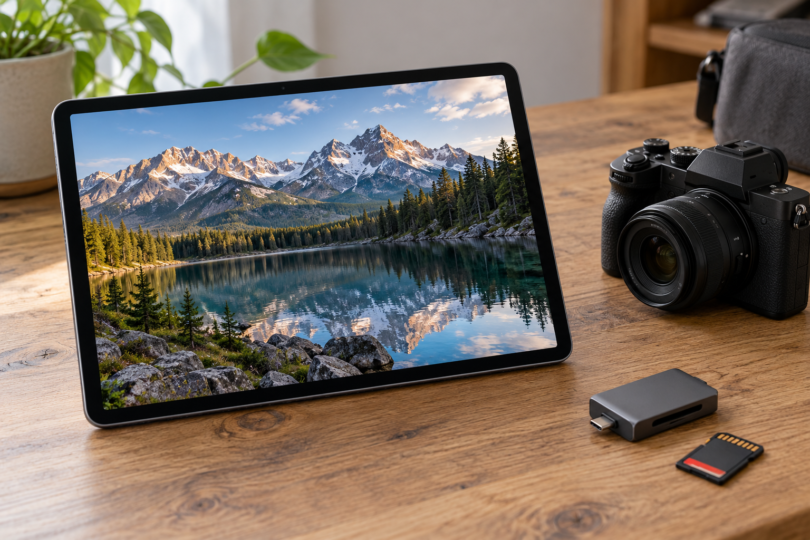
Neither iPad has a built-in memory-card slot. For SD cards, use a compatible USB-C SD reader; for another format, match the reader to that exact card type. Adobe’s direct-import instructions cover supported readers and cameras on iOS, plus USB OTG connections on Android. Direct camera connections may require PTP mode.
Use a data-capable cable and check the reader’s compatibility, not just the connector shape. If you want to charge while importing, check a hub’s data ports and charging pass-through. An accessory’s advertised peak speed is not a promise of the transfer speed of your particular card and files.
For iPad external storage, Apple specifies compatible formats, including exFAT, and a single data partition. Some external drives need their own power or a powered hub. Verify an existing drive’s format before a trip; reformatting can erase its contents.
Working storage and a second copy
Direct import copies photographs into the mobile workflow; it is not a reason to erase the camera card immediately. As an illustration, 1000 RAW files at 40MB each take about 40GB before previews, exports and app data. Actual file sizes vary with the camera and settings.
Choose storage around the amount you need to keep locally between backups. Use 512GB or more if that calculation leaves too little space in a 256GB configuration. A microSD card or external SSD does not automatically become Lightroom’s working library, and a cloud plan cannot finish uploading without a connection and available storage.
Keep the camera originals until you have checked a second independent copy. For a trip, decide in advance whether that copy will be on another drive, a computer or completed cloud storage, and confirm that you can open the files.
Color, HDR and delivery
P3 color support, OLED contrast and high brightness describe different display capabilities. They do not guarantee a print match. For consistent iPad color decisions, consider disabling True Tone and Night Shift: Apple explains that those features change display color in response to the environment or make it warmer.
Choose the file type, dimensions and quality your client or destination requires. Lightroom’s export controls let you make those choices explicitly. If HDR delivery matters, check Adobe’s device and HDR guidance and preview the SDR result too. An HDR-capable panel alone does not confirm every app feature or how another screen will display the file.
Questions to settle before ordering
Can a tablet replace my photo-editing laptop?
It can cover a workflow built around compatible mobile apps. It is a poor replacement if you still need a desktop-only application, plug-in, printer workflow or tethering setup. Work through one complete shoot from import to delivery before making that switch.
Do I need cellular connectivity?
The configurations here are Wi-Fi models. Cellular can be useful for uploading away from Wi-Fi, but it adds a separate hardware choice and potentially a data plan. It does not replace local capacity for the files you are working on.
Which is the best fit for most photographers?
Start with the iPad Air 13-inch if a large mobile workspace is your priority. Move to the iPad Pro for its specific display and connection advantages. Pick the Galaxy Tab S11 for a compact Android workflow, included pen and expandable storage. In every case, the best purchase is the one that can import your camera’s files, run your essential tools and deliver a verified backup.