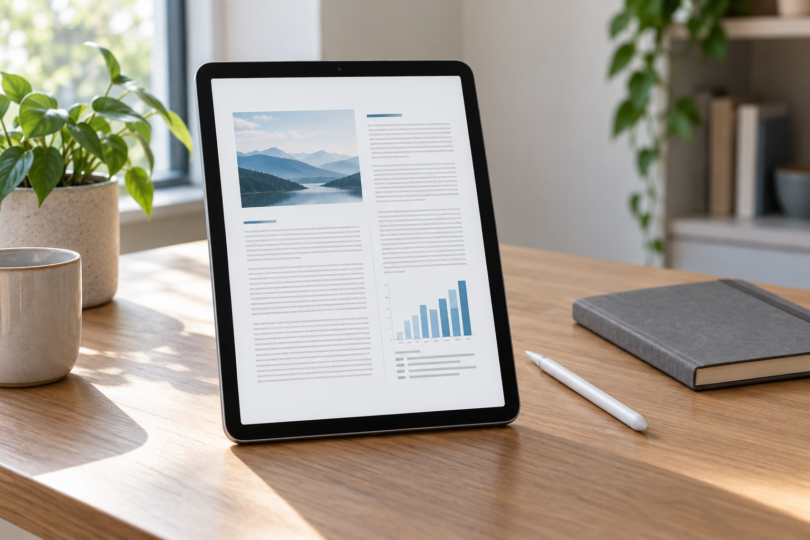

The best tablet for reading PDFs depends on what happens after you open the file. For documents mixed with email, web research and other apps, the 11-inch iPad Air M4 is our most versatile pick here. The Galaxy Tab S11 is the practical Android alternative when you want an included pen. Choose the reMarkable Paper Pro when reading and writing directly on documents matters more than running a broad range of apps.
These recommendations compare documented hardware and PDF workflows. Screen comfort, page-turn speed with your files and handwriting feel should still be checked in person if possible.
Compare the three PDF-reading tablets
| Tablet and configuration | Best fit | Display and pen | Main buying consideration |
|---|---|---|---|
| iPad Air 11-inch M4, 256GB, Wi-Fi, Space Gray | PDFs alongside general tablet apps | 11-inch class LCD; compatible Apple Pencil sold separately | Budget for the pen and any specialist PDF-app features you need |
| Galaxy Tab S11, 256GB, Wi-Fi, Gray; SM-X730NZAEXAR | Android reading and handwritten markup | 11-inch Dynamic AMOLED 2X; S Pen included | Samsung Notes adds annotations but does not edit the original PDF text |
| reMarkable Paper Pro, 64GB, with Marker Plus | A dedicated document-reading and writing device | 11.8-inch color E Ink; adjustable reading light | Specialized operating system and transfer/subscription limits |
1. iPad Air 11-inch M4: best for PDFs and everyday apps
Recommended configuration: the 256GB Wi-Fi model in Space Gray, model MH354LL/A. It has a fully laminated, 2360-by-1640 LCD and supports Apple Pencil Pro and Apple Pencil (USB-C). Neither pen is included with this tablet listing. The configuration and accessory compatibility are documented in Apple’s specifications.
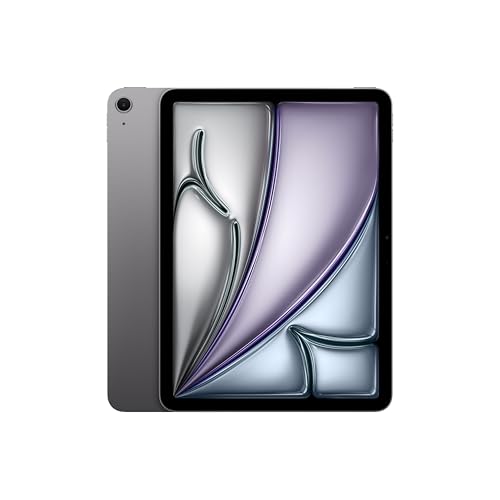
Apple iPad Air 11-inch M4, 256GB, Wi-Fi, Space Gray
As an Amazon Associate we earn from qualifying purchases.
The reason to choose the Air is flexibility. You can read a document, look up a reference in a browser and move the file through an iPad app workflow. Apple’s Preview app, introduced with iPadOS 26, provides a built-in starting point for viewing and marking up PDFs. Its annotation tools include drawing with a finger or compatible Pencil. Check the installed iPadOS version when following a tutorial.
Buy it if: your PDF collection sits alongside other work or study apps and you want a general-purpose tablet. Consider another size if: your main task is reading dense, two-column pages without zooming. An 11-inch display does not show a full letter-size sheet at its physical printed size.
Do not assume that a mobile PDF app includes every feature of its desktop counterpart. Before paying for OCR, redaction, advanced forms or document editing, check that exact app’s iPad feature list and subscription terms. A more powerful processor does not establish software compatibility.
2. Samsung Galaxy Tab S11: best Android option with a pen included
Recommended configuration: U.S. SM-X730NZAEXAR, with 12GB memory, 256GB storage, Wi-Fi and a Gray finish. The 11-inch Dynamic AMOLED 2X screen and included S Pen make this an appealing starting point for reading color documents and adding marginal notes. The keyboard is a separate purchase; check the package’s charging accessories instead of assuming a wall charger is included.
Check the exact Galaxy Tab S11 configuration at Samsung.
Samsung Notes can import a PDF, let you add text or pen marks, and export the annotated result as a PDF. Importing creates a copy, so keep track of which file you need to send back. Samsung explicitly distinguishes adding annotations from changing the document’s original contents. App updates and the note’s page orientation can also affect the available workflow.
Buy it if: you already prefer Android and want a tablet-plus-pen purchase without choosing a separate stylus. Skip it for this purpose if: your required document software is available only on another operating system. Samsung DeX and a keyboard do not turn an Android tablet into a Windows computer.
For long reading sessions, judge the display with the actual files you use: colored charts, pale scans and small footnotes reveal more than a bright demonstration wallpaper. If the file must be edited by colleagues afterward, export a sample and reopen it in their reader before committing to the workflow.
3. reMarkable Paper Pro: best for focused PDF markup
Recommended configuration: Paper Pro with 64GB storage and Marker Plus; choose that pen option explicitly when ordering. It has an 11.8-inch, 2160-by-1620 color E Ink display, palm rejection and an adjustable reading light. The maker lists a selected Marker, replacement tips and a USB-C cable with the device. A folio is an additional choice. These details come from reMarkable’s hardware and package specifications.
Compare Paper Pro and Marker options at reMarkable.
This is the specialist choice for readers who want a dedicated place to work through papers and handwritten annotations. Its custom reMarkable OS supports PDF and EPUB importing, with PDF, PNG and SVG export. Treat it as a separate document workflow, and check that your files can be imported before buying it to replace a tablet with familiar apps.
The transfer method matters: the maker lists a 100MB limit for web and USB transfers and directs larger files to its mobile or desktop companion app. The optional Connect subscription changes cloud and app features; review those terms if cloud access is central to your plan. Its ebook support excludes DRM-protected and Kindle books.
Buy it if: you mainly read and mark up documents and want fewer general tablet functions. Choose a general tablet instead if: your work depends on a particular app, multimedia PDF content or specialized interactive forms. The presence of PDF support alone does not prove support for every feature inside a PDF.
How to choose with your own documents
Check page layout before storage capacity
Bring a representative single-column document, a dense two-column paper and a scanned page. Look at each in portrait and landscape, at your normal reading distance. Decide whether page fitting, margin cropping or zooming is comfortable. Screen diagonal alone cannot tell you how large a particular page’s text will appear.
Separate reading, annotation and editing
Reading a PDF, writing over it, changing its original text and recognizing a scanned page are different jobs. List the ones you actually need. For a shared workflow, test bookmarks, links, comments and the exported file in the receiving application. Preserve an untouched original so an experiment does not become your only copy.
Compare the complete purchase
Add the required pen, protective cover, stand and paid app features to your budget. Check the exact generation, storage, Wi-Fi or cellular configuration and seller’s return conditions. The three configurations above are not a claim about the lowest available price, and nominal storage is partly occupied by the operating system.
Frequently asked questions
Is an 11-inch tablet large enough for PDFs?
It can be a useful balance for carrying and reading, but the answer depends on layout and your preferred text size. A dense full-page scan may still require zooming. Try your hardest document rather than judging by an ebook with adjustable text.
Do I need a stylus just to read?
No. A pen becomes more useful when you make handwritten annotations or sketches. The selected Galaxy includes its S Pen; the iPad listing does not include a Pencil; the Paper Pro purchase requires selecting its Marker option.
Can these tablets replace desktop PDF software?
Only if their specific apps support your complete task. Verify form filling, OCR, redaction, export and any organization-imposed restrictions separately. Annotation support is not a promise that the original page content is editable.
Which one should I choose?
Choose the iPad Air for a flexible iPad app workflow, the Galaxy Tab S11 for Android with a pen included, or Paper Pro for a dedicated reading and handwriting routine. The best purchase is the one that opens, marks up and returns your actual files correctly.