
For a quiet video you can open locally, VLC for Android is our first choice because its audio boost operates inside the player. For supported music and streaming apps, Poweramp Equalizer is the more flexible option, with a preamp, equalizer and limiter. Neither can promise louder, clearer sound from every Android tablet or every app.
Start by checking the tablet’s media volume and audio output. If the speaker is already struggling, adding more gain may only add distortion. This comparison covers official Google Play apps and documented features; it is not a sound-pressure test or a guarantee of safe listening.
The useful shortlist
| Option | Best use | Cost model | Important limit |
|---|---|---|---|
| Android’s built-in media controls | Fixing a low media slider or wrong output | No separate app purchase | Controls and menu names differ by device |
| VLC for Android, by Videolabs | A quiet video played within VLC | Free; the publisher lists no ads or in-app purchases | Its boost is a player feature, not a promise to change other apps |
| Poweramp Equalizer, by Poweramp Software Design (Max MP) | Adjusting supported third-party players | In-app purchases; verify the offered upgrade before paying | App detection, Android version and output path affect compatibility |
First, check whether you need another app
Play the quiet content, press a volume button and look for the media slider. Android separates media from other sound categories; changing an alarm or ringtone control may not change your video. Also confirm where the audio is playing, especially if a Bluetooth device is connected. Google’s volume settings guide covers this distinction, although some illustrated steps are specific to Android 12 or later.
Compare a second familiar recording at a moderate volume. If only one file is quiet, a player-level adjustment may be enough. If everything sounds poor, check the tablet maker’s troubleshooting guidance before paying for a booster. A compatible external speaker may be a more useful purchase for room listening, but compatibility and placement still matter.
1. VLC for Android: best for quiet local videos
Look for VLC for Android from Videolabs, package org.videolan.vlc. The official Google Play listing describes a free media player with no advertising or in-app purchases. It supports local media and network streams; this does not mean every protected streaming-service download can be opened in it.
VideoLAN’s Android video settings documentation describes an Audio-boost option for video playback. That documentation is older than the current app, so the exact menu location may differ. Use the feature only for media playing in VLC. It is not a system-wide volume switch for your browser, calling app or another video service.
Why choose it: it solves a specific local-playback problem without adding a paid equalizer to the whole workflow. Why skip it: your quiet content must remain inside a different app.
VLC explains why it needs media or storage access to read files, network access for streams, and audio-setting access for volume. Some additional permissions support optional features, such as its overlay player. Review the prompts for the features you actually use. Its Play Data safety section says the developer declares no collection or sharing; that is a developer declaration, not an independent privacy audit.
2. Poweramp Equalizer: best for supported music and streaming apps
Choose Poweramp Equalizer from Poweramp Software Design (Max MP), package com.maxmpz.equalizer. It is separate from the Poweramp music player. The developer’s site describes it as an equalizer for other players that support Android audio effects.
Check Poweramp Equalizer on Google Play.
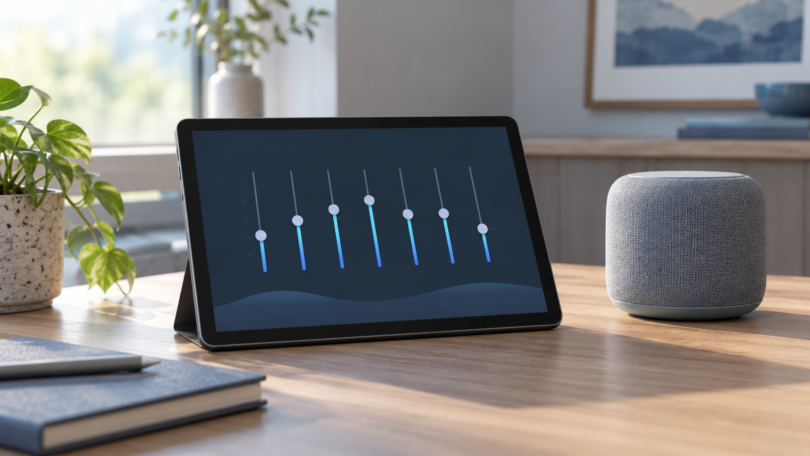
The listing documents adjustable bands, a preamp, limiter and compressor. These give you more control over tone and levels than a single boost slider. The useful buying question is whether it processes the app and output you use. Check this before purchasing an upgrade: play something at a modest level, make a small reversible adjustment and confirm that the intended app is affected.
Why choose it: you want repeatable settings for a supported music workflow and are willing to learn the controls. Why skip it: you need a one-tap guarantee for every app or do not want to manage additional setup.
Its listing says some players require their equalizer option to be enabled. Advanced Player Tracking requires extra permissions; that is a separate setup decision, not an automatic step in this recommendation. Start with ordinary supported playback and read the developer’s explanation before granting advanced access. A limiter is not a hearing-protection guarantee. The Play listing includes in-app purchases and developer declarations of no data collection or sharing; verify the actual offer and permissions on your device.
Why GOODEV is not one of our main picks
Volume Booster GOODEV, package com.goodev.volume.booster, is a real Google Play listing from GOODEV. However, its own description calls the software experimental, warns about hearing and speaker damage, and says it does not work on every device. It also distinguishes media boosting from speakerphone call volume.
The listing contains ads and declares possible collection and sharing of data. Its description discusses very old Android releases, which does not establish eligibility for the version currently offered to your tablet. Given those limitations, it is not our default recommendation for making a tablet louder.
Check compatibility before installing or paying
- Use your tablet’s Play Store. The public listings establish the app and publisher, but they do not prove that the current build can be installed on your particular device. Check the compatibility result and current Android requirement shown to you.
- Do not infer compatibility from an old minimum version. Public app listings may not show a reliable current install requirement for your tablet. Android release, manufacturer software, player and audio output can all matter.
- Match the whole workflow. A result through the built-in speaker does not prove the same behavior through Bluetooth or USB audio. Recheck at a low starting volume after changing the output.
- Review permissions. Android lets you inspect an app under Settings, Apps, Permissions, though the path varies. Google’s permissions guide explains the categories. A Data safety declaration and an operating-system permission are different things.
- Avoid stacking effects while evaluating an app. Start with one player or equalizer adjustment so you can identify what changed. Return it to its starting value if the result is worse.
These recommendations are for compatible Android tablets using official Google Play listings. They do not establish availability on an Amazon Fire tablet or other device with a different app store. If Play says an app is incompatible, choose an officially supported option rather than looking for a modified copy.
Keep listening levels in perspective
The World Health Organization’s safe-listening guidance emphasizes that risk depends on both sound level and duration. Lower the volume, take breaks and reduce time around loud sound. No boost percentage in an app translates into a universally safe listening level.
If the sound becomes harsh or distorted, reduce the gain and volume. Clear-sounding audio can still be too loud, so the absence of distortion is not a safety test. If you notice persistent ringing or difficulty hearing, seek advice from a qualified health professional rather than treating more amplification as the solution.
Frequently asked questions
Can a volume booster double the loudness of any tablet?
No reliable universal result follows from an app’s percentage scale. The recording, software, output device and listening environment all affect the result. A larger number on a slider is not a measured loudness or safety rating.
Will VLC make every app louder?
No. The boost described here belongs to VLC’s video playback. Choose it when the media can be played inside VLC.
Will Poweramp Equalizer work with my streaming app?
It supports compatible players, but this must be checked with your app, tablet and audio output. The developer documents additional requirements for some players. Verify the result before paying for an upgrade.
What should I try before buying a booster?
Check the correct media slider and output, compare another recording, and try the existing player’s settings. If room listening is the problem, consider a compatible speaker. For persistent hearing concerns, more software gain is not a substitute for professional advice.