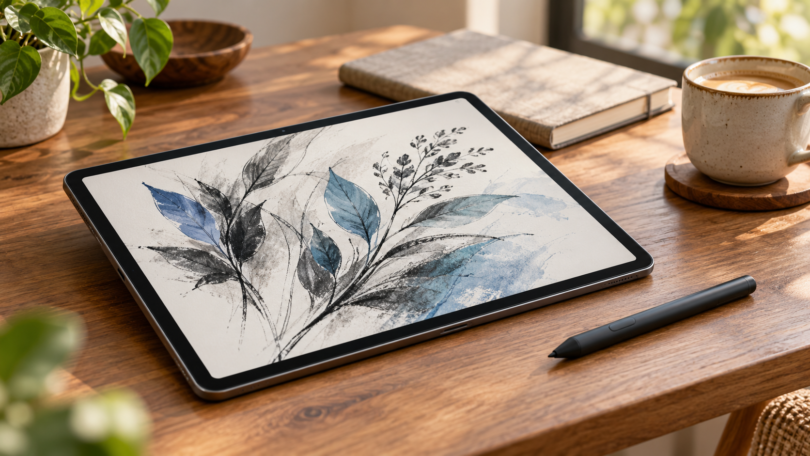

The best tablet PC with a stylus depends first on the software you need. The Surface Pro 12-inch (1st Edition) is the pick here for Windows applications, the 11-inch iPad Air with M4 suits people who want Apple Pencil Pro tools in iPad apps, and the Galaxy Tab S10 FE is the straightforward choice when an included pen matters.
These are three different buying decisions. Only the Samsung configuration below includes its pen. Budget for the exact compatible pen, any keyboard, charging accessories and paid apps before comparing the total cost.
Best tablets with a stylus at a glance
| Pick and selected configuration | Best fit | Pen arrangement | Main tradeoff |
|---|---|---|---|
| Surface Pro 12-inch, 1st Edition; Snapdragon X Plus, 16GB/256GB, Platinum | Windows work with handwritten notes | Surface Slim Pen, also called Slim Pen 2; sold separately; Microsoft Pen Protocol | Check Windows on Arm app and driver compatibility; keyboard and wall charger cost extra |
| iPad Air 11-inch, M4; Wi-Fi, 128GB, Space Gray | Drawing and note-taking in iPad apps | Apple Pencil Pro sold separately; Apple Pencil compatibility system | Runs iPadOS; Apple Pencil USB-C lacks pressure sensitivity |
| Galaxy Tab S10 FE; Wi-Fi, 128GB, Gray, SM-X520NZAAXAR | Android notes with a pen in the box | Included S Pen for the Tab S10 FE | Included pen has no Bluetooth remote Air actions; check Android app features |
1. Microsoft Surface Pro 12-inch: best for Windows work
Choose the 1st Edition with Snapdragon X Plus, 16GB RAM and 256GB storage in Platinum. This is the 12-inch tablet, not a similarly named 13-inch Surface Pro. Its Windows 11 Home software, built-in kickstand and two USB-C ports make it the most direct fit in this list for a workflow built around Windows programs.
Microsoft specifies a 12-inch LCD with 2196 × 1464 resolution and refresh rates up to 90Hz. More important for handwriting, it supports Microsoft Pen Protocol (MPP) and the separately purchased Surface Slim Pen, also called Surface Slim Pen 2 or Slim Pen (2nd Edition). Microsoft’s compatibility table lists 4,096 pressure points and tilt for this pairing. Tactile feedback works in supported Windows apps; it is not a promise that every brush or program will feel the same.
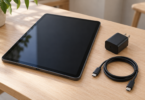
The pen stores and charges on the back of the tablet. Charge it before first use; Bluetooth pairing enables its shortcut button. A keyboard is optional, but this model needs the compatible 12-inch Surface Pro keyboard, not the 13-inch version. The tablet box includes a USB-C cable and no wall charger. Microsoft’s model-specific setup guide recommends a USB-C PD charger providing at least 27W, or at least 45W for its fast-charging mode.
- Why buy it: Windows software, a built-in stand and documented pressure-sensitive pen support in one tablet.
- What to check: The pen, keyboard and suitable wall charger add to the system cost. Its Snapdragon processor runs Windows on Arm, so confirm required apps, plug-ins and peripherals with their makers. Microsoft notes that hardware and apps needing drivers require compatible Arm drivers.

Microsoft Surface Pro 12-inch, 16GB/256GB, Platinum
As an Amazon Associate we earn from qualifying purchases.
2. Apple iPad Air 11-inch M4: best for Apple Pencil Pro users
Choose the Wi-Fi, 128GB, Space Gray configuration, then add Apple Pencil Pro separately. The M4 Air’s fully laminated 2360 × 1640 Liquid Retina display and support for Pencil hover make it a sensible shortlist choice for drawing, handwritten notes and document markup in compatible iPad apps. This selected model has Wi-Fi connectivity; it does not include a cellular plan or cellular hardware.
The exact pen matters. Apple’s Pencil comparison lists pressure sensitivity, tilt and palm rejection for Pencil Pro. Pencil USB-C also works with this iPad, but it does not provide pressure sensitivity. An older Apple Pencil 2 is not the Pencil Pro and is not on Apple’s compatibility list for the M4 Air.
Attach Pencil Pro to the magnetic connector on the iPad’s long edge to pair and charge it, with Bluetooth enabled. In Apple’s drawing guide, barrel roll and double-tap depend on the app and selected tool; supported tools in Notes and Freeform are useful starting points. Confirm that any third-party drawing app implements the pen features you actually want.
- Why buy it: A compact iPad with Pencil Pro pressure, hover and supported drawing-tool controls.
- What to check: It runs iPadOS, so confirm your app’s iPad version, file handling, export options and subscription needs. The processor name does not make desktop Mac or Windows software compatible. Pencil Pro and a keyboard are separate purchases; the selected US tablet package includes a USB-C cable and 20W adapter.
See the selected 11-inch iPad Air configuration at Apple.
3. Samsung Galaxy Tab S10 FE: best with an included pen
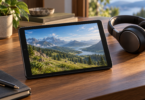
Choose the US Wi-Fi, Gray, 128GB model SM-X520NZAAXAR. It includes the S Pen, making it the simplest pen-in-the-box option here for Samsung Notes, PDF annotation and Android drawing apps. Samsung lists a 10.9-inch LCD, 2304 × 1440 resolution, a 90Hz refresh rate and an Exynos 1580 processor for the S10 FE.
The included pressure-sensitive S Pen is specifically supported by this tablet. Use that pairing as the compatibility baseline when considering replacements. A pen advertised simply as “universal” does not establish S Pen support, pressure input or palm rejection. Samsung’s S10 FE feature guide says the included pen has no Bluetooth Low Energy, pairing or charging. It also lacks remote Air actions. Hovering the pen to open Air command is a different feature and does not require a Bluetooth remote.
For handwriting, start in Samsung Notes’ pen mode and check its finger-drawing setting if your hand leaves unwanted marks. The model-family manual documents that setting; it does not establish flawless palm rejection in every Android app. Check the same behavior in your intended drawing app before committing to a long workflow. Features also depend on the installed software and app version, so update the tablet and confirm any app’s minimum Android requirement.
- Why buy it: The compatible pressure-sensitive pen comes with the tablet, and Samsung Notes provides a ready place to write.
- What to check: The keyboard, case and wall charger are separate items. Android app functions can differ from their desktop equivalents. The manual warns that nearby magnets can interfere with S Pen input, which matters when choosing a case or stand.
See the selected Galaxy Tab S10 FE at Samsung.
How to choose the right tablet and pen
Start with the application. List the programs, file formats and plug-ins you must use. A Windows requirement points toward the Surface, subject to its Arm compatibility checks. An iPad-only drawing workflow points toward the Air. Samsung Notes and Android apps point toward the Tab S10 FE. Check offline access, export and cloud-sync costs as well as the app name.
Match the pen system, not the connector or appearance. Surface’s MPP, Apple’s listed Pencil models and Samsung’s model-specific S Pen support are separate compatibility checks. A generic rubber-tipped capacitive stylus mainly substitutes for a finger; its ability to make a mark does not establish pressure sensitivity, tilt or palm rejection.
Treat palm rejection as a whole setup. The tablet, compatible pen, app, settings and writing technique all matter. Apple’s Pencil documentation explicitly lists palm rejection. Windows’ pen-input guidance explains that rejection works best when the pen is detected before the palm touches down. In Samsung Notes, review finger drawing and pen mode. None of those details is a guarantee of identical behavior in every app.
Compare the full kit. Include the pen, keyboard if needed, protective case, charger and software. Choose storage for your downloaded files and artwork, and leave room for the operating system and apps. Larger storage configurations are separate variants; do not assume the selected 128GB or 256GB model can hold a manufacturer’s entire advertised maximum capacity.
Which one should you buy?
Choose the Surface Pro 12-inch 1st Edition when verified Windows app compatibility is the deciding factor. Choose the iPad Air 11-inch M4 plus Pencil Pro when its iPad apps and drawing tools match your work. Choose the Galaxy Tab S10 FE when you want a compatible pen included and prefer an Android workflow.
Frequently asked questions
Does every tablet with a touchscreen support a pressure-sensitive stylus?
No. A touchscreen can accept a basic capacitive stylus without supporting pressure-sensitive pen input. Check the exact tablet and pen pairing, then the drawing app’s support for pressure and palm rejection.
Which tablet in this list includes its pen?
The selected Galaxy Tab S10 FE includes its S Pen. Apple Pencil Pro is separate from the selected iPad Air, and Surface Slim Pen is separate from the selected Surface Pro. A different retailer bundle may include accessories, so check its exact contents.
Does Apple Pencil USB-C have the same drawing features as Pencil Pro?
No. Both are compatible with the M4 iPad Air, but Pencil USB-C lacks pressure sensitivity. Pencil Pro adds pressure input and features such as squeeze and barrel roll, with app and tool support determining how those features work.
Can these tablets replace a laptop?
They can fit some laptop workflows, but check your required software first. The Surface runs Windows on Arm and needs compatible apps and drivers. The iPad Air runs iPadOS, while the Tab S10 FE uses Android; their mobile apps may differ from desktop versions. Keyboards are separate purchases for the selected configurations.
Why does my palm still make marks while I use a pen?
First confirm that the pen is supported by the exact tablet. Then check the app’s pen mode and finger-drawing settings, update the software and let the tablet detect the pen before resting your hand. On the Samsung, also check for nearby magnets. Persistent problems should be checked against the manufacturer’s troubleshooting instructions.