
A USB expansion card is worth buying when your desktop needs a different USB controller, faster data ports or more connections than its motherboard provides. Start with the motherboard slot and the devices you intend to connect. A long list of ports does not tell you how much bandwidth or power those ports can share.
For this guide, we compared documented controller designs, connector types, installation requirements and exact model numbers. These are specification-based recommendations rather than hands-on benchmark winners. The three cards below address distinct needs, and all require a suitable desktop PCI Express slot.
Which USB expansion card fits your job?
- Several demanding USB-A devices: StarTech PEXUSB3S44V has four separate USB controllers and four 5Gbps USB-A ports.
- Faster USB-A storage connections: StarTech PEXUSB312A3 adds two USB-A ports rated for USB 10Gbps.
- USB-C data peripherals: StarTech PEXUSB312C3 adds two USB-C data ports, with important limits for monitors, charging and Thunderbolt.
If you only need somewhere to plug a keyboard, mouse and printer, first consider whether a suitable hub on an existing port solves the problem. An internal card makes more sense when you specifically need its controller, connectivity or performance characteristics.
StarTech PEXUSB3S44V for multiple USB-A devices

StarTech 4-Port USB 5Gbps PCIe Card, 4x Independent USB Controllers | PCI Express adapter card, 4x USB-A ports each with dedicated 5Gbps channel (USB 3.2 Gen 1), SATA and LP4 power connectors
As an Amazon Associate we earn from qualifying purchases.
The PEXUSB3S44V is the most interesting option here when your priority is distributing devices across separate controllers. StarTech documents four host-controller chipsets, with a dedicated 5Gbps USB channel for each external USB-A port. That differs from a card that places several sockets behind a single USB hub.
This architecture can be useful for several storage devices or other bandwidth-intensive peripherals. It does not guarantee that every camera, capture device or VR headset will work; the peripheral’s own compatibility requirements still apply. Nor does a port’s signaling rate promise a matching file-copy speed. The PCIe connection and the rest of the system remain part of the path.
The card requires an x4-or-larger PCIe slot, includes a low-profile bracket and offers SATA or LP4 auxiliary power connections. Check the manufacturer’s PEXUSB3S44V datasheet against your case clearance and power supply before ordering. It is a sensible specialist choice for independent USB-A connections; it is less compelling if you simply need one fast USB-C SSD connection.
StarTech PEXUSB312A3 for USB-A storage

Choose the PEXUSB312A3 when your existing cables or devices use USB-A and can benefit from a 10Gbps USB connection. It provides two USB-A ports and uses an ASMedia ASM3142 controller. UASP support is useful with a compatible storage enclosure, operating system and drive.
Unlike the four-controller card above, this is not presented as four separate USB buses. Do not multiply the advertised per-port speed by the number of sockets and treat the result as guaranteed simultaneous throughput. Consider which drives you actually use together and whether transfers will also involve the same internal drive.
The PEXUSB312A3 datasheet specifies an x4-or-larger physical slot, full- and low-profile brackets, and a SATA power header. Its stated USB-A power provision is 4.5W per port. This is a data-expansion choice rather than a high-power phone-charging upgrade. Confirm support for your particular operating-system version instead of relying on a broad “Windows and Linux” description.
StarTech PEXUSB312C3 for USB-C data

The PEXUSB312C3 adds two USB-C ports for compatible 10Gbps data devices. It suits peripherals that already use USB-C cables, such as an appropriate external storage enclosure. It also requires an x4-or-larger PCIe slot, includes a low-profile bracket and has a SATA connection for supplemental power.
The key limitation is explicit in StarTech’s PEXUSB312C3 documentation: it does not support DisplayPort Alternate Mode, USB Power Delivery or Thunderbolt devices. Do not buy it expecting a simple USB-C-to-HDMI adapter, a USB-C monitor needing video over that cable, or a Thunderbolt-only dock to work.
The manufacturer’s current materials contain differing power figures, so do not make a charging-dependent purchase on the strength of a single listing bullet. Ask StarTech to confirm the available power for your exact peripheral and hardware revision. For data-only use, connector convenience is the reason to choose this over the USB-A sibling.
Check these five things before ordering
1. The correct slot and enough room
These are PCIe desktop cards. A conventional PCI slot, laptop memory slot or spare M.2 socket is not a direct substitute. Read your motherboard manual to identify the available slot and any restrictions when other slots or storage connectors are populated. Check whether your graphics card blocks the intended position.
The physical slot length and its electrical configuration are separate considerations. A card that fits can still have less bandwidth available than expected. A low-profile bracket solves bracket height, but it does not solve a case with no expansion position or insufficient clearance around the board.
2. The actual devices and cable speed
A 10Gbps card cannot turn a 5Gbps enclosure into a 10Gbps one. The cable, enclosure controller and installed drive all matter. StarTech’s USB 10Gbps guidance calls for end-to-end compatibility, including the components inside a storage device. Use a cable with a stated data rating, particularly when replacing a cable that may have been intended mainly for charging.
3. Available USB power
List which peripherals have their own power supply and which draw from USB. Several bus-powered devices can be a harder load than a keyboard and mouse. Follow the exact card’s installation guide for auxiliary power, use a compatible lead from the computer’s power supply and do not mix modular power-supply cables from unrelated units.
4. Your operating system
Check the model-specific driver and compatibility page before buying. An old review saying “works on Mac” does not establish support for your particular Mac, operating-system release or hardware configuration. These cards also do not create an internal PCIe slot in a computer that lacks one.
5. Data versus video and charging
USB-C describes a connector, not a promise of every USB feature. USB-IF’s naming guidance distinguishes USB-C from USB4, USB 3.2 and USB Power Delivery. Specify the feature you need, such as USB 10Gbps data, rather than searching only for a connector shape.
Install and test one change at a time
Shut the computer down, unplug its power cord and follow the case manufacturer’s access instructions. Observe anti-static precautions, hold the card by its edges, fit the appropriate bracket and secure it properly. Connect auxiliary power as instructed before closing the computer. The StarTech quick-start guide illustrates that process for the USB-C card.
After startup, check whether the operating system recognizes the controller. Use manufacturer-provided drivers if needed. Connect one known-good device with a known-good cable first; then add your other devices. If failures occur only when several devices run together, investigate power and shared bandwidth rather than immediately assuming the card is defective.
For storage, compare a repeatable large-file transfer using the same drive and cable. For a webcam or capture device, test the resolution and frame rate you actually need. A synthetic headline number is less useful than stable operation under your normal workload.
Our recommendation: pick the PEXUSB3S44V for its separate USB controllers, the PEXUSB312A3 for USB-A 10Gbps data, or the PEXUSB312C3 for USB-C data with its feature limits understood. Verify the slot, power needs and operating-system support before the port count persuades you.
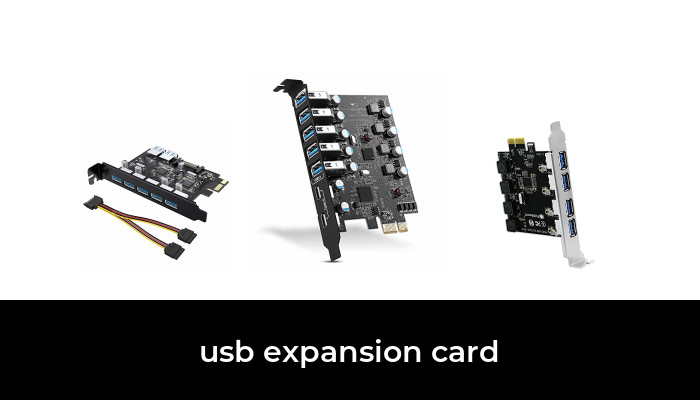
Image note: Examples from the product category; pictured models and variants may differ from the options discussed.