
For a tablet that can handle the Windows versions of Word, Excel and PowerPoint, our first choice is the Surface Pro 12-inch, 1st Edition. For lighter document work, consider the iPad A16 if you prefer Apple’s tablet apps, or the Galaxy Tab S10 FE if you want Android and an included pen. The right choice depends more on your files and license than on the processor advertised on the box.
We compared manufacturer specifications, Microsoft’s app and licensing documentation, and the exact selected packages. These are feature-based recommendations, not hands-on test results. Before replacing a work laptop, try your most demanding document, spreadsheet and presentation on the intended app.
Quick comparison: three tablets for Office
| Exact tablet choice | Best fit | Office version | Budget beyond the tablet |
|---|---|---|---|
| Surface Pro 12-inch 1st Edition, 16GB/256GB, Platinum | Desktop Office in a detachable Windows device | Windows desktop apps with an appropriate license | 12-inch keyboard, charger and Office license; pen optional |
| iPad A16, 128GB Wi-Fi, Silver | Reading, writing and routine edits in iPad apps | Word, Excel and PowerPoint for iPad | Keyboard or stand; qualifying Microsoft 365 plan for editing |
| Galaxy Tab S10 FE, 128GB Wi-Fi, Blue, US version | Android document work and handwritten notes | Android mobile apps, including in on-tablet DeX | Keyboard, wall charger and qualifying Microsoft 365 plan |
1. Surface Pro 12-inch: best for desktop Office
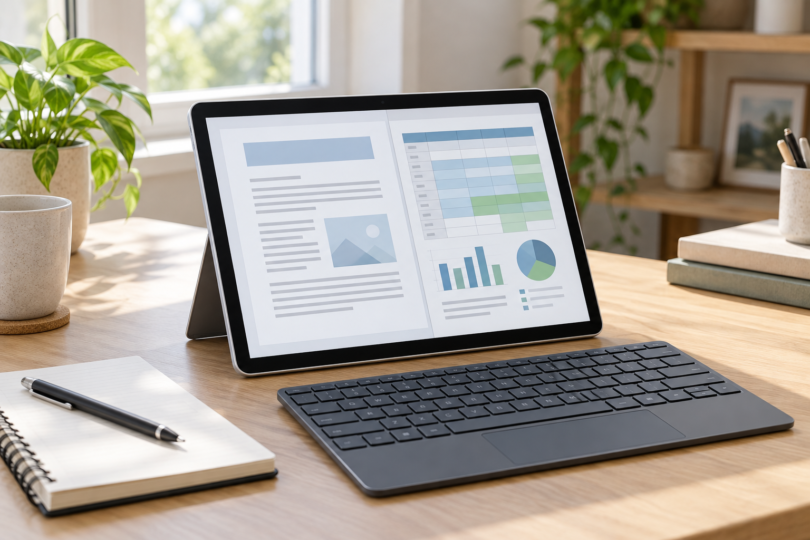
The selected model is the 2025 Surface Pro 12-inch, 1st Edition, with an eight-core Snapdragon X Plus, 16GB RAM, 256GB storage and Platinum finish. The exact device-only listing identifies it as EP2-33670. It runs Windows 11 Home, and Microsoft supplies native Arm64 versions of Word, Excel, PowerPoint and other Microsoft 365 apps.
Choose it when the tablet will be your main Office computer. Its main advantage here is the Windows desktop app workflow. Mobile Excel can open some macro-enabled files but cannot run their VBA functions, so the iPad and Samsung are poor replacements for a workbook that depends on those functions. Even on Windows, test your own add-ins, templates and connected hardware before switching.
Pros: Desktop Microsoft 365 apps, a built-in kickstand and two USB-C ports. Cons: You need to budget for typing accessories and a charger, and Windows on Arm compatibility still matters for specialist software and peripherals. Microsoft warns that drivers must support Windows on Arm; check your printer, security software and other essential equipment.
The box lists the device, a USB-C charging cable and documentation, with no charger. The keyboard is optional: match the Surface Pro 12-inch Keyboard to this model. Do not assume a 13-inch keyboard or another Surface generation’s accessory fits. A pen is optional for Office typing, and buying the hardware does not itself supply an ongoing Microsoft 365 license.
Pay attention to the complete model name when comparing offers. This recommendation covers the 1st Edition Snapdragon X Plus configuration above; specifications and packages for a newer edition, a 13-inch Surface Pro or a keyboard bundle should be checked separately.

Microsoft Surface Pro 12-inch 1st Edition, 16GB/256GB, Platinum
As an Amazon Associate we earn from qualifying purchases.
2. iPad A16: best for an iPad document workflow
The iPad A16, 128GB Wi-Fi in Silver is a sensible starting point for someone who wants an iPad for reading, writing and routine Office edits. Apple lists a 2360 × 1640 Liquid Retina display, USB-C and a landscape front camera. It uses iPadOS, so install the iPad versions of Microsoft’s apps rather than expecting a Windows or Mac Office installer to work.
The reason to choose this over a more elaborate setup is the straightforward document workflow: reading a draft, adding comments, updating a simple worksheet or rehearsing slides. A keyboard and a stable stand matter more for long typing sessions than a Pencil. Apple identifies Magic Keyboard Folio as the matching keyboard family; confirm compatibility with the A16 model when buying any third-party case.
Pros: A 128GB starting capacity, an 11-inch-class screen and a 20W USB-C adapter in the US box. Cons: The keyboard and Pencil are separate purchases, and mobile Office has file and feature limits. Apple measures this screen at 10.86 inches as a rectangle, which still exceeds Microsoft’s 10.1-inch free-editing threshold. Budget for the appropriate subscription.
Microsoft’s current Word App Store listing requires iPadOS 18 or later. Check the current requirements for Word, Excel and PowerPoint individually, keep iPadOS supported, and test the features you need before purchase. More iPad processing power does not add VBA support to mobile Excel.
See the Silver 128GB Wi-Fi iPad at Apple. This is the tablet configuration, without an added keyboard, Pencil or AppleCare plan. Apple’s US specifications list the iPad, USB-C cable and 20W adapter in the box.
3. Galaxy Tab S10 FE: best for Android and included pen input
The selected Galaxy Tab S10 FE is the US Blue 128GB Wi-Fi model, listed as SM-X520NLBNXAR. It has a 10.9-inch LCD and 8GB RAM. Choose this version if you prefer Android and want an included S Pen for handwritten notes alongside mobile Office documents.
Samsung DeX gives this tablet a desktop-like interface on its own screen, with support for keyboard and mouse input. It still runs the mobile Office apps. Samsung specifically says the S10 FE and FE+ do not support Wireless DeX or HDMI output, so do not buy this model expecting a USB-C-to-HDMI desktop setup.
Pros: The S Pen is included, and on-tablet DeX offers another way to arrange your workspace. Cons: The keyboard and wall charger are separate, there is no HDMI output, and Excel’s mobile restrictions remain. The exact listing’s box contents are the tablet, S Pen, data cable, ejection pin and Quick Start Guide.
Its 10.9-inch screen is above the free-editing threshold. Check your exact Microsoft 365 plan, especially if your employer supplies a plan with a screen-size restriction. Also check that Microsoft’s Android apps are available for your device and region in Google Play; a Samsung keyboard or DeX mode does not include or upgrade your Office license.

Check the Microsoft 365 license before choosing the tablet
Microsoft’s mobile subscription guidance says a qualifying Microsoft 365 subscription is required when the device is larger than 10.1 inches. Both mobile tablets here exceed that threshold. Work files and business storage can introduce additional licensing requirements, so a free app download is not evidence that your work editing is covered.
Check the actual plan eligibility table. Microsoft lists Personal and Family among qualifying plans, while Microsoft 365 Basic and one-time Office purchases are non-qualifying for extra mobile features. Some qualifying business and education plans have a 10.9-inch editing limit. Ask your administrator to confirm the account, apps, screen size and business-use rights you need.
For the Surface, budget for a Windows Office license or a Microsoft 365 plan that includes the desktop apps you need. Confirm that an existing license can be installed and activated on the new device. If a seller offers a trial or bundle, read its duration and renewal terms separately; preloaded apps are not proof of a permanent entitlement.
Choose for your real files and complete setup
Test the hardest spreadsheet first
Use a copy of a representative workbook to check file formats, formulas, add-ins and refresh steps. Microsoft’s mobile Excel format table distinguishes opening a file from editing it, and explicitly says VBA functions will not run in macro-enabled workbooks. A subscription unlocks eligible mobile features; it does not remove every platform limitation.
Add the keyboard, stand and power supply
Compare the complete setup you will carry. The Surface and Samsung packages need a wall charger; the US iPad package includes one. All three selected tablet packages require a separate keyboard for laptop-style typing. Think about the desk or tray where you will use the stand, and whether the combined weight and footprint still suit your travel.
Check work-account and offline needs
Before purchase, ask your IT team whether the intended operating system is allowed, which account and apps to use, and whether local storage or offline editing is permitted. Download the files you need and rehearse the workflow without a connection before an important trip. Check any templates, fonts, links, video clips or external data you rely on. This is a practical acceptance check, not a promise that every feature works offline.
Frequently asked questions
Which tablet is best for full Microsoft Office?
The Surface Pro 12-inch is the best fit in this shortlist for Windows desktop Office. The iPad and Galaxy Tab use mobile apps with different capabilities. Check Windows on Arm support for essential peripherals and specialist software before choosing the Surface.
Is Word or Excel free on these tablets?
Do not assume so. Microsoft requires a qualifying subscription for mobile editing on devices larger than 10.1 inches, and both the iPad A16 and Tab S10 FE exceed that size. The Surface also needs an appropriate desktop app license; the tablet purchase alone does not establish one.
Can the iPad or Galaxy Tab run Excel macros?
Microsoft says VBA functions do not run in macro-enabled Excel workbooks on iOS or Android. Being able to open or edit part of a file is different from being able to execute its automation. Use a suitable desktop workflow if the workbook depends on VBA.
Does Samsung DeX turn the tablet into a Windows PC?
No. DeX changes how you work with the Android tablet; it does not change the operating system or turn mobile Excel into desktop Excel. On the S10 FE, DeX runs on the tablet screen, and Samsung rules out Wireless DeX and HDMI output.
Do I need a stylus for Office?
A stylus is optional for typing and ordinary document work. Prioritize a comfortable keyboard and stable support if you mainly write. The selected Samsung package includes an S Pen; Apple’s listed iPad box and the Surface device-only box do not include a pen.