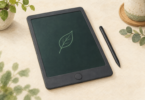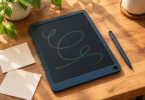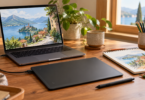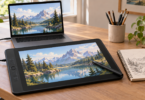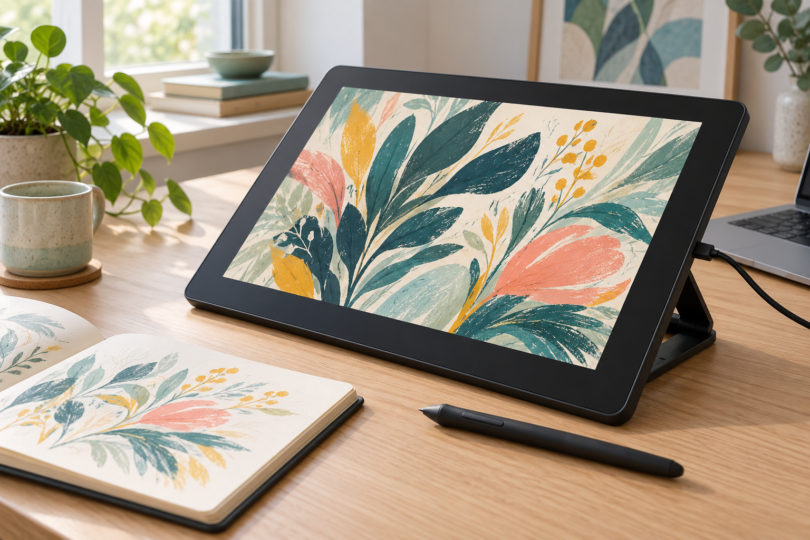

For a drawing tablet with a screen, start with the Huion Kamvas 13 (Gen 3) if you want shortcut buttons and dials in a compact display. Choose the Wacom One 14 for a slightly larger Full HD canvas and a straightforward USB-C setup, or the XPPen Artist Pro 16 (Gen 2) for a larger, higher-resolution workspace. These are pen displays that connect to a compatible computer; they are not standalone tablets.
The shortlist below compares documented hardware, connection requirements and package contents. “Best” means the closest fit for the stated use, rather than a measured drawing-performance ranking. Start with your computer’s ports and your preferred drawing application, then compare the complete setup cost.
Best display drawing tablets at a glance
| Exact model | Display | Controls and package | Best fit and main limit |
|---|---|---|---|
| Huion Kamvas 13 (Gen 3), GS1333, black stand bundle | 13.3 inches; 1920 × 1080 | Five programmable keys, two dials, PW600L pen; selected bundle includes ST300 stand and 3-in-1 cable | Compact setup with built-in shortcuts; no finger-touch input, and full-featured USB-C cable costs extra |
| Wacom One 14, DTC141W0, white | 14 inches; 1920 × 1080 | Wacom One Standard Pen and USB-C cable; stand sold separately | Simple computer-connected canvas; USB-C must support video, and HDMI needs an additional converter kit |
| XPPen Artist Pro 16 (Gen 2), MD160QH | 16 inches; 2560 × 1600 | X3 Pro stylus, separate wireless shortcut remote and built-in folding stand | More canvas space and pixels; no touch input, and the display itself needs a wired connection |
Huion Kamvas 13 (Gen 3): best for compact shortcut controls
The Kamvas 13 (Gen 3) combines a fully laminated Full HD screen with two configurable dials and five programmable keys. That makes it our first option to compare if you want brush-size and canvas controls beside the drawing area. Its battery-free PW600L pen has three side buttons and 16,384 pressure levels; unlike Huion’s optional PW600 and PW600S pens, the included PW600L has no tail eraser.

Huion Kamvas 13 (Gen 3), GS1333, Black with ST300 Stand
As an Amazon Associate we earn from qualifying purchases.
Check the bundle carefully. The black selection linked here lists an ST300 adjustable stand, PW600L pen, 3-in-1 cable, USB extension cable, pen holder and ten nibs. Huion’s standard package does not necessarily include the stand. A full-featured USB-C cable and power adapter are not part of the standard package, so allow for them if your connection needs them.
There is no finger-touch support, so use the pen, dials and buttons for navigation. For USB-C operation, the host port and cable must support USB 3.1 Gen 1 and DisplayPort 1.2. Huion’s connection instructions also provide for extra power when the host cannot supply enough. Follow the model-specific connection guide rather than assuming any USB-C cable will work.
Wacom One 14: best for a simple USB-C workspace
The Wacom One 14 is the DTC141 model, with a 14-inch IPS screen, 1920 × 1080 resolution and a bonded anti-glare surface. Its battery-free Wacom One Standard Pen provides 4,096 pressure levels, tilt support and two side buttons. It is worth comparing if you want a slightly larger canvas than the Huion and prefer to use pen buttons or a keyboard for shortcuts.
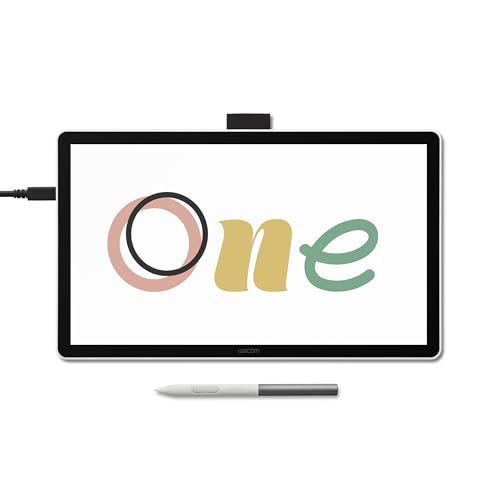
The package includes the pen and a USB-C cable, while the stand is optional. A single-cable connection requires a computer port with DisplayPort Alt Mode or a supported Thunderbolt connection. For a computer with HDMI and USB-A, Wacom specifies a separately sold converter arrangement with the necessary cables and power supply. Check the Wacom One 14 connection options before budgeting.
This model does not support multi-touch. Wacom lists Windows 10 or later, macOS 13 or later and current ChromeOS among its system requirements; check the current driver and your application as well. Do not buy it expecting the touch features of a different Wacom One model.
XPPen Artist Pro 16 (Gen 2): best for a larger, sharper canvas
The Artist Pro 16 (Gen 2), model MD160QH, moves up to a 16-inch, 2560 × 1600 laminated display. Its documented working area is 344.68 × 215.42 mm, and the enclosure measures 405.11 × 291.37 mm. Those dimensions make it the choice here to compare for more drawing space, provided your desk can accommodate it.
The package includes an X3 Pro stylus with 16,384 pressure levels, a pen case, a wireless shortcut remote, USB-C and USB-A-to-USB-C cables, and a power adapter. There is also a built-in folding stand. The separate remote is useful if you prefer to position shortcut controls away from the display. Check the exact package on the XPPen Artist Pro 16 (Gen 2) product page.
The remote’s wireless connection does not make the drawing display wireless. XPPen specifies a wired host connection and no finger-touch support. For HDMI, check whether the chosen package includes the required 3-in-1 cable; bundle contents vary. Android use also requires compatible USB 3.1/DisplayPort 1.2 hardware and external power. Confirm the intended host and cable arrangement before choosing it for a mobile setup.
How to choose without buying the wrong setup
Check the whole connection path
Write down your computer model, operating system and available video ports. Match these against the display’s instructions, including the cable and power requirements. Huion and XPPen offer HDMI connections through model-specific 3-in-1 cables; Wacom One 14 uses a converter for HDMI. A USB-C connector alone does not establish the required video capability.
Choose controls before chasing pressure numbers
Choose the Huion for dials on the display, the XPPen for a separate shortcut remote, or the Wacom if pen buttons and your keyboard suit your workflow. Pressure-level counts describe a specification; they do not establish which pen will feel better to you. If possible, try your usual brushes and shortcuts before committing.
Budget for the complete kit
Compare the configured display, included pen, stand, required cables and power supply together. Add your drawing software separately if you need it. Check the seller’s current return terms and replacement-pen or nib options before purchase, especially when two offers use the same product name but list different accessories.
Frequently asked questions
Which display drawing tablet should a beginner choose?
The Kamvas 13 (Gen 3) is the starting point here for someone who wants compact hardware with dials and shortcut keys. Wacom One 14 is a useful alternative when its USB-C connection and simpler controls suit your computer. Choose the Artist Pro 16 (Gen 2) when the larger, higher-resolution drawing area is worth the extra desk space.
Can these drawing displays work without a computer?
They need a compatible host device. Huion and XPPen document support for certain Android devices, subject to their video-output, cable and power requirements. That does not make either display a standalone tablet that runs drawing apps by itself.
Can I draw with my fingers or use pinch-to-zoom?
None of the three selected models supports finger-touch drawing or multi-touch gestures. Use the pen and the controls provided by your software, keyboard or shortcut hardware.
Will one USB-C cable always be enough?
No. The host must provide the required video signal, data connection and power, and the cable must support the connection the manufacturer specifies. Huion and XPPen also describe setups that require a separate power connection. Check the exact computer or Android device rather than assuming that its USB-C socket is sufficient.
Does the Huion package always include a stand?
No. Huion distinguishes its standard package from bundles with a stand. The black GS1333 Amazon selection linked above lists the ST300 stand, but you should recheck the selected color and included components before ordering or switching variations.