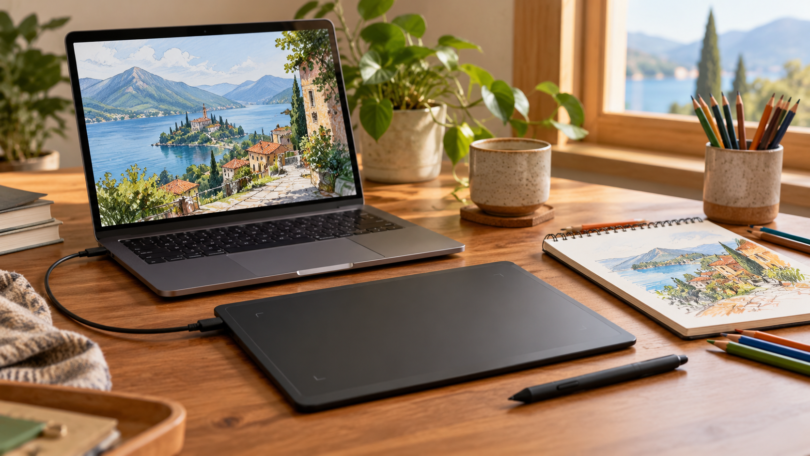

The Wacom Intuos Small wired CTL-4100 is our first pick for someone learning digital drawing on a computer: its four shortcut buttons give it a practical advantage over a bare pen pad. Choose the XPPen Star G640 if you want a simple, compact screenless surface, or the XPPen Artist 13.3 Pro V2 if you want to draw directly on a display.
These are three different ways to control drawing software on another device. None is a self-contained art computer. The recommendations below compare manufacturer specifications, setup documentation and buying configurations; they do not represent hands-on drawing or latency tests.
Which type of drawing tablet do you need?
- Screenless pen tablet: you move a pen on a pad while watching your computer monitor. The Intuos and G640 belong here. They suit a desk where you already have a comfortable screen.
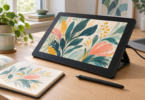
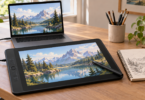
- Pen display: you draw over the image, but a compatible host still runs the software. The Artist 13.3 Pro V2 needs video, pen data and power connections.
- Standalone tablet: a tablet computer runs its own apps. Choose that category if working without a host matters most, then check its exact pen and app support separately.
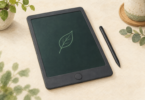
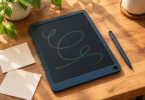
An inexpensive LCD doodle board with an erase button does not replace a graphics tablet for editing a layered illustration or saving artwork in a desktop art app. A stylus, glove or stand also is not a tablet. That distinction matters more than a long list of pressure-level numbers.
Our three picks at a glance
| Pick | Drawing surface | Best reason to choose it | Main limitation |
|---|---|---|---|
| Wacom Intuos Small wired CTL-4100, black | Screenless; 152 × 95 mm active area | Four configurable ExpressKeys on Windows or Mac | This wired model has no Bluetooth |
| XPPen Star G640, black | Screenless; marketed as 6 × 4 inches | Simple compact pad with a battery-free pen | No tablet shortcut buttons; look at the host screen |
| XPPen Artist 13.3 Pro V2, MD130FH, black | 13.3-inch, 1920 × 1080 pen display | Drawing on screen, plus eight keys and a dial | Requires a compatible host and suitable video connection |
1. Wacom Intuos Small wired: best starting point with shortcuts
The exact pick is the black CTL-4100 wired Small, supplied with a Wacom Pen 4K, model LP-1100K. Its pen has 4,096 pressure levels and needs no battery charging. Four ExpressKeys can take common shortcuts off your keyboard when using Windows or Mac. The 152 × 95 mm active area is smaller than the tablet’s outer dimensions, so judge your drawing space by the former. See Wacom’s Intuos specifications.

Wacom Intuos Small Wired Drawing Tablet, Black (CTL-4100), with Pen 4K
As an Amazon Associate we earn from qualifying purchases.
Why choose it: the buttons make it a useful beginner option for repeated actions such as undo or changing tools. The model’s user guide confirms the included pen and USB cable. The supplied cable connects Micro-B at the tablet to USB-A at the computer; a computer with only USB-C ports needs a suitable data adapter.
Tradeoffs: there is no drawing screen or finger-touch control. Bluetooth belongs to the CTL-4100WL version, not this CTL-4100. Use the compatible Pen 4K rather than assuming that another Wacom pen or an iPad stylus will work.
Check before buying: install the appropriate Wacom driver on Windows or Mac. Current driver release notes list CTL-4100 and support Windows 10/11 x64 and Windows 11 ARM64, plus macOS 13–15, 26 and 27. Older operating-system requirements printed on a product page are not the requirements of every current driver. ChromeOS and Android have separate setup and feature limits; do not assume the desktop shortcut experience transfers unchanged.
2. XPPen Star G640: best for a simple screenless setup
The black Star G640 offers a small active area and an included battery-free pen without a row of tablet shortcut keys. XPPen markets the area as 6 × 4 inches; its downloadable family manual diagrams the G640 area as 160 × 100 mm. Treat those as nominal product dimensions, not a measurement of a tested sample. The G640 product page lists 8,192 pressure levels, but that number alone does not establish smoother strokes than another tablet.

Why choose it: it is a straightforward option for a small desk or laptop bag, especially if you already use keyboard shortcuts. The manufacturer identifies the compatible battery-free pen as P01. Use the supplied compatible pen and USB cable; the G640S is a different model, so do not order its accessories merely because the name looks similar.
Tradeoffs: there is no display, wireless connection or bank of shortcut keys. A small surface also means shorter hand movements when it maps to a large monitor. You may prefer a larger tablet if you draw with broad arm movements.
Check before buying: the exact G640 download page provides Windows 7/8/10/11 drivers, current Mac drivers for macOS 10.13 or newer, and distribution-specific Linux packages. Install the drawing driver for your supported system and configure pressure in your art app. An older macOS minimum on the marketing page does not mean the newest driver supports it. USB-C-only computers need the appropriate adapter for the supplied host cable. This recommendation is for a computer workflow; check separate documentation before choosing it for a Chromebook.
3. XPPen Artist 13.3 Pro V2: best for drawing on the screen
Choose the black Artist 13.3 Pro V2, model MD130FH, if placing the pen over the picture is worth the extra desk space and connection requirements. It combines a 13.3-inch Full HD display with eight shortcut keys and a red dial. The included battery-free X3 Pro Smart Chip Stylus supports 16,384 pressure levels and 60-degree tilt. These are manufacturer capabilities; brush behavior still depends on the app and driver.
View the Artist 13.3 Pro V2 at XPPen
Why choose it: the integrated display avoids looking away to a separate monitor while drawing. The model’s actual V2 manual lists a foldable stand, pen holder, eight nibs, USB-C to USB-C cable, USB-C to USB-A cable, USB-A extension, glove and cleaning cloth.
Tradeoffs: this is a display accessory, not an Android tablet or a standalone computer. Its full-featured USB-C connection requires video output from the host. A charge-only or data-only USB-C port is insufficient. The manual’s Android setup also requires a supported device with USB 3.1/DisplayPort 1.2 capability and a separate power adapter; the adapter is not included. If your computer has HDMI but no video-capable USB-C, have XPPen confirm the appropriate cable arrangement before ordering.
Check before buying: the V2 manual lists Windows 7 or later, macOS 10.13 or later, ChromeOS 88 or later, supported Android video-output devices and Linux. Download the driver for this exact V2 model and your system; a platform appearing in a compatibility list does not guarantee every app or every shortcut feature. The older Artist 13.3 Pro uses different pen and cable arrangements. Verify “V2” and MD130FH instead of relying on a reused retailer listing title.
How to choose between them
Start with your computer and art app. Confirm the operating system, driver, available ports and app’s pressure-input support before comparing hardware. On managed school or work computers, check whether driver installation is allowed. Avoid buying a tablet on the assumption that an old bundled-software promotion still applies.
Plan the whole setup. A pen display needs room for the display, stand and cables. A screenless tablet leaves more flexibility to position the monitor at eye level, but requires practice coordinating your hand with that screen. Include any required adapter and paid art software in the budget.
Choose controls over inflated numbers. The Intuos offers four keys, the G640 keeps the surface simple, and the Artist V2 adds a dial and eight keys. Decide which arrangement fits your habits. More pressure levels do not establish lower latency, better accuracy or better artwork.
Our verdict: choose the wired Intuos Small for a compact first computer-drawing setup with shortcuts, the G640 for simplicity, or the Artist 13.3 Pro V2 for a host-connected screen. If you need to draw entirely without a computer, compare standalone tablets instead of buying one of these by mistake.
Frequently asked questions
Can these drawing tablets work without a computer?
None of these picks is a standalone computer. The Intuos and G640 are input pads, and the Artist 13.3 Pro V2 is a pen display. Some supported mobile-device connections are possible, but the host still runs the drawing app.
Is an LCD writing board the same as a graphics tablet?
No. An erase-button doodle board is a different category from a pen tablet that controls drawing software. For editable digital artwork, choose a graphics tablet with documented support for your host and app.
Does the wired Wacom Intuos Small have Bluetooth?
No. The CTL-4100 selected here is wired. Wacom identifies CTL-4100WL as the Small Bluetooth version, so check the full model number before buying.
Will any USB-C cable run the Artist 13.3 Pro V2?
No. Its direct USB-C connection needs a cable and host port that carry the required video and data. Follow the V2 manual, and confirm power requirements and any adapters for your exact computer or supported Android device.
Do more pressure levels make a drawing tablet better?
Not by themselves. Active area, suitable drivers, app support, shortcut controls and a comfortable setup matter too. The pressure-level figures here are manufacturer specifications, not results from comparative drawing tests.