
The Wacom Intuos Pro Medium (2025) is our starting recommendation for a Windows or Mac designer who wants a screenless pen tablet with dedicated shortcuts. Consider the simpler Wacom Intuos Medium for basic pen input, the XPPen Deco Pro LW (Gen 2) for a larger drawing area, or the Huion Kamvas 13 (Gen 3) if drawing directly on a display is essential.
The important choice is how the device fits your existing design workflow. Photo masking, illustration, vector editing, and page layout place different demands on a pen. Match the active area, driver support, and desk layout before comparing pressure-level numbers.
Research checked October 4, 2026 using manufacturer specifications, manuals, and support documentation. We have not hands-on tested these products or measured pen latency, line quality, color accuracy, or comfort. Recommendations reflect documented features and workflow fit. Prices, accessory bundles, and availability need checking when you buy.
Compare the exact models
| Model | Type and active area | Why consider it | Main limitation |
|---|---|---|---|
| Wacom Intuos Pro Medium (2025), PTK670 | Screenless; 263 × 148 mm | 10 ExpressKeys, two dials, adjustable Pro Pen 3 | Official requirements exclude Android and ChromeOS |
| Wacom Intuos Medium Bluetooth, CTL-6100WL | Screenless; 216 × 135 mm | Simpler setup with four ExpressKeys | Less drawing area and fewer physical controls |
| XPPen Deco Pro LW (Gen 2), MT1172B | Screenless; 11 × 7 inches | More room for broad strokes; wired and Bluetooth options | Connection and feature support vary by operating system |
| Huion Kamvas 13 (Gen 3), GS1333 | 13.3-inch pen display; 293.8 × 165.2 mm | Drawing on a 1920 × 1080 screen | Requires a compatible host, video connection, and sufficient power |
Active area means the surface that accepts pen input. It is smaller than the device’s outer dimensions. All four models above depend on a connected host; none is being recommended here as a standalone computer.
1. Wacom Intuos Pro Medium for shortcut-heavy desktop work
The PTK670 Intuos Pro Medium combines a 263 × 148 mm active area with the battery-free Pro Pen 3. Its interchangeable grips and adjustable pen components are worth examining if grip shape matters to you. The 2025 product specifications list 10 ExpressKeys, two dials, USB and Bluetooth connectivity, and no multi-touch.
This is a sensible starting point for someone repeatedly changing brush size, undoing strokes, or switching tools. Assign controls to the commands you actually use rather than buying on the number of buttons alone. A keyboard can still be useful for text entry and less frequent shortcuts.
Check before buying: Wacom’s official requirements specify Windows 10 or later and macOS 13 or later, and exclude Android and ChromeOS. Full customization needs the driver. Check the latest driver’s supported hardware and OS list as well; an older minimum specification is not a promise for every future OS release. Confirm PTK670 on the listing, because older Intuos Pro Medium generations have different hardware.
2. Wacom Intuos Medium for a simpler pen setup
The CTL-6100WL Intuos Medium provides a 216 × 135 mm active area, four customizable ExpressKeys, Bluetooth, and a battery-free Wacom Pen 4K. Wacom specifies 4,096 pressure levels and no multi-touch.
Consider it for selections, masks, handwritten annotations, and occasional illustration when you already have a monitor you like. It avoids adding another screen to the desk. Its main tradeoff against the Pro Medium is the smaller working surface and simpler control layout.
Check before buying: look up CTL-6100WL in Wacom’s driver finder and verify the exact computer and operating system. Bundled software offers are separate from your existing design-app licenses and may be time-limited. Do not choose a tablet primarily for a trial you will not use.
3. XPPen Deco Pro LW (Gen 2) for a larger screenless area
The Deco Pro LW, model MT1172B, offers an 11 × 7-inch working area. XPPen also sells MW and XLW sizes under the same family name, so make sure the cart contains the LW if that is the size you want. The X3 Pro stylus is specified with 16,384 pressure levels.
The larger area is worth considering for broad illustration strokes or anyone who finds a compact tablet cramped. It also occupies more desk space. Tape an 11 × 7-inch rectangle on your desk and leave room for the device’s border, keyboard, and your resting hand before ordering.
Check before buying: XPPen documents different system support for wired and Bluetooth use. Its product page also contains inconsistent Android minimums in different sections, so this guide does not promise Android compatibility from a single version number. Confirm your exact host, connection method, and required shortcut functions with XPPen. Treat Linux distribution support and mobile-app support as separate checks.
4. Huion Kamvas 13 (Gen 3) for drawing on the image
The Kamvas 13 (Gen 3), GS1333, is a pen display with a 13.3-inch, 1920 × 1080 screen, a 293.8 × 165.2 mm working area, five programmable keys, and two dials. Choose this format if placing the pen directly over the artwork is more useful to you than looking at a separate monitor.
Budget for a suitable stand or check whether the chosen bundle includes one. Try the screen angle and application UI scale: a 13.3-inch screen may feel crowded once toolbars and panels are open. Manufacturer gamut and calibration claims do not replace checking your own color-managed workflow.
Check before buying: Huion’s connection guide describes a 3-in-1 HDMI/USB route and a full-featured USB-C route. For the latter, the host port and cable need the required data and DisplayPort support; a charging-only USB-C connection is insufficient. Extra power may be necessary, and the full-featured USB-C cable is a separate purchase in the documented package.
Screenless tablet, pen display, or standalone tablet?
- Screenless pen tablet: you move the pen on the tablet while looking at your existing monitor. Allow time to learn the hand-to-screen mapping. This arrangement lets the monitor remain at its usual viewing height.
- Pen display: the drawing surface is also a screen, but a host computer still runs the applications. Account for video cables, power, stand placement, and how much room remains for the keyboard.
- Standalone tablet: an iPad or an Android drawing tablet runs its own apps. Choose this category only after confirming the mobile software, file formats, fonts, plug-ins, and export options your work requires.
The checks that matter for graphic design
Map the working area carefully. A wide monitor arrangement can make small hand movements cover a large distance. Wacom’s mapping documentation explains how to map one display or a selected area. Its Force Proportions setting can prevent mismatched proportions, although part of the tablet may become inactive. Make a few circles and straight lines after changing your display layout.
Test your actual tools. In your normal app, make a mask, edit vector nodes, draw light and heavy strokes, and use the shortcuts you expect to assign. Pressure and tilt behavior depend on the app and tool as well as the tablet. For layout work dominated by text and alignment, a mouse and keyboard may remain faster for some tasks.
Check the driver before upgrading an operating system. Use the manufacturer’s official download page and release notes. Confirm the specific tablet model, OS version, and processor architecture. On a work-managed computer, establish that installation and required permissions are permitted before purchasing.
Count the complete cost. Include the correct pen, replacement nibs, required cables or adapters, stand, software licenses, and return policy. A high pressure-level count cannot establish superior line quality, comfort, or reliability without trying the complete setup.
Frequently asked questions
Which size is best for graphic design?
A medium screenless tablet is a useful starting point for a desk setup. Prefer a smaller area for portability or a larger one for broader arm movements, but check the active area against your monitor mapping and desk space.
Do I need a display to edit photos or design logos?
No. Screenless tablets support pen input while you view the work on your computer’s display. The choice is about working posture and how you prefer to place strokes, not whether graphic design is possible.
Are more pressure levels always better?
No. Consider the lightest stroke you can comfortably make, pressure-curve adjustment, app support, and control of small details. Published pressure levels alone do not measure these qualities.
Can these replace a computer?
No. The four recommended models are input devices or pen displays for a compatible host. For a self-contained device, compare standalone drawing tablets and verify their apps separately.
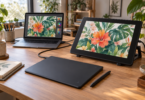
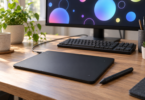
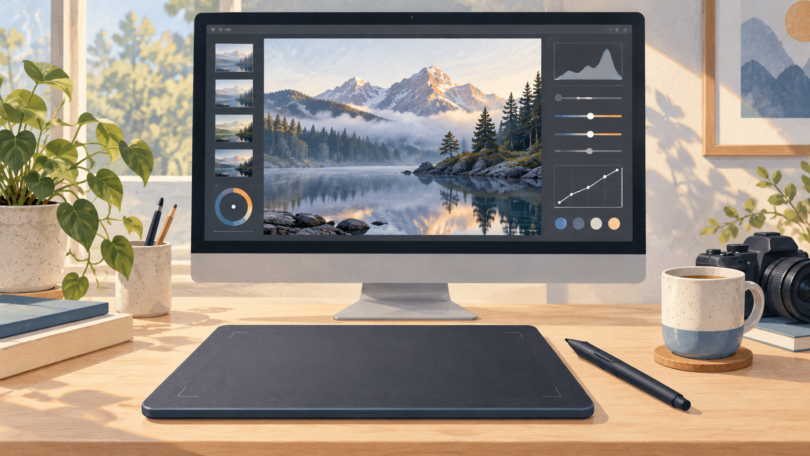
Image note: Generic editorial illustration of a screenless pen-tablet workflow; it does not depict a specific recommended model or establish design-app compatibility.