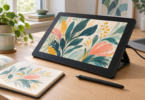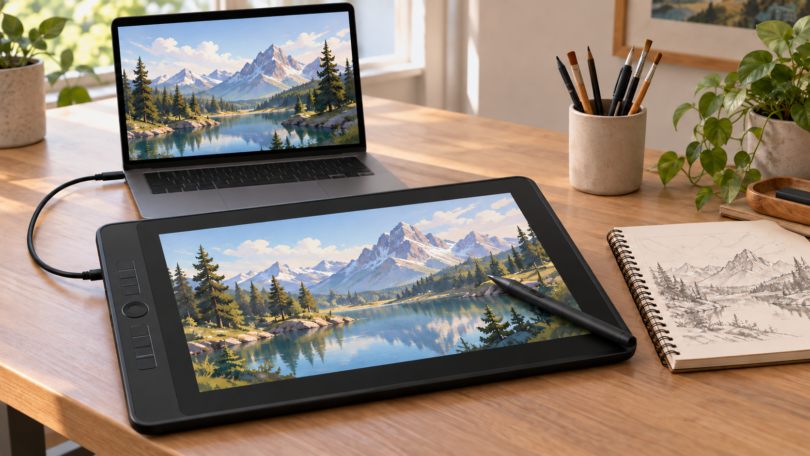

A graphic tablet with a screen usually means a pen display: you draw directly on its display while a connected computer runs your art software. It is different from a screenless drawing pad, an erasable children’s doodle board, or a standalone tablet that runs apps itself.
For a compact desktop setup, compare the Huion Kamvas 13 (Gen 3), XPPen Artist 12 3rd and Wacom One 12. Choose by connection compatibility, working area, controls and total setup cost rather than the largest advertised pressure-level number. The comparisons below use manufacturer specifications, not claimed hands-on testing.
Which type do you actually need?
- Pen display: choose this if you already have a suitable computer and want to draw on the image. The three models below are in this category.
- Screenless pen tablet: you move the pen on a pad while watching another screen. It can be useful, but does not satisfy a requirement to draw directly on a display.
- Standalone drawing tablet: choose an app-running tablet if you need to draw without a connected computer. Check the exact tablet, pen and software combination separately.
- Erasable LCD writing board: suitable for temporary doodles or notes, not a substitute for a computer-connected graphics display and editable art files.
Huion Kamvas 13 (Gen 3): for a larger compact canvas and shortcut controls
The Kamvas 13 (Gen 3) offers a 13.3-inch, 1920 × 1080 display, a battery-free PW600L pen, two dials and five shortcut keys. That combination is worth considering if you want brush-size or canvas-zoom controls beside the drawing surface rather than reaching for a keyboard.
Huion specifies fully laminated, nano-etched glass and 16,384 pressure levels. These are hardware features, not a guarantee that every artist will prefer its surface or that it will outperform another display in a particular app.
The connection deserves special attention. Huion describes both a 3-in-1 connection and a full-featured USB-C route, with the full-featured USB-C cable sold separately on the product page. Confirm the contents of the actual regional bundle. Huion’s connection guide is the right place to check the wiring before ordering.
The linked Huion listing is the black 13.3-inch Gen 3 with a stand. Check the current package contents and your computer’s display connection before ordering. This is a computer-connected pen display, not a standalone tablet.
The card price may refer to a different offer. Confirm the exact bundle, item condition, seller and current price on Amazon before ordering.

HUION Kamvas 13 (Gen 3) Drawing Tablet with Screen, Dual Dial, 13.3", Black | Full Lamination, Canvas Glass 2.0, 99% sRGB, PenTech 4.0 16384 Levels, Works with PC, Mac and Android, With Stand
As an Amazon Associate we earn from qualifying purchases.
XPPen Artist 12 3rd: for a compact setup with an included stand
The Artist 12 3rd has an 11.9-inch Full HD display, X4 pen and dial shortcuts. XPPen lists full lamination, etched glass and 16,384 pressure levels. The official package list includes a foldable stand, full-featured USB-C cable and 3-in-1 cable, making it a useful comparison when another offer charges separately for those accessories.
Check the generation carefully: Artist 12, Artist 12 2nd and Artist 12 3rd are not interchangeable product names. The third-generation model number on this page is CD121FH.
XPPen’s Android requirement includes Android 10 or later and USB 3.1 with DisplayPort 1.2 support. That does not mean every Android tablet with a USB-C socket is suitable. Its single-cable operation also depends on the host’s power output, and some mobile devices may need external power.
The linked black Artist 12 3rd package shows a folding stand, USB-C cable and 3-in-1 cable. Check computer compatibility and the current listing contents before ordering.
The card price may refer to a different offer. Confirm the exact bundle, item condition, seller and current price on Amazon before ordering.

Wacom One 12: for a straightforward pen-only display
Wacom’s official One-series comparison identifies the Wacom One 12 as model DTC121, with an 11.6-inch Full HD display, anti-glare glass and a pressure-sensitive pen with tilt support. It does not have finger-touch input. The separate One 13 touch does, so a family name alone is not enough when comparing listings.
The stated connection options are HDMI plus USB-A, or USB-C with DisplayPort Alt Mode and 15W power output, using the appropriate cabling. Check your computer’s specifications and the bundle’s included cables rather than assuming a charging cable is sufficient.
Choose the One 12 when its simpler pen-only arrangement suits your workflow. Do not reject or select it solely because its listed pressure-level count is lower than the other models: the app, driver settings and your own control of the pen also affect the resulting stroke.
Check these details before choosing
Computer and app compatibility
Write down your computer model, operating-system version and art application. Compare them with the display maker’s current driver requirements. A display being listed for an operating-system family is not proof that every release, processor architecture or application feature is supported.
If you want to connect to an Android phone or tablet, verify its video-output capability as well as the manufacturer’s device guidance. If it cannot supply the required video signal, a cable alone will not turn it into a compatible host.
Usable drawing space
Think about the canvas after toolbars, layers and reference panels are open. A smaller pen display is easier to fit beside a laptop, but an interface that feels comfortable on a large monitor may become cramped. Measure the actual device footprint and leave space for cables and your other hand.
Touch, pen and shortcuts
A screen that accepts its supplied pen does not necessarily accept finger gestures. If pinch-to-zoom is essential, look for explicit touch support. If you prefer physical shortcuts, compare their placement and whether your chosen application can use the functions you need.
The complete cost
Include a stand, necessary video adapter, compatible cable, replacement nibs and any paid software in the budget. Check what the exact seller bundle contains; accessories pictured beside a product are not always included. A low device-only price can be a less useful deal if your computer needs additional equipment.
Setting up your first pen display
- Follow the maker’s connection guide and install the appropriate official driver.
- Choose mirror or extended-display mode to suit your workspace.
- Map the pen to the correct display, then adjust calibration if supported and needed.
- Enable pressure-sensitive brushes in your art app and adjust the pressure curve to your preference.
- Position the screen and stand so you are not forced to hunch over it for every stroke.
Frequently asked questions
Does a graphic tablet with a screen need a computer?
The pen displays compared here need a compatible host device to run the art software. If you want to draw independently, look for a standalone tablet and verify its pen and app support.
Is a drawing display the same as an LCD writing tablet?
No. A pen display shows the computer’s artwork and accepts pen input. An erasable LCD writing board is primarily for temporary marks and does not provide the same digital-art workflow.
Will any USB-C cable work?
No. A one-cable connection can require video, data and adequate power support from both the cable and host port. Follow the exact model’s connection instructions.
Do more pressure levels automatically mean better drawing?
No. Pressure levels are one specification. Pen feel, screen size, app behavior, driver settings and a comfortable setup are also important, and a specification sheet cannot establish your personal preference.
Can I use my fingers to zoom on every pen display?
No. Check for explicit touch support. For example, Wacom lists the One 12 as pen-only and distinguishes it from the One 13 touch.