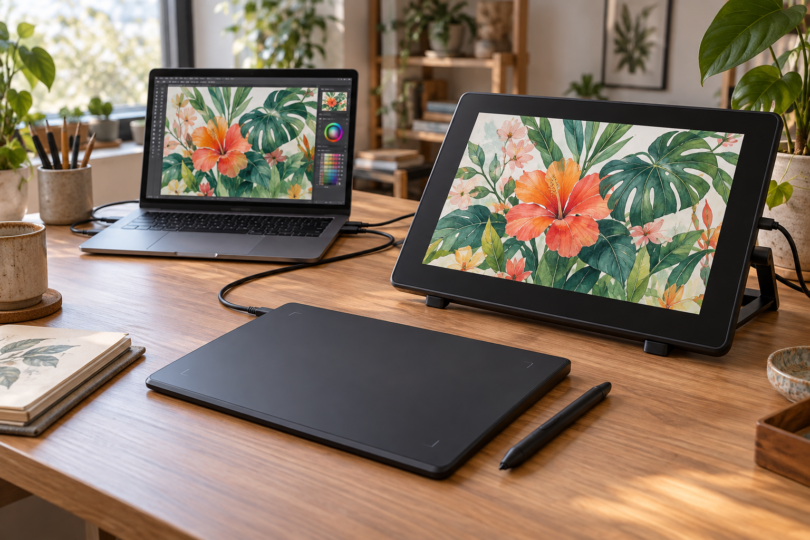

The best Huion tablet for you depends first on where you want to see your drawing. The Inspiroy 2 M is our pick for a compact, screenless setup with plenty of shortcuts. The Kamvas 13 (Gen 3) is the option to consider when you want to draw directly on a display. Both need a connected host device; neither is a standalone tablet.
This is a comparison of documented features, manuals and exact product listings, rather than a hands-on test. The recommendations below weigh drawing space, controls, connection requirements and software support. There is no single winner for every artist.
Two Huion tablets compared
| Exact option | Drawing surface | Controls | Best fit | Main limitation |
|---|---|---|---|---|
| Inspiroy 2 M, black | Screenless; 8.7 × 5.4-inch active area | Eight shortcut keys, three group keys and a scroller | Drawing while looking at an existing monitor | Wired connection; no built-in display |
| Kamvas 13 (Gen 3), GS1333, black with stand | 13.3-inch, 1920 × 1080 pen display | Five shortcut keys and two dials | Drawing directly over the displayed artwork | Needs compatible video, data and power connections |
Huion Inspiroy 2 M: best for a screenless desk setup
Choose the medium Inspiroy 2 if you already like your computer’s screen and want a separate drawing surface. The black M model has an 8.7 × 5.4-inch active area in a 306 × 180 mm body. Its included PW110 pen is battery-free and supports 8,192 pressure levels and up to 60-degree tilt. Those are hardware capabilities; your drawing app and brush must support the corresponding input.

Huion Inspiroy 2 M Pen Tablet with Scroller, Black
As an Amazon Associate we earn from qualifying purchases.
Pros: The eight programmable keys, scroller and three group keys give it an unusually flexible set of controls for this footprint. Group keys switch between sets of shortcuts, giving the eight keys up to 24 assignments. In Huion’s driver, the scroller can control functions such as zoom, brush size or scrolling. This is a useful arrangement if you prefer physical controls to repeated keyboard shortcuts.
Cons: You draw on the pad while watching another screen, so allow time to get used to that coordination. It has no Bluetooth connection. Custom shortcuts depend on the driver and connected system, and the active area is smaller than the Kamvas display’s 293.8 × 165.2 mm working area. Pick the display model if seeing the pen tip over the artwork matters more than a compact, flat pad.
Huion documents a tablet, battery-free pen, pen holder, replacement nibs and USB cable in the package; its current FAQ also lists an OTG adapter. Check the connector you need for your computer or phone. The cable’s USB-C connection on the tablet does not by itself mean your host has the same connector.
Huion Kamvas 13 (Gen 3): best for drawing on a display
The GS1333 puts your artwork beneath the pen on a 13.3-inch Full HD screen. Its fully laminated display, five shortcut keys and two programmable dials make it the more direct drawing option in this comparison. The included battery-free PW600L pen has three side buttons, 16,384 pressure levels and tilt support. The selected black listing is the package advertised with an ST300 stand.

Pros: You can keep the pen and the artwork in the same field of view. The two dials can have separate functions in the Huion driver, so you could assign one to canvas zoom and another to brush adjustments. The display can also serve as a second monitor. These features make it a sensible choice if a screenless tablet’s hand-to-screen coordination puts you off.
Cons: It still needs a computer or supported Android device to run your apps. There is no finger multitouch, and the included PW600L does not have a rear eraser. A 13.3-inch Full HD display also leaves less room for a canvas and tool panels than a larger monitor; consider your preferred workspace before choosing it as your main screen.
Plan the connection before ordering. The manual’s 3-in-1 cable uses HDMI for video plus USB connections for data and power. Alternatively, the host port and a full-featured USB-C cable must support USB 3.1 Gen 1 and DisplayPort 1.2 or later. A charging-only USB-C cable is not a substitute. The full-featured cable is a separate purchase in Huion’s standard package, and some setups need extra power. Android phone use requires additional power according to Huion’s FAQ.
Bundle names matter here. Huion’s standard package lists the ST300 stand as optional, while the exact black retailer listing above advertises that stand. Do not assume another color, another seller or the older Kamvas 13 includes the same accessories. Compare the final package description, especially the stand and USB-C cable, before paying.
Check the operating system, driver and app separately
For Inspiroy 2, Huion’s FAQ lists Windows 7 or later, macOS 10.12 or later, ChromeOS 88 or later and Android 6.0 or later; Android also needs OTG support. These are manufacturer platform listings, not a promise that every app or driver release works on every version. The FAQ now names Ubuntu 24.04 LTS, while the product specifications still name Ubuntu 20.04 LTS. Linux buyers should confirm the current installer and their exact distribution before ordering.
For Kamvas 13 (Gen 3), use the manual’s Windows 10-or-later requirement when planning a Windows setup; some older specification and FAQ text still lists Windows 7. The manual lists macOS 10.12 or later, and the product page names Ubuntu 20.04 LTS. Android requires the video-capable USB-C connection described above. Check the current GS1333 driver for your actual OS version through Huion’s download center, especially after an operating-system upgrade.
Tablet compatibility and app compatibility are separate checks. Huion’s manual describes enabling Windows Ink for pen features in programs including Photoshop CC, but Adobe says it does not test or officially support non-Wacom third-party tablets. If Photoshop is essential to your work, check your precise OS, driver and Photoshop version with Huion, then test pressure and shortcuts in that setup. Pressure-level counts alone do not establish better brush control.
How to choose between them
Start with the screen decision: choose Inspiroy 2 M if you want to keep looking at your existing monitor, or Kamvas 13 (Gen 3) if drawing directly on the displayed image is the priority. Then compare usable drawing area and desk space. A screenless tablet’s active-area measurement and a display’s diagonal measurement describe different things, so use the dimensions in the specifications when planning your setup.
Compare the total setup cost, including any adapters, a suitable USB-C cable, software and a host device if you do not already have one. Check the seller’s current price, package contents and return conditions. Neither a higher pressure number nor a longer accessory list is a reason to pay more unless it helps the way you draw.
Frequently asked questions
Can either tablet work without a computer?
Neither runs drawing apps on its own. Both can connect to supported Android devices, with different connection requirements, but they still need that host. A standalone drawing tablet has its own operating system and is a different category.
Does Kamvas 13 (Gen 3) support touch gestures?
No. Huion says it does not support finger multitouch. Use its pen, shortcut keys, dials or your computer’s input devices for navigation.
Is the Inspiroy 2 M wireless?
No. It connects by cable and does not support Bluetooth. Its pen is battery-free, which does not make the tablet itself a wireless device.
Are the pens interchangeable?
Do not buy replacement pens by brand name alone. Inspiroy 2 M comes with PW110; Kamvas 13 (Gen 3) comes with PW600L. Huion lists PW600 and PW600S as alternative purchases for the Kamvas model. Check the exact tablet and pen compatibility list before ordering a replacement.
Which is the better beginner choice?
Inspiroy 2 M is the simpler choice if you want a flat, screenless pad for a monitor you already own. Kamvas 13 (Gen 3) is worth considering if you strongly prefer drawing on the picture and have checked its video and power connections. Familiarity with a workflow matters more than choosing the model with the largest pressure-level number.