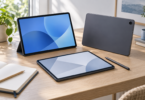

The best tablet stylus for drawing is the one that matches your tablet’s pen system and gives you the brush control you need. For a compatible recent iPad, Apple Pencil Pro is our first choice. Older iPads need a different Pencil generation, while a Surface or an EMR-equipped Galaxy Tab needs an entirely different pen.
This guide compares five pressure-sensitive options. Start with your exact tablet model, then compare charging, shortcuts and grip. A more expensive pen cannot add a missing digitizer to a tablet.
Research and disclosure: Updated October 4, 2026. These recommendations come from manufacturer specifications, compatibility lists and support documents, not hands-on testing. We have not measured latency, line wobble or long-session comfort. Links below go to official product and support pages; this guide contains no affiliate purchase links. Prices and stock can change.
Which drawing stylus should you choose?
| Stylus | Best fit | Main benefit | Main limitation |
|---|---|---|---|
| Apple Pencil Pro | Listed recent iPad Pro, Air and mini models | Pressure, tilt and extra drawing shortcuts | Does not work with older Pencil 2 iPads |
| Apple Pencil 2nd generation | Listed older iPad Pro, Air and mini models | Pressure control and magnetic charging | Not compatible with Pencil Pro iPads |
| Apple Pencil 1st generation | iPad A16, 10th generation and listed older iPads | Pressure sensitivity on entry-level iPads | Adapter required on USB-C iPads |
| Microsoft Surface Slim Pen 2 | Compatible Surface tablets and computers | Pressure, tilt and supported haptic feedback | Charging hardware may cost extra |
| STAEDTLER Noris digital jumbo | Devices on STAEDTLER’s EMR compatibility list | Battery-free drawing and a rear eraser | No side shortcut button |
1. Apple Pencil Pro for compatible recent iPads
Choose Pencil Pro if your iPad supports it and drawing is a regular activity. Pressure sensitivity lets compatible brushes vary thickness or opacity with your hand; tilt adds another control. Squeeze can open a tool palette, barrel roll rotates shaped brushes, and double-tap switches tools. Magnetic pairing and charging reduce the number of things to remember before a sketching session. Apple’s feature comparison also confirms haptic feedback and Find My support.
Exact compatible models: iPad Pro 11-inch and 13-inch with M4 or M5; iPad Air 11-inch and 13-inch with M2, M3 or M4; and iPad mini with A17 Pro. Apple specifies iPadOS 17.5 or later. Check Apple’s compatibility list before ordering.
The reason to pay for Pro is brush control plus convenient shortcuts. Those extras matter less if you mostly annotate screenshots or draw with a fixed-width pen. Their usefulness also depends on your drawing app. Pencil Pro is not an upgrade you can attach to an older iPad simply because that iPad already supports Apple Pencil.
2. Apple Pencil 2nd generation for older compatible iPads
Pencil 2 remains the sensible drawing choice for its supported iPads. It provides pressure sensitivity, tilt and double-tap tool switching, with magnetic pairing and charging. Its appeal is a straightforward workflow: pick it up, draw, and return it to the tablet’s charging edge.
Exact compatible models: iPad Pro 11-inch, 1st through 4th generation; iPad Pro 12.9-inch, 3rd through 6th generation; iPad Air, 4th or 5th generation; and iPad mini, 6th generation. Apple’s Pencil 2 product page lists these models and limits hover support to the 11-inch 4th-generation and 12.9-inch 6th-generation iPad Pro.
Buy it to equip an iPad you already own, rather than assuming the newest Pencil is compatible. You give up Pro’s squeeze, barrel-roll and Find My features. That is a reasonable trade if the tablet still runs your preferred art software well; replacing an otherwise useful iPad just to obtain pen shortcuts is a much larger purchase.
3. Apple Pencil 1st generation for iPad A16 and other listed models
The first-generation Pencil is particularly important for artists considering the iPad A16 or 10th-generation iPad. It supports pressure and tilt, whereas Apple Pencil USB-C does not support pressure sensitivity. For brushwork that responds to how hard you press, that difference outweighs the inconvenience of its older charging design. Apple’s product details confirm both drawing features.
Exact compatible models: iPad mini 5th generation; iPad 6th, 7th, 8th, 9th and 10th generations; iPad A16; iPad Air 3rd generation; iPad Pro 12.9-inch 1st or 2nd generation; iPad Pro 10.5-inch; and iPad Pro 9.7-inch.
The iPad A16 and 10th-generation iPad require a USB-C to Apple Pencil Adapter for pairing and charging. Confirm that the package includes it, especially with older stock or a used pen. This Pencil does not offer magnetic charging or double-tap. It is the practical pressure-sensitive choice for these iPads, but less convenient to keep charged than Pencil 2 or Pro.
4. Microsoft Surface Slim Pen 2 for supported Surface devices
Microsoft now also calls this model Surface Slim Pen or Surface Slim Pen 2nd Edition. It offers 4,096 pressure levels, tilt, a side button and a top eraser. The flat body gives it a different grip from a round pencil; try that shape if possible before buying for lengthy drawing sessions. See the official specifications.
Good matches include Surface Pro 8, 9, 10 for Business, 11th Edition, 12th Edition and the 12-inch 1st Edition. Microsoft’s device-by-device chart explains which features work. Tactile feedback requires supported hardware, Windows 11 and supported apps. Do not assume every touchscreen Surface accepts a pen: Microsoft specifically excludes Surface Laptop 7th and 8th Editions, the 13-inch 1st Edition Laptop and Laptop Go models.
The hidden purchasing issue is charging. The pen-only box does not include a charger. You need a compatible charging keyboard, supported device charging location or the separately sold charging cradle. Add that cost before comparing deals.
5. STAEDTLER Noris digital jumbo for compatible EMR tablets
Noris digital jumbo suits someone who wants a thicker, triangular pencil shape and a rear eraser. Its EMR technology needs neither a battery nor Bluetooth pairing. STAEDTLER specifies 4,096 pressure levels, with pressure response, palm rejection and erasing dependent on the device and app. The manufacturer’s product guide explains these features.
Its compatibility list includes Galaxy Tab S9, S9+, S9 Ultra, S9 FE and S9 FE+, plus S10+ and S10 Ultra, among other specific devices. Check the exact model, including its suffix. EMR support is not a feature of every Samsung or Android tablet, and this pen does not work with iPads.
The tradeoff is simplicity: there is no side button for an eraser or another shortcut. Choose it for its shape and battery-free operation, rather than expecting all the functions of the tablet’s original pen. If the pen supplied with your tablet already feels comfortable, keep using it before paying for a replacement.
Drawing features that matter more than a long specification list
- Pen protocol: Apple Pencil compatibility, Microsoft Pen Protocol and Wacom EMR are different systems. A USB-C connector or Bluetooth logo does not establish drawing compatibility. Microsoft’s Slim Pen 2 specification sheet identifies MPP support; still confirm your exact non-Surface device.
- Pressure versus tilt: Pressure responds to force; tilt responds to pen angle. Tilt support alone does not give you pressure-controlled strokes. Apple Pencil USB-C can suit notes and fixed-width sketches, but it is a compromise for pressure-sensitive painting.
- App behavior: Test the brush you actually use. Check light strokes, gradual pressure changes, palm rejection and the eraser. A feature can exist in the hardware without being used by every brush or app.
- Total cost: Include required chargers, adapters and replacement nibs. A cheap pen that cannot perform your essential drawing function is poor value.
Bottom line: Match the tablet first. Buy the pressure-sensitive Apple Pencil generation your iPad supports, choose Slim Pen 2 with a confirmed Surface charging plan, or consider Noris digital jumbo when an EMR-compatible tablet and its pencil-style grip fit your needs.