
A desktop computer with an SSD should have enough internal storage for your apps and files, the right operating system for your work, and connections that fit your desk. For a general-purpose Windows setup, the Dell Slim ECS1250 with 16GB of memory and a 512GB SSD is a useful starting point. The Apple Mac mini M4 suits buyers who want macOS in a smaller enclosure, while the Dell Tower ECT1250 configuration below starts with more memory and storage.
This comparison uses manufacturer specifications and exact retail model numbers. It covers complete desktop computers, with no claimed hands-on testing or benchmark ranking. Prices, sellers and delivery terms can change; confirm the selected configuration before ordering.
Three SSD desktop configurations compared
| Desktop and exact model | Processor | Memory and internal SSD | Main consideration |
|---|---|---|---|
| Dell Slim ECS1250, DECS1250-5194BLK-PUS | Intel Core Ultra 5 225 | 16GB DDR5; 512GB SSD | Windows 11 Home in a narrow case |
| Apple Mac mini, MU9D3LL/A | Apple M4, 10-core CPU and 10-core GPU | 16GB unified memory; 256GB SSD | Compact macOS setup; plan around the smaller drive |
| Dell Tower ECT1250, DECT1250-7432BLK-PUS | Intel Core Ultra 7 265 | 32GB DDR5; 1TB PCIe NVMe SSD | More memory and storage from the outset |
These capacities describe the specific versions linked below. A shared product-family page may show another processor, operating-system edition or SSD size after you change a selector.
Dell Slim ECS1250: a practical Windows starting point
The DECS1250-5194BLK-PUS pairs a Core Ultra 5 225 with 16GB DDR5 memory, a 512GB SSD and Windows 11 Home. The exact retail listing includes a wired keyboard and mouse. Based on that configuration, it is the first option here to compare for household administration, office documents, browser-based work and everyday desktop use.
Dell’s ECS1250 specifications list a case approximately 3.74 inches wide, front USB-A and USB-C connectivity, and rear HDMI, DisplayPort and Ethernet connections. Measure the intended location with room for cables and ventilation, especially if the computer will sit inside a desk compartment.
The slim enclosure deserves an upgrade check before purchase. Dell specifies half-height expansion-card slots and one M.2 storage slot. Do not assume it accepts a full-height graphics card or has a spare second M.2 SSD socket. This is a stronger fit for someone choosing a ready-to-use office configuration than someone planning an unspecified gaming conversion.
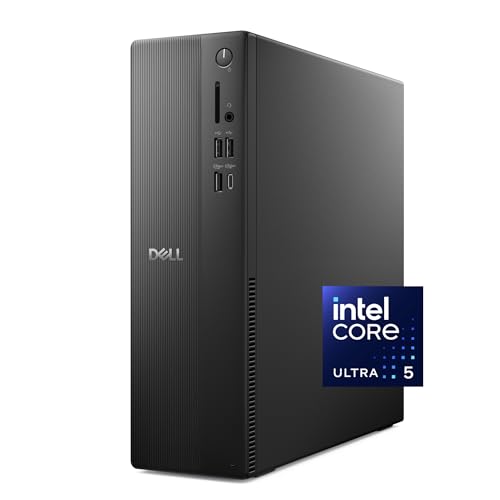
Dell Slim ECS1250 DECS1250-5194BLK-PUS, Core Ultra 5 225, 16GB RAM, 512GB SSD, Windows 11 Home
As an Amazon Associate we earn from qualifying purchases.
Apple Mac mini M4: compact macOS, modest base storage
The MU9D3LL/A configuration has an M4 chip, 16GB unified memory and a 256GB SSD. Apple’s Mac mini technical specifications identify the M4 model’s 10-core CPU and 10-core GPU, 5-by-5-inch footprint and macOS operating system. The purchase card is for the version without an AppleCare+ bundle.
Choose it if the programs and peripherals you need work with macOS. Its small footprint can be appealing on a crowded desk, but the 256GB drive calls for a realistic file-storage plan. Review your current storage usage before buying. A large photo library or locally stored media collection may justify choosing a different capacity at purchase.
Apple lists two front USB-C ports, three rear Thunderbolt 4 ports, HDMI and Gigabit Ethernet for this M4 version. There are no USB-A ports in that list, so older accessories may require an adapter or hub. The box contains the Mac mini and power cord; budget for a display, keyboard and pointing device. External storage can add file space, but it does not increase the computer’s memory.

Dell Tower ECT1250: more memory and storage included
The DECT1250-7432BLK-PUS listing specifies a Core Ultra 7 265, 32GB DDR5 memory, a 1TB PCIe NVMe SSD and Windows 11 Home, with a wired keyboard and mouse. It is worth comparing when you already expect to keep a larger local file collection or your applications recommend more memory.
Dell’s ECT1250 specifications describe full-height expansion slots, a case about 6.06 inches wide, and HDMI, DisplayPort, USB and Ethernet connectivity. The manufacturer page offers several configurations; its initially selected SSD capacity may differ from this exact retail SKU.
The larger enclosure does not establish compatibility with any graphics card you choose. Check the power supply, connectors, clearance and Dell’s support documentation for the intended component. This listed configuration uses integrated graphics, and no gaming-frame-rate claim is made here. Dell also lists one M.2 storage slot, so investigate the actual storage-upgrade route rather than assuming the tower has multiple spare SSD sockets.

How much SSD capacity should you choose?
Use the space occupied on your current computer as a starting point, then allow for new applications, updates and files. These are planning guidelines rather than guarantees:
- 256GB: Consider it for a relatively small app collection and limited local files, particularly if your established workflow already uses cloud or external storage.
- 512GB: A sensible starting capacity for general home and office shopping. Check whether your existing documents, photos and downloads leave comfortable room for growth.
- 1TB: Worth considering for larger local libraries or projects that would otherwise require frequent file shuffling. Large games and video collections can still outgrow it.
Advertised capacity is not the free space you will see after formatting, the operating system and installed software. Also distinguish installed storage from a bundled USB drive or cloud-storage offer. For a desktop advertised with both an SSD and a hard disk, establish which drive contains the operating system.
SSD terminology and upgrade planning
An SSD stores data electronically rather than on the moving platters used in a hard disk. Kingston’s SSD explanation also distinguishes the M.2 form factor from storage-interface compatibility: an M.2 label alone does not establish that a replacement drive will work. Consult the computer’s documentation for the supported interface, module dimensions and installation procedure.
When comparing complete computers, prioritize usable capacity and the whole configuration over an unexplained transfer-speed headline. Memory, processor, graphics and application requirements still matter. A standalone SSD listing is an upgrade component, not a complete desktop; replacing a system drive also requires a plan to preserve your files and operating system.
Keep a separate backup of important data before changing storage. Adding capacity and keeping a recoverable second copy solve different problems. If you are unsure about the installation, include professional migration and setup in the budget.
Windows support and the full setup cost
Be cautious with old or refurbished Windows desktops promoted mainly on SSD capacity. Microsoft confirms that standard Windows 10 support ended on October 14, 2025. Extended Security Updates have separate requirements. An SSD upgrade does not by itself establish Windows 11 eligibility; check the exact hardware and supported operating system.
Before paying, add up the computer, monitor, necessary cables or adapters, webcam or headset, backup storage and any software licenses you need. Confirm whether advertised software is a trial. Check the seller, new or refurbished condition, warranty provider, return window and any return costs for that particular offer.
Match the exact computer at checkout
- Record the full SKU. Compare the model number, processor, installed memory, internal SSD and operating-system edition together. A familiar case photograph is not enough to identify the configuration.
- Check who supplied any upgrades. If a seller advertises a customized memory or storage combination, ask who performed the work and who handles warranty support. Do not transfer the manufacturer’s standard bundle assumptions to every reseller offer.
- Check your display plan. Match monitor inputs, intended resolution and refresh rate to the computer’s documented outputs. Count the ports needed for your other accessories too.
- Keep the order details. Save the chosen specification and return deadline. After delivery, compare the installed memory and storage with the order before moving your only copy of important files onto the new computer.
Quick answers before you buy
Is 16GB of memory the same as a 16GB SSD?
No. Memory supports active work; the SSD holds the operating system, applications and stored files. Read both specifications separately, and compare your applications’ recommended requirements.
Does USB-C guarantee monitor support?
No. VESA’s USB-C display guidance explains that a selected USB-C connection may lack DisplayPort support. Match the port’s documented capabilities to the display and cable.
Which of these should I compare first?
Start with the Dell Slim for a general Windows desk, the Mac mini for a compact macOS setup, or the Dell Tower when its larger included memory and SSD match your needs. Let software compatibility, total setup cost and the exact configuration decide the final choice.
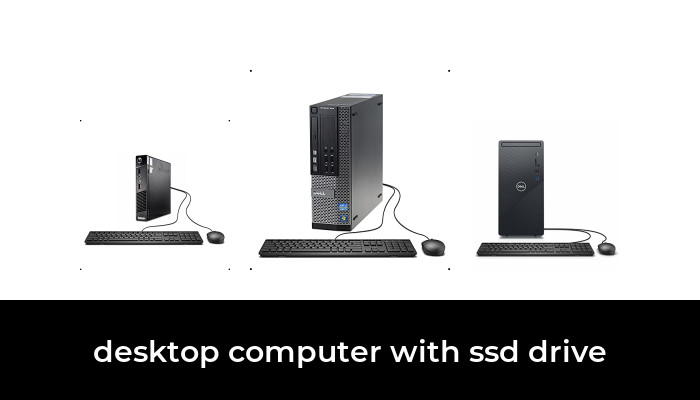
Image note: Existing category illustration retained from the original article.