
A portable digital photo viewer should let you see your pictures where you actually want to use it. For passing an album around on the sofa or taking photos on a trip, that usually means a battery-powered tablet. For checking a trail camera’s memory card outdoors, a dedicated SD-card viewer can be a better fit. A small digital frame serves a different purpose: many work without Wi-Fi but still need a wall outlet.
Start with that power distinction, then check how your photos get onto the screen. The three options below cover those separate jobs, with the plug-in frame clearly identified as a tabletop alternative.
Which type of photo viewer do you need?
- For family albums and travel: use a tablet with photos saved locally. The Samsung Galaxy Tab A11+ is a large-screen option if you need a new device, although a tablet you already own may do the job.
- For trail-camera SD cards: consider the Stealth Cam STC-CRV43HD. It has its own screen and replaceable batteries, with an important 32GB card limit.
- For an automatic slideshow beside an outlet: consider the Aluratek ADPF08SF. It reads removable media without a cloud-sharing service, but it is an AC-powered frame rather than a cordless handheld viewer.
Samsung Galaxy Tab A11+: for a portable family photo album
The Galaxy Tab A11+ in Gray with 128GB storage and 6GB RAM is the most flexible option here for browsing a personal photo collection. Its 11-inch, 1920 × 1200 display gives you more room to show a group picture than a small field viewer. Samsung specifies a rechargeable 7,040mAh battery and a microSD expansion slot. Those features make it a useful candidate for trips and family visits, provided its larger size suits your bag.

Samsung Galaxy Tab A11+, 11-Inch Wi-Fi 128GB/6GB Gray, 1 Tablet with USB-C Cable
As an Amazon Associate we earn from qualifying purchases.
This selection is the Wi-Fi tablet, model SM-X230NZANXAR, rather than a cellular model or the 256GB version. Samsung’s Tab A11+ specifications and package information list a USB-C cable, ejection pin and quick-start guide; a wall charger and microSD card are separate purchases.
How to use it for photos: copy your chosen pictures to the tablet’s internal storage or a compatible microSD card, then open them in a local photo-viewing app. Samsung’s file-transfer instructions explain copying media through My Files and transferring files with a computer. Keep a separate backup of the originals, and prepare a small album before tackling your entire library.
The tradeoff: this is a general-purpose tablet, so setup, updates, notifications and the chosen viewing app need attention. An 11-inch screen is also a bag-sized choice, not a pocket viewer. If you are setting it up for someone else, put their album somewhere easy to find and demonstrate how to open it. Do not assume a photo thumbnail in a cloud app means the full image is stored on the device.
Stealth Cam STC-CRV43HD: for checking trail-camera cards
The STC-CRV43HD is a dedicated battery-powered viewer for people who want to inspect trail-camera captures without involving a phone. It has a 4.3-inch color LCD, physical controls and a wrist lanyard. This is the non-touchscreen model; Stealth Cam identifies the separate STC-CRV43XHD as the touchscreen version on its current reader/viewer page.

The exact listing specifies four AAA batteries, not included, and SD cards up to 32GB. It also provides photo viewing and deletion, support for 1080p video playback, a headphone jack and a Micro-USB connection; the cable is not included. The manufacturer’s accessories catalog corroborates the model numbers and playback features.
Choose it when: you want a self-contained screen for supported trail-camera files and prefer carrying spare batteries to managing a phone connection. Read the card-capacity limit before buying. A 64GB or 128GB card should not be assumed compatible simply because it fits the slot, and a camera that records 4K does not establish that this viewer can play its clips.
The tradeoff: a small field screen is less suitable for showing an album to several people. The 1080p playback claim describes supported video playback; it does not establish the LCD’s native pixel resolution. Stealth Cam describes the housing as water-resistant, which is not permission to submerge it. Test representative photos and videos from your exact camera before relying on the viewer away from home.
Aluratek ADPF08SF: a plug-in, offline slideshow alternative
The Aluratek ADPF08SF makes sense when you want a simple frame on a table and can supply wall power. Its 8-inch screen has an 800 × 600 resolution and a 4:3 aspect ratio. Aluratek lists USB and memory-card input, automatic slideshows and no built-in photo storage on its exact-model product page.
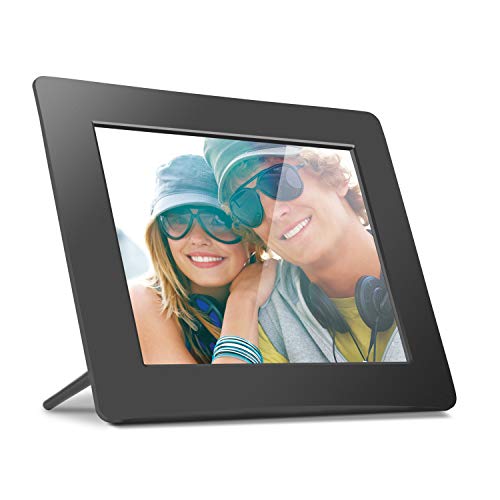
Important: this frame needs its power adapter during use. It is suitable for carrying to another house and setting up near an outlet, but it does not provide battery-powered viewing on a journey. The manufacturer’s quick-start guide begins with connecting the adapter, then inserting a card or USB drive.
Use a supported card within the stated 32GB limit or an appropriate USB flash drive, and leave the media connected for playback. There is no internal album to fall back on when you remove it. This is a straightforward choice for displaying a prepared collection without arranging internet access at the destination.
The tradeoff: the screen has fewer pixels than the tablet above, and the rear buttons take a little familiarization. Choose it for an unattended tabletop slideshow, rather than for close inspection, handheld browsing or receiving new pictures remotely. Its simplicity is useful only if that matches how you want to use it.
What “offline” actually means
There are three separate questions to answer before buying:
- Can it run without an outlet? A built-in rechargeable battery or replaceable batteries allow cordless use. Wi-Fi capability, USB input and a small size do not answer this question.
- Can it display pictures without the internet? Photos must be available on local storage or readable removable media. Some connected frames and apps can display previously downloaded pictures offline, while still needing the internet for setup or new deliveries. Check the exact product’s instructions.
- Can you add new pictures without the internet? A supported memory-card or cable workflow can do that. Email delivery and cloud syncing cannot work without a connection.
For a trip, the most useful check is practical: finish setup at home, download or copy a sample album, turn off Wi-Fi and mobile data, and reopen the photos. Browse beyond the first few images and try a video if videos matter. That reveals missing downloads and format problems before you are away from your computer.
Check cards, file types and controls before choosing
Match the physical card and its capacity
A full-size SD card and a microSD card are different sizes. The tablet’s microSD slot cannot directly accept a full-size camera SD card. If you plan to use an external reader, verify the connector, device compatibility and supported card format first. A reader with no screen also needs a phone, tablet or computer to show the images.
Check capacity limits independently of whether a card fits. Samsung’s microSD guidance also distinguishes supported file systems and warns that formatting erases the card. Never format your only copy of a photo collection just to see whether a viewer will recognize it.
Try your actual files
Start with a few ordinary JPEG copies, then test any other formats you use. Do not assume a basic frame or field viewer supports HEIC, RAW files, every MP4 video or unusually large edited images. Renaming a file extension does not convert the file. If conversion is needed, create viewing copies and keep the originals unchanged.
Choose for the person holding the screen
Consider how someone will find an album, advance a picture and return to the start. A touchscreen is useful for browsing, physical buttons may suit field use, and an automatic slideshow can be easier for a frame that stays in one place. Screen size alone says little about these everyday steps.
Also decide whether the pictures should fill the screen or remain fully visible. Filling a wide screen can crop a portrait or group photo; preserving the whole picture may leave borders. Test both orientations with faces near the edges before loading hundreds of images.
Separate photo viewing from film scanning
If your pictures are still on negatives or mounted slides, you need a scanning or optical-viewing workflow first. A film scanner creates digital files, and an illuminated slide viewer lets you inspect physical film. Neither automatically replaces a screen for browsing an existing folder of digital photos. Work out which kind of collection you have before ordering accessories.
Before your first outing
- Keep the original collection backed up somewhere separate from the viewer and its memory card.
- Charge a tablet or pack the correct spare batteries for a field viewer.
- Check that the intended album opens with network connections turned off.
- Confirm card capacity, orientation and playback with a handful of your own files.
- On a device with a delete function, learn the controls using disposable test copies first.
- For a plug-in frame, pack its supplied adapter and confirm there is an outlet where it will sit.
The right choice for your photos
For a portable family album, start with a tablet you already own; the Galaxy Tab A11+ is a documented large-screen option if you need a new one. For supported trail-camera cards up to 32GB, the Stealth Cam STC-CRV43HD offers a dedicated battery-powered viewing route. For a slideshow that stays beside an outlet, the Aluratek ADPF08SF provides a simple removable-media option. Decide where the power and photo files will come from before choosing the screen.
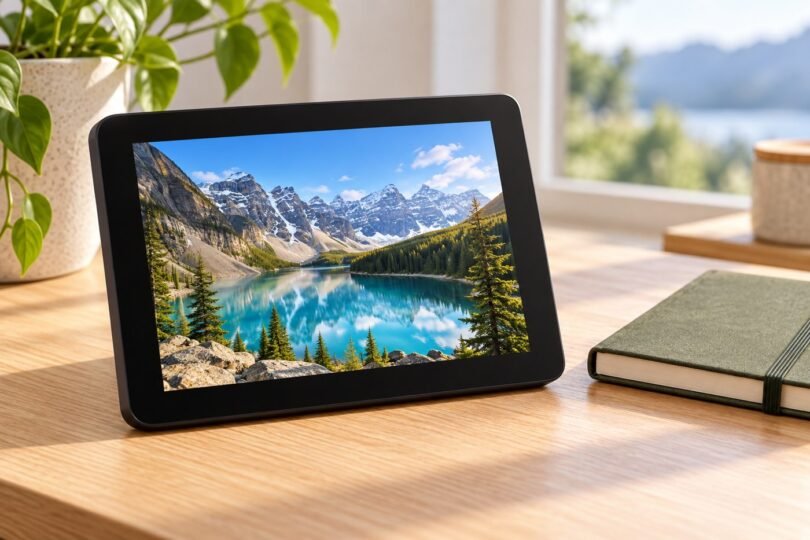
Image note: AI-generated editorial illustration; not a photograph of the named product.