
The best tablet for stock trading is the one that supports your broker’s actual tools and gives you enough room to use them comfortably. Start by checking the app, browser and features you need. A faster processor cannot add an order type, chart tool or desktop extension that the tablet version does not offer.
The Apple iPad (A16) and Samsung Galaxy Tab S10 FE are two practical starting points for monitoring accounts, reading research and using supported trading apps away from a computer. Both configurations below have 128GB of storage and Wi-Fi. Choose between them primarily by software fit, keyboard preferences and whether handwritten notes are useful to you.
Choose the platform before the tablet
Write down the name of every service you rely on, then check its official tablet app and browser support. Include authentication, account access, watchlists, chart layouts, order entry, alerts and statement downloads. Check the exact features rather than assuming that an app with the same name works identically on every operating system.
For example, Schwab offers thinkorswim mobile for compatible Apple and Android phones and tablets. It also maintains a comparison of its desktop, web and mobile platforms. That distinction matters if your existing workflow depends on a desktop-only tool. A mobile app is worth evaluating on its own terms.
- Account checks and research: prioritize a readable display, comfortable handling and reliable access to your services.
- Charts beside news or notes: check whether your chosen apps work well together in the tablet’s multitasking layout.
- A desktop workstation replacement: verify every essential feature, keyboard shortcut and external-display requirement before buying. Keep using a compatible computer if the tablet cannot support the complete workflow.
Apple iPad (A16): a straightforward iPadOS option

Apple iPad A16 11-inch, Wi-Fi 128GB, Silver, One Tablet
As an Amazon Associate we earn from qualifying purchases.
This is the silver 128GB Wi-Fi configuration, model MD3Y4LL/A, without an AppleCare+ bundle. It suits someone who has confirmed that their broker and research services work well on iPadOS and wants a portable screen for those apps.
Apple’s specifications list the A16 chip, an 11-inch Liquid Retina display with 2360 × 1640 resolution, Wi-Fi 6 and Touch ID in the top button. For this use, the useful question is whether your charts, account figures and order forms remain readable at your preferred text size.
The iPad supports the Magic Keyboard Folio and Apple Pencil (USB-C), both separate purchases. Add a keyboard if you regularly type notes or search through research; a stylus is optional for most account-monitoring tasks. The selected listing contains one iPad, a USB-C charge cable and a 20W USB-C power adapter.
- Consider it for: an iPad-first app workflow and a compact keyboard-and-tablet setup.
- Check first: your required browser features and how your apps behave when switching between research and account screens.
- Important limit: this Wi-Fi model has no built-in cellular connection. Budget for the keyboard or stand you actually need.
Samsung Galaxy Tab S10 FE: Android with an included S Pen

The selected gray US Wi-Fi listing is the 128GB model, SM-X520NZANXAR. Its included S Pen makes it worth considering if you annotate reports, sketch layouts or keep handwritten notes alongside your account research. The retail package includes the tablet, S Pen, data cable, ejection pin and quick-start guide; it does not list a wall power adapter or keyboard.
Samsung describes the S10 FE with a 10.9-inch display, refresh rate up to 90Hz and Exynos 1580 processor. The refresh-rate specification describes the screen. It does not establish how quickly a broker updates quotes or processes an order.
Samsung also documents an on-tablet DeX interface that can be used with a keyboard and mouse. Its S10 FE support guide explicitly says the series does not support Wireless DeX or HDMI output. That makes external-monitor plans an especially important check.
- Consider it for: supported Android apps, handwritten notes and an on-tablet keyboard-and-mouse workspace.
- Check first: app resizing, text entry and whether your preferred broker provides the tablet features you use.
- Important limit: DeX still runs Android apps. It does not install Windows desktop trading software.
What matters most for this kind of tablet?
Readable information at your normal viewing distance
Judge the screen with the layout you expect to use. A large chart alone may look comfortable, but adding a watchlist and order panel can leave small touch targets. Try portrait and landscape orientation, increase text size and check whether an on-screen keyboard hides information you need.
An approximately 11-inch tablet is a reasonable place to start for portability. If you need several detailed panels visible all the time, a larger screen or your existing computer may be a better fit. The right choice depends more on your layout than on a “trading tablet” label.
Memory and storage suited to your workload
Storage holds installed apps, downloaded reports, screenshots and other files. It does not tell you how much working memory is available to keep apps active. The 128GB configurations here are worth considering when most account information stays online and local document storage is modest. Check how much storage your current device uses before paying for a larger capacity.
For multitasking, pay attention to what happens when you switch between the apps you actually use. Frequent page reloads, lost form entries or cramped layouts are reasons to reconsider the setup. A specification sheet alone cannot establish that a particular combination of apps will behave as you expect.
Connectivity and a usable fallback
Both linked configurations require Wi-Fi or a compatible phone hotspot for online access. If you expect to work away from known networks, account for hotspot coverage, your phone’s battery and any data-plan restrictions. Cellular tablet versions are separate configurations, so check the exact model before ordering.
Keep an alternative way to access your account and its official support information. A second device on the same failed connection is a limited fallback. Also make sure you can complete your normal authentication process when your primary phone is unavailable.
Keyboard, stand and monitor compatibility
A stable stand and a comfortable keyboard may make a bigger practical difference than buying the highest-capacity tablet. Compare the complete setup cost, including a protective case and any required charging accessories. Check keyboard layout, trackpad support and case fit against the exact tablet generation.
Apple lists support for one external display up to 4K at 60Hz on the A16 iPad, but verify the app behavior and workspace arrangement you need. Video output support alone does not establish a multi-monitor desktop experience. The S10 FE’s HDMI-output limitation is more restrictive, so do not buy a USB-C dock assuming it will provide that capability.
Before relying on a new tablet
- Install from official sources. Use your broker’s verified website or app-store link and keep the operating system and apps updated.
- Check the whole workflow. Confirm sign-in, authentication, readable account information, research access and the controls you need. Use a demonstration or practice mode if the service provides one.
- Check notifications. Review app permissions, focus settings and how alerts appear when the device is locked.
- Check the physical setup. Make sure the stand is stable, charging cables reach and the keyboard does not cover essential controls.
- Review the listing. Confirm model, storage, Wi-Fi versus cellular, included accessories, condition, seller and return terms.
Which tablet should you choose?
Start with the iPad A16 if your preferred tools fit iPadOS and you want a straightforward portable setup. Consider the Galaxy Tab S10 FE if Android suits those tools and the included S Pen is useful. If either platform omits a feature you depend on, keep that part of the work on a compatible computer rather than trying to solve a software limitation with more expensive tablet hardware.
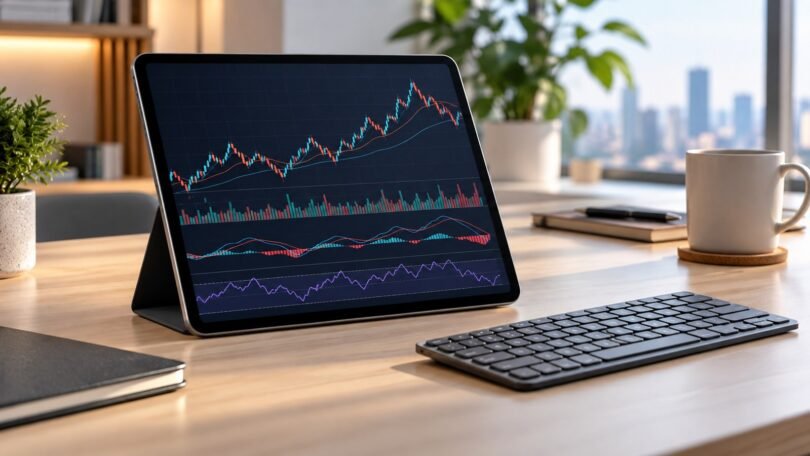
Image note: AI-generated editorial illustration; not a photograph of the named product.