
The cheapest useful art-tablet setup depends on what you already own. With a compatible computer, start with the Wacom Intuos Small wired or XPPen Deco 01 V3. If you want to draw directly on a screen while using that computer, compare the Huion Kamvas 13 (Gen 3). If you need a complete portable device, the Samsung Galaxy Tab S10 Lite includes an S Pen and runs its own apps.
The important budget decision comes before the brand: a screenless tablet, a pen display and a standalone tablet have different costs and dependencies. A low-priced drawing monitor can become the expensive choice if you also need to buy a computer.
Research and price disclosure: Updated October 4, 2026. We checked manufacturer specifications, package contents and U.S. product-page prices. These are research-based recommendations, not hands-on test results. Prices below are observed USD listing prices, excluding any applicable tax, shipping and unlisted extras. Promotions, stock and bundle choices can change; they are not checkout quotes.
First, choose the kind of art tablet you need
- Screenless pen tablet: You draw on a pad and watch a connected screen. It is an economical route if you already have a suitable computer, but takes some hand-eye adjustment.
- Connected pen display: You draw on its screen, while a compatible host runs the software. Budget for the connection, power and a comfortable working angle.
- Standalone tablet: The screen, computer and battery are in one device. The upfront price is higher than a basic input pad, but there is no separate host to buy.
For this guide, “cheap” means a sensible entry point within each format. It does not mean every product costs the same or that a lower hardware price always produces a lower complete setup cost.
Four budget art-tablet picks compared
| Exact model | Format | Observed hardware price | What you still need |
|---|---|---|---|
| Wacom Intuos Small Black, CTL4100 | Screenless, wired | $39.95 | Compatible host and app; a USB adapter if required |
| XPPen Deco 01 V3 | Screenless, wired | $47.99 | Compatible host and app |
| Huion Kamvas 13 (Gen 3), Sakura Pink | Connected pen display | $209 without stand; $229 with stand | Compatible host and app; verify video, data and power connections |
| Samsung Galaxy Tab S10 Lite, 128GB Gray Wi-Fi | Standalone Android tablet | $399.99 | A suitable charger if you do not own one; your chosen Android art app |
All four include their drawing pen. The Intuos price refers to the wired CTL4100, not a Bluetooth model. The Samsung price is before trade-in. The Huion prices refer to the selected color and the two stand bundles shown on its U.S. store.
1. Wacom Intuos Small wired: the lowest entry price in this shortlist
At the observed $39.95 price, the Intuos Small is a straightforward way to add pressure-sensitive pen input to an existing computer. It includes a battery-free Wacom Pen 4K and four customizable tablet keys. Its active area is 152 × 95 mm, approximately 6 × 3.7 inches. Wacom confirms that this pen does not support tilt in its technical specifications for the wired model.
Good fit: a small desk, a laptop bag or someone testing whether they enjoy digital drawing. Main compromise: the limited drawing area. If you like broad arm movements, paying a little more for a larger pad may be money better spent than chasing the lowest sticker price.
Keep the exact model in view when shopping. Bluetooth versions and software bundles may cost differently. Before buying, check current driver support for your computer and whether its ports need an adapter.
2. XPPen Deco 01 V3: more drawing space for a modest increase
The Deco 01 V3’s 10 × 6.25-inch active area is substantially larger than the small Intuos. It has eight customizable keys, a battery-free pen and tilt support. XPPen’s U.S. listing showed $47.99 and included a USB cable, USB-to-USB-C adapter, pen stand and replacement nibs.
The difference between the two observed tablet prices was $8.04. If you have the desk space, the larger active area is a meaningful reason to consider that increase. It can give broad strokes more physical room; it does not automatically make the artwork better.
Good fit: a computer owner prioritizing drawing area and shortcut keys. Main compromise: wired use and a larger footprint. Check the exact host carefully: XPPen lists several operating systems, but warns about foldable smartphones and some foldable or detachable Chromebooks. Device support does not guarantee every app or shortcut behaves identically.
3. Huion Kamvas 13 (Gen 3): an entry-level screen for your existing computer
The Kamvas 13 (Gen 3) provides a 13.3-inch, 1920 × 1080 display with full lamination, a battery-free PW600L pen, five programmable keys and two dials. It does not support finger touch. The manufacturer specifications identify this as model GS1333.
Our first comparison would be the $229 stand bundle rather than the $209 without-stand version. A stand is worth considering when it helps you position the screen comfortably. Both still need a compatible host; this is a drawing monitor, not an Android or Windows computer.
Good fit: someone who already has a capable computer and wants to see the line beneath the pen. Main compromise: the complete wired setup. Huion includes a 3-in-1 cable, but a full-featured USB-C-to-USB-C cable is an extra. Check its connection instructions before assuming your laptop supports a single-cable arrangement.
4. Samsung Galaxy Tab S10 Lite: a complete portable drawing setup
The 128GB Wi-Fi Galaxy Tab S10 Lite is the standalone option here. Samsung lists a 10.9-inch screen, 6GB of RAM in this storage configuration and an included S Pen. Its product page also confirms that a wall charger is sold separately.
The $399.99 observed price is much higher than the screenless pads, but it includes the computing device. That changes the comparison if you do not already own a suitable laptop. It also lets you sketch away from a desk without bringing a second machine.
Good fit: an Android art workflow, portable sketching and general tablet use. Main compromise: app choice and available memory. Check the exact Android version of your preferred program and its export features before buying. Large, layered projects deserve a realistic workload check. Do not buy this tablet specifically for Procreate: the main Procreate app is for iPad.
What the complete setup can actually cost
Use this calculation before deciding: tablet + required host + required connections or charger + chosen support/case + software + applicable tax and shipping. Count an item as zero only when you already own a suitable one or the package includes it.
If you already own a compatible computer
A CTL4100 with a usable USB connection and a free drawing app starts at the observed $39.95 hardware subtotal. The Deco 01 V3 starts at $47.99 under the same assumptions. Neither requires buying a separate display if your existing computer setup already has one.
For direct-on-screen drawing, the observed Kamvas stand bundle was $229. If your computer can use the included 3-in-1 cable, there may be no need to pay for another video cable. If you want USB-C connection instead, Huion displayed a compatible 1-meter cable add-on at $20. That would make the hardware subtotal $249 with the stand, before any other required items.
If you do not own a compatible computer
Add the full host cost to either screenless pad or the Kamvas. Compare that combined amount with the Tab S10 Lite’s $399.99 price, plus a charger if needed and any software you choose. A supposedly cheaper display stops being a bargain if the required computer pushes the total beyond your budget.
If software is part of your budget
Krita has free desktop downloads, so a paid subscription is not required to start with the computer-connected choices. Check system requirements and whether the app supports your workflow. Treat bundled trials as temporary access, and look at the cost after the trial ends. The best hardware discount can disappear into a recurring software bill you did not plan for.
Five checks that prevent an expensive mismatch
- Choose the software first. Make sure the actual version you want runs on your device. Desktop, Android and iPad apps can differ in features, file support and licensing.
- Check the exact pen. A generic capacitive stylus does not establish pressure-sensitive drawing support. Look for the manufacturer’s named compatible pen and confirm it is included.
- Trace the connections. Screenless tablets need data; pen displays also need video and power. A USB-C connector’s shape alone does not prove it can carry video.
- Allow for a usable position. Leave space for your keyboard and drawing arm. For a display, compare the stand bundle with a separate support before checkout.
- Check returns and replacements. Confirm who handles support and the return window. Replacement pens, nibs and proprietary cables are worth checking before buying a deeply discounted or used model.
For used standalone tablets, also check battery condition, remaining software support and whether the device can be set up normally without the previous owner’s account. For used pen displays, verify that the original pen and required cable are present. A missing accessory can erase the savings.
When it is worth spending more
Spend more when the extra solves a named problem: a larger active area for broad strokes, a screen for direct hand-eye coordination, a stand for working position or a standalone device for drawing away from a desk. Avoid paying extra only for a higher pressure-level number. That figure does not by itself prove better line quality, lower latency or a more comfortable pen.
If screenless drawing is already the right format, our screenless graphics-tablet comparison looks more closely at wireless operation, workspace and shortcut controls. This budget guide instead prioritizes what you need to buy to start drawing.
Frequently asked questions
Can I get a useful drawing tablet for under $50?
The two screenless models above were listed below $50 when checked. That covers the input device and included pen, not a computer, taxes or possible adapters. It is a realistic starting point when you already have the compatible host.
Does a cheap drawing tablet with a screen work on its own?
Check the product category. The Kamvas is a connected pen display and needs a host. The Galaxy Tab S10 Lite is a standalone Android tablet. A screen in a product photo does not establish standalone operation.
Should a beginner buy a screenless tablet or a display?
A screenless model limits the initial spend and uses your existing monitor. A display lets you draw where the image appears, which may fit your habits better. If possible, try both types; otherwise buy from a seller with a suitable return policy and evaluate your actual drawing routine.
Will buying a pen make any cheap tablet suitable for art?
No. The tablet must support the pen’s input technology. A stylus bundled with a generic touchscreen tablet may provide only finger-like input. Verify pressure support, compatible apps and the named pen model rather than relying on the word “stylus.”
What should I test during the return period?
Try light strokes, firm strokes, small details and long curves in your chosen app. Check pressure, cursor alignment, saving and exporting files, shortcuts and connections. With a standalone tablet, try a project near the size you actually expect to create.
The best budget choice starts with the host
For an existing computer, compare the Intuos Small’s low entry price with the Deco 01 V3’s larger drawing area. Choose the Kamvas 13 (Gen 3) when you specifically want a connected screen and have checked its cabling. Consider the Galaxy Tab S10 Lite when portability and an included computing device matter. Add the missing pieces before comparing totals, and leave enough budget for the software and working position you will actually use.
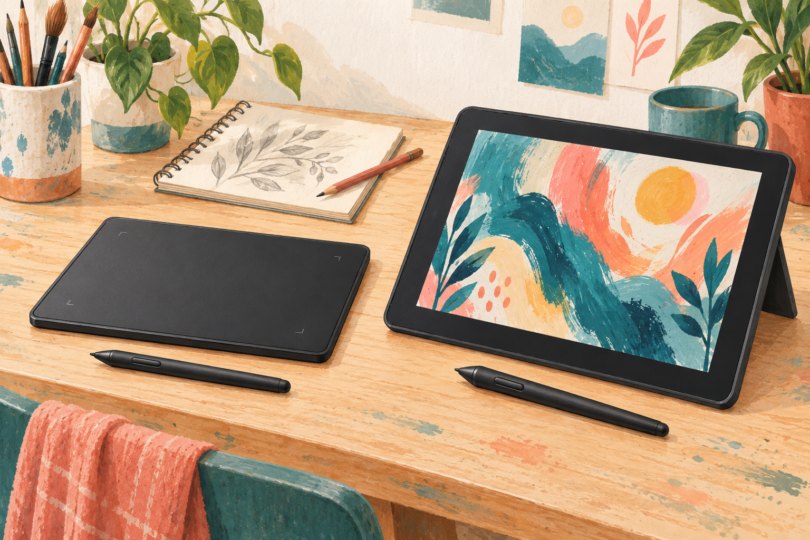
Image note: Original editorial illustration; not specific products. Screenless pen-tablet and standalone art-tablet formats are shown without price or specification claims.