
The best tablet for notes is the one that helps you find and reuse what you wrote. Start with an iPad (A16) and Apple Pencil (USB-C) for an Apple-based workflow, a Samsung Galaxy Tab S10 FE for an included pen and Samsung Notes, or a reMarkable Paper Pro for a dedicated handwritten notebook.
For lectures and meetings, the important comparison is capture, organization, retrieval, and export. A pleasant pen experience matters, but it cannot compensate for losing a meeting decision inside an unnamed notebook or discovering that an export omitted an attachment.
Research checked October 4, 2026. This guide uses manufacturer specifications and support documentation. It is not hands-on testing, and we have not measured handwriting recognition, pen latency, or battery life.
Compare three note-taking setups
| Setup | Best fit | Pen situation | Main workflow check |
|---|---|---|---|
| iPad (A16), 128GB, with Apple Pencil (USB-C) | Handwritten and typed notes alongside everyday apps | Pencil purchased separately | Check attachment behavior when exporting Apple Notes |
| Galaxy Tab S10 FE, Wi-Fi, 128GB | Lectures, PDF annotation, and Samsung-centered notes | S Pen included | Test access and exports on your actual computer |
| reMarkable Paper Pro with standard Marker | Dedicated handwritten meeting notebooks | Marker included in the selected configuration | Handwriting search requires Connect |
The storage capacities are suggested starting configurations, not a guarantee for every workload. Scanned textbooks, presentation decks, recordings, and images can matter more than the number of handwritten pages.
1. iPad (A16): for notes within an Apple workflow
The iPad (A16) has an approximately 11-inch display and starts with 128GB of storage. It supports Apple Pencil (USB-C) and Apple Pencil (1st generation). We would start by comparing the USB-C Pencil for note-taking; it avoids the first-generation Pencil’s separate USB-C adapter requirement. Neither pen is part of the standard iPad box.
Apple Notes is a useful starting app for subject folders, meeting notes, and mixed typed and handwritten material. Apple’s search documentation covers searching handwriting, typed text, and text in scans. Recognition depends on supported languages, so test course terminology and your own writing rather than assuming every word will be found.
Smart Folders can collect notes using filters such as tags and dates. A course tag plus a follow-up tag is more useful than a growing pile of “New Note” entries.
Tradeoff: Apple warns that exporting a note containing a multipage PDF or scan includes only the first page of that attachment in the resulting PDF. Keep original attachments separately and test the export workflow before relying on it for a course archive.
2. Samsung Galaxy Tab S10 FE: for an included pen and annotated PDFs
The Galaxy Tab S10 FE has a 10.9-inch display. Samsung’s model-specific guide confirms that the S Pen is included and supports screen-off memos. That makes the package worth comparing when you want to start handwriting without buying a separate stylus.
Samsung Notes offers folders, templates, and note search. Use a folder for each class or project, then name notes with a date and topic. Its features guide also explains sharing notes in different formats. Keep typed titles and a few key terms even when the body is handwritten; they make retrieval less dependent on recognition.
For lecture slides and agendas, Samsung documents importing PDFs, annotating them, and exporting notes as PDFs. Its PDF guide is the important workflow reference. Handwriting-to-text tools provide another route for extracting an action list, but proofread names and technical terms.
Tradeoff: verify your computer workflow before buying. Samsung Notes features and availability differ across devices. Do not assume the same editing experience exists on every Windows computer, Mac, or browser. Test a PDF export and retain an editable native copy when continued editing matters.
3. reMarkable Paper Pro: for dedicated meeting notebooks
The Paper Pro combines an 11.8-inch color e-ink display with an adjustable reading light. The official specifications list PDF and EPUB imports and PDF, PNG, and SVG exports. Select the standard Marker configuration unless you specifically want the Marker Plus upgrade.
The crucial distinction is between handwriting conversion and handwriting search. The device can convert handwritten notes to typed text, but conversion requires Wi-Fi and a reMarkable account. The manufacturer’s conversion guide also says mathematical symbols and diagrams are not converted. Keep the handwritten original when those details matter.
Tradeoff: handwriting search is listed as a Connect subscription feature. Without Connect, files remain on the tablet, but only files used and synced online within the last 50 days continue to be stored in the cloud and updated in its apps. Check the subscription-free limits against your archive needs.
A practical lecture or meeting workflow
- Create one repeatable structure. Use a class or project folder and a date-first title, such as “2026-10-04 Biology: cell transport.”
- Separate notes from actions. Reserve a small section for decisions, questions, and next steps. After the session, move actual deadlines into your calendar or task system.
- Add retrieval clues. Include a clear title, subject keywords, and consistent tags where supported. Do not depend solely on handwriting recognition.
- Test an export early. Open it on your computer and inspect every page, attachment, annotation, and special symbol. Search within it if searchable PDFs are essential.
- Keep independent copies. Retain editable originals and readable exports for important work. Confirm workplace or school rules before using cloud sync, transcription, or recording.
Frequently asked questions
Are searchable notes the same as searchable PDF exports?
No. In-app handwriting search does not prove that an exported PDF includes a searchable text layer. Export a sample and search for a distinctive handwritten word in your usual PDF reader.
Do I need a keyboard?
Not for a pen-first notebook. Add one if you regularly type long meeting summaries, and include its cost and carrying weight in the comparison.
Which setup should I choose?
Choose the iPad for an Apple-based workflow, the Galaxy Tab for Samsung Notes and an included S Pen, and Paper Pro for a dedicated notebook with subscription needs understood. Test retrieval and export before committing your archive.
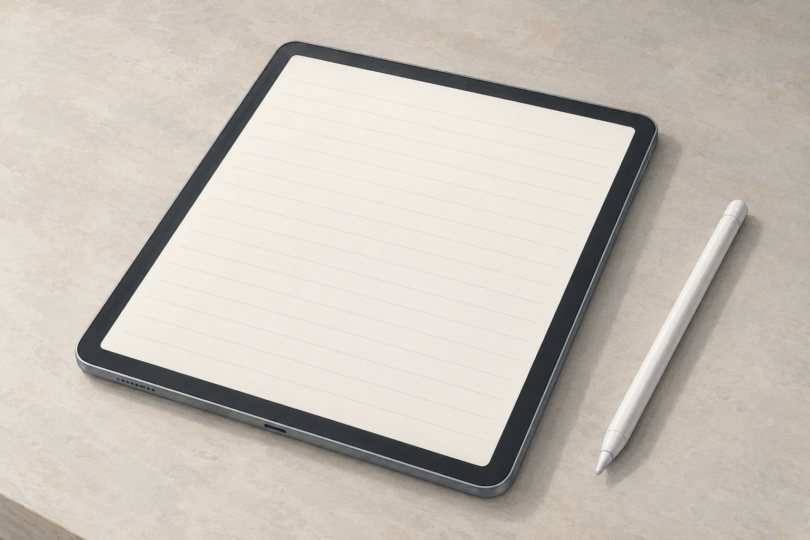
Image note: Generic editorial illustration of a tablet for writing; no specific device, app or compatibility is represented.