A joystick for Farming Simulator is most useful when you spend time operating loaders, cranes, and forestry attachments. For Farming Simulator 25 or 22 on a Windows PC, the original Thrustmaster SimTask FarmStick is the clearest starting point here: its manufacturer explicitly documents support for both games. The Logitech Heavy Equipment Side Panel suits players who prefer a separate bank of machine controls beside their wheel.
Choose around the work you actually do. Driving across a field, positioning a pallet fork, and rotating a forestry grapple require different inputs. These recommendations are based on published specifications and compatibility documentation; they are not hands-on test results.
Joystick, side panel, wheel, or gamepad?
- Joystick: useful for assigning loader lift, bucket movement, crane rotation, and other implement functions to separate axes.
- Side panel: combines a short loader stick with grouped buttons for attachments, lights, vehicle changes, and other frequent actions.
- Wheel and pedals: prioritize steering and driving. A separate joystick or panel can complement them when attachment work becomes the bigger challenge.
- Gamepad: a sensible starting point when you want a compact setup. The GIANTS Farming Simulator 25 manual documents gamepad controls as well as mouse and keyboard support.
You do not need to buy every device at once. Start with the control that addresses your main frustration, leaving room for the mouse, keyboard, and any existing driving hardware.
Two focused PC options
Thrustmaster SimTask FarmStick, original PC version

Thrustmaster SimTask FarmStick, Original PC Version, Model 2960889
As an Amazon Associate we earn from qualifying purchases.
For loader and forestry work with documented game support. The three-axis stick includes a mini-stick, thumbwheel, and programmable buttons. Its ambidextrous design offers flexibility when positioning it beside another controller.
- Windows 10/11 PC; this listing is the original model 2960889
- Thrustmaster specifies plug-and-play mappings for Farming Simulator 25 and 22
- Wheel, pedals, and mounting accessories are separate purchases
Trade-off: driving and working modes give controls different jobs, so allow time to learn the layout. This PC model does not inherit the compatibility of separately sold console versions.
Thrustmaster specifications and compatibility
Logitech G Heavy Equipment Side Panel
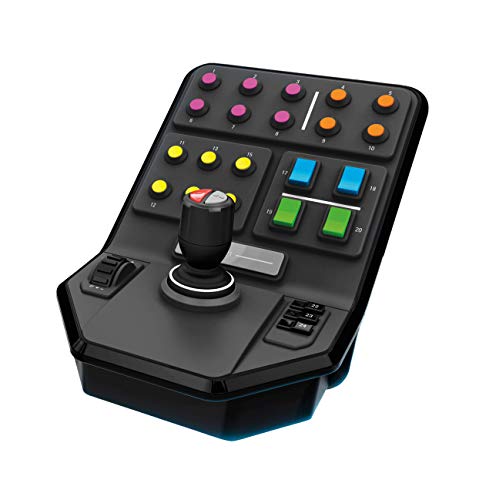
For a wheel-based setup needing more attachment controls. This panel combines a loader stick, a mode switch, grouped buttons, and a speed-control dial. The stick moves vertically, horizontally, and through a twist axis; switching modes provides another set of assignments.
- Wired USB panel for a computer-based setup
- Side-panel-only listing; wheel and pedals are not included
- Check current operating-system support and game mappings before buying
Trade-off: it needs desk space beside your driving controls. Logitech describes driver-free installation, but USB recognition and a suitable mapping for every vehicle are separate checks.
Logitech specifications and installation information
Check platform and game version separately
Both recommendations above are for a PC setup. Do not assume that a USB connector means a controller works on PlayStation or Xbox. Verify the exact product variant, console, Farming Simulator edition, and any required companion wheel against the manufacturer’s documentation.
The original FarmStick has explicit Windows 10/11 support. Logitech’s published Side Panel page still lists older Windows versions, including Windows 10; that is not enough to promise support for every newer operating system. If you use Windows 11, confirm the current requirements with Logitech before ordering.
Also distinguish a locally installed game from cloud streaming. Thrustmaster’s FarmStick support page warns that cloud-gaming and streaming services generally do not support its joysticks. A game’s presence in a subscription catalog does not establish accessory support for its streamed version.
Set up the movements before the shortcuts
- Start with the right documentation. Match the model number on the hardware to its manufacturer’s manual and support page. Follow its installation or firmware instructions when applicable.
- Check one device at a time. Confirm that the computer detects the controller, then inspect the game’s assignments. Keep a record of working bindings before making changes.
- Map the main implement movements. Begin with lift/lower and the attachment’s next most important motion. Add rotation, extension, or grapple functions only when the machine supports them.
- Test in a clear area. Check directions and mode switches before handling a load. Change one assignment at a time if an input moves the wrong part or triggers an unwanted action.
- Add frequent shortcuts last. Keep attachment selection, camera control, and tool activation accessible without making similar-looking buttons hard to distinguish.
For the original FarmStick, use Thrustmaster’s Farming Simulator 25 mapping diagram as a reference. GIANTS also documents the PC help window, opened with F1, for checking the actions available on the currently selected machine.
For frequent loader or crane work, prioritize reachable axes and clear mode changes. For mostly field driving, try your existing gamepad or wheel first. A useful farming setup is one whose controls you can remember and reach comfortably, rather than the one with the largest collection of buttons.