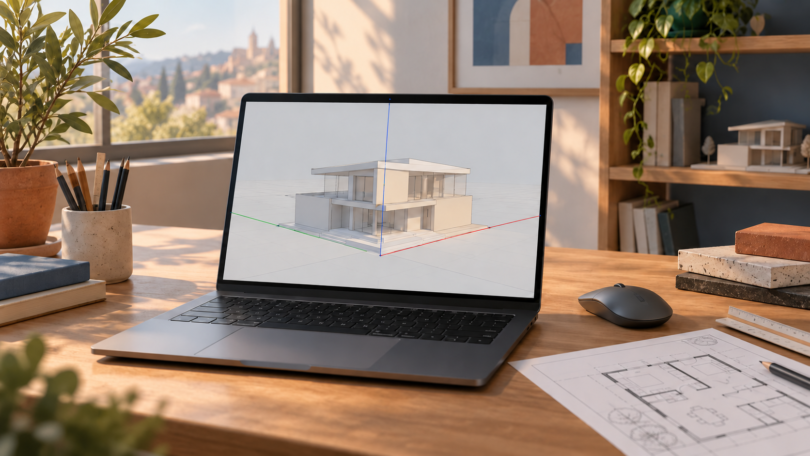

The best laptop for SketchUp depends on whether you mainly build models, work across several design apps, or render finished scenes. Our shortlist is the Lenovo Legion Pro 5i for a Windows setup with more dedicated graphics memory, the ASUS ProArt P16 for a larger-screen creator workstation with generous system RAM, and the 14-inch MacBook Pro for a macOS workflow.
These are configuration-specific recommendations based on manufacturer specifications and current SketchUp and rendering-software documentation. They are not hands-on benchmark results. Check the exact processor, GPU, memory and storage on the seller’s order page; the same laptop family can contain substantially different hardware.
Best laptops for SketchUp: the shortlist
| Laptop and exact configuration | Best fit | Main limitation |
|---|---|---|
| Lenovo Legion Pro 5i Gen 10, 83LU0007US: Core Ultra 9 275HX, RTX 5070 Ti Laptop GPU with 12GB VRAM, 32GB RAM, 1TB SSD | Windows modeling with a dedicated GPU and additional VRAM headroom | Still below SketchUp’s separate 32GB VRAM recommendation for demanding material and lighting workflows |
| ASUS ProArt P16, H7606WP-PB99T: Ryzen AI 9 HX 370, RTX 5070 Laptop GPU with 8GB VRAM, 64GB RAM, 2TB SSD | Modeling alongside other design apps and a large local asset library | 64GB system RAM does not increase the GPU’s 8GB dedicated memory |
| 14-inch MacBook Pro: M5 Pro with 15-core CPU and 16-core GPU, 48GB unified memory, 1TB SSD | Mac-based modeling and compatible rendering workflows | Check each extension’s Mac, Apple silicon and version requirements |
1. Lenovo Legion Pro 5i: best Windows pick for more GPU memory
The selected 83LU0007US configuration combines a Core Ultra 9 275HX, 32GB DDR5 memory, a 1TB SSD and an RTX 5070 Ti Laptop GPU with 12GB GDDR7. It ships with Windows 11 Home. Lenovo lists a 16-inch, 2560 × 1600 OLED display at 165Hz for this SKU.
Choose it when your required software runs on Windows and you want more dedicated graphics memory than the 8GB ProArt configuration below. That extra capacity is a useful reason to shortlist it for larger texture sets, but it does not establish a particular frame rate, render speed or maximum project size.
- Pros: 12GB dedicated VRAM; a 32GB starting memory configuration; a 16-inch workspace for modeling.
- Cons: it is a desk-oriented 16-inch choice; 12GB VRAM remains below the demanding-workflow recommendation discussed below. Budget for carrying the charger and using mains power during long work sessions.
Match the full 83LU0007US identifier before ordering. A Legion Pro 5i listing with an RTX 5060 or RTX 5070 is a different configuration, even when its exterior looks the same.
2. ASUS ProArt P16: best for a memory-heavy design workflow
Our pick is the H7606WP-PB99T with a Ryzen AI 9 HX 370, RTX 5070 Laptop GPU with 8GB GDDR7, 64GB onboard RAM and a 2TB SSD. The H7606WP specification column lists a 16-inch touch display, Windows 11 Pro and a weight of about 4.08 pounds, excluding the power adapter.
This is the configuration to consider when SketchUp shares a session with image editing, reference material and other design tools. Its larger system-memory allocation is the attraction. Choose the Legion instead if dedicated VRAM is the more pressing constraint; neither choice is a promise that every complex scene will run smoothly.
- Pros: 64GB system RAM and 2TB storage in the selected configuration; a large touch-enabled workspace.
- Cons: the GPU has 8GB VRAM; onboard system memory should be treated as a purchase-time choice. The P16 name also covers other GPUs, so compare the complete configuration.
3. MacBook Pro 14-inch: best for an established Mac workflow
Select the 14-inch M5 Pro with 15-core CPU, 16-core GPU, 48GB unified memory and 1TB SSD. This recommendation is for that configuration, not the base M5 model or an M5 Max. Apple’s technical specifications distinguish those chip and memory options.
It makes sense for someone whose design files, other apps and required extensions already work on macOS. The smaller screen favors travel over the workspace of the two 16-inch alternatives. Apple’s unified memory is shared by the system and graphics; 48GB unified memory should not be described as 48GB of dedicated VRAM or treated as a direct match to a Windows graphics-card specification.
- Pros: a compact display size and a substantial shared-memory configuration for a Mac-centered workflow.
- Cons: software compatibility can decide the purchase before hardware specifications do. Confirm the precise renderer, extension version and supported Mac operating system first.
Check SketchUp’s requirements before choosing
For current desktop SketchUp, plan around Windows 11 or a supported macOS release. Trimble’s compatibility notes say SketchUp 2026.1 removed Windows 10 support and SketchUp 2026 does not support macOS 13 or older. Windows on ARM and virtual-machine setups are not supported choices in that guidance; an inexpensive Snapdragon laptop is therefore not an interchangeable substitute for the Windows configurations above.
The official requirements recommend at least 8GB system RAM and a modern Windows GPU with at least 8GB VRAM. They separately recommend at least 32GB VRAM for models using PBR texture maps, ambient occlusion and image-based lighting. Neither Windows laptop here meets that latter recommendation. For that workload, assess a suitably equipped workstation and representative project before committing to a laptop.
The graphics engine matters too: SketchUp’s newer Windows renderer requires DirectX 12 with feature level 11.0, while the Mac renderer requires Metal 2. The classic renderer uses OpenGL 3.1. Keep supported GPU drivers current, and check the requirements for the actual SketchUp version you intend to use.
Our practical starting point is 32GB system RAM for a new Windows design laptop, with more considered for large projects or several demanding apps. That is editorial buying advice, not Trimble’s minimum or a guarantee. Prioritize your real project’s bottleneck: additional RAM cannot substitute for insufficient GPU memory, and a bigger SSD does not make a slow graphics card faster.
Modeling, rendering and browser SketchUp are different purchases
A laptop that runs SketchUp can still be a poor match for a rendering extension. Chaos’s V-Ray for SketchUp documentation describes NVIDIA CUDA/RTX rendering and says macOS Metal support was added with V-Ray 7 on Sonoma, Sequoia and newer systems. Avoid old blanket advice that Mac GPU rendering is impossible; equally, do not assume an older V-Ray license gains those features. Check the installed renderer’s exact version, operating-system support and GPU requirements.
If your course or project uses only SketchUp for Web, first establish which features it needs. The official Web feature comparison lists extensions as unavailable. A Chromebook/browser workflow is therefore not a substitute for desktop SketchUp with required extensions, even if it can open the web modeler.
How to decide between the three
- Write down your SketchUp version, required extensions and renderer before setting a hardware budget.
- Try a representative model and rendering job on the proposed configuration when a demo or return policy allows it. Check navigation, saving, export and the complete render workflow.
- Compare the full cost of the exact configuration, software subscriptions, mouse, dock and external display. A sale on a lower GPU or memory variant is not a discount on the machine listed here.
Frequently asked questions
Is 16GB RAM enough for SketchUp?
It can be enough for some smaller projects, but project complexity and other open apps matter. We would generally start a new Windows design-laptop purchase at 32GB, while recognizing that Trimble’s published recommendation starts lower. Do not confuse system RAM with GPU VRAM.
Do I need an RTX graphics card?
SketchUp itself does not require the RTX brand. Choose graphics hardware that meets its current requirements, then check the renderer separately. An NVIDIA RTX configuration can be useful for a CUDA/RTX rendering workflow, but the exact GPU memory and software version still matter.
Which pick should I buy?
Start with the Legion configuration for a Windows workflow where GPU memory is the priority, the ProArt configuration when system RAM and storage matter more, or the MacBook Pro when your whole software workflow supports macOS. For the demanding material and lighting workload covered by Trimble’s 32GB VRAM recommendation, investigate hardware beyond the two Windows picks here.