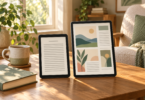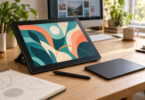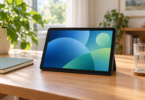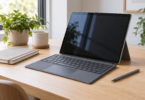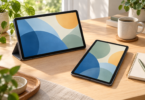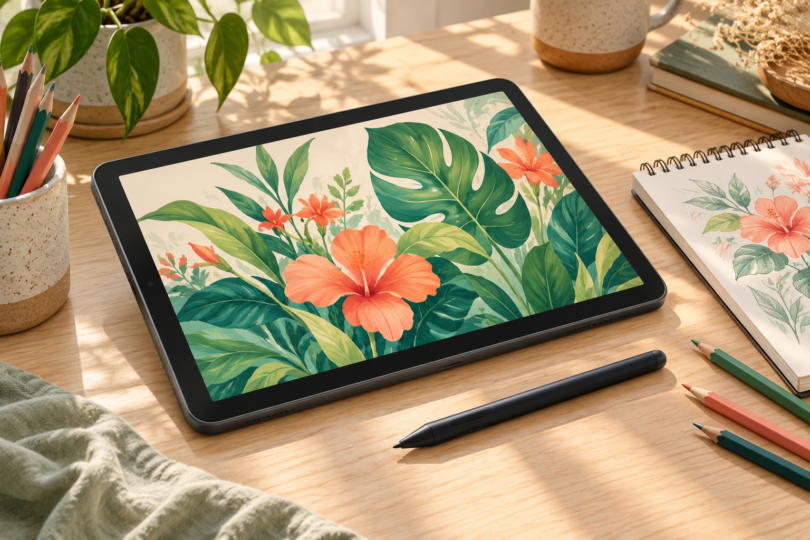

The Samsung Galaxy Tab S12+ is our pick for artists who want a roomy Android tablet that also handles everyday work. The Galaxy Tab S10 FE is the more compact choice for sketching and class notes. For a textured drawing surface, consider the XPPen Magic Drawing Pad MDP1221, the Android 14 version.
All three are standalone tablets with a compatible pen included. You can draw without connecting them to a computer. This shortlist compares manufacturer specifications, manuals and app requirements; the recommendations are editorial judgments, not hands-on performance test results.
The best Android drawing tablets at a glance
| Tablet | Best fit | Screen | Configuration compared | Pen |
|---|---|---|---|---|
| Samsung Galaxy Tab S12+ | Drawing plus everyday productivity | 12.6-inch AMOLED, up to 120Hz | Wi-Fi, Gray, 12GB RAM / 256GB storage | S Pen included |
| Samsung Galaxy Tab S10 FE | Portable sketching and study | 10.9-inch LCD, up to 90Hz | Wi-Fi, Gray, 8GB RAM / 128GB storage | S Pen included |
| XPPen Magic Drawing Pad MDP1221 | A textured, art-focused surface | 12.2-inch LCD, 60Hz | Android 14, 8GB RAM / 256GB storage | X3 Pro Slim stylus advertised; included pen follows the package |
1. Samsung Galaxy Tab S12+: best for drawing and everyday work
The S12+ offers a useful middle ground between a small sketchpad and an oversized desk tablet. Its 12.6-inch, 2800 × 1752 Dynamic AMOLED 2X display gives you room for a canvas and tool panels, while the adaptive refresh rate reaches 120Hz. The Wi-Fi version weighs 553g before you add a case. Those specifications make it our most versatile choice here, although they do not establish a measured pen-latency or color-accuracy advantage.
The configuration compared is SM-X840NZAAXAR, Gray, Wi-Fi, 256GB storage and 12GB RAM. Samsung also lists a 512GB version. The S12 series specifications identify Android 17 with One UI 9 and microSD expansion up to 2TB. Extra storage is useful for exported artwork and reference libraries; it does not increase RAM or guarantee a particular layer count.
The supplied S Pen provides pressure-sensitive input in compatible apps. It does not need charging for drawing, and this generation’s pen does not support Bluetooth remote Air actions. That distinction matters if you are upgrading from an older Galaxy tablet whose pen could trigger remote controls. Samsung’s S Pen guidance separates the Bluetooth and non-Bluetooth models.
- Why choose it: a large, high-refresh display, included pen and more RAM than the other configurations here.
- Trade-offs: the larger footprint is less convenient for one-handed use; a keyboard and wall charger add to the complete setup.
- Best buyer: someone who wants one tablet for illustration, notes, reading and multitasking.
Check the exact Galaxy Tab S12+ configuration at Samsung.
2. Samsung Galaxy Tab S10 FE: best for portable sketching
The 10.9-inch S10 FE is easier to fit into a small desk or everyday bag than the two 12-inch options. It combines an included S Pen with a 2304 × 1440 LCD that refreshes at up to 90Hz. We would choose it for handwritten notes, sketchbooks and illustrations where portability matters more than a large working canvas.
The selected model is SM-X520NZAAXAR, Gray, Wi-Fi, 128GB storage and 8GB RAM. Samsung also lists a 256GB / 12GB configuration, so compare both the memory and storage when choosing a variant. The S10 FE support specifications list an Exynos 1580 processor and microSD expansion up to 1.5TB. The smaller screen is the main compromise: app controls occupy a greater share of the available drawing area.
Its S Pen supports pressure-sensitive drawing without charging. It has no Bluetooth remote Air actions. The tablet also lacks HDMI output and Wireless DeX, according to Samsung’s support guidance. Buy it for drawing on its own screen, rather than assuming its USB-C connector will give you the same external-monitor workflow as every other Galaxy Tab.
The SM-X520 user guide documents its Android 15-era software and pen controls. Software availability varies by region and update status, so check the installed version and your drawing app’s requirements when setting it up. A higher-end Galaxy model is not required simply to get a pressure-sensitive pen.
- Why choose it: an included S Pen, a manageable 10.9-inch size and expandable storage.
- Trade-offs: LCD rather than AMOLED, less canvas space and no HDMI monitor output.
- Best buyer: a student or casual illustrator who values portability and a straightforward pen setup.
Check the exact Galaxy Tab S10 FE configuration at Samsung.
3. XPPen Magic Drawing Pad MDP1221: best for a textured screen
The Magic Drawing Pad is the most drawing-focused option here. Its 12.2-inch, 2160 × 1440 screen has a 3:2 shape and an etched anti-glare surface. That makes it worth considering if you prefer a surface with texture over a glossy tablet. The 60Hz LCD has a lower maximum refresh rate than either Samsung pick, so choose it for its drawing-oriented design rather than an assumed speed advantage.
Specify MDP1221, Android 14, 8GB RAM and 256GB storage; the current US store identifies the SKU as MDP1221-US. The MDP1221 quick guide confirms the model, operating system and included stylus. The name “Magic Drawing Pad” alone is not enough to identify the hardware revision.
XPPen currently advertises the battery-free X3 Pro Slim stylus, 16,384 pressure levels and 60-degree tilt support on the US product page. The page also says the included stylus is subject to the actual packaging. Confirm that the box specifies the advertised pen before ordering; do not assume every XPPen pen is interchangeable. Pressure and tilt behavior also depend on the app and brush settings. A larger pressure-level number alone does not establish better drawing quality.
The quick guide lists a case, stylus, power adapter, USB-C cable, replacement nibs and drawing glove. Check the selected regional package for the adapter. The MDP1221 can also receive a compatible computer’s video signal through DP-in, but its Android drawing apps run independently. Its manual says it is not waterproof and warns that the textured surface needs protection from scratches.
- Why choose it: a textured 3:2 canvas, included pen and an art-oriented accessory package.
- Trade-offs: a 60Hz display, model-revision confusion in retail listings and a pen-package qualification worth checking.
- Best buyer: an artist who prioritizes the drawing surface and is comfortable checking Android app compatibility.
Check the MDP1221 Magic Drawing Pad at XPPen.
Choose the app before choosing the tablet
Clip Studio Paint is one option across these Android tablets, but check its current system requirements. Celsys lists Android 13 or later, at least 4GB RAM with 6GB recommended, and at least 6GB of free storage. Its Galaxy version specifies ARM64; the general Android version lists ARM32 or ARM64. Large canvases, layers and reference files need additional room.
Clip Studio Paint on Android or Galaxy requires a suitable monthly or annual plan. A Windows/macOS perpetual license and the smartphone-only plan are not substitutes for a tablet subscription. Any included trial is temporary. Celsys’ pressure-support guidance says current Galaxy and Android plans support pressure; the tablet, pen and brush must still support and enable it.
Procreate is an iPad app, as its official handbook explains. If it is essential to your workflow, choose a compatible iPad and Apple Pencil instead. An Android tablet cannot meet that requirement simply by having a good pen.
What matters before you buy
Match the pen to the exact tablet. A generic capacitive stylus can imitate a finger tap, but that does not establish pressure sensitivity, tilt or palm rejection. A powered pen is not automatically compatible either. Start with the included pen and check the manufacturer’s compatibility list before buying a replacement.
Separate standalone tablets from pen displays. A standalone Android tablet runs its own apps. A tethered pen display usually needs a host computer or other supported device, even if its listing calls it a “drawing tablet.” Check the operating system, not just whether the product has a screen.
Budget for the complete workflow. Include the drawing app, case, any required charger and a backup method. Storage capacity and RAM serve different purposes. Export copies of important work and check that your chosen file formats can move between the tablet and your other devices.
Our verdict
Choose the Galaxy Tab S12+ for the broadest mix of drawing space and everyday tablet use. Choose the Galaxy Tab S10 FE for a smaller sketching and study companion. Choose the Magic Drawing Pad MDP1221 for its textured screen, after confirming the current Android 14 revision and included pen package.
Frequently asked questions
What is the best Android tablet for drawing?
Galaxy Tab S12+ is our versatile pick for drawing and everyday work. Galaxy Tab S10 FE suits portable sketching and study. XPPen Magic Drawing Pad MDP1221 is worth considering for its textured drawing surface. The best choice also depends on your app and preferred screen size.
Do these drawing tablets need a computer?
No. All three run Android drawing apps independently. A tethered pen display is a different category and normally requires a compatible host. The Magic Drawing Pad MDP1221 also has a DP-in mode, but using its own Android apps does not require that connection.
Is a drawing pen included?
Both Samsung picks include an S Pen. XPPen’s MDP1221 guide lists an included stylus, and its current US store advertises the X3 Pro Slim stylus while qualifying that the actual pen follows the package. Confirm the exact box contents before ordering.
Can I use Procreate on an Android tablet?
No. Procreate is an iPad app. For Android, choose an available drawing app whose current system requirements and pen support match the tablet. Clip Studio Paint is one option, with a suitable tablet subscription and compatible hardware.
Will any stylus provide pressure sensitivity?
No. Pressure sensitivity requires a compatible tablet digitizer, pen and app. A generic capacitive stylus may only act like a finger. Use the included pen or a replacement explicitly approved for the exact tablet model, then check the app’s brush and pressure settings.