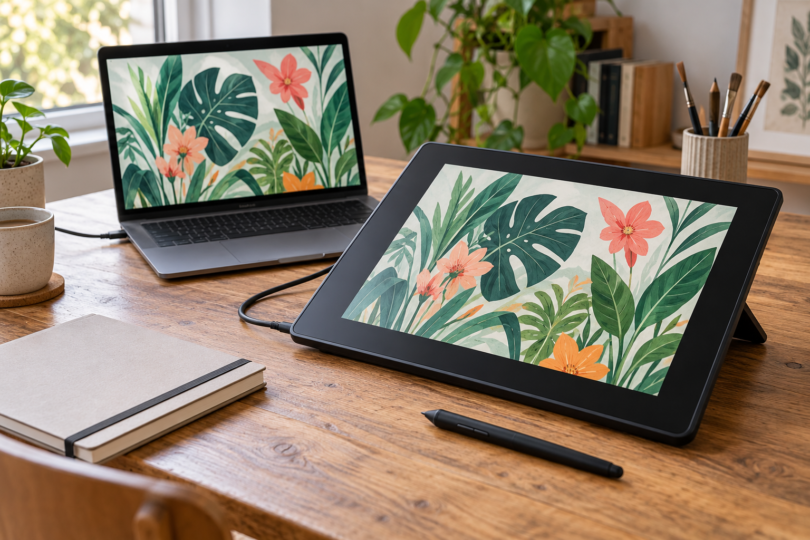

The best drawing tablet with a screen is the one that fits your drawing software, desk and computer connections. Our starting pick is the Huion Kamvas 13 (Gen 3) for its compact screen and two shortcut dials. Compare the Wacom One 14 for a simpler USB-C setup, or the XPPen Artist 16 (2nd Gen) for a larger drawing area. These recommendations compare documented features; they are not hands-on test results.
All three choices are pen displays: they show artwork from a separate compatible computer or, where specifically supported, an Android device. They do not run drawing apps on their own. If you want to sketch without a connected host, look for a standalone tablet and check its pen and app support before buying.
Compare the three drawing displays
| Pen display | Why choose it | What to check before buying |
|---|---|---|
| Huion Kamvas 13 (Gen 3), GS1333 | 13.3-inch Full HD screen; two dials and five programmable keys | Stand is optional; full-featured USB-C cable is separate |
| Wacom One 14, DTC141 | 14-inch Full HD screen; supplied USB-C cable | Host port must support video; no finger touch |
| XPPen Artist 16 (2nd Gen), CD160FH | 15.4-inch Full HD screen; ten shortcut keys | Larger desk footprint; stand and USB-C-to-C cable are extras |
1. Huion Kamvas 13 (Gen 3): our pick for shortcut controls
The GS1333 combines a 13.3-inch, 1920 × 1080 screen with two dials and five programmable keys. That makes it our first choice to compare if you want brush-size and canvas controls beside your drawing hand. The supplied PW600L pen and fully laminated screen are useful features to consider, but specifications alone cannot tell you how the pen will feel.
The manual lists one display, PW600L pen, pen holder, ten nibs, a 3-in-1 cable and USB-A extension cable. The ST300 stand is optional. A full-featured USB-C cable is a separate purchase. For that connection, Huion requires a host supporting USB 3.1 Gen 1 and DisplayPort 1.2 or later, with at least 5V/2A power; additional power may be needed. The supplied 3-in-1 connection uses HDMI and USB-A.
Use Windows 10 or later as the Windows buying requirement: Huion’s current overview and manual agree on that, despite a conflicting Windows 7 line in the specification table. The overview also lists macOS 10.12 or later, Ubuntu 20.04 LTS and Android devices with the required USB/display interface. Check current drivers and your exact device before ordering. Compare the Kamvas 13 (Gen 3).
2. Wacom One 14: for a straightforward USB-C desk setup
Choose the DTC141 if you prefer a simple display layout. It has a 14-inch, 1920 × 1080 IPS screen, a battery-free Wacom One Standard Pen and no finger-touch input. Its drawing area measures 309 × 174mm. This is the One 14; specifications and accessories for the older One 12 or One 13 touch should not be substituted.
The standard package lists one display, one pen, three replacement nibs, a nib-removal tool and a 1.8m USB-C cable. The foldable stand is optional. Wacom lists Windows 10 or later, macOS 13 or later and the latest ChromeOS. Its connection requirement is USB-C with DisplayPort Alt Mode; Thunderbolt 3 or later is also supported.
Check the computer’s port specification before buying. A USB-C socket that only carries data or charging is insufficient for the documented direct connection. Wacom’s setup guide points to its optional Converter for computers without video-capable USB-C. See the Wacom One 14 specifications and connection guide.
3. XPPen Artist 16 (2nd Gen): for a larger Full HD canvas
The Artist 16 (2nd Gen), model CD160FH, is our larger-screen choice here. Its 15.4-inch screen has a 1920 × 1080 resolution, and the body measures 434 × 255.8 × 12.89mm. Ten shortcut keys give you more physical buttons than the Huion, although it lacks the Huion’s dial-based arrangement. The larger panel gives you more physical drawing space, rather than more pixels than the other two picks.
The maker lists one display, an X3 Elite stylus, a 3-in-1 USB cable, extension cord, ten nibs and a power adapter for this 16-inch-named model. The actual screen diagonal is 15.4 inches. A stand and full-featured USB-C-to-C cable are optional purchases. This is the standard Artist 16 (2nd Gen), not the Artist Pro 16 (Gen 2).
Use the included 3-in-1 cable for the HDMI connection, or a suitable separately purchased USB-C-to-C cable with a compatible host. XPPen lists Windows 7 or later, macOS 10.10 or later, ChromeOS 88 or later, Linux and Android with USB 3.1/DisplayPort 1.2. Those published minimums are not a guarantee for every driver, Linux distribution or Android phone. Confirm the current driver and device support. Compare the Artist 16 (2nd Gen).
How to choose a screen tablet that fits your workflow
Start with the drawing app you already use. Check its current operating-system requirements, pressure/tilt support and the display maker’s current driver. A long compatibility list is only the starting point; your computer, driver and application must work together.
Measure the space for both the pen display and its host, including room for cables and a keyboard. Compare the total package you need: display, pen, connection cable, power supply and stand. A listing with the same model name may offer a different accessory bundle.
Frequently asked questions
Can these drawing tablets work without a computer?
They require a compatible host device. The Huion and XPPen documents describe certain Android connections, but Android support depends on the phone or tablet’s video-output capability. For completely independent drawing, choose a standalone tablet with its own operating system and compatible drawing apps.
Will any USB-C cable work?
No. Match the display’s specified cable and host-port requirements. Video output, data and adequate power all matter. The Huion and XPPen full-featured USB-C cable options are separate from their supplied 3-in-1 cables; Wacom includes a USB-C cable for a compatible video-capable port.
Is a bigger screen automatically better?
Choose a larger screen if the extra physical workspace helps your drawing posture and fits your desk. All three picks are Full HD, so moving to the larger Artist 16 does not increase the pixel count. A smaller display may be easier to position beside your existing keyboard and monitor.