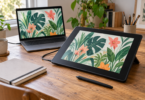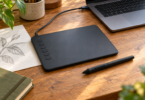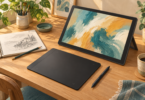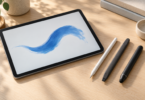

The best graphic design tablet depends on where you want to work. Start with the Wacom Intuos Pro Medium if you already have a computer and monitor. Choose the Huion Kamvas 13 (Gen 3) to draw directly on a connected screen, or consider the 11-inch iPad Air (M4) for a standalone, app-based workflow.
These are feature-based buying recommendations drawn from maker documentation, not hands-on test results. The three categories solve different problems, so decide which fits your software before comparing specifications.
Three graphic design tablets to compare
| Tablet | Best fit | Main buying check |
|---|---|---|
| Wacom Intuos Pro Medium, PTK670 | Screenless input for an existing desktop setup | Requires a host computer; two dials and ten keys |
| Huion Kamvas 13 (Gen 3), GS1333 | Drawing directly on a 13.3-inch Full HD display | Requires a host; stand and USB-C cable are optional |
| Apple iPad Air 11-inch (M4) | Standalone drawing with iPadOS apps | Apple Pencil Pro is separate; check exact app requirements |
1. Wacom Intuos Pro Medium: our desktop starting point
The PTK670 is a screenless pen tablet with a 263 × 148mm active area. You watch the computer monitor while moving the pen on the tablet. Its ten customizable keys and two dials make it worth comparing if you repeatedly reach for keyboard shortcuts. It has no finger-touch input.
The package includes a battery-free Pro Pen 3, pen stand with ten replacement nibs, and a USB-C-to-A cable. Wired USB and Bluetooth are supported; Wacom lists Windows 10 or later and macOS 13 or later. Those tablet minimums do not replace your design app’s requirements.
Choose this model when you want pen input while keeping your existing monitor. Pass if you specifically want to draw on the image itself. Check the PTK670 model code: an older Intuos Pro Medium with Pro Pen 2 is a different product. See the Wacom Intuos Pro specifications.
2. Huion Kamvas 13 (Gen 3): for drawing on the screen
The GS1333 combines a 13.3-inch, 1920 × 1080 display with two dials and five programmable keys. It is our screen option for buyers who prefer to put the pen directly over the artwork. It remains a peripheral: a compatible host runs the applications.
Huion lists a PW600L pen, ten nibs, a 3-in-1 cable and a USB-A extension cable in the standard package. The ST300 stand is optional. The included connection uses HDMI and USB-A; the full-featured USB-C cable is a separate purchase, and its host port must meet Huion’s video, data and power requirements.
Before ordering, check the cable route and current driver for your exact computer. For Photoshop, also note that Adobe directs non-Wacom tablet support to the manufacturer. That makes Huion’s support and the retailer’s return terms worth checking before committing. Compare the Kamvas 13 (Gen 3).
3. Apple iPad Air 11-inch (M4): for a standalone workflow
Choose the iPad Air when working away from a host computer matters more than keeping a desktop interface. The M4 model runs iPadOS and has a fully laminated, 2360 × 1640 display. The nominal 11-inch screen measures 10.86 inches as a rectangle.
Budget for an Apple Pencil Pro separately: Apple’s standard iPad box lists the tablet, charging cable and power adapter. This Air supports both Pencil Pro and Pencil (USB-C), but only Pencil Pro provides pressure sensitivity. For pressure-controlled drawing, that difference matters more than choosing the cheapest compatible pencil. Compare the two Apple Pencils.
Choose your apps before choosing storage. Adobe offers iPad versions of Photoshop and Illustrator, but their workflows and available tools need separate checking. Adobe explicitly documents Illustrator features unavailable on iPad. Do not assume an iPad replaces every desktop task, plug-in or file workflow.
There is also a documentation gap to resolve if Photoshop is essential: the captured Adobe iPad requirements page names older Air models and does not explicitly list the M4 Air. Check the current app listing or Adobe support for your exact device before purchase. Illustrator’s requirements say unlisted iPads with Apple Pencil support are compatible. Compare iPad Air configurations and check Photoshop requirements and Illustrator requirements.
How to choose the right kind of design tablet
Start with a real project: the app version, fonts, plug-ins, export format and file size you need. For an existing desktop Adobe workflow, check Photoshop’s computer requirements and Illustrator’s computer requirements as well as the tablet driver. A compatible input device cannot make an unsupported computer run the software.
Think about where you look while drawing. A screenless tablet leaves the image on your monitor; a pen display puts the image under the pen but adds a connected screen to your desk. A standalone tablet carries its own software environment. Try the posture and workspace size where possible.
Compare the complete setup you will buy: tablet, pen, required cables or adapters, a suitable stand, and your software plan. Check the exact generation and accessories in the selected listing. Hardware specifications and bundle names are useful checks, not evidence of tested pen feel or color accuracy.
Frequently asked questions
Which graphic design tablet works without a computer?
The iPad Air runs its own iPadOS apps. The Intuos Pro and Kamvas are peripherals that require a compatible host. Pick the iPad only after checking that the mobile apps can complete your required work.
Do I need a screen for Photoshop or Illustrator?
No. A screenless pen tablet can provide pen input while the computer displays the artwork. Choose a pen display if drawing on the image suits you better; you still need a suitable host, driver and application setup.
Should I buy an iPad stylus by itself?
Only if you already have the compatible tablet. A stylus is an accessory, and Apple Pencil compatibility varies by iPad generation. For the M4 Air in this guide, Pencil Pro supports pressure sensitivity while Pencil (USB-C) does not.