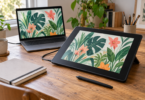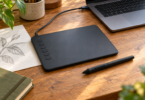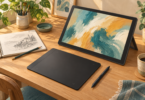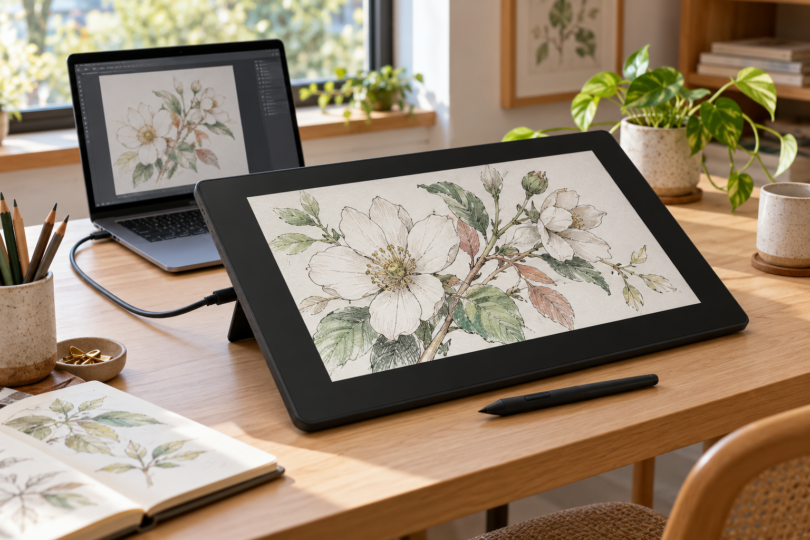

The best screen drawing tablet depends on the computer you use, the space you have and whether you want finger gestures or physical shortcuts. Our three picks are the Huion Kamvas 13 (Gen 3) for a compact display with dials, Wacom One 13 touch for multitouch control and XPPen Artist Pro 16 (Gen 2) for a larger, higher-resolution canvas.
These are wired pen displays: you draw directly on their screens, but a compatible computer or supported Android device runs the drawing app. They are not standalone tablets. If you want to sketch without a separate host, start with a standalone tablet and a specifically compatible pressure-sensitive pen instead.
This shortlist compares manufacturer specifications, exact-model instructions and the practical requirements of each setup. The recommendations are editorial judgments, not hands-on test results.
Best drawing tablets with screens at a glance
| Drawing display | Best fit | Screen and pen | Main tradeoff |
|---|---|---|---|
| Huion Kamvas 13 (Gen 3), GS1333 | A compact workspace with physical shortcuts | 13.3-inch, 1920 × 1080; PW600L pen; 16,384 pressure levels | No finger touch; stand and USB-C cable depend on the package |
| Wacom One 13 touch, DTH134 | Drawing with pen input and touch gestures | 13.3-inch, 1920 × 1080; Wacom One Standard Pen; 4,096 pressure levels | Check the bundle carefully: the eStore display-only version omits the pen and cables |
| XPPen Artist Pro 16 (Gen 2), MD160QH | A roomier canvas for desktop art software | 16-inch, 2560 × 1600; X3 Pro pen; 16,384 pressure levels | Larger desk footprint; no finger touch; 3-in-1 cable lists differ, so verify the exact bundle |
All three require a host device and power. Pressure-level counts describe the pen hardware, not a guarantee of better artwork or identical behavior in every app.
1. Huion Kamvas 13 (Gen 3): best for compact drawing with dials
The Kamvas 13 (Gen 3) combines a fully laminated Full HD screen with two dials and five programmable keys. That makes it a sensible starting point if you want brush-size, zoom or other shortcuts beside the canvas without dedicating space to a separate controller. The included battery-free PW600L pen supports pressure and up to 60 degrees of tilt; the application must support the feature you want to use.
Why choose it: a small drawing surface, useful physical controls and a pen that needs no charging. What to weigh: 13.3 inches can feel cramped once an app’s tool panels are open, and the display does not offer finger-touch navigation.
The standard manual lists a 3-in-1 cable, USB-A extension cable, PW600L, pen holder, ten replacement nibs, glove and cleaning cloth. The ST300 stand is optional in that standard list, although some bundles include it. A full-featured USB-C cable and power adapter are not standard inclusions, so compare the actual package rather than the product name alone.
With the 3-in-1 cable, the host needs HDMI for video and USB-A for pen data, with the power lead connected as instructed. A USB-C setup needs USB 3.1 Gen 1 data, DisplayPort 1.2 or later video support and at least 5V/2A power. Add the specified external power connection if the host cannot provide enough power; an ordinary charging cable is not a substitute.
Huion’s exact-model manual specifies Windows 10 or later and macOS 10.12 or later; its product page also lists Ubuntu 20.04 LTS and Android devices with the required video-capable connection. Check current driver support for your particular OS version before ordering. One specification block on the product page says Windows 7, but the stricter manual requirement is the safer buying reference.
The selected black GS1333 bundle includes the ST300 stand, PW600L pen, 3-in-1 cable and listed small accessories. Other packages can differ.

Huion Kamvas 13 Gen 3 (GS1333), Black, with PW600L Pen and ST300 Stand
As an Amazon Associate we earn from qualifying purchases.
Check Kamvas 13 (Gen 3) details and buying options at Huion. See the GS1333 manual for the exact ports, accessories and installation requirements.
2. Wacom One 13 touch: best for touch gestures
The DTH134 is the choice here for people who want to combine pen strokes with multitouch gestures in supported software. Its 13.3-inch Full HD screen works with the battery-free Wacom One Standard Pen, which supports 4,096 pressure levels and tilt. Choose the exact Wacom One 13 touch: the similarly named Wacom One 12 and screenless Wacom One tablets are different products.
Why choose it: pen and finger input in a compact display, plus a clear manufacturer compatibility and setup guide. What to weigh: it has the same Full HD resolution as the Huion pick, and the package configuration can substantially change the total cost.
Wacom lists USB-C and 3-in-1 cable packages with the Standard Pen, replacement nibs and a power adapter. Its eStore display-only configuration includes the display and documents, so the pen, cables and adapter may need separate purchase. A stand is an optional accessory. Confirm the contents of the exact US bundle before paying.
A single USB-C cable works only when the host supports DisplayPort Alt Mode and supplies 15W. Otherwise follow Wacom’s separate-power instructions. For a computer with HDMI and USB-A, use the compatible Wacom One 3-in-1 cable, ACK4490602Z, and the required power adapter. Do not substitute the older Wacom One 13’s cable based on the similar name.
Wacom lists Windows 10 or later, macOS 11 or later, supported Android 8-or-later devices and compatible current ChromeOS devices. Android display output is model dependent. Windows and Mac users should install the appropriate Wacom driver; touch gestures and pen functions also depend on the host and app.
Compare Wacom One 13 touch configurations at Wacom. The family page includes screenless products too, so select DTH134. Its model-specific manual and connection instructions explain the package and power differences.
3. XPPen Artist Pro 16 (Gen 2): best for a larger canvas
The Artist Pro 16 (Gen 2), model MD160QH, gives you a 16-inch, 2560 × 1600 screen with a 16:10 shape. It is the strongest fit of these three when your priority is more workspace for illustration, painting or an app with several open panels. The fully laminated display comes with an X3 Pro pressure-sensitive, tilt-capable pen and a separate shortcut remote.
Why choose it: more pixels and a larger drawing area, an included remote and a built-in foldable stand. What to weigh: it takes more desk and bag space than the 13.3-inch options, and it does not support finger gestures. The display itself needs a wired connection. For the remote, direct Bluetooth requires Windows 10 or later or macOS 10.10 or later; wired and receiver modes also support the listed Linux systems.
XPPen’s current product page lists a 3-in-1 cable alongside the pen and case, USB-C cables, extension cable, power adapter and remote. Its exact-model manual’s accessories list omits the 3-in-1 cable. The selected Amazon MD160QH listing also names an HDMI cable among its included components. Because those lists differ, confirm the exact bundle’s cable contents before ordering, especially for an HDMI host.
Use a full-featured USB-C host connection that carries video and data; for supported Android devices XPPen specifies USB 3.1 and DisplayPort 1.2. If USB-C cannot power the display adequately, the manual directs you to connect the additional USB-A-to-USB-C power lead to the adapter. XPPen specifies a 5V/3A power output. For HDMI hosts, use the model-compatible 3-in-1 connection and verify that the chosen bundle supplies it.
XPPen lists Windows 7 or later, macOS 10.10 or later, ChromeOS 88 or later, supported Linux configurations and compatible Android 10.0-or-later devices. Those published minimums do not guarantee that a modern drawing app runs on an old OS: check both the current driver and the app’s requirements. Pressure-sensitive brushes require compatible software and the appropriate driver settings.
Check Artist Pro 16 (Gen 2) at XPPen and consult the exact-model manual. This is the Artist Pro 16 Gen 2, not the separate Artist 16 Gen 2 model.
How to choose a screen drawing tablet
Start with your app and host. A pen display extends a compatible device; it does not install desktop Photoshop, Clip Studio Paint or other software on the display itself. Check the application’s OS, memory and graphics requirements, then the tablet driver’s supported systems. Android support does not mean every Android phone or tablet can output video.
Check the entire cable path. A USB-C connector describes its shape, not everything it can do. Verify video output, pen-data transfer and available power. HDMI carries the image but does not replace the separate pen-data connection in a 3-in-1 setup. Include the correct cables, adapter and stand when comparing total costs.
Choose workspace before chasing pen numbers. A larger display can leave more room for tool panels, but you need a comfortable desk position. A smaller display is easier to fit beside a laptop. Pressure and tilt matter only when your selected app and brush use them; try the driver’s pressure test and app settings before assuming a pen is faulty.
Decide how you want to navigate. Pick Wacom for touch gestures, Huion for built-in dials or XPPen for a larger canvas with a separate remote. No specification sheet establishes which surface texture or pen grip you will prefer, so check the seller’s return terms as well as the exact bundle.
Which one should you buy?
Choose the Kamvas 13 (Gen 3) for a compact drawing station with physical shortcuts. Choose the Wacom One 13 touch if touch navigation is a priority and the selected bundle includes the pieces you need. Choose the Artist Pro 16 (Gen 2) if a larger, higher-resolution working area matters most. If working without a computer is essential, none of these three is the right category of device.
Frequently asked questions
Can these drawing tablets work without a computer?
They need a compatible host. Some supported Android devices can replace a computer, but the pen display still relies on that device to run apps and supply video. For an independent drawing device, choose a standalone tablet with a compatible active pen.
Does any USB-C cable work with a pen display?
No. The cable and host port must support the video, data and power requirements of the exact display. A charge-only cable cannot provide the complete connection. Follow the manufacturer’s instructions for additional power or its compatible HDMI and USB cable.
Is a screen drawing tablet also a touchscreen?
Not necessarily. Huion Kamvas 13 Gen 3 and XPPen Artist Pro 16 Gen 2 accept their compatible pens but do not provide finger-touch navigation. Wacom One 13 touch supports multitouch, with available gestures depending on the host and software.
Are 16,384 pressure levels automatically better than 4,096?
No single specification decides the drawing experience. The app and brush must use pressure input, and pen feel, initial activation, screen size, calibration and driver behavior also matter. A higher pressure-level count is not a substitute for a compatible, comfortable setup.
Can I use an Apple Pencil or any S Pen with these displays?
Do not assume compatibility. Use the pen specified for the exact display, or an alternative explicitly listed by its manufacturer. A stylus that works on an iPad, Galaxy Tab or foldable phone is not automatically compatible with a different drawing screen.