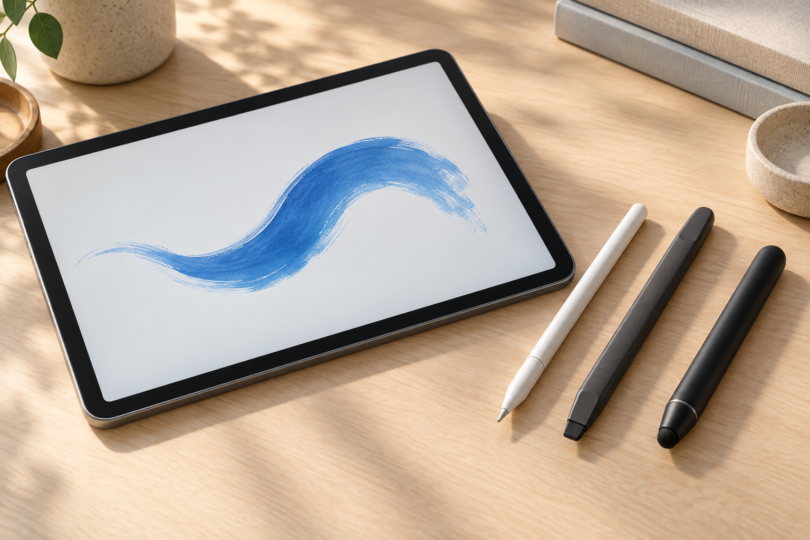

The best tablet stylus depends on the exact tablet you own. Choose Apple Pencil Pro for pressure-sensitive drawing on a supported iPad, Apple Pencil USB-C for notes on a wider range of iPads, or Surface Slim Pen 2 for the supported Surface tablets below. For basic touch input, the battery-free Adonit Mark is the simpler choice.
These recommendations compare documented features and exact product listings. We have not measured handwriting latency, tip wear or drawing performance. The best-fit labels describe useful combinations of pen, tablet and task.
Best tablet styluses at a glance
| Exact selection | Best fit | Input features | Main buying check |
|---|---|---|---|
| Apple Pencil Pro, White; MX2D3AM/A; one pen | Drawing on a supported iPad Pro, Air or mini | Pressure, tilt and palm rejection | Check the iPad model; magnetic pairing and charging |
| Apple Pencil USB-C, White; MUWA3AM/A; one pen | Notes and PDF markup on supported iPads | Tilt and palm rejection; no pressure sensitivity | USB-C cable needed for pairing and charging |
| Microsoft Surface Slim Pen 2, Matte Black; 8WV-00001; one pen | Writing and drawing on supported Surface tablets | 4,096 pressure points and tilt on the listed Surface Pro models | Check generation and charging accessories |
| Adonit Mark, Black; ADMB; one pen | Basic capacitive touchscreen input | Passive mesh tip; no batteries or Bluetooth pairing | Maker chart does not mark pressure sensitivity or palm rejection for Mark |
Apple Pencil Pro: best for drawing on supported iPads
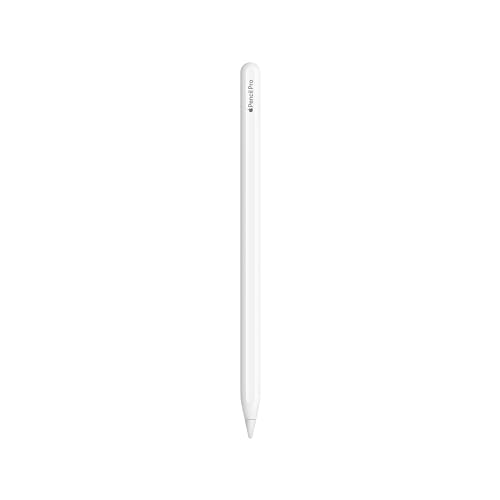
The selected White Apple Pencil Pro, MX2D3AM/A, contains one pen. Its pressure sensitivity makes it the more suitable of these two Apple choices when you want a supported brush to respond to how firmly you press. Tilt sensitivity and palm rejection are also supported.
Apple lists iPad Pro 11-inch and 13-inch with M4 or M5; iPad Air 11-inch and 13-inch with M2, M3 or M4; and iPad mini A17 Pro. Pencil Pro requires iPadOS 17.5 or later. Match the processor or generation before ordering; “iPad Pro” by itself is not a precise enough model name.
Squeeze opens a tool palette, barrel roll changes the orientation of shaped brushes, and double-tap switches tools. These features are useful reasons to consider Pro if your drawing app and workflow use them. It pairs and charges magnetically on a compatible iPad, and Find My can help locate it.
The iPad A16, iPad 10th generation and iPad mini 6th generation are outside the Pencil Pro compatibility list. Do not assume Pro replaces Apple Pencil 2nd generation on every older iPad. Use Apple’s exact model list to check older tablets.
Apple Pencil USB-C: best for notes on more iPad models
Choose the White Apple Pencil USB-C, MUWA3AM/A, for notes, forms and PDF annotations when pressure-sensitive drawing is unnecessary. Apple documents tilt sensitivity and palm rejection, but its comparison explicitly excludes pressure sensitivity for this model. Tilt shading and pressure response are different features.
It supports iPad A16 and 10th generation; iPad mini 6th generation and A17 Pro; iPad Air 4th and 5th generations and 11-inch/13-inch M2, M3 and M4; iPad Pro 11-inch 1st–4th generations and M4/M5; iPad Pro 12.9-inch 3rd–6th generations; and iPad Pro 13-inch M4/M5. Apple requires iPadOS 17.1.1 or later.
The box contains one Apple Pencil USB-C. Pairing and charging use a USB-C charge cable; magnetic attachment is for storage. Budget for a suitable cable if you do not have one. Attaching this pen to the tablet does not charge it wirelessly.
USB-C also omits Pro’s squeeze, barrel roll, double-tap, haptic feedback and Find My features. Choose Pro when your tablet supports it and those tools or pressure-sensitive drawing matter; otherwise USB-C covers the simpler note-taking role.
Surface Slim Pen 2: best for supported Surface tablets
Our selection is the Matte Black Microsoft Surface Slim Pen 2, 8WV-00001, sold as one pen. Microsoft now also calls it Surface Slim Pen or Surface Slim Pen 2nd Edition. Its active input uses Microsoft Pen Protocol, or MPP. Check the tablet’s pen hardware support; a Bluetooth label alone does not establish compatibility.
For tablet buyers, Microsoft’s chart lists Surface Pro 8, Pro 9, Pro 10 for Business, Pro 11th Edition, Pro 12th Edition, Pro X and Surface Pro 12-inch 1st Edition. Those entries support 4,096 pressure points and tilt. “12-inch 1st Edition” and “12th Edition” identify different devices.
Plan how to charge it before buying. Microsoft lists supported devices and accessories, including integrated charging on Surface Pro 12-inch 1st Edition and compatible keyboards for other models. A standalone Slim Pen charger is sold separately. This is a one-pen selection; do not assume a keyboard, tablet or charging cradle is included.
Tactile signals depend on the device and selected apps running Windows 11; Microsoft’s chart does not give Pro X tactile signals. Surface Laptop Go, Surface Laptop 7th/8th Editions and Surface Laptop 13-inch 1st Edition do not support pen inking. For a different Windows tablet, consult its manufacturer’s MPP requirements.

Adonit Mark: best for basic capacitive touch input
The selected Black Adonit Mark, ADMB, is one stylus with a mesh tip and aluminum body. It needs no batteries or Bluetooth pairing. Its triangular design helps keep it from rolling on a desk. Consider it for taps and occasional sketches when a pen-shaped input tool is enough.
Mark is a passive capacitive stylus. Adonit describes support for capacitive touchscreens, including iOS and Android touch devices. That is a description of basic input, not a verified match for every screen protector, tablet or app. Check the return terms if you cannot try it on your device first.
Adonit’s comparison chart leaves Mark’s pressure-sensitivity and palm-rejection cells blank. Choose a compatible active pen when those features matter. The Mark support page also says its tip wears with use and replacement tips are unavailable, so replacement options deserve a check before purchase.
How to choose a tablet stylus
Match the tablet before comparing pens
Find your tablet’s exact model, size and generation or processor in its settings. Match that information to the pen maker’s list. The two Apple Pencils above have different compatibility lists, and even some touchscreen Surface devices do not support pen inking.
Separate capacitive input from active pen features
A passive pen such as Mark handles basic capacitive touch input. A protocol-specific active pen needs matching hardware, as the Apple compatibility lists and Microsoft’s MPP guidance show. A battery, fine tip or magnetic body alone does not establish pressure sensitivity, palm rejection or compatibility.
Check the complete cost and your app
Compare the exact model, color and package quantity. Add any required charging accessory, replacement tips and paid software to the purchase price. Check small handwriting, erasing, PDF markup and your preferred drawing brushes in the app you plan to use. Recheck the current seller and return policy before ordering; temporary sale prices are not used to rank these pens.
Frequently asked questions
Will any stylus work with any tablet?
No. The active pens here have specific device requirements. Adonit Mark covers a broader basic capacitive-input use case, but that is not a promise of pressure sensitivity, palm rejection or compatibility with every screen.
Does Apple Pencil USB-C have pressure sensitivity?
No. It has tilt sensitivity and palm rejection, but Apple’s comparison excludes pressure sensitivity. Pencil Pro supports pressure-sensitive input on its compatible iPads.
Does magnetic attachment mean the pen charges?
No. Pencil Pro pairs and charges magnetically, while Pencil USB-C attaches for storage and uses a cable to pair and charge. Surface Slim Pen 2 needs a supported charging location or accessory.
What should I choose for an older iPad or an Android tablet?
Start with the exact tablet’s supported pen list. Apple documents separate 1st- and 2nd-generation Pencil compatibility. For an Android tablet, check the manufacturer’s named active pen rather than assuming a powered universal stylus has the same features. Mark is an option for basic capacitive input.