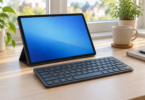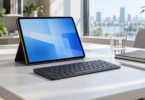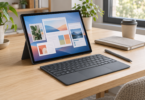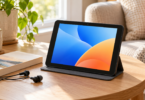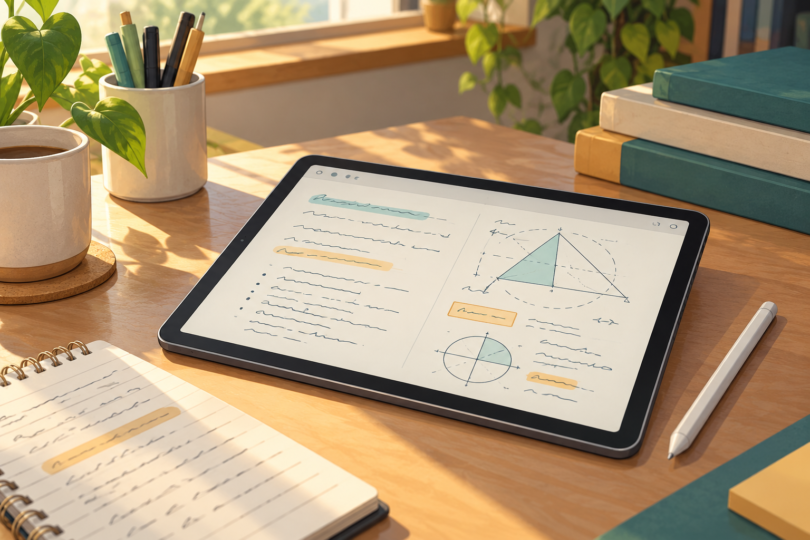

The best note-taking tablet for college students depends on what happens after the lecture. For handwritten notes and annotated readings, our first pick is the Samsung Galaxy Tab S10 FE, because its S Pen comes in the box. Choose the iPad (A16) if you prefer iPad apps and can budget for a compatible Apple Pencil. Consider the Surface Pro 12-inch (2025, 1st Edition) when your work also needs Windows software, after checking your course’s app requirements.
These are three different study setups. A pen helps with diagrams and equations; a keyboard matters more when you turn those notes into a long essay. Compare the cost of the complete setup, including the accessories below, before choosing a tablet.
Compare the three college note-taking tablets
| Tablet and selected configuration | Best fit | Pen and keyboard | Main compromise |
|---|---|---|---|
| Galaxy Tab S10 FE, US Wi-Fi, Gray, 128GB storage / 8GB RAM | Handwriting and PDF annotation | S Pen included; keyboard separate | Android apps cannot replace every desktop course application |
| iPad (A16), Wi-Fi, Silver, 128GB storage | Students who prefer the iPad app workflow | Apple Pencil and keyboard separate | The tablet price leaves out the pen you need for this use |
| Surface Pro 12-inch, 2025 1st Edition, Platinum, 256GB storage / 16GB RAM | Notes alongside Windows coursework | Surface Slim Pen and compatible keyboard separate | Arm compatibility checks and several accessories to budget for |
The shopping links below identify those specific configurations. Storage, color, cellular connectivity, seller and bundles can change when you select another listing option. A product photo showing a pen or keyboard does not establish that it is included.
1. Samsung Galaxy Tab S10 FE: best for a pen included in the box
The 10.9-inch Galaxy Tab S10 FE is our most straightforward recommendation for students who want to handwrite lecture notes. The selected US Wi-Fi model has 128GB of storage and 8GB of RAM. Samsung also lists a 256GB / 12GB configuration, so check both numbers when comparing offers. Its official feature guide confirms S Pen support and expandable storage.
Samsung Notes gives this tablet a clear study role: import a lecturer’s PDF, mark it up and keep your own explanation alongside it. Samsung’s PDF instructions distinguish annotation from editing the original document’s text or images. That matters when a course asks you to complete an editable form rather than simply write over a page.
The included S Pen does not offer Bluetooth Air Actions. That does not prevent handwriting, and there is no need to buy a separate pen just to take notes. Samsung’s US product announcement identifies the pen as included and the keyboard and power adapter as separate purchases. The selected tablet listing includes a USB cable, not a wall charger.
For essays, add a keyboard only after confirming that your preferred Android writing app handles the required file format. Samsung lists the Book Cover Keyboard Slim, model EF-DX720UBEGUJ, as compatible with the S10 FE. It is an optional accessory, not part of this tablet offer.
- Pros: included S Pen; a clear PDF annotation workflow; microSD expansion for files.
- Cons: keyboard and wall charger cost extra; Android app support must match your classes; the included pen lacks Bluetooth remote actions.
Choose it if: you already have access to a computer for specialized assignments and want a tablet primarily for lecture notes, readings and revision.

Samsung Galaxy Tab S10 FE, US Wi-Fi, Gray, 128GB / 8GB RAM
As an Amazon Associate we earn from qualifying purchases.
2. iPad (A16): best for students who prefer iPad apps
The iPad (A16) makes sense when the note-taking apps and file-sharing routines you want are on iPad. Our selected configuration is the Silver 128GB Wi-Fi model. Apple also offers 256GB and 512GB storage versions. Its specifications list the tablet, charging cable and 20W USB-C power adapter in the box; an Apple Pencil and keyboard are additional purchases.
Buy the pen for this exact iPad. It supports Apple Pencil (USB-C) and Apple Pencil (1st generation); the latter needs the USB-C to Apple Pencil Adapter for pairing and charging. Apple Pencil Pro and the second-generation Apple Pencil are not the models to buy for it. Use Apple’s Pencil compatibility comparison before reusing a pen from another iPad.
Apple Notes can hold lecture PDFs and lets you annotate them with a compatible Pencil or your finger, as described in Apple’s PDF guide. Start with one real reading and one exported note before paying for another note-taking app. Check that classmates can open the file you send, especially when they use Windows or Android.
The optional Magic Keyboard Folio supports the iPad (A16) and combines a detachable keyboard, trackpad and adjustable back panel. That adds a useful typing option, but it also changes the total cost and desk space the setup needs. It does not turn iPadOS into Windows or macOS.
- Pros: Apple Notes supports PDF markup; two explicitly compatible Pencil options; power adapter included in the selected US setup.
- Cons: no pen in the box; first-generation Pencil needs an adapter; desktop-only software still needs another solution.
Choose it if: your preferred study apps work on iPad and you have priced the tablet together with the correct Pencil.

3. Surface Pro 12-inch: best when notes sit alongside Windows work
This recommendation is specifically the 2025 Surface Pro 12-inch, 1st Edition, with a Snapdragon X Plus eight-core processor, 16GB of RAM and 256GB of storage in Platinum. The configuration matches Microsoft’s consumer specifications. It is an earlier model, so compare the complete purchase total with newer Surface options before buying. Do not confuse this offer with a 13-inch Surface Pro or a later 12-inch edition.
Windows is its reason to be on this list. Microsoft lists native Arm versions of Word and OneNote in its Windows on Arm guidance. The same guidance warns that drivers and some software need specific compatibility. Ask your department about any required engineering tools, lab peripherals, VPN or exam software before making this your only computer.
For handwriting, the separate Surface Slim Pen (2nd Edition) can store and charge on the tablet’s back. For typing, Microsoft specifies the Surface Pro 12-inch (1st Edition) Keyboard; its 13-inch keyboards are not compatible. The official hardware guide also identifies two USB-C ports and recommends a USB-C PD charger supplying at least 27W.
The selected offer includes a USB-C charging cable but no wall charger, keyboard or pen. Add those to your budget. The built-in kickstand is useful on a desk, but try a kickstand-and-keyboard arrangement on the kind of lecture desk you use before relying on it daily.
- Pros: Windows applications; optional pen input; a built-in kickstand and two USB-C ports.
- Cons: pen, keyboard and charger are separate; Arm compatibility needs checking; this is the 2025 first edition.
Choose it if: your required applications support this Windows on Arm model and you want one device for typed assignments and handwritten notes.

What to check before using a tablet for a semester
Start with the course, then choose the app
List the tasks you actually need: handwritten equations, highlighted readings, typed reports, spreadsheets and timed assessments. A tablet that handles the first two well may still be unsuitable for the last two. Confirm required applications with the department and check whether a campus computer can cover occasional desktop work.
Try one complete note-taking cycle
Import a sample PDF, annotate a page, find the note again and export it to the format your course accepts. Download essential readings before class and check that they open with Wi-Fi off. Keep an exported backup outside the note app so a forgotten login or subscription change does not block access to your semester’s work.
Budget for the way you work
Compare tablet, pen, keyboard, protective case, charger and any app charges together. Handwritten notes and PDFs can fit a different storage budget from downloaded videos or large creative projects. The operating system and apps use part of the advertised capacity; leave room for updates and your next term’s materials. A memory card can hold files on a compatible tablet, but it does not make an incompatible desktop app run.
Our recommendation: start with the Galaxy Tab S10 FE for pen-based lecture work, choose the iPad (A16) for an iPad-centered workflow, and choose the Surface only after confirming its software compatibility and full accessory cost.
Frequently asked questions
What is the best note-taking tablet for college students?
The Galaxy Tab S10 FE is our first pick for handwritten lecture notes because its S Pen is included. The iPad (A16) suits students who prefer iPad apps, while the Surface Pro 12-inch first edition suits compatible Windows coursework.
Do these tablets include a pen?
The selected Galaxy Tab S10 FE includes an S Pen. The iPad (A16) requires a separate compatible Apple Pencil, and the Surface Pro 12-inch requires a separate Surface Slim Pen (2nd Edition) for handwriting.
Can a note-taking tablet replace a college laptop?
Only if it supports every required application and assessment tool. Check your course requirements first, including Windows on Arm compatibility for this Surface model. Otherwise, use the tablet alongside a laptop or campus computer.
Is 128GB enough for college notes?
It can be enough for a notes-and-PDF workflow, but your actual files determine the answer. Downloaded video, large textbooks and creative projects need more room. Allow for system storage and keep a separate backup.
Should I buy a keyboard for note-taking?
A pen is useful for diagrams, equations and PDF markup. A physical keyboard is worth budgeting for if you also write essays or long reports. Check compatibility with the exact tablet model and try the layout before buying.