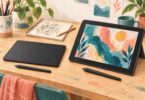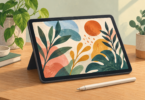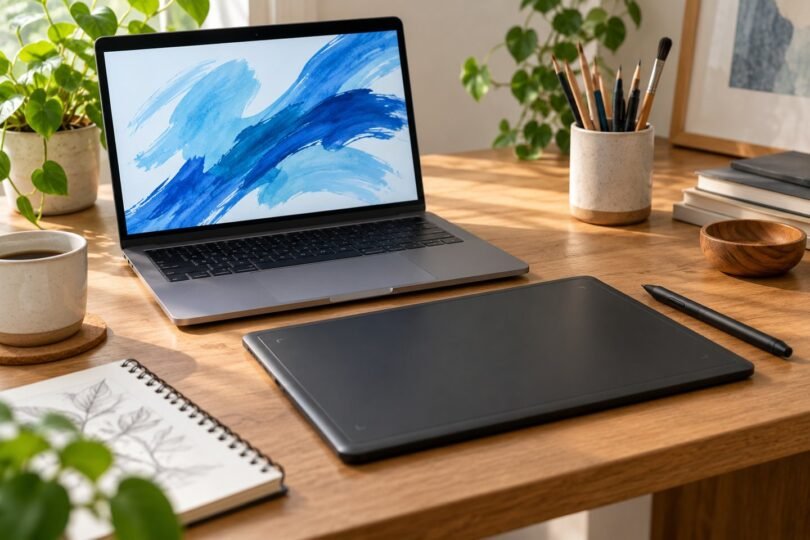

The right tablet to draw on depends first on where your drawing app will run. Choose a screenless pen tablet if you already have a suitable computer and want a simple input device. Choose a pen display if you want to draw directly over the image while using computer software. Choose a standalone tablet if you want to sketch without carrying a laptop.
Three useful starting points are the One by Wacom Medium, XPPen Artist 12 (2nd Gen) and iPad (A16) with a compatible Apple Pencil. They solve different problems, so comparing them only by screen size or pressure-level numbers misses the most important decision. This is a specification-based buying guide; we have not performed hands-on testing of these devices.
Drawing tablet types at a glance
| Type and example | Where the image appears | What else you need | Best reason to choose it |
|---|---|---|---|
| Screenless tablet: One by Wacom Medium | On your computer’s monitor | Compatible computer, software and USB connection | You already have a computer and want to add pen input |
| Pen display: XPPen Artist 12 (2nd Gen) | On the drawing surface itself | Compatible host device, software, video/data connection and power | You prefer drawing directly on the picture with desktop software |
| Standalone tablet: iPad (A16) | On the tablet’s own screen | Compatible Apple Pencil purchased separately and an iPad drawing app | You want a self-contained portable sketching setup |
A basic erase-only LCD doodle board is another category. It can be useful for temporary sketches, but it does not replace a digital-art setup with saved files, layers and export tools. Read that distinction carefully when a product title simply says “drawing tablet.”
One by Wacom Medium: a straightforward computer accessory
The One by Wacom Medium, model CTL672K1A, is a screenless tablet supplied with a battery-free pen. Wacom lists an 8.5 × 5.3-inch active drawing area and 2,048 pressure levels. The larger 10.9 × 7.4-inch dimensions in some retail titles describe the overall tablet, not its usable pen area.
You move the pen across the tablet while watching the computer display. That hand-eye arrangement takes practice, but it also leaves the artwork unobscured by your hand. It is worth considering for a beginner who already owns a supported computer, or someone who wants to replace mouse-based sketching without adding another screen.
Check current operating-system and driver support before ordering. The included cable connects by USB; a computer with only USB-C ports may require an appropriate adapter. “Battery-free pen” does not mean the tablet itself operates wirelessly.
Choose the exact Medium CTL-672 family, rather than relying on the similar-sounding “Wacom One” name. The verified listing below is the Medium CTL672K1A.
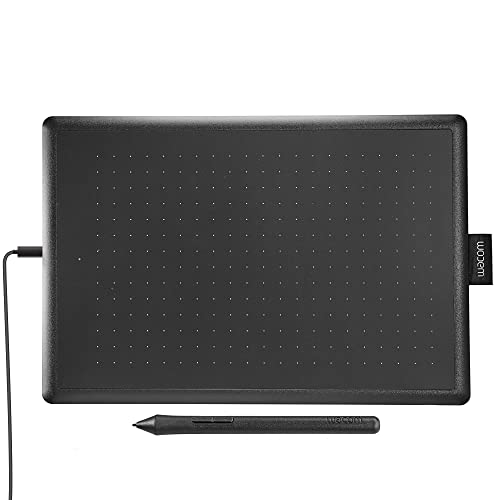
One by Wacom Drawing Tablet, Medium 10.9" x 7.4" Compact Graphics Tablet, Student Beginner Creative Pen Digital Drawing Pad for Chromebook, Mac, Windows
As an Amazon Associate we earn from qualifying purchases.
XPPen Artist 12 (2nd Gen): for drawing directly on a connected display
The Artist 12 (2nd Gen) is an 11.9-inch pen display with a 1920 × 1080 resolution, laminated screen and eight shortcut keys. XPPen lists the X3 Elite stylus with pressure and tilt support. It is a compact route to drawing on-screen while keeping a compatible computer as the system running the artwork.
Plan the connection before choosing it. XPPen’s setup instructions show USB-C and 3-in-1 cable arrangements, including HDMI, USB and power connections. Check the exact ports on your host and which cables the selected bundle includes. A USB-C socket’s shape alone does not establish that it supplies the required video, data and power.
The key limitation is that this is a connected display, not an independent iPad-style computer. It suits a desk or a portable setup where the host comes with you. Allow space for the keyboard, cable routing and a suitable support angle before deciding its smaller footprint solves your workspace needs.
iPad (A16): for a standalone sketching setup
The iPad (A16) runs its own apps and does not need a laptop for drawing. The exact tablet linked below is the silver, Wi-Fi, 128GB version. It is sold separately from Apple Pencil, so compare the complete tablet-and-pen cost rather than the tablet price alone.
Apple lists compatibility with Apple Pencil (1st generation) and Apple Pencil (USB-C). For pressure-responsive brushwork, the first-generation Pencil is the relevant choice: Apple confirms its pressure and tilt sensitivity, and it needs a USB-C to Apple Pencil Adapter to pair and charge with this iPad. Check the adapter is included in the Pencil package you choose.
The USB-C Apple Pencil lacks pressure sensitivity. It can still suit handwriting and sketching where pressure-controlled line variation is unnecessary. Apple Pencil Pro and the second-generation Pencil are not compatible with this iPad.
Before buying, make sure your preferred app offers the tools and file exports you need on iPad. Do not assume an app shares every feature, license or plug-in with its desktop counterpart.

What matters more than the biggest specification number?
- App and operating-system fit. Start with the software you plan to use, then verify its supported hardware and the tablet driver’s requirements.
- Working area. A compact tablet saves space; a larger surface gives broad arm movements more room. The right size depends on your desk and drawing habits.
- Pen behavior. Pressure support matters for brushes that change with pen force. Tilt can matter for shading. A long pressure-level list alone cannot prove which device will feel better to you.
- Comfort. Consider where your eyes, neck and wrist will be during a session. A screen you can position comfortably may be more useful than a larger display that does not fit your workspace.
- File handling. Check whether the app can save editable originals and export the formats your classes, clients or printer need.
Budget for the whole drawing setup
Add the pen if it is separate, required cables or adapters, a case or stand if needed, and the software you intend to use. A bundle’s included app may be a time-limited trial, require registration or apply only in certain regions. Verify those terms instead of treating every software logo on the box as a permanent license.
Also check replacement nib and pen availability for the exact model. A generic touchscreen stylus is not automatically a substitute for the pressure-sensitive pen supplied with a graphics tablet. Different generations within the same brand may use different pens.
Before the return window ends
- Install the manufacturer’s current driver where required and confirm the pen works in your actual drawing app.
- Try slow lines, light and firm strokes, corners and the edges of the drawing area.
- For a pen display, check that the cursor lines up with the pen and that the screen connection remains stable.
- Save, reopen and export a small drawing to confirm the workflow you bought it for.
- Spend enough time with the setup to judge posture and desk space, while keeping packaging and checking the seller’s return conditions.
Bottom line
Choose the One by Wacom Medium when an existing computer is the center of your work. Consider the Artist 12 (2nd Gen) when direct-on-screen drawing matters and you have a compatible host. Choose iPad (A16) when portability comes first, with the right Apple Pencil for your brushwork and a realistic budget for the complete setup.
Image note: Original AI-generated editorial illustration; generic objects shown, not a branded product photograph.