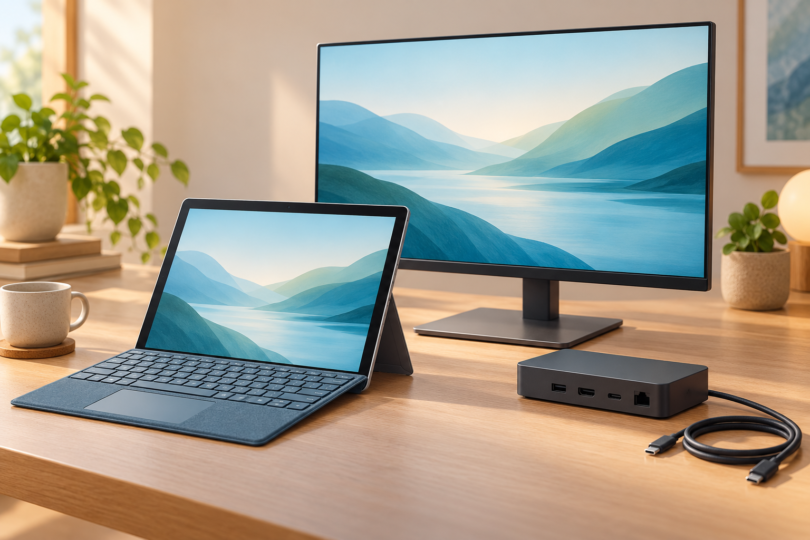

The best docking station for a Surface Pro 7 depends on your desk. Microsoft Surface Dock 2 is our pick for a permanent setup with charging and two 4K monitors. The Anker 565 USB-C Hub (A8388) offers more varied connections in a portable hub. For presentations with either HDMI or VGA, the Surface USB-C Travel Hub is the simplest option here, provided you bring a separate charger.
This shortlist compares documented connections, power requirements and display limits. It covers the original Surface Pro 7. It does not assume that a newer Surface model’s Thunderbolt or USB4 capabilities apply to this tablet.
The best Surface Pro 7 docks at a glance
| Pick | Best use | Host connection and charging | Display limit to plan around |
|---|---|---|---|
| Microsoft Surface Dock 2 | Permanent Surface desk | Surface Connect; charges the tablet | Two external 3840 × 2160 displays at 60Hz with suitable cables |
| Anker 565, A8388 | Portable hub with card readers and Ethernet | USB-C; up to 85W passthrough from a suitable USB-C PD supply | Dual 1080p/60Hz is a conservative target; higher modes depend on the host’s DisplayPort version |
| Surface USB-C Travel Hub | Presentations and occasional wired networking | USB-C; does not charge the tablet | One HDMI display up to 4K/60Hz, or one VGA display up to 1080p/60Hz |
1. Microsoft Surface Dock 2: best for a fixed desk
Surface Dock 2 connects through the Surface Connect port, so the tablet’s USB-C port stays available. Microsoft explicitly lists Surface Pro 7 as compatible. The dock combines Ethernet, two USB-A ports, four USB-C ports and a 3.5mm audio connection. Its two rear USB-C ports provide the display outputs; the front USB-C ports are for accessories. Microsoft’s Dock 2 guide shows the port layout and supported Surface models.
The strongest reason to choose it is a two-monitor desk: Microsoft lists two external 3840 × 2160 displays at 60Hz for both the Surface Pro 7 and Surface Dock 2. You still need displays and USB-C video cables or adapters that support that mode. There are no full-size HDMI or DisplayPort sockets on the dock.
The included power supply is rated at 199W; Microsoft specifies up to 120W passthrough to a connected Surface. Those are dock ratings, not a claim that a Pro 7 draws 120W. This is a convenient single-connection desk setup, but its separate power brick makes it less appealing for a small travel bag.
- Why choose it: documented Pro 7 compatibility, charging through Surface Connect and a clear dual-4K/60Hz path.
- Trade-offs: display adapters may add cost; no SD card slot; the host connection is intended for compatible Surface devices.
- Exact choice: Surface Dock 2, model 1GK-00001, one black dock. Do not substitute the older Surface Pro 3 docking cradle.
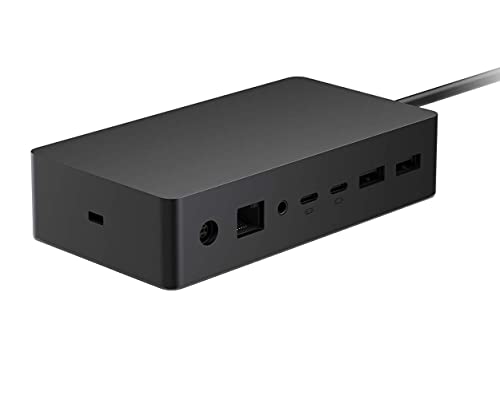
Microsoft Surface Dock 2 (1GK-00001)
As an Amazon Associate we earn from qualifying purchases.
2. Anker 565 USB-C Hub: best for varied connections
The Anker 565 is an 11-in-1 hub, model A8388, with HDMI, DisplayPort, Gigabit Ethernet, SD and microSD readers, a headphone jack, three USB-A ports, a USB-C data port and a USB-C power input. That combination suits a desk where memory cards and mixed peripherals matter as much as displays. The selected version is gray, part A83880A1, sold as one hub. Anker’s product page identifies the ports and power limits.
Its 100W label describes maximum power input. The hub can pass up to 85W to the computer, and you need a suitable USB-C PD charger and charging cable, sold separately. The USB-C data port does not provide a video output or laptop charging; the PD input is for power. One USB-A port and the USB-C data port are rated at up to 10Gbps, while the other two USB-A ports are USB 2.0. Use the faster ports for storage.
Pay close attention to the monitor configuration. The A8388 manual specifies up to one 4K/60Hz display or two 2K/60Hz displays with a DisplayPort 1.4 host. With DisplayPort 1.2, the limits fall to one 4K/30Hz display or two 1080p/60Hz displays. These are conditional hub limits, not a promise of every mode on every Pro 7 setup. We would buy it for two 1080p office monitors and confirm higher-resolution combinations with Anker before ordering. It is not a dual-4K/60Hz recommendation.
- Why choose it: useful card readers, wired networking and HDMI plus DisplayPort in one portable unit.
- Trade-offs: extra charger and cable needed for passthrough power; mixed USB speeds; display bandwidth is shared.
- Best fit: a USB-C desk or travel setup that prioritizes port variety over two high-resolution screens.

3. Surface USB-C Travel Hub: best for presentations
Microsoft’s compact Travel Hub adds HDMI, VGA, Ethernet, one USB-A port and one USB-C accessory port. Its stored cable and older VGA connection are useful for moving between meeting rooms. It supports a single HDMI display up to 3840 × 2160 at 60Hz, or VGA up to 1920 × 1080 at 60Hz. HDMI and VGA cannot operate together. Microsoft’s Travel Hub guide sets out those limits.
The crucial limitation is power: it cannot charge your Surface. Use the Surface Connect charger separately. Its accessory ports also share the power available from the host; their advertised maximum speeds and simultaneous operation depend on that power budget. This is a presentation adapter with extra connections, rather than a complete charging station.
- Why choose it: HDMI or VGA, wired networking and a compact design with cable storage.
- Trade-offs: one external display, no SD reader and no laptop charging.
- Exact choice: the black Surface USB-C Travel Hub shown on Microsoft’s product page.
View the Surface USB-C Travel Hub at Microsoft.
What to check before buying
Start with the host connection. The original Pro 7 has USB-C and Surface Connect, as shown in Microsoft’s hardware specifications. USB-C video docks must support the tablet’s DisplayPort video and USB Power Delivery requirements. A Thunderbolt-only dock is not an automatic match. A newer USB4 dock does not turn this tablet into a 40Gbps computer: Microsoft places Pro 7 in its USB4 Dock’s up-to-10Gbps compatibility group.
Budget for the whole connection. Count the charger, its cable, display adapters and monitor cables. For USB-C charging, Microsoft lists a 60W minimum for Surface Pro 7. A hub’s advertised input wattage is not necessarily what reaches the tablet. If you connect USB-C power and Surface Connect power together, the tablet uses Surface Connect.
Match the display mode, not just the socket. Check the entire chain: tablet, dock, adapter, cable and monitor. On Windows, use Extend for separate desktops where supported. A USB-A hub without a video chipset cannot drive a monitor just because it has several ports. Driver-based USB graphics adapters are a different option and should be checked for their software requirements.
Check the exact generation. Microsoft’s old Surface Pro 3 docking station fits Surface Pro 3, according to its dock identification guide. A similar name or a renewed listing does not establish Pro 7 compatibility.
Our verdict
Choose Surface Dock 2 for a permanent charging desk, especially with two 4K/60Hz monitors. Choose the Anker 565 A8388 for card readers and a wider mix of ports, while keeping its conditional display limits in mind. Choose the Surface USB-C Travel Hub for a single presentation display and carry the Surface charger alongside it.
Frequently asked questions
What is the best docking station for Surface Pro 7?
Surface Dock 2 is our pick for a permanent desk with charging and two 4K/60Hz monitors. Anker 565 A8388 is more flexible for memory cards and mixed peripherals. Surface USB-C Travel Hub suits presentations when separate charging is acceptable.
Can Surface Pro 7 use a USB-C dock?
Yes. Choose a dock that supports USB-C DisplayPort video and, if you want charging, USB Power Delivery. Check its explicit host requirements and display limits. Do not assume a Thunderbolt-only dock will work because its connector fits.
Can a Surface Pro 7 dock run two 4K monitors at 60Hz?
Microsoft lists that mode for Surface Pro 7 with Surface Dock 2 and suitable display connections. It does not apply to every USB-C hub. The Anker 565’s documented dual-display ceiling is lower, and the Travel Hub supports only one external display.
Does the Surface USB-C Travel Hub charge the tablet?
No. Its USB-C accessory port does not provide charging passthrough to the Surface. Connect the tablet’s Surface Connect charger separately. The ability to power an attached USB accessory is different from charging the computer.
Will a Surface Pro 3 docking station fit Surface Pro 7?
No. Microsoft identifies that older cradle as a Surface Pro 3 accessory. Choose a dock explicitly compatible with Surface Pro 7, such as Surface Dock 2, or a suitable USB-C hub instead.