
The iPad Air 11-inch (M4) is our starting recommendation for a portable recording setup built around iPad music apps. Compare the iPad (A16) for a simpler GarageBand-based setup, or the Intel version of Surface Pro for Business 13-inch (12th Edition) when your work depends on Windows recording software and drivers.
Choose the recording app and audio interface before the tablet. The most expensive screen will not help if the app cannot select your interface’s inputs, the hub cannot supply enough power, or the finished tracks cannot be exported in the format your collaborator needs.
Research checked October 4, 2026 using Apple, Microsoft, Steinberg, and Focusrite documentation. This is a researched buying guide, not hands-on testing. We have not measured latency, track counts, battery runtime, dropout rates, or interface reliability on these tablets. No complete tablet/interface/app combination is represented as tested by us.
Three tablet routes for recording
| Tablet | Best starting use | Recording software route | Check first |
|---|---|---|---|
| iPad Air 11-inch (M4), with 256GB as a starting storage option | A portable iPad-based recording and editing setup | GarageBand, Logic Pro for iPad, or another supported iPad DAW | Interface support, hub power, plug-ins, and export workflow |
| iPad (A16) | Song sketches, overdubs, and a simpler recording setup | GarageBand, with other apps checked individually | USB 2 transfer speed and feature-specific app requirements |
| Surface Pro for Business 13-inch (12th Edition), Intel | Projects that require a Windows DAW or Windows-only tools | Your verified Windows DAW, plug-ins, and interface driver | Exact Intel model, software licensing, and sustained-session behavior |
A digital audio workstation, or DAW, is the app that records, edits, and mixes the project. The suggested Air storage capacity is a starting point, not a measured requirement: sample libraries, alternate takes, and long multitrack sessions can justify more space.
1. iPad Air M4 for an iPad-first studio
Apple’s iPad Air specifications list the M4 chip and a USB-C port supporting USB 3 transfers up to 10Gb/s. The Air comes in 11- and 13-inch sizes. Start with the 11-inch for a compact setup; compare the 13-inch if more mixer or timeline space matters more than carrying size.
The main reason to choose it is access to the iPad recording workflow you intend to use. Apple documents Logic Pro for iPad as a subscription product, with device and project-exchange requirements. Check the current app version’s operating-system and feature-specific requirements before buying; app compatibility is separate from the tablet’s headline chip name.
Main limitation: a single USB-C connection has to serve the interface, charging, and any other wired equipment through an appropriate hub or setup. iPad apps and plug-ins also need checking in their own right. Do not assume your desktop VST or a desktop-only interface control panel can run on iPad.
2. iPad A16 for a simpler GarageBand setup
The iPad (A16) uses USB-C but supports USB 2 data transfer up to 480Mb/s. That is a meaningful distinction for moving large session files, though USB transfer speed alone does not predict recording latency or compatibility.
GarageBand for iPad supports arranging songs with up to 32 tracks and 24-bit recording, mixing, and export. That published arrangement limit is not a promise that you can record 32 physical inputs at once. The interface, app routing, and complete session determine the practical recording setup.
Main limitation: decide whether GarageBand’s editing and delivery options meet your needs before buying. A more advanced app may require another license, specific hardware for certain features, or a different workflow. Spending less on the tablet is useful only if the remaining budget covers the interface, microphones, monitoring, and power arrangement you actually need.
3. Intel Surface Pro for a Windows recording workflow
The Surface Pro for Business 13-inch (12th Edition), Intel, is the Windows option to investigate when existing desktop software and plug-ins determine the purchase. Microsoft’s specifications list Intel Core Ultra Series 3 processors and 16GB, 32GB, or 64GB memory options. Choose memory and storage against the DAW and sample libraries’ actual requirements.
Microsoft’s model-specific support page identifies two USB-C USB4/Thunderbolt 4 ports and Surface Connect. Having more ports can simplify a setup, but it does not verify an audio interface, power adapter, or hub.
Main limitation: confirm the exact Intel model. Snapdragon Surface models have a separate Windows-on-Arm compatibility question. Microsoft says driver-dependent hardware requires suitable Arm-compatible drivers. Support has improved: Focusrite now documents Windows-on-Arm support for its USB driver and control software, while warning that some DAWs and bundled software lack native support. Verify the whole chain rather than making a blanket assumption in either direction.
What about an Android tablet?
Android can make sense when you already have a working app and verified interface combination. It is a less straightforward blind purchase for external recording. Steinberg’s Cubasis hardware documentation says Android does not detect every class-compliant audio/MIDI device and does not support the plug-in system available on iOS.
Use the Cubasis Android FAQ and demo to investigate your actual equipment. Confirm every needed input, output, MIDI port, and recording function on the intended tablet and Android version. A USB-C port, a powerful processor, or a report about another Samsung tablet does not establish compatibility.
Build the audio connection before choosing accessories
For an iPad example, Focusrite officially lists the Scarlett 2i2 4th Gen among interfaces supported with USB-C iPads. Its guidance calls for current recording software and an interface firmware update before connection. This is an example of documented manufacturer support, not our test of a specific iPad Air setup.
- Match the inputs: count the microphones, instruments, and line-level sources you must record simultaneously. A stereo keyboard needs two audio inputs if you want to retain stereo.
- Verify the interface’s host support: check the exact generation, tablet OS, app, supported channel count, and whether required configuration software needs a separate computer.
- Use a data-capable cable: matching USB-C plugs does not prove that a cable carries the required data or that the tablet can power the connected hardware.
- Plan power for the entire session: include the tablet, interface, MIDI controller, and any phantom-powered microphones. Use the interface maker’s specified power arrangement.
- Check the hub deliberately: power delivery to the tablet and power available at accessory ports are separate requirements. Confirm both instead of relying only on the charger’s headline wattage.
Focusrite’s USB-C iPad connection guide explains that some iPads cannot supply enough power directly. The Scarlett 2i2/4i4 4th Gen can use their additional 5V DC power input, but powering the interface this way does not charge the iPad. A properly supported powered-hub arrangement may be needed for longer sessions.
Check multitrack recording, monitoring, and export
Confirm separate inputs, not just an audio meter
Apple’s GarageBand multitrack instructions describe enabling multitrack recording, arming the desired tracks, and choosing the interface input for each Audio Recorder or Amp track. Record a short test and solo each result. This catches a stereo mix mistakenly recorded where you expected separate tracks.
For Logic Pro, Apple’s external-device guide calls for an interface compatible with the iPadOS version and Logic Pro, with Core Audio support. Confirm all needed inputs appear before relying on the setup for a session.
Test monitoring with your real effects
Use wired headphones connected to the recording interface as your starting monitoring path. If you need to hear an amp simulation or vocal effect while performing, test that complete software-monitoring path. Apple notes that interface stages, buffer size, and plug-ins affect latency; its low-latency mode may bypass processing and change the sound.
An interface’s direct-monitoring function routes the input toward its outputs without waiting for the DAW’s processing. That can help with performance monitoring, but the direct signal will not contain the DAW effects. Avoid listening to duplicate direct and software paths unless deliberately configured. We do not assign a latency figure to any tablet in this guide.
Deliver a real test project before the first session
Record, save, close, and reopen a representative project. Export a stereo mix and the separate audio tracks your collaborator needs, then import those files on the destination computer. Check start positions, sample rate, bit depth, effect tails, track names, and whether effects should be printed or left out.
Logic Pro for iPad documents individual-track audio export, MIDI export, and project sharing. Cubasis 3.8 offers WAV mixdown and separate-track files, with some functions excluded from its LE edition. MIDI files contain musical instructions rather than a rendered copy of the sound. Keep a separate backup of the complete project and its recordings as well as the exported mix.
Frequently asked questions
Do I need an iPad Pro to record music?
No. Start with the app and session requirements. An Air or standard iPad may suit the job; a more expensive model does not remove interface, power, or export checks.
Can I record a whole band?
Potentially, with enough simultaneous interface inputs and an app that exposes and records them separately. Verify the required channel count in a realistic session, including power and monitoring, before committing to a live recording.
Will any USB audio interface work?
No. Confirm the exact interface generation, OS, app, drivers or class-compliant support, channel routing, and power requirements. A manufacturer-supported combination is a better starting point than a connector match.
How much storage should I buy?
Estimate from your sample libraries, typical project size, number of takes, and how long you keep projects locally. Leave working space and plan regular backups. External storage helps only if the app and connection workflow support how you intend to use it.
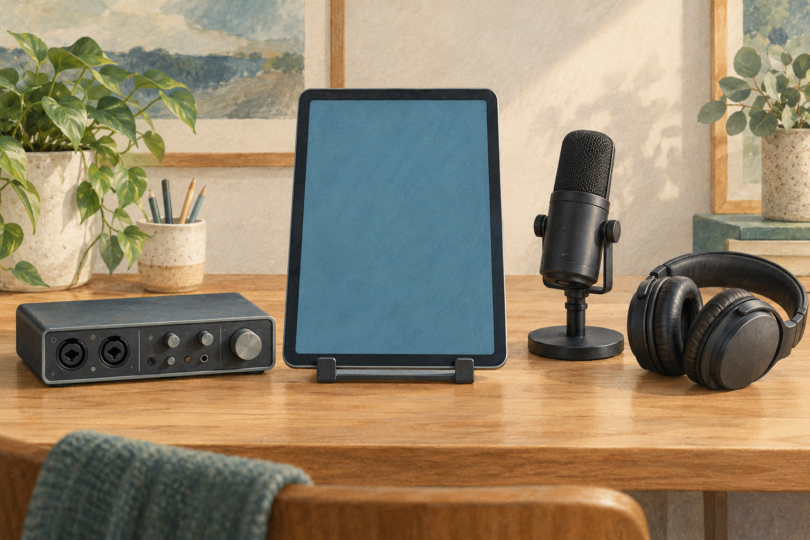
Image note: AI-generated generic editorial illustration of recording equipment; it does not establish device, app, interface or power compatibility.