
The best laptop for game development depends on what you plan to build. A small 2D project, a mobile game and an Unreal scene with detailed assets put different demands on the same machine. Start with the engine, target platform and required plugins, then choose the exact RAM and graphics configuration.
For demanding Windows 3D work, the ASUS ROG Strix G16 below combines 32GB RAM, 16GB dedicated graphics memory and expansion slots. The ROG Zephyrus G14 trades expansion and some graphics memory for a smaller chassis. The MacBook Air is the conditional choice for learning, smaller projects and a macOS-based workflow. These recommendations compare documented configurations and compatibility; they are not compile-time or frame-rate test results.
Three laptop configurations worth comparing
ASUS ROG Strix G16 G615LW-MB96: for demanding Windows 3D projects
- Configuration: Intel Core Ultra 9 275HX, 24 cores and 24 threads; 32GB DDR5-5600 SO-DIMM memory; 1TB PCIe 4.0 NVMe SSD.
- Graphics and screen: NVIDIA GeForce RTX 5080 Laptop GPU with 16GB GDDR7; 16-inch WUXGA, 165Hz IPS-level display.
- Operating system: Windows 11 Home. Exact ASUS part number: 90NR0LG1-M00F30.
Choose this configuration when your Windows workflow calls for more dedicated graphics memory, substantial 3D assets or frequent local builds. Its 32GB RAM meets Epic’s recommendation, while 16GB VRAM gives more capacity than the G14 below. That is a specification comparison, not a measured rendering or compilation advantage. It is a substantial machine to buy just for beginner lessons or simple 2D work.
ASUS lists two SO-DIMM slots, a 64GB memory limit and two M.2 PCIe slots, including occupied slots. Check the supplied module and drive arrangement before planning an upgrade. The tradeoff is portability: the laptop weighs 2.65kg before its power adapter, and its 16-inch screen requires more desk and bag space.
The exact ASUS store listing identifies G615LW-MB96 and offered Add to Cart when checked. Confirm the final configuration, price and delivery at checkout. The manufacturer’s model comparison includes many different G16 builds; do not substitute a similarly named SKU without checking its parts.
ASUS ROG Zephyrus G14 GU405AR-XB96: a compact Windows option with 12GB VRAM
- Configuration: Intel Core Ultra 9 386H, 16 cores and 16 threads; 32GB onboard LPDDR5X-8533 memory; 1TB PCIe 4.0 SSD.
- Graphics and screen: NVIDIA GeForce RTX 5070 Ti Laptop GPU with 12GB GDDR7; 14-inch, 2880 × 1800, 120Hz OLED.
- Operating system: Windows 11 Pro.
Consider this model when you want a smaller Windows laptop with a dedicated GPU. Its 12GB VRAM is less than the G16’s 16GB; neither capacity figure establishes a particular rendering or build time. ASUS lists a weight of 1.58kg before the power adapter.
The main compromise is expansion. The 32GB system memory is soldered and ASUS explicitly lists no memory expansion. There is one M.2 PCIe slot, including the occupied slot, so more internal storage means replacing the existing drive rather than adding a second one. A 14-inch display can also make a crowded editor less comfortable without an external monitor.
Use the exact GU405AR-XB96 specification when shopping. The same comparison page includes Home-edition and 16GB variants; a family name alone does not establish what you are buying. ASUS’s specification table still labels this SKU Coming Soon, while its official store configurator identifies this exact configuration as purchasable. Because those pages conflict, verify GU405AR-XB96 and the checkout delivery terms before ordering.
Apple MacBook Air 13-inch M5, 24GB/1TB: for smaller projects and a Mac workflow
- Configuration: M5 with 10-core CPU and 10-core GPU; 24GB unified memory; 1TB SSD; Silver.
- Graphics and screen: integrated Apple GPU sharing the unified memory pool; 13.6-inch, 2560 × 1664 display. There is no separate dedicated VRAM allocation to compare directly with an RTX laptop.
- Operating system: macOS; choose the engine and tool versions supported by your installed macOS release.
This is a sensible shortlist candidate for learning Unity, 2D projects and smaller 3D projects when you specifically need or prefer macOS. The exact Apple configuration avoids confusing the base 8-core GPU model with this 10-core GPU version.
The important limit is memory: 24GB falls below Epic’s 32GB-or-more macOS recommendation. Choose a higher-memory Mac or a different workstation if Unreal is your main workload. Apple-silicon compatibility must also be checked for native plugins and external tools. A Mac development machine does not remove the need to test your game on its actual target hardware.
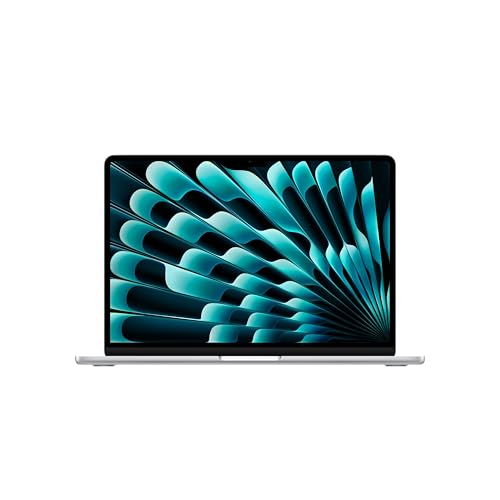
Apple MacBook Air 13-inch M5, 24GB Memory, 1TB SSD, Silver
As an Amazon Associate we earn from qualifying purchases.
What the engine requirements actually tell you
Epic’s Unreal Engine 5.8 Windows documentation recommends 32GB RAM, 8GB or more graphics memory and a DirectX 12-compatible GPU. These are planning requirements, not a promise that every project will fit or run at a particular speed. Rendering features have additional driver, graphics API and shader-model requirements.
Unity 6.3’s requirements recommend at least 8GB RAM while warning that project size and complexity increase memory needs. For a new development purchase, our preference for more memory reflects space for the editor, code tools and assets. It is an editorial buying preference, not Unity’s official minimum. Unity also recommends a drive with strong small-file I/O performance for builds.
Platform details matter. Unity 6.3 requires macOS Ventura 13 or later, requires Rosetta 2 on Apple silicon and lists GPU-only lightmapping on Apple-silicon devices. Epic’s macOS documentation lists M2-and-newer support for Nanite and Virtual Shadow Maps as beta, and Lumen hardware ray tracing and MegaLights as experimental. For Unreal 5.8, Epic lists macOS Sonoma 14.5 as the minimum, Xcode 26.0 as the minimum and Xcode 26.1.1 as recommended; it warns that Xcode 26.4 is incompatible. These limits apply to the named engine versions. Check your project’s version before committing to a Mac workflow.
What to check before buying
- Your actual project: distinguish learning and 2D work from large 3D assets, complex lighting or frequent source builds. Where possible, run a representative project on the proposed specification.
- Exact parts: record CPU, system RAM, GPU model, VRAM, SSD size and screen. A laptop RTX GPU is not interchangeable with the desktop card of a similar name.
- Tools and targets: check native plugins, SDKs, device drivers and deployment tools. Installing another operating system is a separate compatibility decision.
- The full setup: include the required charger, external monitor, backup storage and any licensed development tools in your budget. Published video-playback battery figures do not describe compiling or rendering on battery.
Frequently asked questions
Do beginners need an RTX laptop?
Not for every project. Start with your chosen engine and a realistic example of the work you want to do. The MacBook Air is included for smaller projects; the Windows RTX options make more sense when your planned graphics workflow calls for a dedicated GPU.
Is 16GB RAM enough for game development?
It can meet some engines’ entry requirements, but that is different from having room for a growing project and several tools. For the Windows Unreal configurations here, 32GB follows Epic’s recommendation. Larger projects can need more.
Can a Mac run Unreal Engine?
Yes, with supported hardware and software. Rendering-feature maturity and plugin support differ, and the 24GB Air here is below Epic’s recommended memory. Check the engine-version-specific Mac requirements rather than assuming feature parity.
Which of these should I choose?
Choose the G16 for a Windows setup with 16GB VRAM and expansion options, the G14 when compact size matters more than RAM upgrades, or the Air for a smaller-project Mac workflow. For a large production, validate the real project before treating any laptop specification as sufficient.