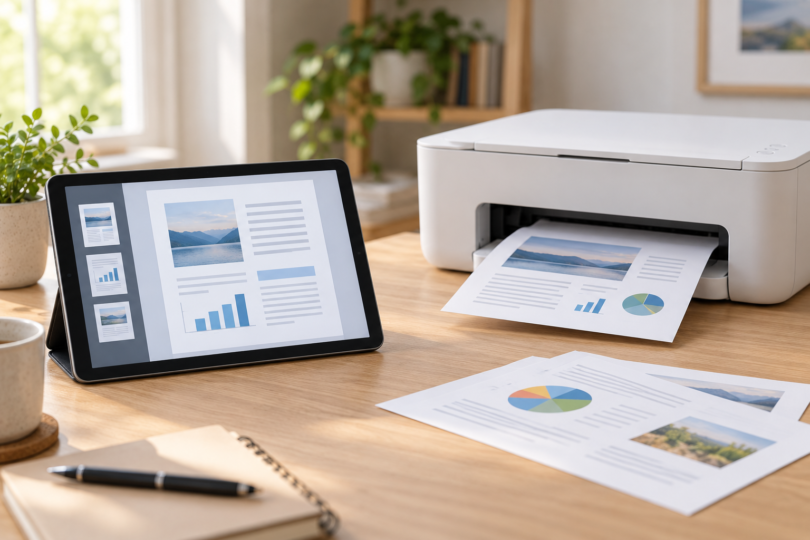

The best printer for a Samsung tablet depends on what you print. The Brother HL-L2460DW is our pick for black-and-white documents, the Canon PIXMA TS6520 suits everyday color printing with scanning and copying, and the Epson EcoTank ET-2800 suits regular color printing with refillable ink tanks. All three have documented Android printing routes.
You do not need a Samsung-branded printer. You need a compatible print service, an app that can send your document to print, and a working connection between the tablet and printer. These recommendations compare manufacturer specifications and manuals; they are not results of hands-on testing.
Best printers for Samsung tablets at a glance
| Printer | Best fit | Paper and functions | Main tradeoff |
|---|---|---|---|
| Brother HL-L2460DW | Black text, forms and longer documents | 250-sheet tray; automatic two-sided printing; print only | No color, scanner or copier |
| Canon PIXMA TS6520 | Mixed home documents and occasional color photos | 100-sheet cassette; automatic two-sided printing; flatbed scan/copy | Two-cartridge ink system; no automatic document feeder |
| Epson EcoTank ET-2800 | Regular color documents with bottled ink | 100-sheet input; flatbed scan/copy | No automatic two-sided printing or document feeder; 2.4 GHz Wi-Fi |
The Canon and Brother offer 2.4 and 5 GHz Wi-Fi. The Epson needs a compatible 2.4 GHz network. All three also support a direct wireless connection. Choose the exact model below: similar model numbers can have different connectivity or paper-handling features.
1. Brother HL-L2460DW: best for black-and-white documents
This compact monochrome laser is the strongest fit here for printing PDFs, shipping paperwork and school notes when color is unnecessary. Its 250-sheet tray and automatic duplex printing make it convenient for longer documents. Brother rates it at up to 36 single-sided Letter pages per minute; real speeds vary with the document and connection.
Samsung tablet connection: the exact model’s manual supports Mopria Print Service and Brother Mobile Connect on Android. For local printing, connect through your home network or the printer’s Wi-Fi Direct connection. Ethernet is also available for connecting the printer to your network.
What you gain: a larger paper tray, automatic duplex and a choice of wired-network or wireless placement. What you give up: color printing, copying and scanning. Budget for replacement toner and, eventually, a separate drum. The standard printer includes starter toner, so do not confuse it with an XL supply bundle.
See Brother’s HL-L2460DW specifications and its model-specific user guide.

Brother HL-L2460DW Wireless Monochrome Laser Printer, New, Printer Only
As an Amazon Associate we earn from qualifying purchases.
2. Canon PIXMA TS6520: best for everyday color and copying
The TS6520 combines color printing, a flatbed scanner and copying with automatic two-sided printing. It is a practical home choice if you need a few color worksheets or photos alongside ordinary documents. Its 100-sheet cassette and small OLED display suit lighter workloads.
Samsung tablet connection: Canon’s exact TS6520 setup instructions use the Canon PRINT Android app. The TS6500-series manual also lists Mopria and Canon Print Service. Connect the tablet and printer to the same network, or use the documented Wireless Direct mode.
What you gain: color, scan/copy and automatic duplex in one device. What you give up: an automatic document feeder for multi-page originals. It uses PG-295 black and CL-286 combined-color cartridges, so compare their replacement costs before choosing it for frequent color work. Automatic duplex is limited to supported paper, including Letter and A4; it is not a promise of two-sided photo printing on every media type.
See the TS6520 specification sheet, Android setup instructions and mobile-printing manual.

3. Epson EcoTank ET-2800: best for regular color printing with refillable tanks
The ET-2800 uses four refillable ink tanks instead of cartridges and includes a flatbed scanner and copier. Consider it when you print color documents regularly and are willing to compare the initial purchase cost with the cost of replacement ink over time. A tank printer is not automatically the cheapest choice for someone printing only a few pages a year.
Samsung tablet connection: Epson’s ET-2800/ET-2803 manual documents Epson Smart Panel for Android setup and control, plus Mopria Print Service and Epson Print Enabler. Use your 2.4 GHz home Wi-Fi or the printer’s Wi-Fi Direct mode. This model does not join a 5 GHz-only network.
What you gain: separate refillable colors and scan/copy functions. What you give up: automatic duplex and an automatic document feeder. Two-sided work requires manual paper handling and suitable app controls; do not assume a tablet app offers the desktop driver’s manual-duplex workflow. Some included ink goes into initial setup, and actual yields depend on usage.
See Epson’s black ET-2800 product page and ET-2800/ET-2803 user guide.
Check the black Epson ET-2800 and buying options at Epson.
Check your Galaxy tablet before buying
Start with its Android version and printing menu. Android 8 and later include a Default Print Service powered by Mopria technology. On a Galaxy tablet, search Settings for Printing, then enable Default Print Service if it is available. Samsung also provides a Download plugin option. A separately installed Mopria service or the maker’s app may offer more settings. See Samsung’s printing instructions and Mopria’s Android guide.
Android 8 is the starting point for the built-in service, not a guarantee that every current manufacturer app supports that version. Check the app’s Google Play compatibility on your exact tablet before buying, especially with an older Galaxy Tab. Print services, setup apps and scanning apps have different requirements. AirPrint is an Apple feature and is not the Android setup route.
Check the network. The tablet must be able to reach the printer on the same local network, or connect through the printer’s supported direct-wireless mode. A guest network that isolates devices can prevent discovery. Wi-Fi Direct can work without a router, but the tablet may temporarily lose its usual Wi-Fi internet connection. Download the document and required app first.
Check the job. A flatbed scanner means placing originals on the glass individually. Automatic two-sided printing concerns the printed output; it does not mean automatic two-sided scanning. For frequent multi-page scanning, look for a different all-in-one with a suitable document feeder.
How to print from a Samsung tablet
- Complete the printer’s initial setup, load paper and connect it to your home network using its own instructions.
- Connect the Galaxy tablet to that network and enable a supported service under Settings → Printing. Use the maker’s app if you need its setup or scan functions.
- Open the document or photo. Choose Print from the app’s menu or sharing options. Not every app supports printing; exporting a PDF can provide another route.
- Select the exact printer, then review paper size, orientation, page range, color and duplex settings. Only supported options will appear.
- Print one page first to check scale and margins before sending a long document.
If the printer is missing, check that it is awake, the print service is enabled and both devices can communicate on the same network. Samsung’s instructions also describe adding a printer by IP address. Duplicate entries can result from multiple enabled services or simultaneous network and Wi-Fi Direct discovery.
Do not buy a generic USB-C hub or cable expecting it to add Android printing support. Mopria’s FAQ says its print service does not directly support USB/USB-OTG, Bluetooth or cellular-data printing. A specialized Bluetooth photo or label printer may work through its own compatible app, but that does not make it a general document printer.
Which one should you choose?
Choose the Brother HL-L2460DW for black-and-white printing without scanning. Choose the Canon TS6520 when color, flatbed scanning and automatic duplex matter together. Choose the Epson ET-2800 when refillable color ink matters more than automatic duplex. Check replacement supplies and the tablet’s app compatibility alongside the printer price.
Frequently asked questions
Do I need a Samsung printer for my Galaxy tablet?
No. Brother, Canon and Epson printers can work with a Samsung tablet when the exact model supports a compatible Android print service or app and the required network connection.
Can I print without a Wi-Fi router?
Yes, these three models support direct wireless printing. Follow the exact printer’s Wi-Fi Direct or Wireless Direct instructions. Your tablet may temporarily lose its normal Wi-Fi internet connection, so download the file and required app first.
Can I use Bluetooth to print ordinary documents?
Do not assume so. The recommended route for these printers is a supported local network or direct wireless connection. Mopria Print Service does not support Bluetooth printing. Specialized Bluetooth printers require their own compatible apps and may be limited to labels or photos.
Which option prints on both sides automatically?
The Brother HL-L2460DW and Canon TS6520 support automatic duplex printing on supported paper. The Epson ET-2800 does not. Available duplex controls still depend on the app, print service and selected paper settings.
Will the printer work with an older Galaxy Tab?
Check the tablet’s Android version and Google Play compatibility for the required app or print service before buying. Android 8 and later include a Default Print Service, but current manufacturer apps can have different requirements. A printer’s general Android claim does not guarantee every old tablet or app.