
The best tablet for a DJI drone depends on the aircraft, controller and required app. If your controller already has a built-in flight display, you may not need a tablet at all. If it uses an external mobile device, compare an iPad mini (A17 Pro) for a smaller screen or an iPad (A16) for a larger display only after confirming the complete setup.
These are conditional comparison candidates, not a claim that either tablet has been flight-tested with every DJI drone. A tablet that installs an app can still have controller-fit, cable, location or operating-system issues. A supported phone you already own may be the simpler choice.
Research checked October 4, 2026 using DJI, Apple and official app-publisher information. We have not conducted ground or flight tests, measured display visibility or verified every aircraft/controller/software combination. No range, reliability or universal-compatibility promise is made.
Identify the app before buying hardware
DJI’s official compatible-app guide distinguishes several product families:
| Example aircraft | App family in DJI’s guide | Buying implication |
|---|---|---|
| Mini 4 Pro, Air 3S, Air 2S, Mavic Air 2 and several newer consumer models | DJI Fly | Check the current Fly requirements and exact controller |
| Spark, Mavic 2 Pro/Zoom, original Mavic Air and Phantom 4 family | DJI GO 4 | Do not assume a Fly-compatible setup is the same thing |
| Phantom 3 family | DJI GO | Legacy app and hardware support require separate checking |
This is a short set of examples, not a complete DJI compatibility list. Enterprise products and controllers can use other software. Match the full aircraft name; “Mavic Air” and “Mavic Air 2,” for example, do not use the same app family.
Check whether your controller needs a tablet
A mobile-device controller and a screen-equipped controller are different purchase situations. DJI describes the RC-N3 as using the connected mobile device for its DJI Fly camera feed. Its standard holder is specified for a maximum device size of 180 × 86 × 10 mm.
By contrast, DJI RC 2 is a screen-equipped flight controller with its own software restrictions. Do not assume its USB-C port accepts a tablet as an external flight display. DJI lists that port for charging and computer connection and says third-party apps cannot be installed on RC 2.
If you already have a compatible screen controller, first decide what a separate tablet would actually add. Viewing or editing downloaded footage is a different task from replacing the live flight screen.
Tablet candidates for an external-device setup
| Candidate | Reason to compare | Required checks |
|---|---|---|
| Existing supported phone | Avoids an unnecessary purchase and may fit the standard holder | Exact app, operating system, cable and controller support |
| iPad mini (A17 Pro) | Compact 8.3-inch iPad display | Current app behavior, suitable mount and location requirements |
| iPad (A16) | Larger 11-inch-class display | More mounting space and weight, plus the same compatibility checks |
iPad mini (A17 Pro): compare for portability
Apple’s mini A17 Pro specifications list an 8.3-inch display and a 293-gram Wi-Fi model. Its body measures 195.4 × 134.8 mm, so it is not a direct fit for the standard RC-N3 holder’s stated mobile-device dimensions.
We would investigate it if you want a smaller tablet and can confirm a suitable controller-specific mount and cable. Check the complete assembled setup, including the case, before committing. A mount that blocks controls, strains a port or interferes with antennas is not an acceptable compromise.
iPad (A16): compare when display area matters
The iPad A16 provides a larger display than the mini. It is worth comparing if you find a smaller interface difficult to read, but the added size also changes the mounting and handling requirements.
Do not pay for the larger screen solely because someone calls it the “best drone tablet.” Try the app interface at the size you expect to use, confirm the required mount and consider how the full controller setup will be carried and supported.
App installation is not flight validation
The official DJI Fly App Store listing identifies DJI as the publisher and lists iPadOS compatibility. That supports checking an iPad as an installation candidate; it does not certify every current iPadOS release with every aircraft and controller.
For Android, begin with DJI’s official download page and device requirements. We did not establish a currently validated Android-tablet shortlist for all DJI aircraft, so this guide does not label an arbitrary Galaxy Tab or Fire tablet universally compatible. Fire OS should not be assumed interchangeable with standard Android.
Avoid unofficial app copies, modified packages or instructions to bypass device security. If the required app will not run through its supported route, confirm the issue with DJI before buying more accessories or relying on the setup.
Location hardware can change the tablet choice
DJI’s Remote ID guidance explains that controllers without integrated GNSS, including RC-N1 and RC-N2 examples, can require a connected mobile device with GNSS as a location source. Check the current requirements for your aircraft and controller before selecting a Wi-Fi-only tablet.
Apple lists GPS/GNSS on the Wi-Fi + Cellular iPad mini variant, rather than the Wi-Fi-only model. Cellular data service and satellite-location hardware are different features. Do not assume a phone hotspot adds missing GNSS hardware to another device, or that all Android tablets include the same location capability.
Before the return period ends
- Confirm the exact aircraft, controller, app and operating-system combination with current official documentation.
- Install only the correct official app and check that its interface is usable on the device.
- Verify manufacturer-compatible mounting, cable connections and access to all controls.
- Check the required location capability and permissions for your setup.
- Follow DJI’s documented ground checks in a safe environment before relying on the device for flight.
- Resolve warnings, connection problems or crashes with support rather than treating an app launch as success.
Follow the aircraft manual and applicable flight rules. A larger screen does not increase radio range or remove the need for safe operation. This guide does not recommend a flight to experiment with an unresolved compatibility problem.
Frequently asked questions
Will any iPad work with any DJI drone?
No. App generation, operating system, controller connection, mount and location requirements all matter.
Can I use DJI Fly for a Spark or Phantom 3?
Do not assume so. DJI’s app mapping lists Spark under GO 4 and Phantom 3 under GO. Use the software specified for the exact aircraft.
Should I buy an old renewed tablet from an old compatibility list?
Only after checking present app support, battery condition, security updates and the exact device version. A historical listing is not a current reliability guarantee.
Bottom line: identify the app and controller first. Compare mini A17 Pro or iPad A16 only as conditional candidates, and buy only after the complete device, mounting and location requirements are confirmed.
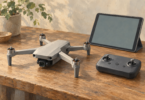
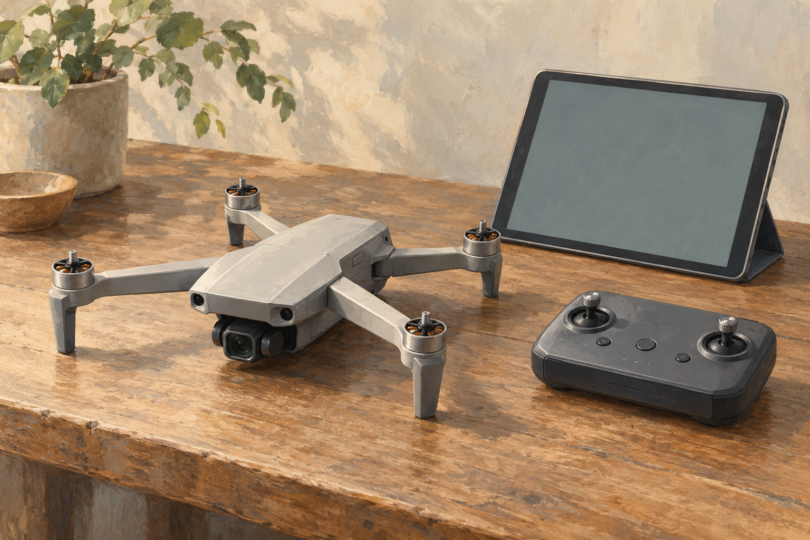
Image note: AI-generated generic drone, controller and tablet illustration; it does not identify DJI models, demonstrate a connection or prove flight compatibility.