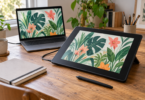
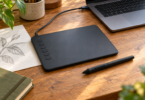
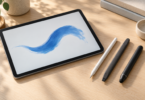
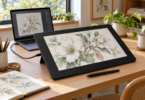
The best drawing tablet depends first on where you want to run your drawing software. Choose the Wacom Intuos Small wired for a compact pen surface beside an existing computer, the Huion Kamvas 13 (Gen 3) to draw directly on a connected display, or the iPad (A16) with a separately purchased compatible Pencil for drawing away from a computer.
These recommendations compare documented features, exact packages and practical setup requirements. We have not tested pen feel, latency, color accuracy or battery life ourselves.
Best drawing tablets at a glance
| Selected product | Best fit | Drawing surface | What to budget for |
|---|---|---|---|
| Wacom Intuos Small, wired, black; CTL4100 | Using an existing computer on a small desk | Screenless; 6.0 × 3.7-inch active area | Pen and USB-A cable included; compatible host and drawing software needed |
| Huion Kamvas 13 (Gen 3), black; GS1333, selected stand package | Drawing on a screen with desktop software | 13.3-inch, 1920 × 1080 pen display | Host computer; suitable video/data connections; USB-C cable and wall adapter may add cost |
| iPad (A16), Blue, Wi-Fi, 128GB; MD4A4LL/A | Drawing with iPad apps away from a computer | 11-inch class; 2360 × 1640 display | Compatible Apple Pencil sold separately; apps and optional stand or case |
Wacom Intuos Small wired: best for an existing computer
The selected CTL4100 is the black, small, wired Intuos, with a 6.0 × 3.7-inch active area. It is a screenless input tablet: you move the pen on the pad while looking at the image on your host device. That makes it a sensible starting point if you already have a computer and do not need another display.
Wacom specifies a battery-free Pen 4K with 4,096 pressure levels and four customizable ExpressKeys. The ExpressKeys specification explicitly lists Windows and Mac support; do not assume every shortcut feature is identical on a Chromebook or Android device. The wired CTL4100 is a different selection from the Bluetooth CTL4100WL models.
Its small drawing area keeps the setup compact, but it may feel restrictive if you prefer large arm movements. The other adjustment is learning to draw on one surface while watching another. Choose the Huion below if seeing the mark beneath the pen matters more to you than minimizing desk space.
This one-tablet package includes the Pen 4K, USB-A cable, spare nibs and documentation. A computer with only USB-C ports may need an adapter; Windows and Mac setup requires the Wacom driver. Check the current driver requirements for your operating system before buying, and review registration and license terms for any bundled software. A software offer should not be treated as a permanent license to every drawing app.

Wacom Intuos Small Wired Drawing Tablet, Black, CTL4100
As an Amazon Associate we earn from qualifying purchases.
Huion Kamvas 13 (Gen 3): best for drawing on a connected screen
The GS1333 is a 13.3-inch pen display with a 1920 × 1080 screen, full lamination, five programmable keys and two dials. Our selected black Amazon package includes the ST300 adjustable stand. Choose it if you want to draw directly on the image while keeping your desktop workflow.
The included PW600L is battery-free, and Huion specifies 16,384 pressure levels and tilt support. Tilt depends on the drawing software supporting that feature. The higher pressure-level count alone is not a reason to expect four times the control of the Wacom; we have not measured either pen.
This is not a standalone tablet. It needs a compatible host device, and desktop setup includes the Huion driver. The manual specifies Windows 10 or later; the product page also lists macOS, qualifying Android devices and Ubuntu 20.04 LTS. Check the current driver, your exact operating system and the app you intend to use.
For the included 3-in-1 cable, the computer side uses HDMI for video and USB-A for data, with a further USB-A lead available for power. Huion says extra power may be necessary if the screen flickers or fails to light; its manual specifies at least 5V/2A for the relevant power supply. A wall power adapter is not included in the standard package.
A USB-C connection is an alternative only when the host port supports video as well as data: Huion specifies USB 3.1 Gen 1 and DisplayPort 1.2 or later. The full-featured USB-C cable is an extra purchase, and some setups still need separate power. A charging-only USB-C port or cable is not enough.
The selected listing includes one display, PW600L pen, pen holder, ten nibs, 3-in-1 cable, USB extension cable, ST300 stand, glove, cleaning cloth and guide. Other Kamvas 13 packages can differ, so match Gen 3 / GS1333 and the stand inclusion instead of relying on the family name. Its main compromise is the extra host and cable setup; a screen-equipped drawing display does not remove the need for a computer or other supported host.

iPad A16: best for drawing without a separate computer
The selected iPad is the A16 model in Blue, with Wi-Fi and 128GB storage, model MD4A4LL/A, without the optional AppleCare+ package. It runs iPadOS, so it is the self-contained option here for compatible iPad drawing apps. Procreate is one example; check its current iPadOS requirement and the export features you need before choosing your app.
Apple calls this an 11-inch display and specifies 2360 × 1640 resolution. Measured as a rectangle, the screen is 10.86 inches, with less viewable area because of the rounded corners. The appeal is carrying your canvas and apps together; the limitation is choosing an iPad app workflow rather than assuming a desktop program and all its plug-ins will transfer.
For pressure-sensitive drawing, budget for Apple Pencil (1st generation) separately. It supports pressure and tilt, and needs the USB-C to Apple Pencil Adapter to pair and charge with this iPad. Apple lists that adapter in the current first-generation Pencil box; if reusing an older Pencil, check whether you already have it.
Apple Pencil (USB-C) is also compatible, but it supports tilt without pressure sensitivity. Apple Pencil Pro and Apple Pencil (2nd generation) are not compatible with iPad A16. Use Apple’s model-by-model Pencil compatibility list before buying a pen.
The selected US tablet package contains one iPad, a one-meter USB-C charge cable and a 20W USB-C power adapter. It does not include an Apple Pencil. Add the pen, any paid apps and a case or stand to the full price you compare. Choose more than 128GB if your planned local projects justify it; the larger-capacity listings are separate configurations.

How to choose the right drawing setup
Start with the software you need and whether you already own a suitable host. A screenless Intuos adds pen input to a host; the Kamvas adds both a pen surface and display; the iPad runs its own iPadOS apps. For desktop illustration, choose between the first two by how you want to work; for a self-contained travel setup, compare the iPad plus its compatible pen.
Compare the usable drawing area and your desk space, then think about how you actually move your hand. A larger surface is useful only if it suits your reach, bag and workspace. If possible, try a screenless tablet and a pen display before deciding which coordination feels more comfortable.
Check pressure and tilt support in your actual drawing app, along with driver requirements and file export options. Read the license terms for bundled software and include recurring app costs in the total. Avoid treating an advertised pressure count, brand name or star rating as a substitute for those checks.
Compare the exact model, color, capacity, condition and package contents before paying. For the Huion, count any missing video adapter, full-featured USB-C cable and power supply; for the iPad, count the separate Pencil. Check the seller, return policy and delivery estimate on the offer you select.
Frequently asked questions
Which drawing tablet is best for a beginner?
The Wacom Intuos Small wired is our starting point if you already own a compatible computer and can work while looking at its screen. Choose the Kamvas 13 Gen 3 if drawing directly on the image is your priority, or iPad A16 with a compatible Pencil if you want a self-contained setup.
Can a drawing tablet work without a computer?
The iPad can run its own apps. The Intuos and Kamvas selections require a supported host; a pen display having a screen does not make it standalone. Some Android devices are supported, but the Huion connection still needs the specified USB data, video and power capabilities.
Is Apple Pencil included with the iPad?
No, it is separate from the selected tablet package. For pressure sensitivity on iPad A16, choose the compatible first-generation Apple Pencil and make sure you have its required USB-C adapter. The USB-C Pencil is compatible but lacks pressure sensitivity.
Will any USB-C cable work with the Kamvas 13 Gen 3?
No: the USB-C route needs a full-featured cable and a host port meeting Huion’s USB 3.1 Gen 1 and DisplayPort 1.2 requirements. Extra power may still be needed, and the USB-C cable is not part of the standard cable package.