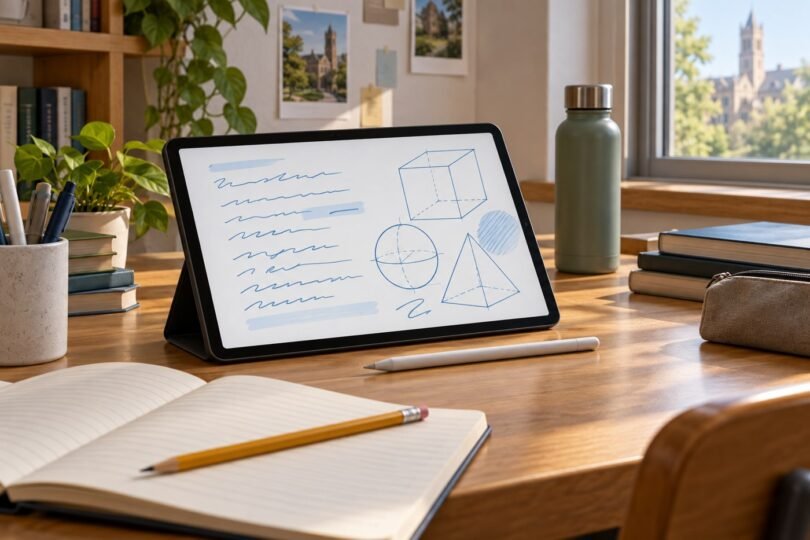

For most students who already have a laptop, the best tablet for college notes is one with a compatible active pen, an app that handles lecture PDFs, and a reliable way to back everything up. Start with the Samsung Galaxy Tab S10 FE if you want the pen included, the iPad with A16 if your preferred apps and other devices are in Apple’s ecosystem, or the Lenovo Tab M11 pen bundle if its complete price is meaningfully lower.
These are recommendations for different workflows, based on manufacturer specifications and documented app features. The most important test is whether your own notes, diagrams, exports, and course files work properly. A faster processor cannot fix the wrong app or an incompatible stylus.
Choose by the work you do in class
- Handwritten formulas, diagrams, and annotated slides: prioritize the pen, palm rejection, page navigation, and PDF export.
- Mostly typed lecture notes: compare a keyboard-equipped tablet with the laptop you already have. A tablet may add little if handwriting is rare.
- Reading beside a notebook: try the actual document at a comfortable font size. An approximately 11-inch screen is portable, but two documents side by side can still feel cramped.
- One device for an entire degree: verify required desktop software, exam systems, programming tools, and peripherals with the department before replacing a laptop.
1. Samsung Galaxy Tab S10 FE: a straightforward pen-included choice
The 10.9-inch Galaxy Tab S10 FE, 128GB Wi-Fi, US version in gray is a sensible starting point for students who want to write on lecture slides without shopping for a separate pen. The included S Pen is pressure sensitive and does not require charging. Samsung’s support documentation distinguishes it from Bluetooth-enabled pens: it does not have the same Bluetooth pairing or remote Air Actions features.

Samsung Galaxy Tab S10 FE, 10.9-Inch, 128GB Wi-Fi, US Gray, One Tablet with S Pen
As an Amazon Associate we earn from qualifying purchases.
Samsung lists a 2304 × 1440 LCD with a 90Hz refresh rate and an Exynos 1580 processor for the S10 FE. The 128GB configuration has 8GB RAM. Those specifications provide a useful hardware baseline, but a 90Hz display alone does not prove any particular writing latency, handwriting-recognition accuracy, or battery runtime in your classes.
The strongest practical reason to consider it is the documented Samsung Notes PDF workflow. Import a lecture PDF, add typed or handwritten annotations, then export a PDF for your computer or assignment portal. Importing creates a copy inside Samsung Notes, so edits are not automatically applied to the original file in your downloads folder. Keep track of which copy is your working document.
Best fit: students who want an Android tablet with its writing tool included and a built-in route for PDF markup. It is particularly worth considering if handwritten notes are a daily habit rather than an occasional extra.
Trade-offs: the keyboard is separate, and you should check the seller’s charging-accessory contents. Samsung Notes and other apps may behave differently across operating systems. Verify how you will view and edit notes on a non-Samsung laptop rather than assuming every feature transfers unchanged. The card above is the standard S10 FE tablet and pen, not the larger FE+, a cellular model, or a keyboard bundle.
2. Apple iPad with A16: a flexible iPad option
The configuration here is the 11-inch iPad with A16, 128GB, Wi-Fi, silver. Apple’s specification sheet lists a 2360 × 1640 display, Touch ID, and USB-C. This is a practical starting configuration for a student comparing iPad note-taking apps, reading PDFs, and using the tablet alongside a Mac or another computer.

Budget for the right Pencil. This iPad supports Apple Pencil (USB-C) and Apple Pencil (1st generation). It does not appear on Apple’s compatibility list for Pencil Pro. The USB-C Pencil pairs and charges with a cable; its magnetic attachment is for storage, not wireless charging. Apple lists tilt sensitivity but no pressure sensitivity for the USB-C model. That can be a reasonable compromise for ordinary notes; students who also draw should decide whether pressure control matters.
The first-generation Pencil is another supported option, but pairing and charging with this iPad require Apple’s USB-C to Apple Pencil Adapter. If you already own a Pencil, check the generation before counting it as a free accessory. Neither Pencil nor a keyboard is included in the standard tablet package.
Apple Notes supports attaching and annotating PDFs. There is an important export detail: Apple’s Notes export guide says that exporting an entire note as a PDF includes only the first page of a multipage PDF or scan attached to that note. For a full annotated slide deck, use the attachment’s own save or share workflow and verify every page in the resulting file. Do this with a sample before your first graded submission.
Best fit: students who have selected an iPad app they like and can afford the complete tablet-and-Pencil setup. Built-in Notes is worth trying before paying for an additional app.
Trade-offs: app subscriptions, cloud storage, a keyboard, and the Pencil can change the total significantly. A mobile version of a familiar desktop app may have fewer features. The A16 model should be evaluated on what it supports now, rather than assuming it has every feature advertised for iPad Air or iPad Pro.
3. Lenovo Tab M11 with Tab Pen: a price-sensitive alternative
The specific package here is Lenovo Tab M11 ZADA0028US, 4GB RAM, 64GB storage, Luna Grey, with Lenovo Tab Pen. Lenovo documents an 11-inch 1920 × 1200 IPS display, a MediaTek Helio G88 processor, and active-pen support. Its Tab Pen specification includes pressure sensitivity, tilt detection, and palm rejection.

This is the model to compare when your main goal is a lower-cost handwriting companion to an existing laptop. The pen bundle removes one uncertainty from the shopping list. However, “Tab M11” alone does not guarantee a pen: Lenovo lists multiple packages, including versions without one. Confirm the exact model and box contents.
The storage is eMMC, according to Lenovo’s technical reference, even though some retailer titles describe it as an SSD. Its 4GB RAM is also different from the 8GB configurations elsewhere in the M11 range. For heavy lecture PDFs, simultaneous apps, or large notebooks, try representative files during the return window instead of relying on a generic “multitasking” claim.
Best fit: someone who already has a computer for demanding coursework and finds this exact pen bundle at a worthwhile saving. The advantage disappears if old stock is priced close to a newer, better-supported alternative.
Trade-offs: check Lenovo’s current update plan for the exact model, plus the note app’s ongoing compatibility. Purchasing an older tablet does not restart its software-support period. Preinstalled apps can also vary by region; verify the app features and any subscription requirements you expect to use.
What matters more than a spec-sheet ranking
The pen and app must work together
An active stylus is not interchangeable with a basic rubber-tip capacitive stylus. Palm rejection lets you rest your hand while writing; pressure sensitivity changes a supported brush’s stroke with force. Pressure is useful for drawing, but it is not a prerequisite for legible lecture notes. Try small letters, subscripts, quick arrows, and your normal hand position. A screen protector can change friction, visibility, and pen feel, so do not assume you need one before trying the screen.
Check the complete cost
Compare the tablet, compatible pen, case, necessary charger, and any recurring app or storage fees. Add a keyboard only if you will use it. Check the full delivered total and the return policy for the exact seller. A discounted tablet without its required pen can cost more than a bundle after the missing part is added.
Keep notes accessible outside one app
A notebook that looks perfect inside an app can export differently. Keep the editable original, and periodically save a readable copy in an ordinary format such as PDF. Open the copy on another device and check page count, diagrams, colors, and small handwriting. Cloud synchronization is convenient, but a deletion can also synchronize; retain a separate backup of important coursework.
Match the tablet to your course documents
Try a multipage scanned reading, a slide deck, and a handwritten page containing the kind of notation you use. Check whether text search finds what you expect, whether pages stay readable when zoomed, and whether a large import remains manageable. For classes dominated by long typed essays or specialist software, a tablet is often most useful beside your laptop.
A practical first-week setup
- Create one folder or notebook per course. Include the term in its name and give lectures a consistent date-based title.
- Download tomorrow’s material beforehand. Confirm that the app opens it without a network connection, rather than merely showing a cloud placeholder.
- Write a real sample. Test palm rejection, diagrams, erasing, and switching between the reading and your notes.
- Export and reopen it. Check the actual submitted file, including all pages and annotations, on your laptop.
- Set a backup routine. Keep both editable notes and periodic exports somewhere you can access if the tablet is lost or damaged.
Common questions
Is 64GB enough for college notes?
It can be enough for a modest collection of text and PDFs, but scanned textbooks, recordings, large apps, and offline video consume much more space. Start with the files you already have and leave room for growth and updates. Expandable storage is useful only when the apps and file types you use support it.
Should I buy an e-ink writing tablet instead?
Consider one if you want a dedicated reading-and-writing device and already have a laptop. Before buying, verify PDF handling, export, required apps, and whether color-coded figures remain useful. A focused writing device can suit that job, but it should not be assumed to run the same campus software as an iPad or Android tablet.
Which would I start with?
Start with the Galaxy Tab S10 FE for an included-pen Android setup, or the iPad A16 plus the correct Pencil for an iPad-centered workflow. Compare the Lenovo M11 pen bundle when price is the deciding factor. The right choice is the one that handles your actual course files and sends readable, complete notes back to the computer and systems you use every day.
Image note: AI-generated editorial illustration; not a photograph of the named product.