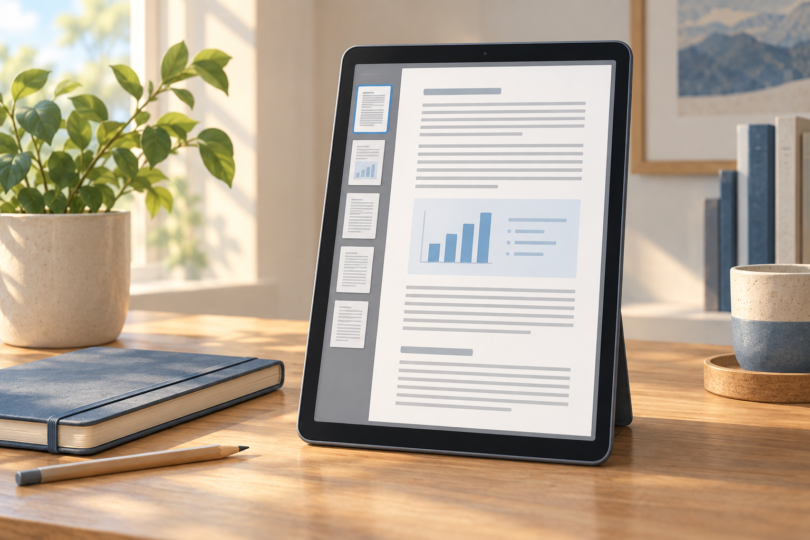

For color textbooks, frequent zooming, and handwritten PDF notes, start with the 13-inch iPad Air (M4) or Samsung Galaxy Tab S10 FE+. For mostly black-and-white documents that you read one page at a time, the BOOX Note Max offers a larger E Ink workspace. The reMarkable Paper Pro is the focused alternative for color highlights and handwritten review.
A good tablet for PDF reading needs more than a sharp screen: it must display your page at a comfortable size, run the right software, and return your annotations in a usable format. These four recommendations cover different workflows rather than claiming one device is best for everyone.
PDF-reading tablets at a glance
| Tablet | Display | Best fit | Main tradeoff |
|---|---|---|---|
| iPad Air 13-inch (M4) | 12.9-inch actual diagonal; 2732 × 2048 LCD | Color PDFs alongside apps and handwritten notes | Compatible Apple Pencil costs extra |
| Galaxy Tab S10 FE+ | 13.1-inch; 2880 × 1800 LCD | Large Android annotation workspace with included pen | 664 g before a case; relatively narrow portrait shape |
| BOOX Note Max | 13.3-inch; 3200 × 2400 monochrome E Ink | Full-page papers, manuals, and monochrome reading | No color or built-in reading light |
| reMarkable Paper Pro | 11.8-inch; 2160 × 1620 color E Ink | Focused document review and color annotation | Dedicated document workflow rather than general tablet apps |
Screen specifications come from the manufacturers linked below. Check the exact model and accessory bundle before buying; similarly named tablets can have different screen sizes and pen compatibility.
1. iPad Air 13-inch (M4): for color documents and flexible apps
The larger Air is our starting point for readers who need diagrams, browser research, and PDF annotation on one device. Its roughly 4:3 screen shape uses portrait space well for many document pages. The laminated display has an antireflective coating, although neither feature makes it immune to reflections.
It supports Apple Pencil Pro and Apple Pencil (USB-C), both purchased separately. For basic work, Apple’s Preview guide for iPad documents text highlighting, signatures, shapes, and handwritten markup. Check any specialist app’s export tools and subscription costs before committing.
- Pros: Large color workspace; broad usefulness beyond reading; two compatible Pencil options.
- Cons: Pen adds to the total; a large tablet is awkward for prolonged one-handed reading.
Apple’s specifications. The linked Amazon configuration is the 13-inch M4 model with 256GB, Wi-Fi, and Space Gray finish.
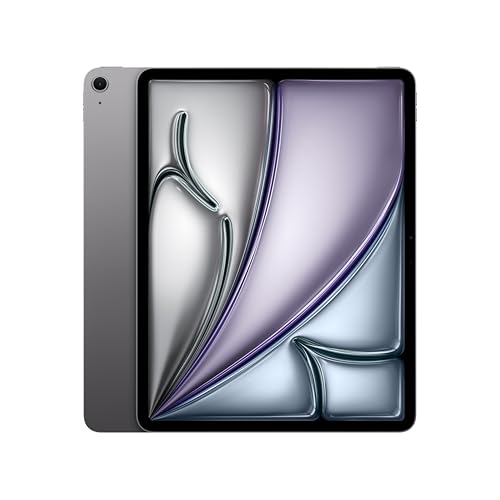
Apple iPad Air 13-Inch M4, 256GB Wi-Fi Space Gray, One Tablet
As an Amazon Associate we earn from qualifying purchases.
2. Samsung Galaxy Tab S10 FE+: for large-screen Android annotation
The S10 FE+ puts the included S Pen and a large display at the center of the package. Its 16:10 proportions are useful for landscape lecture slides, though the iPad Air’s wider portrait shape may suit paper-shaped pages better. Pick according to your files, not diagonal size alone.
Samsung Notes supports importing PDFs, adding text or pen marks, and exporting notes. That makes it a sensible starting workflow without first choosing a separate annotation app. The 128GB model also supports microSD expansion for a local document library; the card is separate.
- Pros: S Pen included; large color display; expandable storage.
- Cons: Heavier than the other devices here; the screen is LCD, not the AMOLED found in some premium Galaxy Tabs.
Samsung’s specifications. The linked configuration is the 13.1-inch FE+, 128GB Wi-Fi, Gray US model, not the smaller FE.

3. BOOX Note Max: for large monochrome PDFs
The Note Max is the specialist choice for research papers, technical manuals, and other mostly black-and-white documents. Its 300 ppi E Ink panel and large page area are the attraction; it is not a pocket e-reader. BOOX includes a Pen Plus, and its software supports document annotation and split-screen reading.
The decisive limitation is the lack of a front light: you need adequate room light or a reading lamp. Color-coded charts also lose their color distinctions. Android 13 and third-party app support offer flexibility, but do not assume every Android app will suit an E Ink screen.
- Pros: Large, sharp monochrome page; included pen; flexible document software.
- Cons: No built-in illumination; no color; approximately 615 g before accessories.
See the BOOX Note Max and official specifications.
4. reMarkable Paper Pro: for focused reviewing and color notes
Choose the Paper Pro when the goal is to read a document, mark it up, and return it without a general-purpose tablet competing for attention. Its Canvas Color screen uses E Ink Gallery 3, with an adjustable reading light. It imports PDFs and exports documents in formats including PDF.
Plan the handoff before buying. reMarkable’s transfer guide lists a 100MB limit for USB and web imports, with companion apps used for larger files. Check the current Connect subscription features if ongoing cloud storage, handwriting search, or companion-app editing matters to you.
- Pros: Color annotation; reading light; focused document interface.
- Cons: Less screen area than the 13-inch options; unsuitable as a replacement for a full tablet app library.
reMarkable’s specifications. The linked Amazon bundle is the 64GB Paper Pro with Marker Plus.

LCD, OLED, or E Ink for PDFs?
Choose a conventional LCD or OLED tablet when you frequently pinch to zoom, scroll through scans, jump between references, watch embedded material, or need full-color figures. For this job, prioritize usable page size and software ahead of display branding. OLED is worth considering if movies and other uses matter too, but it is not a requirement for reading a static PDF.
Choose E Ink when most of the session is spent studying a page and adding occasional notes. E Ink explains that its reflective display retains an image without continuously powering that image. That does not mean the entire device uses no battery, or that every E Ink tablet lasts for weeks: processing, wireless connections, refresh settings, and lighting still matter.
Our practical tradeoff is simple: use a conventional tablet for rapid interaction and color-critical work; consider E Ink for a paper-oriented reading routine. Neither category guarantees comfort for every reader. Try your typical document under your usual lighting, particularly if screen comfort is your main reason for changing devices.
What to check before choosing a PDF tablet
- Page size and layout: Two-column papers and dense textbook scans benefit from a larger display. Smaller tablets can work well for single-column documents if you accept more zooming. A screen marketed as 13 inches is not automatically a full-size A4 sheet.
- Scans versus selectable text: A scan may be an image rather than searchable text. A sharper screen cannot create missing text data; use suitable OCR software when search or text selection is essential.
- Real annotation needs: Handwriting over a page differs from editing its original text, applying secure redactions, filling complex forms, or managing citation metadata. Confirm those specific tools in the app you intend to use.
- File transfer and export: Try importing a representative document, adding a highlight and handwritten note, then opening the exported PDF on your computer. Check whether comments remain editable and whether hyperlinks and page order survive.
- Offline access: Download documents in advance and verify that the app opens them without a connection. Keep a separate copy of important originals before experimenting with synchronization.
- Total setup: Compare the tablet, correct pen, protective case or stand, and any recurring app or cloud charges together.
If you scan paper documents before reading them, our guide to tablet cameras explains what matters for capture.
Frequently asked questions
Is an 11-inch tablet large enough for PDFs?
Often, yes, especially for ordinary reports and single-column pages. For small print, two-column journals, or handwritten notes beside the page, a larger screen gives more working room. Test a familiar page at the size you expect to use; font size and margins matter as much as diagonal measurements.
Do I need a stylus to read or highlight a PDF?
No. Touch controls are sufficient for reading and many text-highlight tools. A compatible active pen becomes useful for handwriting, equations, sketches, and precise margin notes. A generic capacitive stylus does not provide the same capabilities as a supported Apple Pencil or S Pen.
Will a PDF automatically fit like an ebook?
Not necessarily. PDFs usually preserve a page layout. Reflow and cropping tools can help, but complex tables, equations, and scanned pages may not adapt cleanly. BOOX’s PDF reading settings illustrate the distinction between original layout, cropped views, and other reading modes.
Can I use these tablets for confidential work documents?
Check your organization’s approved devices, apps, and storage rules first. A device’s ability to open a PDF does not establish that its cloud service or synchronization method is approved for your documents. Choose the permitted workflow before transferring files.