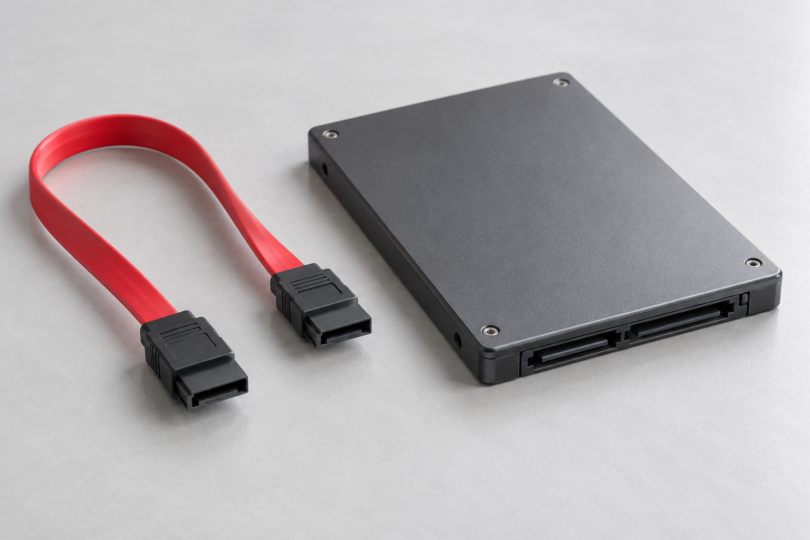

A 2.5-inch SATA SSD in a typical desktop needs two connections: a 7-pin SATA data cable to the motherboard and a separate 15-pin SATA power connection from the power supply. An M.2 SSD normally plugs directly into a compatible motherboard socket, so it does not use either of these separate cables. Confirm your drive’s interface and your computer’s service instructions before ordering.
For an ordinary desktop upgrade, choose a SATA data cable rated for 6Gbps, long enough to follow the intended route without pulling on the connectors. The useful differences are length, plug direction and fit. You do not need a cable marketed specifically for your SSD brand.
Research checked October 4, 2026. This is a specification-based guide, not a hands-on cable test. The product links below lead to manufacturers, and this guide contains no affiliate purchase links. Prices and availability can change.
First check which kind of SSD you have
| Drive or installation | Connection to look for | What to check before buying |
|---|---|---|
| 2.5-inch SATA SSD in a desktop | Separate SATA data and SATA power connections | A free motherboard SATA port, a compatible PSU power lead and space to mount the drive |
| 2.5-inch SATA SSD in a laptop | The laptop’s drive connector, ribbon cable or caddy | The service manual for the exact laptop model; a desktop cable may not fit |
| M.2 SATA SSD | A motherboard M.2 socket that supports SATA | Supported drive length and interface |
| M.2 NVMe SSD | A compatible PCIe/NVMe M.2 socket | Motherboard compatibility and mounting hardware |
| SSD connected over USB | A suitable USB adapter or enclosure | Support for the actual drive type: 2.5-inch SATA, M.2 SATA or M.2 NVMe |
M.2 describes a physical format; an M.2 drive can use SATA or PCIe. A matching-looking slot or enclosure is not enough to establish compatibility. Kingston’s SSD FAQ explains the interface distinction and why an installed M.2 SSD needs no separate data or power cable.
SATA data cable versus SATA power cable
The narrow connector carries data
A standard internal SATA data cable has a 7-pin connector at each end. It links the SSD to a SATA port on the motherboard or a suitable storage controller. It does not supply the drive’s operating power. The keyed connector must line up with the socket; do not force it or pull sideways on the drive’s connector.
The wider connector supplies power
The SSD’s wider, 15-pin connector receives power. In a normal desktop, use the appropriate SATA power connector on the PSU’s cable harness. A data cable sold alone does not solve a missing power connection. Kingston’s SATA SSD support guidance recommends the PSU’s standard SATA power connection rather than power-splitting Molex cables.
Important: modular PSU cables are model-specific
Never plug a random modular SATA power cable into a power supply just because the PSU-side plug fits. The wiring at that end can differ between brands and between product families. An incompatible cable can damage the SSD or other components and can create a fire hazard.
Use the cable supplied with that PSU or a replacement the PSU manufacturer explicitly lists as compatible with its exact model. If you replace the PSU, check its cables too. This warning concerns the power supply’s modular leads; a standard 7-pin motherboard-to-drive data cable serves a different purpose. See Seasonic’s cable compatibility guide and Corsair’s PSU cable compatibility guidance.
Three genuine SATA data cable options
These are practical options for different layouts, selected from manufacturer specifications. They are not ranked by measured speed or durability, and all still require a separate power connection.
| Cable | Verified configuration | Useful when | Main limitation |
|---|---|---|---|
| StarTech SATA18RA1 | 18 inches; straight to 90-degree; SATA 6Gbps | The drive has limited clearance behind its connectors | The bend must point in the correct direction |
| Monoprice 8778 | 18 inches; locking latch; SATA 6Gbps; single cable | You need one replacement data cable | Confirm connector clearance and the selected variant |
| Cable Matters 104007 | Three-pack of straight SATA III data cables; up to 6Gbps | You are connecting several drives or want spare data cables | Select the needed length; extra cables are unnecessary for a one-drive job |
StarTech SATA18RA1: for an angled connection
The StarTech SATA18RA1 has one straight plug and one right-angle plug on an 18-inch cable. It is a useful layout choice when a straight cable would press against a case panel. Check the product drawing against the mounted drive: the angle may point toward a tray, another connector or a panel in your particular case. Buy it for clearance, not an expected performance increase.
Monoprice 8778: for a single replacement
The Monoprice 8778 is an 18-inch SATA 6Gbps cable with a locking latch. A single cable makes sense if you have only one missing or damaged lead. Check the product number and selected length at checkout because the page also offers other variants. Leave room to release the latch when you next service the PC.
Cable Matters 104007: for several drives or spares
The Cable Matters 104007 three-pack includes straight SATA data cables and reusable cable ties. The manufacturer specifies standard internal 7-pin SATA connections and compatibility with SATA I, II and III. Choose the length offered by the selected variant before ordering. These are internal data cables, not eSATA cables or power leads.
How to choose the right cable
Measure the route, not the straight-line distance
Start at the actual motherboard port, follow the planned route through the case and finish at the mounted SSD. Leave a gentle service loop so opening a panel or moving a drive tray does not tug on the connector. An 18-inch cable is only a candidate, not a universal fit. A shorter route may suit a shorter cable; a large case may need more reach.
Avoid buying an unnecessarily long cable and tightly stuffing the excess behind the drive. Keep it away from fan blades and sharp panel edges, and avoid hard folds at either connector.
Choose the plug direction before choosing the color
A straight plug needs space behind the socket. A 90-degree plug can help with clearance but can also obstruct a neighboring socket. Check both the drive and motherboard ends, especially where the board has stacked SATA ports. “Right angle” describes a bend, not a promise that it will face the way your installation needs.
Check existing cables before spending money
A sound cable supplied with your motherboard may already do the job. Replace one that is damaged, loose or unsuitable for the route. Paying more for a cable cannot raise the speed of an older motherboard port or the SSD itself. A 6Gbps label describes the supported SATA link rate, not a guaranteed file-copy speed.
Installation and troubleshooting checklist
- Back up important data first. Shut down and disconnect power, then follow the computer’s service manual and anti-static precautions.
- Mount the SSD securely. Connect the data cable to the correct motherboard port and the SSD. Attach the PSU’s compatible SATA power connector.
- Check the cable path. No connector should be under tension or pressed sideways by a closed panel.
- Check drive detection. If the SSD is missing from firmware setup, power down before reseating connections or trying another known-good data cable and usable SATA port.
- Consult the motherboard manual. Some M.2 installations disable particular SATA ports. Changing the data cable will not re-enable a shared port.
- Be careful with disk setup tools. A genuinely new, empty SSD may need initialization and formatting. Do not initialize or format a drive that contains data you need.
The basic data-and-power connection sequence is shown in Kingston’s desktop installation guide. Its older cloning-software instructions are not needed for this cable check. Use your current system and SSD documentation for operating-system installation or migration.
Frequently asked questions
Does a SATA SSD need a special SSD cable?
No. A compatible 2.5-inch SATA SSD uses a standard internal SATA data connection. Choose the right length and connector shape, and separately confirm the power connection.
Can one SATA data cable power the SSD?
No. A normal 7-pin SATA data cable carries data only. The drive also needs power through its wider connector. A laptop backplane or drive caddy may combine the connections mechanically.
Can I connect an M.2 NVMe SSD with a SATA cable?
No. An ordinary SATA data cable cannot convert an NVMe drive to SATA. Use an appropriate motherboard slot or an enclosure explicitly compatible with NVMe.
Will a premium SATA cable make my SSD faster?
A working, correctly rated cable should let the connection operate within the drive and controller’s capabilities. Replacing a faulty cable can fix a problem; paying for a premium label does not establish a speed advantage.
Can I reuse an old PSU’s modular SATA power cable?
Only if the manufacturer explicitly confirms compatibility with the replacement PSU’s exact model. Matching plugs or matching brand names alone are not sufficient evidence.
What should I buy if I only want to copy files over USB?
Look for an adapter or enclosure matched to the SSD’s actual interface and form factor. A bare internal SATA data cable cannot plug into a USB port or perform that conversion.
Image note: Generic AI-generated editorial illustration of a SATA data cable and 2.5-inch SSD; not a product photograph or installation diagram.