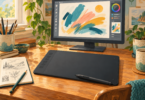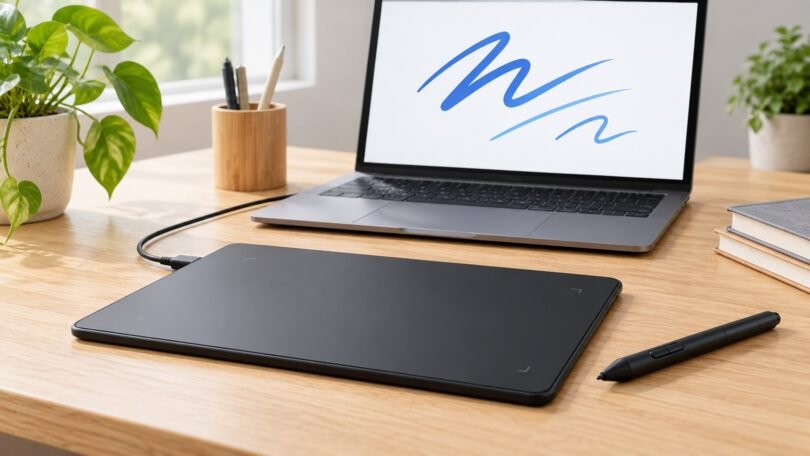

A writing tablet for a PC should let you put handwritten notes, diagrams or annotations directly into a computer application. A compact USB pen tablet is a sensible starting point when you already have a monitor: you write on the tablet while watching the ink appear on that screen.
The Wacom Intuos CTL-4100 Small Wired and HUION Inspiroy H640P below are two specific screenless models to compare. Both include a battery-free pen and physical shortcut buttons. Their useful differences are the working area, button placement, connection and driver setup. The recommendations are based on manufacturer documentation and exact product listings, not hands-on handwriting tests.
Two compact PC writing tablets to consider
Wacom Intuos CTL-4100 for a compact wired setup

Wacom Intuos CTL-4100 Pen Tablet, Small Wired Black, One Tablet and Pen Kit
As an Amazon Associate we earn from qualifying purchases.
This card selects the Small, Wired, black CTL-4100. The similarly named Small Wireless and Medium Wireless options are different variants. The selected model uses USB and does not provide Bluetooth connectivity.
Wacom’s product specifications give it a 152 × 95mm active area, approximately 6 × 3.7 inches, inside a 200 × 160mm body. Four customizable ExpressKeys sit above the writing surface. Its Wacom Pen 4K supports 4,096 pressure levels; “4K” is the pen’s name, not a screen resolution.
Why consider it: a relatively compact body with top-mounted shortcuts for actions such as undo, eraser or a frequently used command. The selected listing includes the tablet, Pen 4K and USB-A cable. What to check: a USB-C-only PC may need an adapter, and the small active area may feel cramped if you write with large arm movements. Do not base the purchase on a software promotion without checking its current eligibility and terms.
HUION Inspiroy H640P for six side shortcuts

The Inspiroy H640P has a 160 × 100mm active area, approximately 6.3 × 3.9 inches, and six programmable buttons down one side. Its body measures 260 × 147.7mm, so allow room for the whole tablet rather than comparing only the writing-area label.
HUION specifies a Micro USB connection, a battery-free PW100 pen and 8,192 pressure levels. It is a wired tablet with no built-in display. The extra shortcut buttons may suit frequent switches between writing, selecting, erasing and zooming, provided your application supports the commands you assign.
Why consider it: six physical shortcuts and a slightly larger active area than the Small Intuos. What to check: its wider body, the cable connection and driver support for your specific PC. There is also a listing discrepancy: Amazon’s expanded title mentions tilt, while HUION’s own specification table lists no tilt support. Do not choose the H640P on the assumption that it offers tilt-sensitive brush control.
Choose the kind of tablet you actually need
A screenless pen tablet is an input device. It sends pen movement to a connected computer, where your chosen application displays and saves the writing. Both models above work this way. They do not show your notes on their own surface or act as standalone notebooks.
A pen display has a screen beneath the pen, making it possible to look at the place where you are writing. Many still require a connected computer, video output and additional power. If that direct view is essential, compare pen displays and their cable requirements instead of buying a screenless pad and expecting it to light up.
A basic LCD writing board may only display temporary marks that disappear when you press erase. Unless its specifications explicitly promise computer input or a suitable export function, do not assume it sends handwriting to your PC. Likewise, a general-purpose tablet with a stylus needs an appropriate app and connection workflow if you want to use it as a PC input device.
Match the active area to your handwriting
The active area is the part that tracks the pen. The outer dimensions tell you how much desk space the device occupies. A listing can advertise either measurement, so check both before comparing sizes.
Small tablets suit limited desk space and short annotations, but the feel also depends on how the tablet maps to your screen. If a small surface controls a very large desktop across several monitors, modest pen movements can move the cursor a long distance. For a first setup, mapping the tablet to the monitor that contains your notes is usually easier to understand.
Wacom’s mapping guide explains how to select one display or a portion of it. Its Force proportions setting can also prevent shapes from stretching when tablet and display proportions differ. Keeping proportions consistent may leave some of the tablet’s surface unused. Other manufacturers provide their own work-area controls; use the instructions for your exact driver.
Before committing to a size, mark out the stated active area on a sheet of paper and write a paragraph within it. This does not simulate the tablet’s tracking or surface, but it gives you a useful sense of how much physical room your handwriting needs.
Pressure numbers are only one part of writing comfort
Pressure sensitivity can vary a line’s thickness or opacity in an application that supports it. The H640P’s higher listed pressure-level count does not by itself establish clearer handwriting, better accuracy or a more comfortable pen than the Intuos. For ordinary notes, you may prefer a consistent-width pen tool.
Check the things you will notice on every page: whether light strokes register reliably in your app, whether you can reach the shortcut buttons comfortably and whether the pen’s side buttons trigger accidentally in your normal grip. These are useful checks during a return window; they are not performance results established by the specifications.
A battery-free pen still needs its compatible tablet nearby to work. Keep the supplied pen with the tablet, and buy replacement nibs and pens by the exact supported model. An unrelated touchscreen stylus is not an interchangeable replacement.
Choose the note-taking software before the tablet
Start with the task: handwritten meeting notes, PDF annotations, a teaching whiteboard or freehand diagrams. Confirm that the application actually has an ink or drawing tool. A pen that moves the cursor does not automatically make every text field accept handwriting.
Microsoft’s OneNote guidance describes drawing and writing with a pen or mouse, choosing ink tools and erasing strokes. For PDF work, check your chosen application’s annotation tools and save a sample copy before using it on an important document. For teaching, share the application window containing your notes and confirm that the audience can see new strokes.
Handwriting recognition is a separate software feature. Microsoft’s Ink to Text Pen documentation specifies supported applications, Windows versions and languages. Buying a tablet does not guarantee live conversion in every program. Test a paragraph with your handwriting and review the converted text, particularly names, numbers and symbols.
Set up and test the tablet before important work
- Check the exact computer. Confirm the operating system, processor architecture and current driver support on the tablet maker’s site. For a managed work or school PC, confirm that you can install the required driver.
- Connect with the correct data cable. Use the supplied cable where possible. If the PC only has USB-C ports, account for the required data adapter and any desk-space constraints.
- Follow the manufacturer’s driver instructions. Use the official download for the exact tablet. Resolve conflicting old tablet drivers according to the maker’s guidance rather than installing several competing drivers indiscriminately.
- Set your writing area. Select the intended monitor, check proportions and configure the tablet’s orientation if you use it left-handed.
- Start with a few shortcuts. Assign commands that work in your notes app, such as undo and eraser. Add more only when they save you an actual step.
- Test a full page. Write, erase, select and move ink, then save, close and reopen it. Check a PDF export or shared screen if that is part of your workflow.
If the pen moves the pointer but does not write, first check that the app’s ink tool is selected. If pressure or pen buttons fail, compare the driver and app settings using the manufacturer’s troubleshooting instructions. Changing Windows Ink settings without checking the application can solve one problem while creating another.
Frequently asked questions
Do I need a touchscreen computer?
No. These screenless tablets provide the pen-input surface separately. You watch your existing monitor while writing on the tablet.
Can either tablet save notes without a computer?
Neither is a standalone note-storage device. For the PC workflow described here, the connected computer and application capture and save the writing.
Can I use them to annotate or sign a PDF?
They can provide pen input to compatible software with the appropriate tools. If a workplace requires a particular signature system or approved hardware, check those requirements before buying a general graphics tablet.
Which one should I start with?
Compare the Small Wired Intuos when you prefer a compact body and top-mounted shortcuts. Compare the H640P when six side buttons and a slightly larger active area matter more. In either case, confirm the exact variant, current seller offer, cable needs, driver compatibility and return conditions.
Image note: AI-generated editorial illustration; not a photograph of the named product.