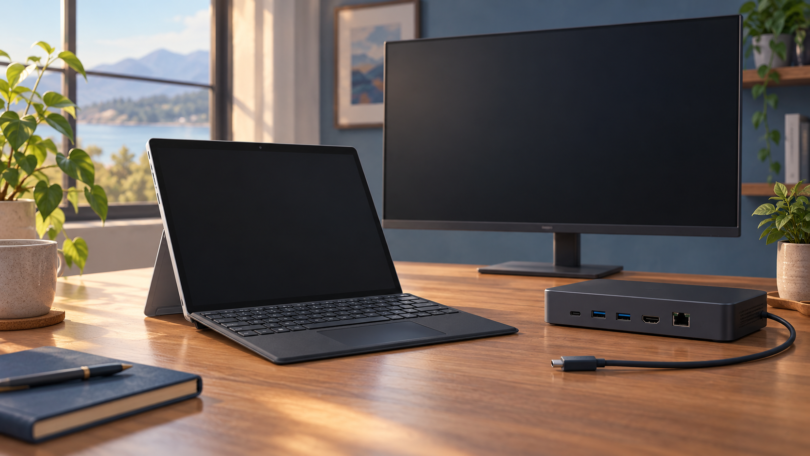

The right port replicator for Surface Pro depends on the tablet you own, the monitors you want to connect and whether you need one-cable charging. Start with the exact Surface model, including its processor and screen size. A dock that suits a Surface Pro 9 with Intel can behave differently on the SQ3/5G version, even though both have USB-C sockets.
For a permanent desk, prioritize the required monitor connections and charging over the largest port count. For travel, a smaller hub may be enough. The recommendations below are based on manufacturer specifications and compatibility documentation, not hands-on performance testing.
Match the dock to your Surface first
- Surface Pro 6: it has USB-A, Mini DisplayPort and Surface Connect, rather than a native USB-C port. Start with a compatible Surface Connect dock or a USB-A graphics dock, not a USB-C-only hub. See Microsoft’s Surface Pro 6 connections.
- Surface Pro 7, 7+ and Pro X: these belong to the USB-C compatibility group in Microsoft’s Thunderbolt 4 Dock documentation, not its full USB4/Thunderbolt group. A dock’s connector fitting does not establish its maximum display performance.
- Surface Pro 9: the Intel/Wi-Fi version has USB4/Thunderbolt 4; the SQ3/5G version has USB-C 3.2. Both have Surface Connect. Check Microsoft’s separate specifications before ordering.
- Surface Pro 8, Pro 10 and 13-inch 11th/12th Edition models: Microsoft’s USB4 Dock compatibility list identifies the supported USB4/Thunderbolt configurations. Match the full model entry rather than assuming every newer Surface has the same interface.
- Surface Pro 12-inch: Microsoft places both 1st and 2nd Edition models in its USB-C-only charging group. Do not confuse “12-inch” with the 13-inch “12th Edition,” or choose a Surface Connect dock for the 12-inch model.
Which port replicators are worth considering?
Surface Dock 2: a practical choice for supported Surface Connect models
Choose Surface Dock 2 when your tablet appears on Microsoft’s compatibility list and you want to leave its USB-C port free. It connects through Surface Connect. The important display limit is model-specific: Microsoft lists dual 4K at 30 Hz for Surface Pro (5th Gen) and Pro 6, versus dual 4K at 60 Hz for listed models including Pro 7, 7+, X, 8, 9 and 10. The generation-by-generation table takes precedence over a blanket “dual 4K 60 Hz” listing.
The rear USB-C display connections may need adapters for your monitors. USB-A, Ethernet and a 3.5 mm audio connection cover common desk accessories. Its 199 W power supply is not a promise of 199 W delivered to the tablet: Microsoft specifies 120 W passthrough. Check the port and power details, especially when buying a used unit without its original supply.
Original Surface Dock: useful for an existing Mini DisplayPort setup
The original Surface Dock remains relevant if you already own one or need compatibility with Surface Pro 3 or Pro 4, which are listed in its supported-device table. It has Mini DisplayPort outputs and USB-A rather than Dock 2’s USB-C display connections. Check the included power supply and the adapters your monitors need before comparing its total cost with a newer dock.
It is not the choice for two 4K screens at 60 Hz. Microsoft’s dock display table lists the original dock’s dual-display ceiling as 4096 × 2304 at 30 Hz, or 2560 × 1600 at 60 Hz. The Surface itself can impose a lower limit.
CalDigit Thunderbolt 4 Element Hub: for USB and Thunderbolt expansion
The Thunderbolt 4 Element Hub suits a compatible workstation where USB-A and USB-C/Thunderbolt expansion matter more than built-in HDMI or Ethernet. Of its four Thunderbolt 4 ports, one connects to the computer; the other three serve peripherals. It also provides four USB-A ports and up to 60 W host charging. HDMI or DisplayPort monitors need suitable adapters. CalDigit specifies dual 4K at 60 Hz on a Thunderbolt 4 host, but standard USB-C operation has different limits. Do not transfer that dual-display promise to every Surface with a USB-C socket. This is the Thunderbolt 4 Element Hub, not the separately named Element 5 Hub.
Plugable UD-3900Z and UD-3900: for office displays, with revision checks
For an office setup where separate charging is acceptable, the UD-3900Z offers two HDMI displays up to 1920 × 1200 at 60 Hz, USB-A or USB-C host connections, Ethernet and USB expansion. It uses DisplayLink, does not charge the Surface and is not intended for gaming or protected streaming playback. It is a different model from the UD-3900, even when both listings show two HDMI sockets.
The UD-3900 changed in February 2025: the older HDMI-plus-DVI arrangement became two HDMI outputs. Inspect the actual rear ports and model label when buying old stock or used hardware. An old listing, review or product identifier does not establish which revision a seller will ship. The current manufacturer specification also describes a non-charging office dock, not a 4K workstation dock.
For an ARM-based Surface, confirm the exact pairing. The UD-3900Z table excludes ARM Windows, but Plugable’s July 2025 guidance supports modern Snapdragon Windows 11 systems. The conflict remains unresolved.
Surface USB4 Dock: a newer alternative with HDMI
If your Surface supports the required connection, the Surface USB4 Dock is another option: it provides HDMI, USB-C, USB-A and Gigabit Ethernet, with 65 W passthrough from its 100 W supply. Dual 4K at 60 Hz requires a USB4/Thunderbolt 4 host. Microsoft describes standard USB-C operation as one display up to 4K at 60 Hz, with separately documented daisy-chain options. Check its small port selection against everything you plan to leave attached.
Other docks to consider carefully
Dell WD19S and WD19TBS: the WD19S is a USB-C/DisplayPort Alt Mode dock; the WD19TBS is a Thunderbolt 3 model, according to Dell’s dock-family guide. Neither has a 3.5 mm audio jack. Dell’s non-Dell compatibility guidance limits host power to up to 90 W, so the WD19TBS’s advertised 130 W is not a Surface charging specification. The dock power button and some management features also differ on non-Dell computers. These are conditional alternatives, particularly if you already own one; verify the exact dock, supply, Surface and display configuration rather than buying on the Dell headline wattage.
Lenovo 40AY0090US: Lenovo identifies this as the ThinkPad Universal USB-C Dock. Its dock model list separately identifies USB-C Dock Gen 2 as type 40AS. A bundle title mixing “Gen 2” with 40AY0090US is not a reliable specification. Verify the label, power supply, included cables and compatibility with your Surface before treating that bundle as a recommendation.
Anker 575 13-in-1, A8392: this is a reasonable candidate when you want a broader selection of built-in ports. Anker specifies up to 85 W to the host. DisplayPort Alt Mode is needed for video; USB-C Power Delivery is needed for one-cable charging. Its A8392 support page lists HDMI, DisplayPort, Ethernet, audio and card slots. Do not interpret individual video-port ratings as proof that all connected monitors can run at that maximum simultaneously, and do not substitute the differently numbered 575 12-in-1 hub.
Plugable UD-ULTC4K: this remains a candidate for a larger office display setup, but the exact hardware generation matters. Plugable documents different UD-ULTC4K revisions. Both documented generations combine two DisplayLink outputs with one native DisplayPort Alt Mode output. Check Alt Mode support for the third display, plus the revision’s connection diagram, before applying current port or charging specifications to older hardware.
Plugable UD-ULTCDL: the current triple-display specification gives one HDMI output up to 4K at 30 Hz and the other two up to 1920 × 1200 at 60 Hz. It is not equivalent to three 4K outputs. Confirm the revision and required display software; a similarly described UD-3900PDZ is a separate model, not a substitute identity for this dock.
Plugable UD-6950H: the manufacturer now marks it discontinued. Existing owners can still check its DisplayLink setup and dual HDMI/DisplayPort capabilities, but it does not charge the host. Treat it as an existing-hardware or carefully verified used purchase, not an assumed current-stock recommendation.
Dell D3100: this is a USB 3.0 graphics dock with a separate D3100 setup guide, not another name for a WD19S or WD19TBS. Its older documentation alone is insufficient to promise support for a current Surface, operating system and monitor combination.
A buying checklist that prevents expensive mistakes
- Write down each monitor’s input, resolution and refresh rate. Ask whether the dock supports that combination with both displays active, not just the maximum for one socket. Microsoft’s display guidance explains why the Surface processor, connection and active screens can change the result.
- Compare power delivered to the tablet, not the supply’s label. Use Microsoft’s model-specific charging requirements. Allow for a separate charger when choosing a non-charging dock, and verify whether a compact hub includes a power supply or only passes power from one you provide.
- Check software requirements before choosing USB graphics. On a managed work Surface, ask IT whether the required DisplayLink or other display driver is allowed. A driver-based adapter and a native video connection are different purchasing choices; a long list of HDMI ports does not tell you which technology is inside.
- Compare the complete setup. Include the dock, correct supply, host cable and any monitor adapters. Confirm the actual model number and hardware revision, return terms and seller’s package contents. Do not assume the accessories shown in an old review accompany a used or third-party bundle.
A Faracent USB-C extension cable or BENFEI Mini DisplayPort-to-HDMI adapter solves a narrower problem than a full desk dock. Treat these accessories and basic USB hubs as separate purchases, not interchangeable docking stations. HP’s D9Y32AA UltraSlim is a slide-in dock for selected HP notebooks, so it is not a Surface port-replicator choice.
Frequently asked questions
Will any USB-C dock work with my Surface Pro?
No. Check the exact model and the features needed by the dock. Surface Pro 6 lacks native USB-C, while Surface Pro 9 Intel and SQ3/5G models have different USB-C capabilities. Charging, native video and Thunderbolt support must each match; connector shape alone is not enough.
Can Surface Dock 2 run two 4K monitors at 60 Hz?
On supported combinations, yes. Microsoft’s model table lists dual 4K at 30 Hz for Surface Pro (5th Gen) and Pro 6, and 60 Hz for specified later models. Confirm your tablet, monitor inputs and adapters instead of relying on the dock’s headline maximum.
Can I use a Surface Connect dock with a Surface Pro 12-inch?
No. Microsoft’s charging documentation lists the 12-inch 1st and 2nd Edition models as USB-C-only. Choose a compatible USB-C solution. The 13-inch 12th Edition is a different device family, so keep both the size and edition in the model name when checking compatibility.
Does the Plugable UD-3900Z charge the Surface?
No. Both the UD-3900Z and UD-3900 require separate Surface charging, even when the host cable uses USB-C.
What should I ask a seller about an older dock?
Ask for the exact model and revision, clear photos of its rear ports and label, the included power supply and host cable, and the return policy. Give the seller your full Surface model and both monitor models. If the answers do not establish the configuration you need, choose another offer.