
A display tablet for drawing lets you draw directly on a screen while your connected computer runs the art software. For a compact desk setup, start with the Huion Kamvas 13 (Gen 3) if you want two physical dials, the XPPen Artist 13.3 Pro V2 if you prefer a dial plus more shortcut buttons, or the Wacom One 13 Touch if finger gestures are important.
All three are 13.3-inch, Full HD pen displays. None is a standalone tablet that runs drawing apps by itself. This comparison uses manufacturer specifications and verified retail model identities, rather than hands-on testing or invented performance scores.
Three compact drawing displays to compare
| Display | Reason to consider it | Pen specification | Important buying check |
|---|---|---|---|
| Huion Kamvas 13 (Gen 3), GS1333 | Two dials and five programmable press keys | PW600L, 16,384 pressure levels | Stand and USB-C cable vary by package |
| XPPen Artist 13.3 Pro V2, MD130FH | Red dial and eight shortcut keys | X3 Pro, 16,384 pressure levels | Confirm V2 and the included connection cables |
| Wacom One 13 Touch, DTH134 | Touch input alongside pen drawing | Battery-free pen, 4,096 pressure levels | Choose the complete kit, not a display-only offer |
Huion Kamvas 13 (Gen 3): for dial-based shortcuts
The Kamvas 13 (Gen 3) combines a 1920 × 1080 laminated screen, anti-glare etched glass and the PW600L PenTech 4.0 stylus. Its two dials are the strongest reason to choose it over another compact display. You can assign separate controls to tasks you repeatedly perform rather than reaching for the keyboard each time.
For example, an illustrator could dedicate one dial to brush size and another to canvas zoom. The five programmable press keys can handle frequently used commands. Those are workflow suggestions, not claims that the tablet will make every artist faster; the useful assignments depend on your drawing application.
Huion’s package guidance distinguishes with-stand and without-stand options and says the full-featured USB-C cable is not included in the standard package. The verified Amazon selection below is the black GS1333 listing described with a stand. Check the selected bundle again before paying.
Best fit: someone who wants tactile controls in a portable display. Trade-off: the screen does not accept finger-touch input, and the complete connection setup may require another cable.

HUION Kamvas 13 (Gen 3) Drawing Tablet with Screen, Dual Dial, 13.3", Black | Full Lamination, Canvas Glass 2.0, 99% sRGB, PenTech 4.0 16384 Levels, Works with PC, Mac and Android, With Stand
As an Amazon Associate we earn from qualifying purchases.
XPPen Artist 13.3 Pro V2: for more dedicated buttons
The Artist 13.3 Pro V2 has eight customizable shortcut keys surrounding its red-dial control. Compared with the Huion, that gives you more dedicated keys but one fewer dial. Consider it when you already know which keyboard shortcuts you want within reach of your non-drawing hand.
XPPen specifies a laminated 1920 × 1080 display, anti-glare film, 99% sRGB coverage and an X3 Pro stylus with tilt support. The exact name matters: the Artist 13.3 Pro V2 is distinct from the older Artist 13.3 Pro and the Artist 13 second-generation series.
The manufacturer’s listed package includes a foldable stand and USB-C connection cables. Retail bundles can differ, so compare the actual contents of the selected offer with your computer’s ports. The verified ASIN below identifies the 13.3-inch V2 model with shortcut keys and an included stand.
Best fit: an artist who wants multiple one-press commands and a rotary control. Trade-off: it remains a compact Full HD workspace. If you keep large tool panels and reference windows open, think carefully about whether a larger display would suit your desk better.

Wacom One 13 Touch: for finger gestures
The Wacom One 13 Touch is the touch-enabled option in this shortlist. Wacom identifies it as a 13.3-inch Full HD pen display with a battery-free pressure-sensitive pen. It connects to a host device; the screen does not make it an independent computer.
Its appeal is being able to combine pen work with touch interaction in compatible software. Whether that is worth choosing over physical dials is personal. Think about the gestures you actually use, and check how your application implements them instead of assuming every tablet gesture works identically in every program.
The verified Amazon product is DTH134W0A. Be careful with similarly named products: One by Wacom is a screenless pen tablet, while the older Wacom One DTC133 is a different display. A listing that only says “Wacom One” leaves too much room for a mistaken purchase.
Best fit: someone who specifically wants a small touch-enabled pen display. Trade-off: Wacom sells different package configurations. Its connection guide explains that display-only offers may require separately purchased accessories.

Check your computer before comparing prices
A USB-C-shaped socket does not guarantee that a computer can send a display signal through it. Wacom’s guide requires DisplayPort Alt Mode and sufficient power for its one-cable arrangement. Other arrangements use a separate power supply or the appropriate HDMI/USB cable. Verify the exact host port and the display’s required cable together.
Huion’s Android connection instructions similarly require a compatible video-capable USB-C device and an additional power connection. “Works with Android” therefore does not mean it will work with every Android phone. Look up your exact device before treating phone compatibility as a reason to buy.
For a desktop, plan the whole desk layout: monitor output, USB connection, power source and where the cable exits the drawing display. For a laptop, include any adapter or hub in the budget. A cheaper tablet can become the more expensive setup if it needs several accessories.
Choose for your drawing habits
Screen size and workspace
These displays suit shoppers who deliberately want a compact surface. Before buying, sketch a roughly 13-inch screen area on paper and imagine your usual application around it. If your palettes leave too little room for the canvas, compare larger pen displays rather than expecting extra pressure levels to solve a space problem.
Pressure levels and pen feel
The listed pressure-level counts are manufacturer specifications, not a universal quality ranking. This guide has not measured line wobble, activation force, cursor accuracy or drawing latency. Pen comfort and how your favorite brushes respond should be part of a return-window check or an in-person demonstration if available.
Shortcut layout
Write down the five commands you use most. If those commands map neatly to buttons and dials, Huion or XPPen gives you a clear starting point. If you prefer manipulating the canvas with your fingers, investigate Wacom’s touch implementation in your software. Left-handed buyers should also check orientation settings and cable placement.
Software and ownership costs
Confirm current driver support for your exact operating system before ordering. Check whether any advertised software is a trial, a limited license or an app you already own. Include replacement nibs, a suitable stand, cables and any necessary art-software subscription in your comparison.
Before the return period ends
- Install the correct driver and check pressure in your actual drawing application.
- Try your normal brush sizes and drawing posture, not just a quick signature.
- Check the entire active area and whether the cursor is mapped to the intended screen.
- Confirm that the stand is stable and the cable arrangement works on your desk.
- Keep the packaging and verify the seller’s return conditions before discarding anything.
Which should you choose?
Pick the Kamvas 13 (Gen 3) for dual dials, the Artist 13.3 Pro V2 for a dial plus eight keys, or the Wacom One 13 Touch for touch interaction. If you need to draw without a connected computer or compatible host device, change categories and compare standalone drawing tablets before buying any of these displays.
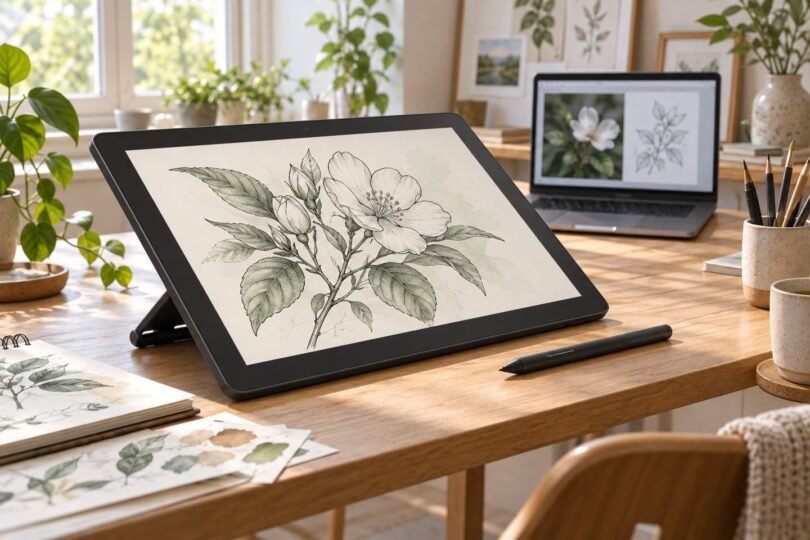
Image note: AI-generated editorial illustration of generic items; not a photograph of a named or recommended product.