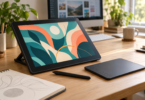
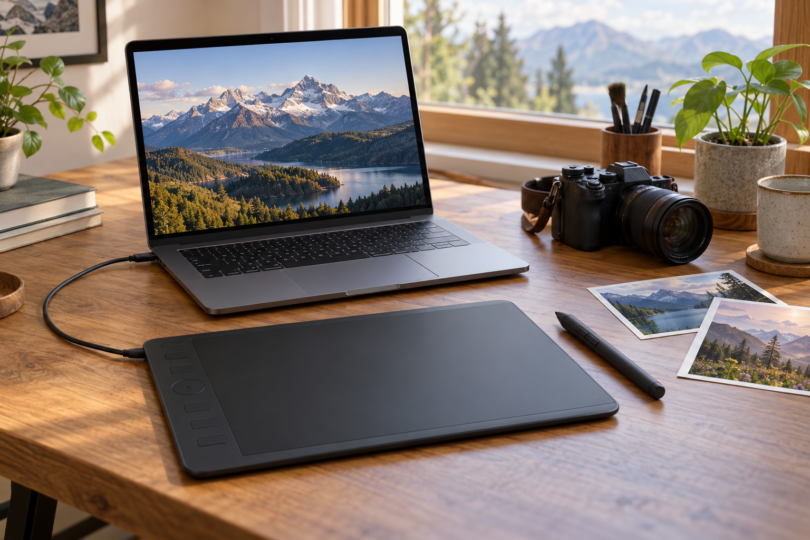

For photo editing on a computer, start with the Wacom Intuos Medium Bluetooth if wireless connection matters, the XPPen Deco 01 V3 if you want a larger working area, or the Huion Inspiroy 2 M if a scroll wheel and grouped shortcuts suit your workflow. These are screenless pen tablets: you work with the pen on the pad while watching the computer’s display.
We compared manufacturer specifications, driver documentation, Photoshop guidance and exact product listings. We have not hands-on tested pen feel, latency or retouching speed. “Best” here means a good fit for a particular setup, rather than a measured overall winner.
Three pen tablets for photo editing
| Exact option | Active area | Connection and controls | Best fit | Main limitation |
|---|---|---|---|---|
| Wacom Intuos Medium Bluetooth, CTL6100WLK0, black | 8.5 × 5.3 inches | Bluetooth or USB; four ExpressKeys | Wireless desk setup with Wacom’s Photoshop guidance | Fewer tablet shortcut keys than the other two |
| XPPen Deco 01 V3, DECO01V3-BLACK | 10 × 6.25 inches | USB; eight shortcut keys | More pen travel in a larger workspace | Wired connection; manufacturer support for Photoshop issues |
| Huion Inspiroy 2 M, black | 8.7 × 5.4 inches | USB-C; eight keys, three group keys and scroller | Brush-size and zoom shortcuts at the tablet | More controls to configure; no wireless connection |
Wacom Intuos Medium Bluetooth: for a wireless workspace
The Intuos Medium Bluetooth has an approximately 8.5-by-5.3-inch active area, a battery-free Pen 4K and four customizable ExpressKeys. The black CTL6100WLK0 selected here connects over Bluetooth or the supplied USB cable. It is the medium Bluetooth model; the small wired Intuos is a different purchase.
Pros: Bluetooth gives you an option for placing the tablet without a data cable across the desk. Wacom also has a clear place in Adobe’s tablet guidance, which explains application-specific settings and brush pressure. That documentation is useful if Photoshop is your main editor.
Limitations: There is no multi-touch input, and its four tablet keys offer fewer shortcuts than the eight on the XPPen and Huion. The included cable has USB-A at the computer end, so check whether your computer needs an adapter. Bluetooth capability does not make the tablet a standalone computer.

Wacom Intuos Medium Bluetooth, Black, CTL6100WLK0
As an Amazon Associate we earn from qualifying purchases.
XPPen Deco 01 V3: for a larger active area
The Deco 01 V3 provides a 10-by-6.25-inch working area, eight programmable keys and a battery-free pen. It connects by USB. This black DECO01V3-BLACK selection is specifically the V3, so check the generation when a listing also shows older Deco 01 models.
Pros: The larger working area is worth considering if you prefer broader hand movements. Eight keys give you room for commands such as undo, zoom and brush-size changes. XPPen lists Photoshop among its compatible programs, and provides product-specific Windows and Mac drivers.
Limitations: It needs a wired connection. Its advertised 16,384 pressure levels do not establish better retouching results than another tablet. Adobe says it does not test or officially support non-Wacom tablets, so Photoshop troubleshooting for this model may require XPPen’s help.

Huion Inspiroy 2 M: for scroller and shortcut control
The Inspiroy 2 M has an 8.7-by-5.4-inch working area, a battery-free PW110 pen and a USB-C connection. It combines eight press keys with three group keys and a scroller. The medium black model is the option here; the small and large versions have different working areas.
Pros: The group keys let you switch shortcut assignments, while the scroller’s documented functions include zoom, brush-size adjustment and scrolling. That is a useful arrangement to consider if you often reach for the keyboard during brush work. Huion’s manual describes Windows Ink support for Photoshop CC.
Limitations: This is a wired tablet with no internal power source. The extra controls are useful only if you take time to set them up for your editor. As with XPPen, Adobe directs support for non-Wacom hardware to its manufacturer; do not assume every app or brush will use every pen feature.

Check software compatibility before buying
Tablet compatibility and photo-editor compatibility are separate checks. A tablet maker may list an older operating system that the current Photoshop release no longer supports. Compare your installed OS and intended Photoshop version with Adobe’s desktop system requirements, then verify a driver for that same system and exact tablet model.
For the Intuos, use Wacom’s driver page and its supported-model list. Use the Deco 01 V3 download page or Huion’s Inspiroy 2 download page for the alternatives. Broad “Mac compatible” or “Windows compatible” wording is a starting point, not confirmation for every OS release or processor.
Pressure needs support from the application and the selected brush. In Photoshop, Adobe’s guide describes choosing Shape Dynamics and setting its Control to Pen Pressure. Follow the manufacturer’s driver setup as well; Huion’s manual specifically discusses enabling Windows Ink. Test a pressure-sensitive brush after setup before judging whether the pen works correctly.
For Lightroom or another photo editor, check the functions you actually use rather than assuming Photoshop’s brush controls carry over. Likewise, a tablet’s Android or ChromeOS connection support does not establish that it runs the desktop version of your editing app. These pads provide input to another device; they do not contain your photo-editing software.
How to choose the right size and controls
Choose the working area around your desk and preferred hand movement. The Deco 01 V3 has the largest active area of these three, while the Intuos Medium and Inspiroy 2 M are closer in size. Bigger is not automatically more precise or comfortable. If you can, try drawing a few masks or brush strokes with the tablet mapped to your monitor before committing.
Start with a small set of shortcuts you already know. Wacom’s four keys may be enough if your keyboard stays nearby; XPPen adds more dedicated keys; Huion adds switching groups and a scroller. Treat advertised pressure-level counts as specifications, not a ranking of image quality, pen feel or editing speed.
Frequently asked questions
Do these tablets show the photo under the pen?
No. They are screenless input tablets used with a connected device. You look at the computer display while moving the pen on the tablet. If you want to work directly on an image, look for a pen display or a separate standalone pen computer instead.
Which would you choose for Photoshop?
The Intuos Medium Bluetooth is a sensible starting point if wireless use and Adobe’s Wacom-specific setup guidance matter to you. The Deco 01 V3 and Inspiroy 2 M are alternatives for a larger area or different shortcut controls; their manufacturers document Photoshop use, but Adobe does not officially support those third-party tablets.
Does a pen tablet need charging?
The included pens in all three selections are battery-free. The Bluetooth Intuos tablet itself has a built-in rechargeable battery; its battery-free pen does not eliminate that charging need. The two wired alternatives connect by USB.
Will more pressure levels improve my photos?
The specification alone does not establish that. Pressure can control a supported brush, but the application settings, pressure curve and your technique also matter. None of the published pressure counts in this comparison is a measured image-quality or ease-of-use score.
Can I use one with an older Mac or Windows PC?
Possibly, but check the exact tablet driver and photo-editor version first. Wacom’s current driver release has its own OS and supported-model lists, and XPPen provides model-specific downloads. Huion’s broad OS list also needs to be checked against its driver download and your application. An old compatibility label does not guarantee support for a current editor.