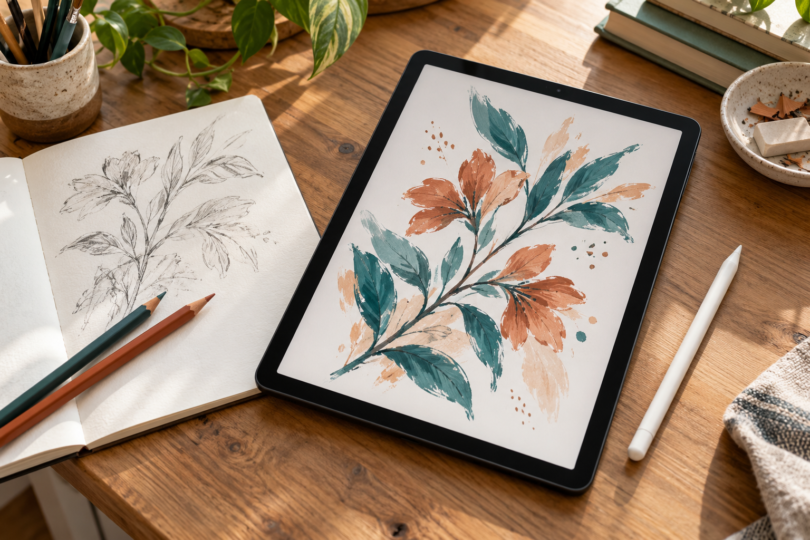

The best touch-screen tablet for drawing is the one that runs your preferred art app and works with a pressure-sensitive pen. Our starting points are the iPad (A16) with Apple Pencil (1st generation) for Procreate, the Samsung Galaxy Tab S10 FE for Android drawing with an included S Pen, and the Wacom One 13 touch for drawing directly on a screen connected to a computer.
All three have a display and support finger touch. The iPad and Samsung work independently; the Wacom needs a compatible host device. These picks compare manufacturer specifications, setup documentation and exact buying configurations. We have not performed hands-on pen-latency, color-accuracy or battery tests.
Best touch-screen drawing tablets at a glance
| Drawing setup | Best fit | Pen and extra equipment | Main limitation |
|---|---|---|---|
| iPad (A16), Silver, 128GB Wi-Fi | Standalone drawing in Procreate and other iPad apps | Apple Pencil (1st generation) sold separately; USB-C to Apple Pencil Adapter required | The compatible USB-C Pencil lacks pressure sensitivity |
| Galaxy Tab S10 FE, US Gray, 128GB Wi-Fi / 8GB RAM | Standalone Android drawing with the pen already included | Included FE S Pen; wall charger and stand separate | Android app selection differs from iPad; no Procreate |
| Wacom One 13 touch, DTH134 | Pen drawing and finger gestures with desktop art software | Host computer, Wacom One Standard Pen and suitable cables; eStore contents depend on configuration | It does not run drawing apps by itself |
1. iPad (A16): best for a Procreate drawing setup
The iPad is our pick when Procreate is the reason you are buying a tablet. The selected configuration is the Silver 128GB Wi-Fi iPad (A16), MD3Y4LL/A. Apple’s specification sheet lists an 11-inch-class, 2360 × 1640 Multi-Touch display; its rectangular measurement is 10.86 inches. You can draw without connecting a computer, then use the same device for reference images, reading and everyday apps.
Buy the right Pencil. For pressure-controlled brush strokes, pair this iPad with Apple Pencil (1st generation), which supports pressure and tilt. It is a separate purchase. Pairing and charging require the USB-C to Apple Pencil Adapter and a USB-C cable. Apple’s current first-generation Pencil package lists the adapter, but check older stock and used listings rather than assuming it is present.
The compatibility list also permits Apple Pencil (USB-C), but that model has tilt without pressure sensitivity. Apple Pencil Pro and the second-generation Pencil do not work with the A16 iPad. Apple supports palm rejection with Pencil; individual apps still determine brush behavior and finger gestures. A generic capacitive stylus is not an equivalent substitute for this drawing setup.
Software and cost: Procreate’s listing requires iPadOS 16.3 or later, and the developer offers it as a separate purchase without a subscription. Keep the iPad and app updated. Do not assume an iPad edition of an art program has every feature, plug-in or license entitlement of its desktop version.
- Pros: self-contained drawing; access to Procreate; pressure and tilt with the correct Pencil.
- Cons: the pen adds to the total; first-generation Pencil pairing needs an adapter; no microSD expansion.
- Check the box: the cited US tablet package includes a USB-C charge cable and 20W USB-C adapter, but no Pencil or stand.

Apple iPad (A16), 128GB Wi-Fi, Silver
As an Amazon Associate we earn from qualifying purchases.
2. Samsung Galaxy Tab S10 FE: best with an included pen
The Galaxy Tab S10 FE is the more straightforward purchase if you want an Android tablet with its drawing pen already in the box. The selected offer is SM-X520NZANXAR, US Gray, 128GB Wi-Fi with 8GB RAM. Samsung documents a 10.9-inch, 2304 × 1440 LCD with a 90Hz refresh rate and an Exynos 1580 processor. The screen refresh specification is not a measured pen-latency result.
The included FE-series S Pen is the drawing tool to use. Samsung identifies the matching S9 FE/S10 FE pen family as EJ-PX510 and documents pressure and tilt support. It is different from buying a generic stylus or the separately sold S Pen Creator Edition. This FE pen does not need charging or Bluetooth pairing for drawing, and it does not provide Bluetooth Air actions.
Use an Android art app that supports S Pen input, such as Clip Studio Paint, or start with Samsung’s Notes and PENUP tools. Pressure, tilt and handling of accidental hand contact depend on the app, brush and touch settings. Check the app’s pen-only or finger-gesture controls before a long session; these recommendations do not establish flawless palm rejection in every app. Samsung’s manual also warns that very sharp pen angles and nearby magnets can interfere with recognition.
Software and cost: Procreate is an iPad app, so choose a different program here. Clip Studio Paint’s tablet plans are separate from its Windows/macOS perpetual license, and ongoing use can require a paid plan after a trial. Check the current plan and supported Android version for the features you need. The tablet runs its apps locally without a PC or desktop tablet driver.
- Pros: included pressure-sensitive S Pen; standalone Android use; microSD expansion for compatible files.
- Cons: wall adapter and supporting case cost extra; no Procreate; no HDMI output or wireless DeX on this FE model.
- Check the configuration: the selected package lists one tablet, S Pen, data cable, ejection pin and quick-start guide. It is the standard S10 FE, not FE+, Lite, a cellular model or a charger bundle.

3. Wacom One 13 touch: best for drawing with a computer
The Wacom One 13 touch DTH134 suits someone who already has a compatible computer and wants to draw on the image while keeping desktop software. It has a 13.3-inch, 1920 × 1080 IPS display. It is a connected pen display, with no independent art-app operating system. Do not confuse it with the screenless One by Wacom, the older DTC133 display or the pen-only Wacom One 12.
The recommended pen is the Wacom One Standard Pen CP92303B2Z: battery-free, with 4,096 pressure levels, two side buttons and support for up to 60-degree tilt. DTH134 also has 10-finger touch and palm rejection. Wacom explains that touch is temporarily disabled when the pen is detected, and a physical switch lets you turn touch off. Gesture availability still depends on the operating system and application.
Plan the connection before ordering. Wacom’s model-specific setup guide supports USB-C from a computer port that carries video, with extra power if needed. A charge-only USB-C port or cable is insufficient. The alternative uses the compatible Wacom 3-in-1 cable, HDMI, USB-A and power adapter. Install a supported Wacom driver on Windows or macOS; check the current driver requirements for your exact OS instead of relying only on older minimums printed on a box. Android and Chromebook connections have their own device and display-mode restrictions.
- Pros: direct-on-screen drawing with desktop apps; real finger touch; battery-free pressure-and-tilt pen.
- Cons: host computer and cables required; less self-contained for travel; desktop software licenses remain separate.
- Check the package: Wacom distinguishes USB-C, 3-in-1 and customizable eStore packages. The base eStore configuration can omit the pen, cable and power adapter. Add the exact Standard Pen and connection equipment you need; a stand is optional.
Check Wacom One 13 touch specifications and configuration options at Wacom.
How to choose a touch-screen tablet for drawing
Start with your drawing app. Choose iPad for Procreate, Android for an Android workflow, or a connected display for software on your computer. Check export formats, layers, brush support and ongoing license costs. A paid desktop license does not automatically include a tablet edition.
Separate touch from pen features. Finger touch handles navigation and gestures. Pressure changes a supported brush as you press; tilt can change shading or shape. Palm rejection helps prevent accidental contact, but app settings still matter. None of these features proves better drawing quality simply because a specification number is larger.
Compare complete setups. Include the pen, adapter, charger, cables, stand and app. For the Wacom, include the computer if you do not own one. For a portable tablet, check whether fixed storage is enough for your layered files and backups. Avoid declaring a tablet the cheapest based on its device-only price.
Make the workspace comfortable. A stable support and a position that lets you draw without hunching can matter more than another processor upgrade. Try your usual brush, handwriting size and palm position during the seller’s return window. Check that policy for the exact offer before buying.
Which drawing tablet should you buy?
Choose the iPad (A16) plus first-generation Apple Pencil for a portable Procreate setup. Choose the Galaxy Tab S10 FE when you prefer Android and want an included pen. Choose the Wacom One 13 touch when desktop applications are central to your work and you have a compatible host and connection. The right choice follows the app and the complete equipment list.
Frequently asked questions
Can any touch-screen tablet use a pressure-sensitive drawing pen?
No. The tablet must support the exact pen technology, and the app must support pressure input. A generic stylus that imitates a finger does not add pressure sensitivity or reliable palm rejection to an unsupported tablet.
Which Apple Pencil should I buy for drawing on iPad A16?
Choose Apple Pencil (1st generation) if you want pressure and tilt sensitivity. Pairing and charging require the USB-C to Apple Pencil Adapter and a USB-C cable. The compatible USB-C Pencil lacks pressure sensitivity; Pencil Pro and the second-generation Pencil are incompatible.
Does the Galaxy Tab S10 FE include its drawing pen?
Yes. The selected US 128GB Wi-Fi package includes the FE S Pen. It supports pressure-sensitive drawing without charging or Bluetooth pairing. Check the chosen app’s brush and touch settings; a wall charger and supporting cover are separate purchases.
Does Wacom One 13 touch work without a computer?
It needs a compatible host device and a video, data and power connection. It does not run art apps independently. For Windows or Mac drawing, confirm the current driver and connection requirements and the exact pen and cable contents before ordering.
Do these tablets all run Procreate?
No. Procreate runs on supported iPads and is a separate purchase without a subscription. It does not run on the Galaxy Tab S10 FE or directly on the Wacom display. Choose an Android or desktop art program appropriate to those setups.