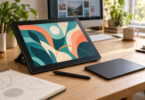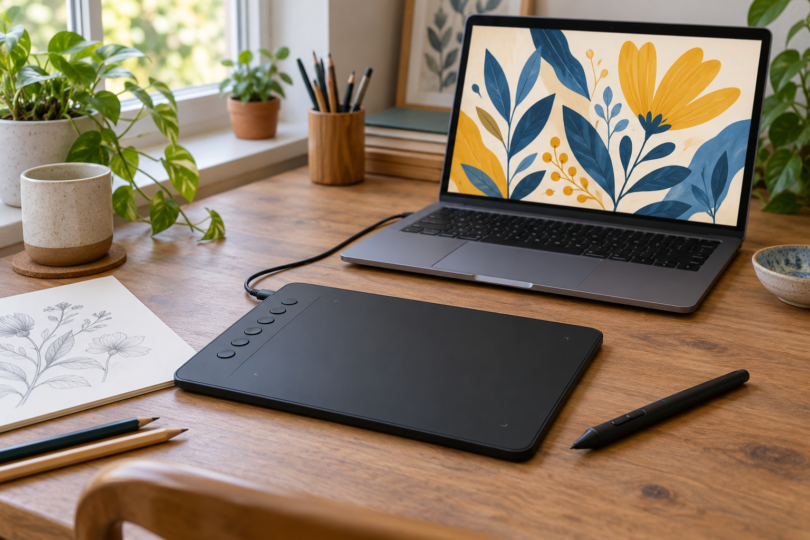

For a budget drawing setup built around a computer you already own, start with the XPPen Deco 01 V3 for its larger drawing area and tilt support, or the Huion Inspiroy 2 S for a smaller pad with a scroll wheel. Both include battery-free pens and need a connected host device. You draw on the pad while looking at that device’s screen, so these picks suit someone willing to learn that coordination.
| Exact pick | Best fit | Useful controls | Main compromise |
|---|---|---|---|
| XPPen Deco 01 V3, Black | A larger 10 × 6.25-inch drawing area | Eight shortcut keys and 60° pen tilt | Needs a connected device and room for the larger active area |
| Huion Inspiroy 2 S, Black, H641P-Black | A compact 6.3 × 3.9-inch drawing area | Six shortcut keys and a customizable scroller | No pen tilt on this S model |
XPPen Deco 01 V3: best for a larger drawing area
The Deco 01 V3 is the first pick if you want space for broader hand movements. Its 10 × 6.25-inch active area is larger than the Inspiroy 2 S’s 6.3 × 3.9-inch area. XPPen specifies a battery-free pen, 16,384 pressure levels, 60° tilt support and eight customizable express keys. Those are useful features for a low-cost input device, though the pressure-level count alone does not establish better line quality.
Choose it for a drawing workflow where you would rather keep several commands on the tablet than reach for the keyboard each time. Decide which tools you actually use before assigning the eight keys. Tilt support also makes it the more suitable of these two choices if your intended brush workflow depends on pen angle; check that your application and brush settings use that input.
This is a connected pen tablet with a USB interface. The included battery-free stylus does not need charging, but that does not make the tablet wireless or independent of the host. The manufacturer lists Windows, macOS, Linux, Android and ChromeOS support with version requirements. It also warns that some foldable or detachable Chromebooks may have mapping problems, so verify your exact computer or phone before buying.
At the October 12 check, the XPPen US store displayed a $49.99 product price for the Deco 01 V3. Treat that as a dated comparison point and check the current color, bundle and delivered total. A modest tablet price is only useful if your existing computer can run the drawing software you want.
- Reasons to choose it: the larger active area, eight customizable keys, included battery-free pen and documented 60° tilt support.
- Reasons to choose the Huion instead: you prefer a smaller active area or want a scroller among the tablet controls.
The linked Amazon configuration is the Black Deco 01 V3, model DECO01V3, one tablet. Check the selected model and color when the listing opens, along with the seller, condition, included accessories and current price. The captured main offer did not show a usable price, so the manufacturer price above should not be read as an Amazon quote.

XPPen Deco 01 V3 Drawing Tablet, Black
As an Amazon Associate we earn from qualifying purchases.
Huion Inspiroy 2 S: best for a compact pad with a scroller
The Inspiroy 2 S gives you a 6.3 × 3.9-inch active area in a body that Huion lists as 246 × 152 mm and 275 g. The selected Black configuration is H641P-Black. It includes the battery-free PW110 pen and has six programmable keys plus a customizable scroller. If you want a small pad beside a laptop, those dimensions make it the more compact starting point for this shortlist.
The scroller is the main reason to choose it over a basic keys-only pad. Huion says its sensitivity can be adjusted in the driver, and the keys and scroller can be customized. Make a short list of the commands you want on the pad, then check the available assignments in the driver for your operating system. A control is useful only if it fits the way you work.
Be careful with the size names. Huion’s specification table gives the Inspiroy 2 S no tilt support, while the M and L versions have different specifications. The S has 8,192 pressure levels; it is a reasonable feature match for someone who wants pressure input and shortcut controls without requiring tilt. Choose the Deco 01 V3 if tilt is a requirement for your planned brushes.
The Inspiroy 2 S connects by cable through its USB-C interface and requires a compatible computer or mobile device. It has no built-in drawing display. Huion documents a 180° driver setting for left-handed use, but you should still check the driver and host requirements for your own setup before ordering.
- Reasons to choose it: the small active area, six customizable keys, scroller and included battery-free PW110 pen.
- Reasons to choose the XPPen instead: you want more drawing area or need tilt input; neither comes from buying this smaller Huion model.
The purchase link is for Inspiroy 2 Small, Black, one tablet. Keep both the Small size and Black color selected and confirm model H641P-Black. The captured Amazon main offer did not show a usable price, so compare the current delivered total with the Deco before choosing. Verify the seller, condition and included pen on the offer you select.

How to keep the whole setup within budget
Start with your host device and the drawing application you plan to use. Confirm the current tablet driver supports that operating system, the necessary cable or adapter is included, and pressure input works in your intended app. If possible, try the application’s basic drawing workflow on your computer before spending money on accessories.
Use the active area to compare these tablets: it is the surface that accepts pen input. The Deco’s larger area favors someone who wants more room for hand movement; the Huion’s smaller area favors someone who wants a compact working zone. Neither size is automatically more accurate or easier for every person.
Set your own maximum for the tablet, software and any required adapter together. Compare the delivered totals for the exact variants above, then read the return conditions for the selected seller. Skip extra accessory bundles unless you can identify what each item adds to your setup.
Frequently asked questions
Can either tablet work without a computer?
Both need a compatible connected host. Some supported mobile devices can serve that role, but neither pick is a standalone drawing computer. Verify the exact phone or tablet, operating system, connection and application before relying on mobile use.
Do I draw directly on a screen?
No. These are screenless pen tablets: the pad accepts pen input while the connected host displays the drawing. If drawing directly on a display is essential, these two picks do not meet that requirement.
Does the included pen need charging?
Both manufacturers specify battery-free pens for these models. The tablet itself still needs its wired connection to the host.
Which one supports pen tilt?
The Deco 01 V3 supports up to 60° tilt. The Inspiroy 2 S does not; avoid carrying over the M or L model’s tilt specification to the S.
Which is the better first purchase?
Choose the Deco 01 V3 if its larger drawing area and tilt support match your plans. Choose the Inspiroy 2 S if you prefer a compact pad with a scroller. Make the final decision after checking host compatibility and the current total for the exact configuration.