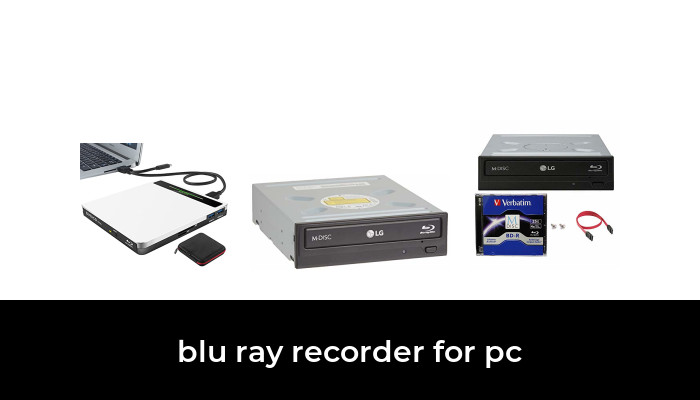

A Blu-ray recorder for a PC needs to write Blu-ray media, not simply read a Blu-ray movie while burning DVDs. Look for an explicit BD-R or BD-RE write specification. Then choose the connection that suits your computer: an external USB writer for a laptop or an internal SATA writer for a desktop with a suitable drive bay.
The ASUS BW-16D1X-U and BW-16D1HT below cover those two setups. Both have documented Blu-ray recording support, but they need different power and installation arrangements. This comparison uses manufacturer specifications and the exact product listings rather than hands-on burn testing.
Two Blu-ray writers to compare
ASUS BW-16D1X-U for an external desktop setup
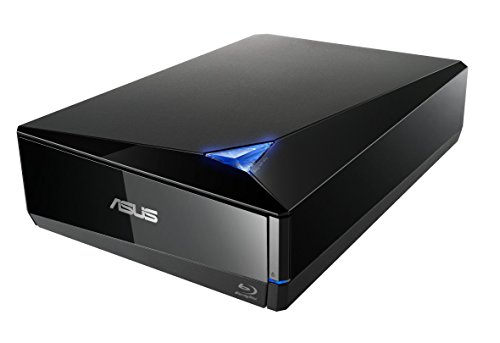
ASUS BW-16D1X-U Blu-ray Writer, Black USB-A External, One Drive
As an Amazon Associate we earn from qualifying purchases.
The BW-16D1X-U is the practical format to consider when you want to connect a writer without opening your PC. ASUS specifies a USB-A host connection, currently labeled USB 3.2 Gen 1×1, and a separate 12-volt power adapter. The older USB 3.0 wording in the Amazon title refers to this model’s USB connection; it does not mean the drive is powered entirely by USB.
Its maximum write rates include 16x for standard BD-R, 12x for dual-layer BD-R, 8x for triple-layer BD-R and 6x for quad-layer BD-R. BD-RE writing is listed at 2x. The headline 16x figure therefore does not apply to every blank disc.
Choose it for: a desk-based laptop or desktop installation where an external enclosure is convenient. Check first: room for the enclosure and opening tray, a nearby power outlet, the included adapter and cable, and software compatibility. At roughly 1.1 kilograms, it is a substantial desktop accessory rather than a slim travel drive. A USB-C-only laptop also needs a suitable data adapter or cable arrangement.
ASUS BW-16D1HT for a desktop with an optical bay

The BW-16D1HT belongs inside a desktop computer. It uses SATA rather than USB and requires both a SATA data connection and the appropriate power connection from the PC. Check that your case has an accessible 5.25-inch optical-drive bay, a free motherboard SATA port and enough clearance behind the drive.
ASUS lists the same 16x maximum standard BD-R writing rate, with lower limits for multilayer and rewritable media. Its specification also explicitly lists single-layer M-DISC BD-R writing at up to 4x. Those format-by-format details are more useful than assuming that every disc carrying a Blu-ray logo will record at the headline speed.
Choose it for: an existing desktop tower whose case and connections support an internal optical drive. Check first: mounting hardware, SATA cable, software and the seller’s exact package contents. A bare or seller-bundled drive may arrive with different extras from a retail box. It is not a direct replacement for a thin laptop drive, and a simple unpowered SATA-to-USB cable is not a complete external enclosure.
Confirm that the drive actually burns Blu-ray
Optical-drive listings often combine several capabilities in one title. “Blu-ray player, DVD writer” may mean the drive reads BD-ROM movie discs but writes only CDs and DVDs. “Combo drive” can describe the same limitation. A listing mentioning USB-C, 3D playback or a high transfer rate still needs a separate Blu-ray write specification.
Before ordering, find the manufacturer’s write-speed table and match the model number. Look for the media you plan to use, including whether the drive supports single-layer, dual-layer or BDXL recording. A BD-ROM read speed is not evidence of BD-R writing. Avoid treating a television Blu-ray player, capture card or streaming stick as a PC optical writer.
Choose the disc format before buying a spindle
- BD-R: recordable media for a disc you do not need to erase and reuse. Standard capacities include 25GB single-layer and 50GB dual-layer.
- BD-RE: rewritable media, useful for a trial project or files you expect to replace. Check both the drive’s support and the disc’s supported recording speed.
- BDXL: higher-capacity Blu-ray media that needs explicit compatible hardware. Triple-layer BD-R can hold 100GB; supported quad-layer media can reach 128GB.
- M-DISC: check the exact M-DISC format and capacity against the writer’s specification. Support for one M-DISC format should not be stretched into a promise about every M-DISC product.
Verbatim’s explanation of BDXL media distinguishes standard 25GB and 50GB discs from its 100GB triple-layer discs. Consider the receiving computer or player too: a disc that your writer can create still needs a compatible reader at the other end.
Start with a small quantity of the intended media. A supported format establishes compatibility on paper, but it does not establish the quality of a particular batch or predict the success of every recording. Check the completed disc before committing a large archive to the same workflow.
Separate burning, authoring and movie playback
Data burning puts files on a disc. It is appropriate for folders of photographs, documents or video files that a compatible computer will read. Video authoring prepares a disc structure for playback in compatible Blu-ray players, potentially with menus and chapters. Copying an MP4 file onto a data disc does not automatically create an authored Blu-ray movie.
Commercial movie playback is a third task. It needs compatible playback software and a suitable computer/display setup. A drive appearing in Windows does not prove that a movie will play, and a disc-burning program is not necessarily a licensed movie player. Check the current software edition, operating-system requirements and supported disc formats before paying for a bundle.
ASUS lists Windows software with these models, but also warns that bundles can change. Do not assume an old product description’s software download, license or operating-system claim still matches the package being sold. Verify what is included, whether any code is unused and whether it supports your intended job.
Do not infer Ultra HD movie support from BDXL
BDXL data recording and commercial Ultra HD Blu-ray movie playback are different requirements. A writer’s ability to record large discs is not enough to establish a working UHD movie setup. Nor does “4K” in a marketplace title prove that the necessary software remains supported.
This matters particularly with older buying guides: CyberLink discontinued UHD Blu-ray disc playback support in PowerDVD 20, 21, 22 and PowerDVD 365 as of November 2023. Neither drive here is being recommended as a verified commercial UHD movie-playback solution. If that is your main goal, resolve the entire hardware and current software requirement before purchasing.
Set up the first recording carefully
- Connect and power the drive correctly. For the external model, follow ASUS’s guide for the USB cable and supplied power adapter. For the internal model, turn off and disconnect the PC before installation and follow the PC case and drive instructions.
- Check recognition and media support. Confirm that your recording application identifies the actual writer and the inserted blank disc. Choose a speed supported by both.
- Prepare a modest first project. Use files whose originals are safely stored elsewhere. Choose data recording or video authoring deliberately.
- Keep the recording stable. Leave the drive on a firm surface, avoid moving it during use and prevent the computer from sleeping or disconnecting the drive mid-burn.
- Verify and reopen. Use the application’s verification option when available. Eject and reload the finished disc, open representative files and test on the intended receiving device.
Verification is a useful check of the recording you just made; it is not a guarantee of unlimited storage life. Keep another independent copy of important files, handle discs by the edges and follow the disc manufacturer’s storage guidance. Do not delete your only original simply because the recording application reported success.
Frequently asked questions
Can an ordinary external DVD writer record Blu-ray?
Only if it explicitly supports Blu-ray writing. CD/DVD write specifications alone are insufficient, even when the connection is USB 3.0 or USB-C.
Will these writers work with Windows 11?
ASUS’s current specification pages list Windows 11 for both models. You must still check the recording or playback application’s current requirements and the exact computer setup.
Is 16x always faster than 6x for a finished project?
It is a higher maximum recording rate for supported media, not a promised total project time. The disc’s rated speed, media type, write strategy, source data and verification step all affect completion time. Video conversion and authoring can add substantial work before burning starts.
Which connection should I choose?
Choose the external BW-16D1X-U when you want a desk-based USB installation. Choose the internal BW-16D1HT when your desktop already has the right bay, SATA data port and power connection. Confirm the exact model, seller, package contents and return conditions before ordering either one.
Image note: Relevant existing category illustration retained.